
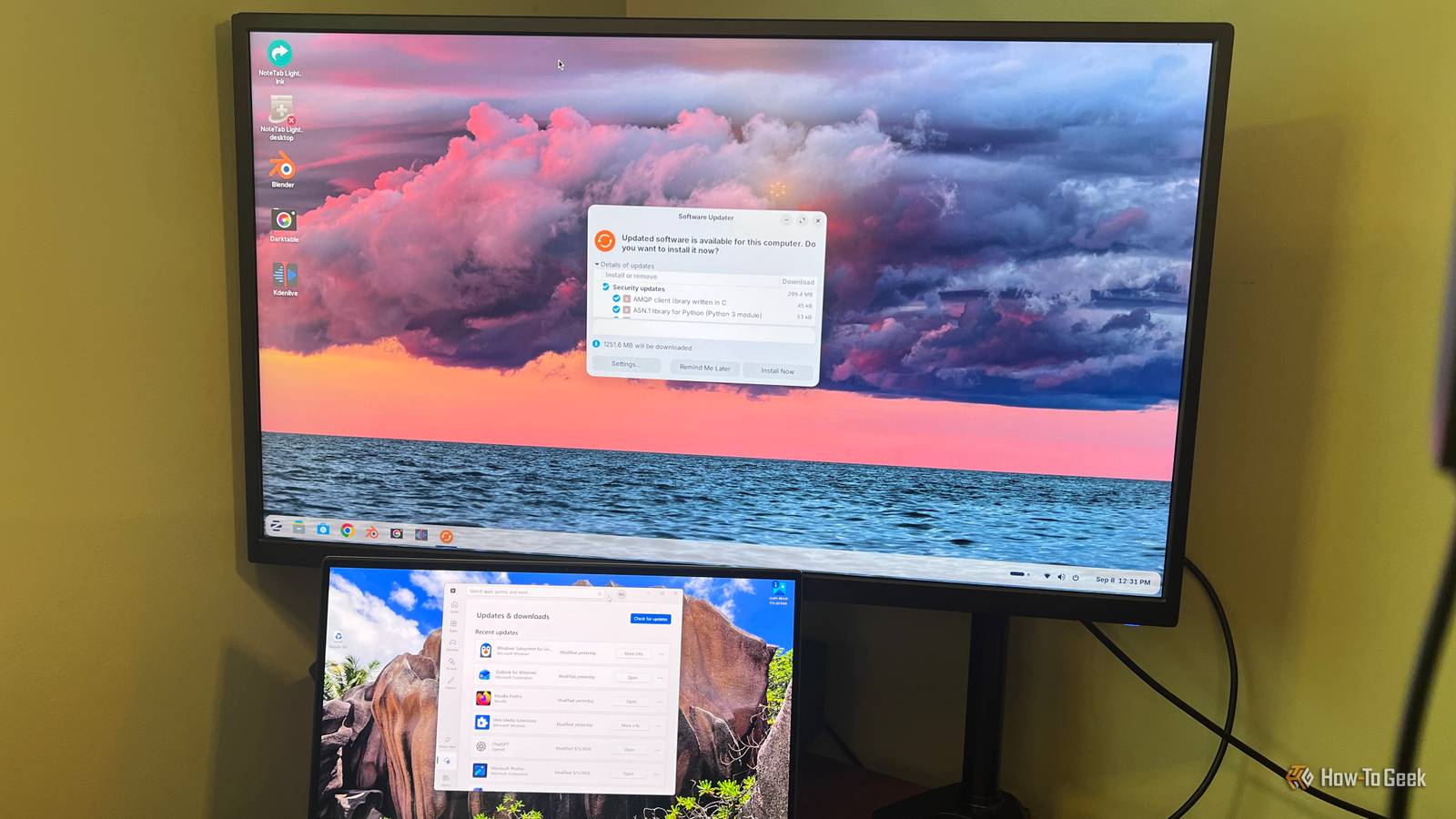
Published Sep 10, 2026, 8:00 AM EDT Rich Hein is a veteran technology journalist with more than two decades covering developer, consumer and enterprise topics. Rich's career has been dedicated to service journalism, connecting readers to content that informs and delights. Previously, Rich was vice president and editor-in-chief for Simpler Media Group, director of audience development for IDG and editor/writer for sites like CIO.com, ComputerWorld, CodeGuru and other tech-centric publications. He's received numerous accolades, including the IDG Summit and Azbee awards and has been covered by Medium for his work in audience development. When not at his desk, Rich lives in Daytona Beach with his wife and three dogs. He enjoys playing guitar, surfing and staying abreast of the latest in tech. I've been in the Windows camp for decades, and for years I thought Linux was simply harder to use. That was a pretty common view among Windows and Mac users, and for a long time, it was fair. That's not really the case anymore. Distros like Zorin OS have gotten far more user-friendly, so I wanted to see how they hold up against Windows in the kinds of tasks I do every day. I'm going to perform the same five tasks in both Windows and Zorin OS and see which one actually makes them easier. Installing apps and changing default apps Zorin OS wins on updates, not workflow I do a lot of software testing, so installing and uninstalling apps is something I do all the time. The same goes for changing default apps so the right program opens when I double-click a file or open a link. For this test, I installed Thunderbird on both Windows and Zorin OS through their respective software stores, then set it as the default email client. There really wasn't much difference between them. Neither one felt noticeably harder to use. Zorin OS gets the edge because it does a better job of surfacing available software updates when I start the PC, which makes keeping things current a little easier. This round was close, but I'm giving it to Zorin OS. Zorin OS feels very familiar here Finding and opening the apps I use every day is another area where Zorin OS feels a lot like Windows. Its Start menu works in a very familiar way, so there wasn't much of a learning curve. I could open the menu, search for an app, and launch it pretty much the same way I would in Windows 11. The main difference is what gets surfaced along the way. I'm not a fan of how the Windows 11 Start menu mixes in web results and suggestions that feel like nudges toward Microsoft products or services. Zorin OS keeps things much simpler and keeps the focus on the apps and files I’m actually looking for. The workflows are very similar, but that cleaner approach is enough for me to give Zorin OS another narrow win. Changing common system settings There isn't much separating them I spend a fair amount of time in system settings, usually for simple things like changing display scaling, swapping out a background image, or connecting a Bluetooth device. I tried those same kinds of tasks in both Windows 11 and Zorin OS to see if one made them noticeably easier. Neither OS pulled ahead here. The menus are organized a little differently, but the workflows are close enough that I never felt like I had to relearn how to do anything. Both made the settings I needed easy to find, and neither one got in my way. I'm calling this round a tie. Managing files and connected drives The experience is almost identical For this test, I had something practical I actually needed to do. I had screenshots from both operating systems for this article that I needed to move around using a USB thumb drive. That meant plugging in the drive, finding the files, copying them over, and moving them where I needed them. Once I plugged in the thumb drive, there was almost nothing to relearn. Both operating systems handle those basic jobs in almost exactly the same way. The thumb drive showed up where I expected it, and copying, moving, organizing, and even dragging and dropping files worked just as I expected on both systems. Neither one made the job noticeably easier, making this round another tie. Managing startup applications Zorin OS puts the controls in their own app Managing startup apps is easy on both operating systems once you know where to look. In Windows 11, the controls are a couple of levels down under Settings > Apps > Startup. Zorin OS takes a different approach with a standalone Startup Applications app where you can see and manage everything in one place. There is a catch. If you don't already know that app exists, you might go batty trying to find the setting in Zorin's main Settings app. Still, I prefer having startup management separated into its own tool instead of buried inside Settings. That's mostly a personal preference, but I'm giving this round to Zorin OS. Zorin OS gets the win I thought these operating systems would end up neck and neck, but Zorin OS came out on top. Most of the everyday workflows were nearly identical, but when there was a difference, I usually preferred the way Zorin handled it. Between its Windows App Support layer letting me run programs like NoteTab Pro and an interface that feels far less cluttered than Windows 11, I'm comfortable calling Zorin OS the easier operating system for these tasks.
I tested 5 daily PC tasks to see if Linux is actually harder than Windows
Full Article
Original Source
Read the full article at Howtogeek →KhanList aggregates and links to publicly available news content. We do not host full articles from third-party sources. Always verify important information with original sources.