
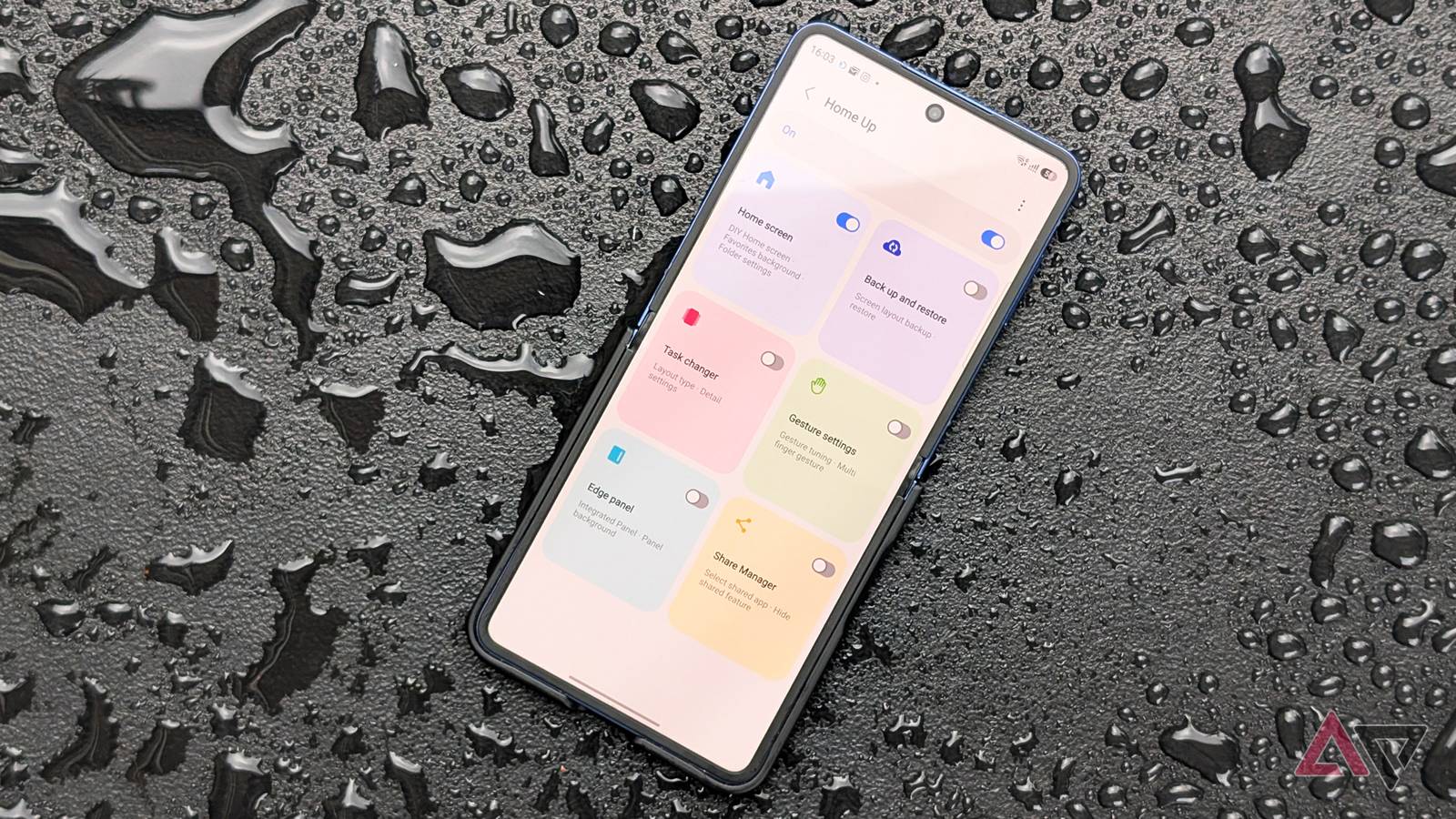
Published Nov 26, 2026, 3:00 PM EST Parth is a technology writer at Android Police, where he has published over 800 articles covering Android, productivity apps, artificial intelligence, and consumer technology. Before joining Android Police, he contributed to Guiding Tech and TechWiser, building his experience in software tutorials, troubleshooting guides, and practical technology coverage. His daily setup includes a Samsung Galaxy S25 Ultra, Google Pixel 8, MacBook Pro with M1 Pro, Samsung Galaxy Watch, and a Windows desktop. He regularly tests Android features, AI-powered tools, productivity software, and device integrations across these platforms. His writing draws on hands-on experience with the apps, devices, and workflows he uses in his everyday routine. Outside of writing and testing technology, Parth enjoys watching K-dramas, exploring emerging mobile technology trends, and following developments in artificial intelligence. One specific behavior on Samsung phones drives me up the wall: the Recents menu. Visually, the standard setup looks sleek, but functionally it's a productivity disaster, especially on a massive 6.8-inch display. Why am I forced to swipe four times to switch to an app I used 30 seconds ago? It's a complete rip-off from iOS and feels like a waste of screen real estate. I realized I was wasting minutes every day hunting for apps, until I flipped a single switch in Samsung's Good Lock suite. By changing the Task Changer layout to a simple grid, I didn't just change my phone's look; I finally fixed the broken multitasking flow. The problem with the default The phone decides how to set up my screen Let's talk about Android's default Recents menu. It is the part of the OS I interact with hundreds of times a day. On the surface, the horizontal carousel — which every Pixel, Samsung, and iPhone uses by default — looks slick. It has buttery-smooth 120Hz animations and puts the current app front and center. It looks fantastic in marketing commercials, but for actual productivity? It's far from perfect. Here is my issue. I'm holding a massive slab of glass. My phone has a 6.8-inch display that costs as much as a decent laptop. Yes, the operating system decides that the best way to utilize this canvas is to show me one app at a time. It feels like a waste of pixels. If I want to switch to an app I used five minutes ago — which is usually four or five slots back in the stack — I have to perform thumb gymnastics. That might sound like nitpicking, but when you are bouncing between Slack, Chrome, OneNote, and X all day, you need a better view to fly through them. Good Lock to the rescue I can now see more apps in the Recent Apps screen It baffles me that Samsung hides this level of power inside an optional app. But maybe that's what makes finding it feel so rewarding. The tool that saved my day is called Home Up. Even after you install Good Lock, you have to download this module, open it, and dig into a sub-menu called Task Changer. It is buried three layers deep — invisible to the average user. Inside Task Changer, you get a few flavors: List, Stack, Vertical List. But the one I locked onto is Grid. Stack, Vertical List, and Slim List are unsupported in One UI 8 and above (and Task Changer layouts are fixed to default in tablet desktop workspaces). Enabling this toggle transforms the Recent Apps screen from a horizontal treadmill into a 2x3 dashboard. Suddenly, I'm not looking at one app; I'm looking at six. The slim list option is too text-heavy and dry, while the vertical view requires too much swiping. Grid retains the app cards, so I can still recognize an app by its snapshot. Now, when I swipe up to switch tasks, I don't have to hunt. My email, calendar, notes, and browser are sitting there, waiting to be tapped. I know exactly where my Notes app sits in the grid, and I can tap it without thinking because of muscle memory. You'll find them buried in Good Lock Samsung's Good Lock team didn't only give us a new layout; they gave us the toggles to fine-tune it. In the Home Up add-on, you can tweak the home screen, gesture settings, edge panel, and even boost the share manager. This is just the Home Up module. You can also download LockStar to take your lock screen experience to the next level. Edge lighting+ is another neat add-on that lets you customize your edge lighting style in Good Lock. Good Lock has dozens of customization options buried inside. I recommend spending some time with Good Lock to get the best out of it. This brings me to the real reason I keep buying Galaxy phones, even when I prefer the Google Pixel's camera or iPhone's polished apps. Using a Pixel or an iPhone feels perfectly fine. It's nice, clean, and everything works – but you aren't allowed to make many changes. Using a Samsung phone with Good Lock feels like an ideal Android experience. I can change a core system animation like the multitasking menu — without rooting the phone or installing sketchy software. This is why One UI wins. It treats me like a power user who knows what they want. Mastering One UI It's strange to think that such a minor visual adjustment can have such an impact on how a phone feels, but that's the beauty of Good Lock. Changing the Task Changer to a Grid view removed a micro-friction I faced dozens of times a day. If you have a Samsung phone and access to Good Lock, do yourself a favor and try this layout for 24 hours. After your muscle memory adjusts to seeing six apps at a glance, the current layout will feel slow, and you won't want to go back. Here are other tweaks you can make to One UI.
I switched the Samsung Good Lock Task Changer to Grid view to see 6 recent apps at once
Full Article
Original Source
Read the full article at Androidpolice →KhanList aggregates and links to publicly available news content. We do not host full articles from third-party sources. Always verify important information with original sources.