
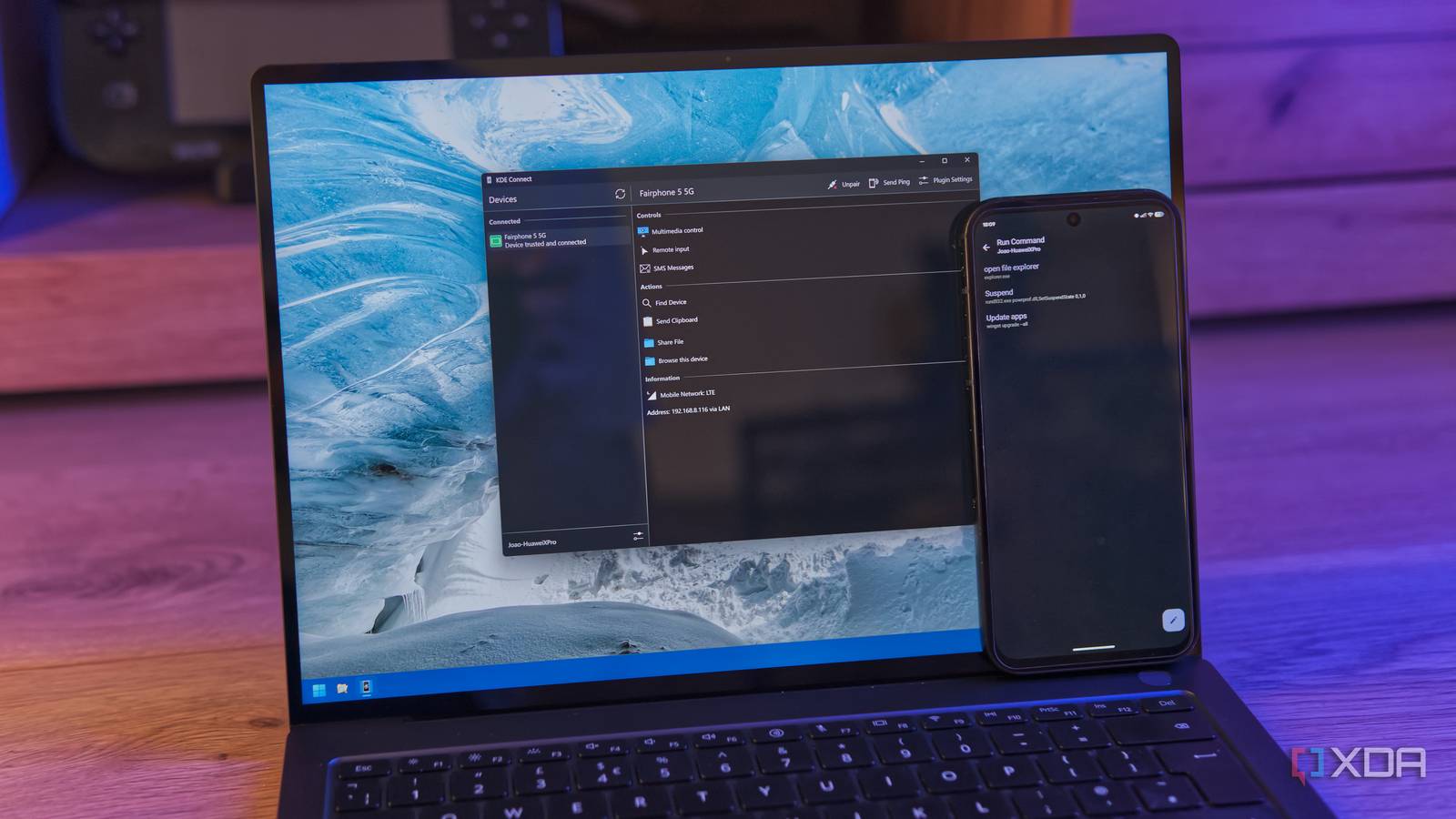
Published Oct 8, 2026, 9:00 AM EDT João has been covering the tech world for over 7 years, with a heavy focus on laptops and the Windows ecosystem. I also love all things tech and videogames, especially Nintendo, which he's always happy to talk about. Prior to joining XDA in 2021, he worked at Neowin: https://www.neowin.net/news/poster/jo%C3%A3o-carrasqueira/ One of the many flagship features Microsoft touts for Windows 11 is the cross-device connectivity you get between your PC and your phone, specifically if it's running Android. And it's true that there are some cool things you can do with a setup like this, but it's also still very limited. Meanwhile, KDE Connect has been around for a good while now, and it still offers capabilities Windows 11 can't or won't. Here are just a few of the features that should make you consider setting up KDE Connect. Yes, it goes both ways Windows 11's Phone Link lets you see plenty of info from your phone on your PC, and, to be fair to Microsoft, that does include media playback. That means I can play and pause a song from my PC, or skip a track if I want to. However, this only goes one way, meaning I can only control my phone from my PC. KDE Connect extends this to go both ways, meaning I can also control something being played on my PC using my phone. I'd argue this is even more useful than the other way around, since I can use it while my PC is connected to a big screen, or if I'm moving around and the house with music playing from my computer. Interestingly, the PC's music playback even integrates into Android's built-in system-wide music controls, so I can play/pause from my notification panel. This two-way communication applies to most things, so it's not just music playback, but things like notifications. I can see my phone's on my PC, but I can also see my PC's on my phone. Use a makeshift touchpad Who needs a mouse? I'll admit it's probably not the most common scenario, but if you've ever had to use a PC without a mouse or touchpad, or you simply want to get some distance from the PC and still be able to control it, KDE Connect has you covered too. When you link up a phone and a PC, you can use your phone as a touchpad to control the mouse on your computer, and you can even type using your phone's keyboard app. Again, if you have a laptop connected to a TV, for example, this could let you control the computer without having to get up from the couch. Plus, the two-way communication also matters here, as you can also use your PC's mouse to interact with your phone, and type using the physical keyboard, so you can send messages this way. It's admittedly not the most convenient setup, but it does work, and it's another thing Windows wouldn't let you do by itself. On that note, you can also send clipboard content from your phone to your PC and vice versa. Your Windows clipboard is automatically synced to your phone, but to share it the other way around you need to manually push that content due to how Android permissions work. Manage slideshow presentations A presentation remote with an unexpected twist If you've ever had to do a presentation in public, you know how much easier and more professional they can look when you have a proper presentation remote, rather than scurrying back to your computer to move on to the next slide. Microsoft used to provide a remote tool with its own Office suite, but that's no longer available. KDE Connect brings that back and makes it even better, at least in terms of compatibility. This is because, unlike Microsoft's old solution, KDE Connect works with other Office software such as OnlyOffice, and in fact, you can use it with any software, to an extent. One of the best features of the remote in KDE Connect is that you can also use a virtual pointer to highlight content on the screen, and in a strange twist, it actually uses your phone's motion sensor. You simply hold down the pointer button on your phone, and move it as you would with a real pointer to highlight whatever you want. And since it's independent from any presentation software, you can do this even if you're presenting something else. Of course, moving a presentation back and forth still requires an Office app. Run terminal commands Quickly launch apps or perform maintenance tasks Another big thing KDE Connect can do is run terminal commands on my PC with a single tap. I can add any command I want to the list on my PC, and simply tap it on my phone to run it. How useful this is will naturally depend on your use case and your creativity, but I was able to use it to run a winget upgrade command to update all the apps on my PC, or simply launch an app. You could add commands for maintenance tasks, or even something as simple as shutting down or rebooting your PC. This is likely the most versatile aspect of this connection, though that also means it's the one where everyone will see a different use case. For some people, it may not be worth much at all, but for others, it could be a game changer. Still, the fact remains Windows 11 wouldn't let you do something like this out of the box. KDE Connect is seriously impressive I mostly focused on the unique features of KDE Connect here, but of course, it can also handle some things you'd expect, like basic notification syncing, making calls, or sending SMS messages from your PC. It's a very robust tool, and it's made even better when you realize it can also run on Linux. KDE Connect OS Windows, Linux, Android, iOS
I switched from Phone Link to KDE Connect, and Windows 11 is missing these 4 game-changing features
Full Article
Original Source
Read the full article at Xda-developers →KhanList aggregates and links to publicly available news content. We do not host full articles from third-party sources. Always verify important information with original sources.