
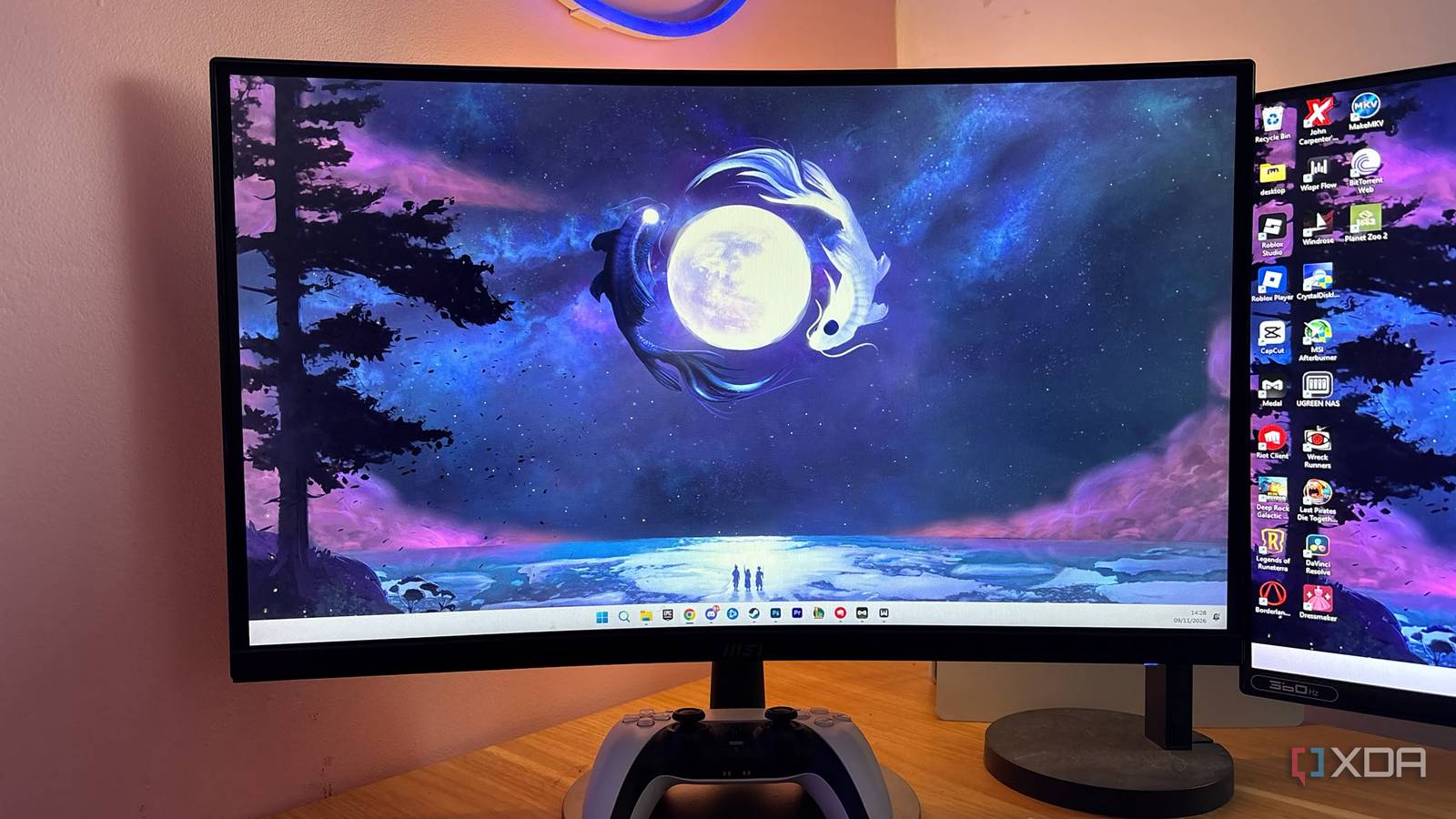
Published Nov 9, 2026, 5:31 PM EST Jasmine is Software and PC Hardware Author at XDA with years of tech reporting experience ranging from AI chatbots right down to gaming hardware, she's covered just about everything. Whether it's breaking news about the latest AMD NPUs or creating video tutorials on social media platforms, Jasmine has contributed to the world of AI and tech in a variety of ways including interviewing the CEO of Razer, AMD's Director of Product Marketing and the VP of Lenovo. Passionate about gaming and PC technology, she has built countless computers, keyboards and other peripherals - knowing them inside and out. An evening session in a dark room with a single high-brightness monitor can create extreme local contrast. Your pupils dilate to adjust to the dark room while taking in direct bright light from the display, which can cause digital eye strain and fatigue. Common attempts to fix this problem include overhead lighting and desk lamps, which can introduce glare, panel reflections, and unequal spatial illumination that washes out the screen's contrast. I opted instead for an inexpensive USB-powered LED strip taped to the back of my panel, providing enough bias lighting to reduce eye strain during long evening workflows and gaming sessions. You might be straining your eyes Bias lighting could be the solution Human visual perception calculates contrast dynamically based on the total area of the visual field, not just the single light source you're focusing on. This means that even though you're staring at a bright screen, your eyes are also adjusting for the dark room around you. According to visual calibration and grading practices, such as light illusion recommendations, surrounding a display with ambient light equal to or roughly 10% of the display's maximum luminance may reduce pupil constriction fatigue. Having around 15 to 20 nits of back wall lighting behind a 150- to 200-nit screen is roughly in line with elevating the background illumination. As a result, you narrow the dynamic luminance step between the monitor and the surrounding environment, allowing your pupil to stay stable and relaxed. It also increases the perceived contrast ratio. Human visual perception deepens black levels relative to surrounding light sources, so by adding bias lighting behind your screen, you can mask inherent backlight bleed and a low static contrast ratio. Dark tones, especially near the screen's edges, can visually collapse into deeper blacks due to the optical contrast illusion. This can reduce the impact of IPS glow without altering the monitor's physical hardware output. Unlike front-facing or overhead lights, a rear-mounted LED strip bounces light off the wall behind the monitor, acting as a broad, indirect diffuse radiator that largely avoids the glare of front or overhead lighting. What LED strip should you pick up? Funnily enough, you don't need the best of the best Picking up a budget-friendly USB LED strip is the easiest way to tackle this problem. I decided to pick up a standard 5 V DC-operated strip drawing power via a USB Type-A port. This let me plug it into a downstream monitor USB port and enabled synchronous power cycling. I don't have to worry about switching the light on and off independently. It instead automatically cuts power to the LED strip when my display is switched off. If you want your display to do the same thing, make sure it cuts power to its USB ports when it's off or in standby, since not all do. Low overall power consumption also means minimal thermal dissipation to consider, and I don't have to worry about thermal degradation of the plastic chassis or any of the internal display driver electronics. The industry reference standard for bias lighting is 6,500K, also known as the D65 white point. Most budget-friendly strips use fixed cool white LEDs, typically spec'd around 6,000K to 6,500K. However, ultra-cheap LED strips often use lower-quality phosphors that can drift toward 7,000K to 8,000K and, as a result, emit an uncalibrated blue spectral peak. This might lead to a color shift or a colder cast, so I'd personally avoid them. My eyes thanked me for the change And I didn't have to deal with glare After installing this budget-friendly LED strip, I found that over several weeks of evening use, whether that was writing, terminal navigation, or just gaming, my eyes felt significantly less strained and irritated. Before installing the bias lighting, I struggled with a lot of eye strain, forced squinting, and dry eyes. Sometimes, particularly during long gaming sessions, I would get headaches too, likely as a result of these issues with my eyes. I felt like I was no longer dealing with these issues, likely because I wasn't straining my eyes as much. While bias lighting doesn't directly address the dryness, I think the reduced strain definitely helped. Although I don't have an OLED panel, my perceived black level improved immensely too. Dark scenes in games and films had far less noticeable backlight bleed, making for a much more pleasant experience. I often avoid turning on overhead lighting because of the glare, and it was nice not to have to worry about that anymore. You don't need to invest in pricey lighting ecosystems A simple LED strip made a major change to my setup Fixing digital eye strain doesn't require expensive RGB ambient ecosystems like Philips Hue or Corsair ICUE smart lighting. These can easily cost over $100. A basic, budget-friendly 5V USB LED strip may address the fundamental physiological root cause of visual strain by elevating background ambient lighting, narrowing the spatial contrast ratio, and eliminating pupil-adaptation fatigue. Its impact on my daily visual comfort, image contrast perception, and overall eye health has made it one of the highest-value, lowest-cost modifications I have made to my desktop workstation. LED Strip This 5V USB LED strip comes in 6500K. It's perfect to use as bias lighting behind your monitor or TV.
I stuck a $10 USB LED strip to the back of my monitor, and my evening eye strain completely disappeared
Full Article
Original Source
Read the full article at Xda-developers →KhanList aggregates and links to publicly available news content. We do not host full articles from third-party sources. Always verify important information with original sources.