
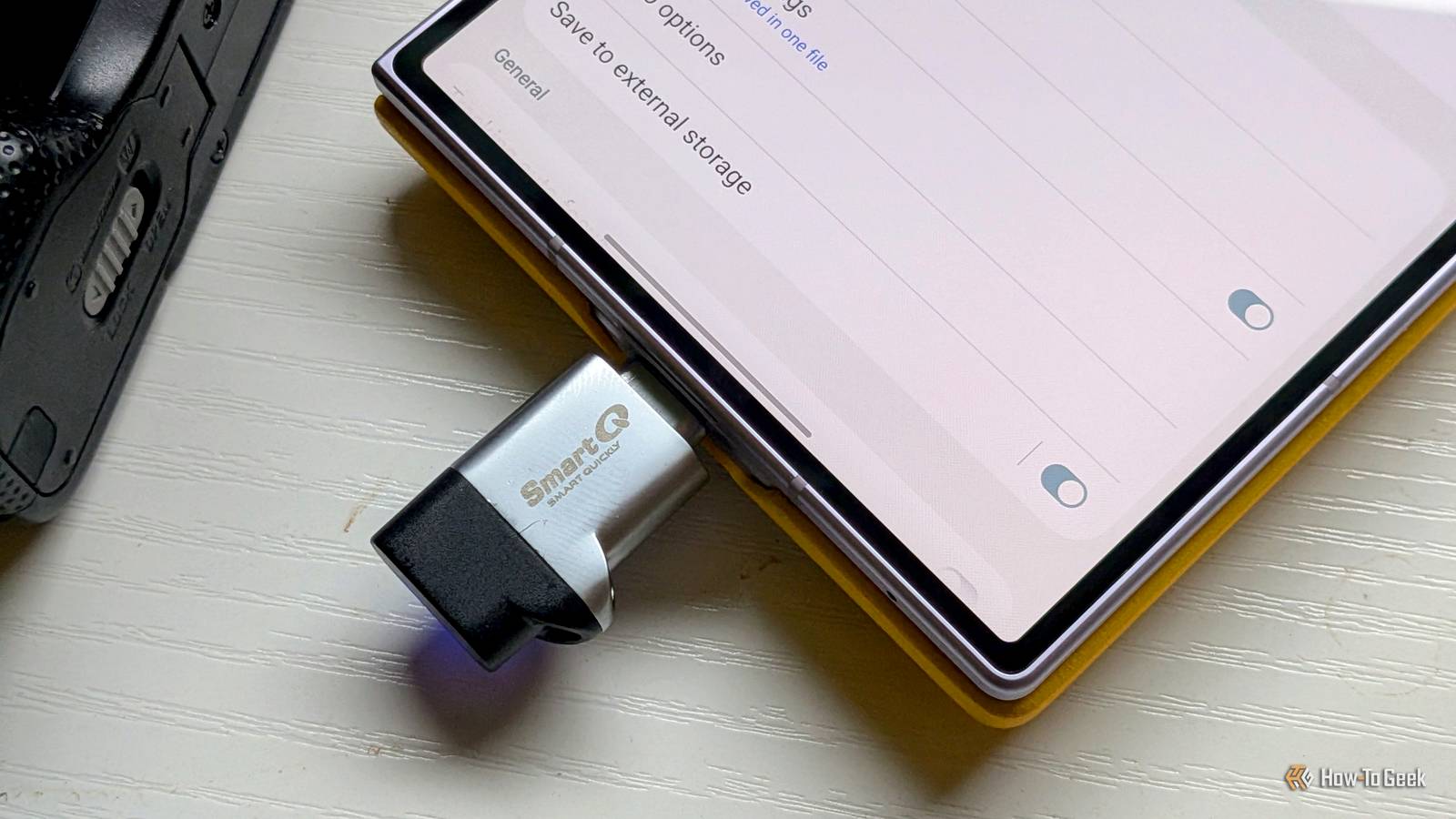
Published Sep 30, 2026, 4:30 PM EDT Cory Gunther is a senior author and Newsletter Editor at Valnet, covering cutting-edge tech, Android, and more for How-To Geek. He's covered Android, cars, and technology for over a decade. When he's not reviewing the latest gadget, you can find him off-roading in his Toyota truck, fixing said truck, or doing something outdoors with friends and family. He's covered CES, SEMA, and MWC and reviewed countless phones, TVs, speakers, EVs, e-bikes, and more. Before Valnet, Cory worked for GottaBeMobile. His writing has also appeared on SlashGear, InputMag, and AndroidCentral. He's written over 9,000 articles. Smartphones have more storage than ever these days, but running out of space still happens all the time, especially with the powerful cameras on newer Galaxy phones. My Galaxy S26 doesn't have a microSD slot, like most flagship Samsung phones, and whenever I record a long video or want to shoot in 4K or 8K, I worry. But after finding one little setting, it's no longer a concern. Did you know your Samsung Galaxy can record straight to a USB-C thumb drive or external SSD? It works incredibly well, saves me from worrying about space, and it's a feature more Android phones need. I'm looking at you, Google Pixel. Samsung's cameras are great, until your storage runs out It's a constant battle on 128 or 256GB phones As a new father, I'm constantly taking photos and videos, and it's not easy to keep up with storage and delete content I don't want to keep. To make matters worse, my Galaxy S26 Ultra records beautiful 8K video, and I've taken far too many slow-motion videos at 4K and 120FPS, which absolutely crushes my storage limits. Combine that with vacations, holidays, or sporting events, and my phone's been nearly full for months. I found myself cutting my daughter's videos short to conserve storage space, and that's frustrating. And sure, a few hidden Galaxy features gave me back over 15GB of space, which was nice, but I wanted more. I have a 256GB phone, and I didn't think I'd run into storage issues, but here we are. Even with occasional content offloading to Google Photos, the upkeep and constant battle remain. Since then, I've moved almost every video to the cloud, and I'm now using Samsung's nifty feature that lets me record straight to an external source or thumb drive. Here's what you need to know. Samsung lets the camera bypass internal storage But it depends on which model you have Credit: Bertel King / How-To GeekCredit: Hannah Stryker / How-To Geek Depending on which Samsung Galaxy phone you use, one little option in the camera settings menu does all the work. While this is available on most flagship phones, from the Galaxy S22 series to the Galaxy S26 Ultra, some models may require an additional step to enable it. To start, open the camera on your Samsung Galaxy, head to Settings, and scroll down about halfway until you see the Save to external storage option. Flip the toggle on, and you're ready to go. If you don't see it, you'll either need to open up Good Lock and look for Samsung's camera module or download Samsung's Camera Assistant add-on. This integrates into the camera software, and then you'll be able to find the external storage mode. Next, find yourself a good USB-C flash drive or a nice external SSD, plug it into your phone, and fire up the camera. When you record a video, you'll even get a prompt asking whether you want to save it to external storage. Go ahead and confirm, or hit change and toggle the setting, and start recording. Another solid option is the tiny SanDisk Extreme Fit USB-C drive. Conveniently, you'll see a "USB-C" label near the top-right of the screen, similar to where your Galaxy phone shows the resolution, stabilization, or whether HDR is enabled. Basically, it's an easy way to instantly look at the screen and know you're not using precious internal storage, but rather offloading the video to an SSD or thumb drive. More importantly, once you're done, hit the Menu button inside the Gallery app, choose USB storage, and you can even view the footage on the spot before you unplug the external storage. It's worth noting that you'll probably need to format the drive to exFAT first, as my Galaxy S26 didn't play nice with my old USB-C drive formatted in NTFS. And that's all there is to it. I bought SanDisk's tiny Extreme Fit, which is so small you'll barely notice it plugged into the bottom of your phone. It's fast enough for 4K video, and it's perfect for vacations or special events. After shooting endless photos and videos, I can add them to Google Photos on a PC or simply keep them saved there, instead of using precious space on my phone. The PNY Duo Link V3 is a solid option, too, with both USB-C and USB-A ports, making it easier than ever to transfer data and videos to different devices. PNY Duo Link V3 9/10 Capacity 256GB, 512GB, 1TB, 2TB Speed 1000MB/s read, 800MB/s write The PNY Duo Link V3 flash drive offers both USB-C and USB-A plugs. With USB 3.2 Gen 2 speeds, you can expect up to 1,000MB/s read and 800MB/s write speeds from this flash drive. Coming in 256GB, 512GB, 1TB, and 2TB storage sizes, this all-metal flash drive makes it easy to bring large amounts of fast storage with you anywhere. Skip the phone upgrade and do this instead Most flagship Galaxy phones are pretty similar these days, and the only reason I'd upgrade is for better battery life or more storage. As we all know, it gets pretty expensive when you choose higher-storage models of a Samsung Galaxy phone. Instead, keep the model you already have, grab a cheap flash drive, and use this trick to free up space on your phone. Interestingly enough, Samsung and Apple both have the option to save video to external storage right out of the box, but many other Android devices do not. If you have a Pixel, you'll probably need to download a third-party camera app to get this functionality.
I stopped worrying about Samsung Galaxy storage after finding this one camera setting
Full Article
Original Source
Read the full article at Howtogeek →KhanList aggregates and links to publicly available news content. We do not host full articles from third-party sources. Always verify important information with original sources.