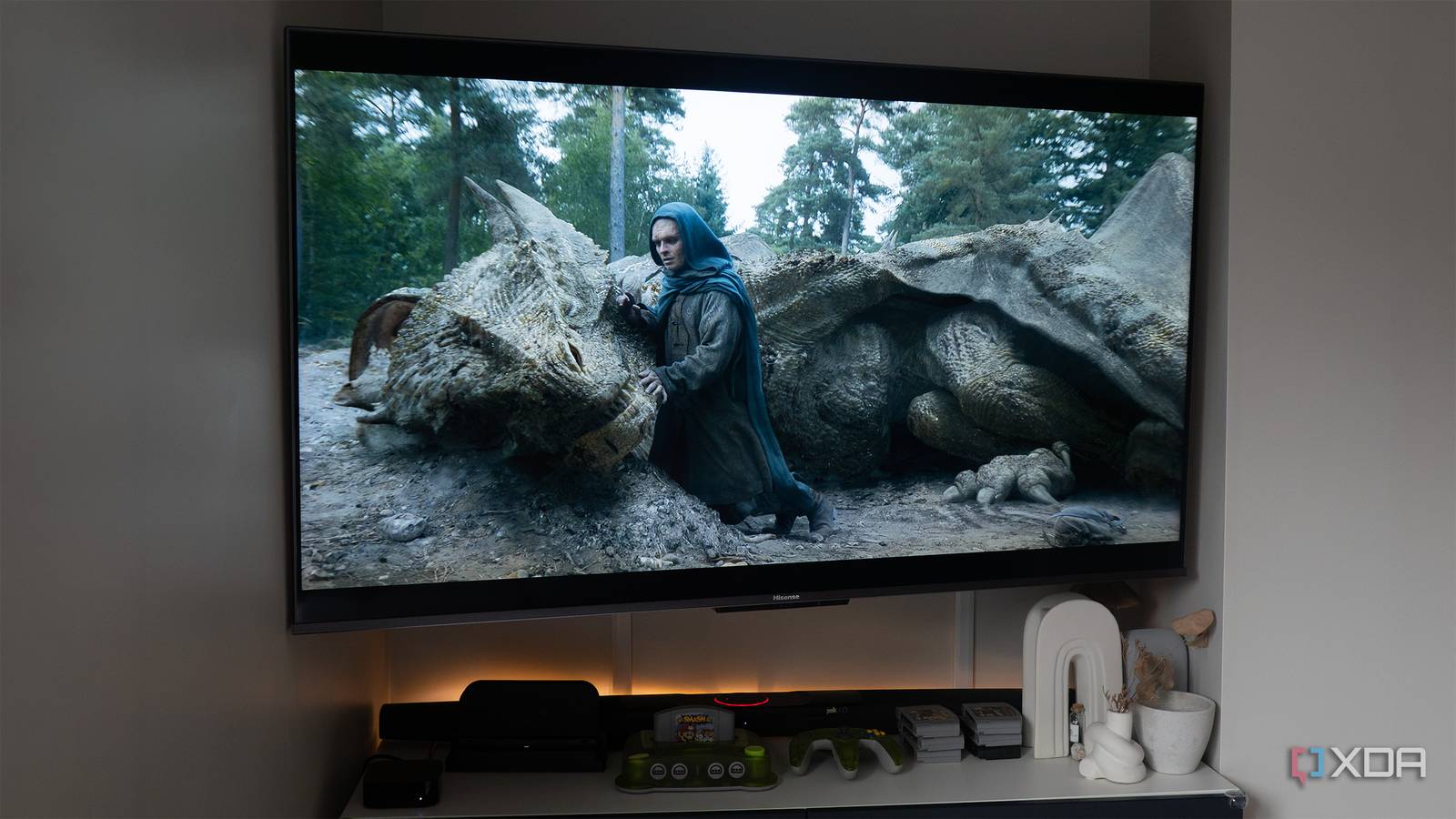
Published Aug 13, 2026, 11:30 AM EDT Patrick O'Rourke is XDA's News Editor and Entertainment Segment Lead. Previously, he was Pocket-lint's Editor-in-Chief, the Editor-in-Chief of Canadian tech publication MobileSyrup, and earlier in his career, he worked as the technology editor at the Financial Post and Postmedia. He's based in Toronto. Over the past 15 years, he's written thousands of articles. Patrick has also interviewed dozens of tech industry executives and covered GDC, E3, Gamescom, WWDC, Apple keynotes, Samsung Unpacked events and more. Patrick has a BA in journalism from Toronto Metropolitan University. I often stay up a bit later than my partner and son to catch up on whatever TV show I'm watching at the time. In most cases I use earbuds or headphones, so I don't wake anyone in my house and keep things as quiet as possible, but sometimes I just don't want to wear earbuds after having them in all day while working in my home office. This led me to use subtitles with the TV's volume primarily turned all the way down, which doesn't exactly result in a very engrossing TV experience, regardless of what I'm watching. Also, since I read and write as part of my job at XDA, I typically don't want to read subtitles in the evening when I'm chilling out (it can be pretty tiring after a long day). Then I discovered a very useful setting I'd never heard of before on my Hisense TV called Clear Voice. Ditch those subtitles for clean, clear dialogue I wish I knew this sound setting existed years ago At a very basic level, Clear Voice boosts dialogue clarity while toning everything else way down, including music, loud noises, and other ambient sounds in a TV show or movie. I've also found that it lowers the base considerably, which makes a lot of sense given even low booming can drown out characters talking. Television brands foten have different names for this feature. For example, Sony calls it Voice Zoom, Samsung refers to it as Active Voice Amplifier, and LG refers to it as Clear Voice. In my case, with my Google TV-powered Hisense U8H, the feature is called just Speech. Turning it on was very easy once I realized it existed and only required a few steps. First, to access this settings menu on my TV, I needed to turn off eARC and switch from the soundbar to my TV's internal speakers. Then I tapped the Settings button on my TV's remote, navigated to the Settings gear in the top-left corner of the display with the TV remote's navigation buttons, and tapped on it. Next, I scrolled to Display & Sound and Sound. Lastly, I went to Sound Mode and Speech. These steps will be different depending on your television model, but they should be at least somewhat similar. In most cases, some form of Speech mode should be available under your TV's Audio settings. Speech has also come in handy in a way I didn't really expect. Before I discovered the feature, I'd sometimes turn my TV's volume up a bit during certain parts of a TV show I really wanted to hear, with the intention of turning it back down again as soon as that part was over. In a lot of cases, I'd forget or move on to watch something else on another streaming service, only to be startled by a loud on-screen noise because every platform seems to level its volume slightly differently. With the Speech sound mode on, I've noticed that it levels my TV's volume across every app, whether it's Netflix, Amazon Prime, or Disney+. It even levels the sound through my Apple TV 4K, which is usually what I stream content with instead of my TV's stock Google TV operating system. One downside I've found is that Speech doesn't work with my Polk Audio Command Soundbar, which is a bummer since it's typically what I use with my TV, given that it's vastly superior in terms of quality compared to my TV's lackluster built-in speakers. If you use a soundbar with your TV, there's likely still an option Night Mode works great with my Polk Audio Command Soundbar Thankfully, my soundbar offers a similar feature called Night Mode that's easy to activate since I have it hooked up through eARC over HDMI. The sound is still a little bassy, and dialogue can be difficult to hear when my Polk Audio Command Soundbar's volume is turned down low, but I haven't heard any complaints from my partner yet, and it hasn't woken up my son. This setting works reasonably well and is a quick solution that doesn't force me to turn eARC on and off when I want to use my soundbar again. As a side note, my TV also offers a Night Mode sound feature that levels its internal speaker volume. I found this setting wasn't great for actually boosting dialogue, especially with quieter TV shows. With all of this in mind, my suggestion is to take a look at your soundbar first to see if there's some audio leveling or dialogue boost mode before changing your TV's settings. Of course, if you don't have a soundbar, Speech or a similarly named feature is likely what you're looking for if you want to free yourself from subtitles.
I stopped using subtitles after discovering this hidden TV audio feature
Full Article
Original Source
Read the full article at Xda-developers →KhanList aggregates and links to publicly available news content. We do not host full articles from third-party sources. Always verify important information with original sources.