
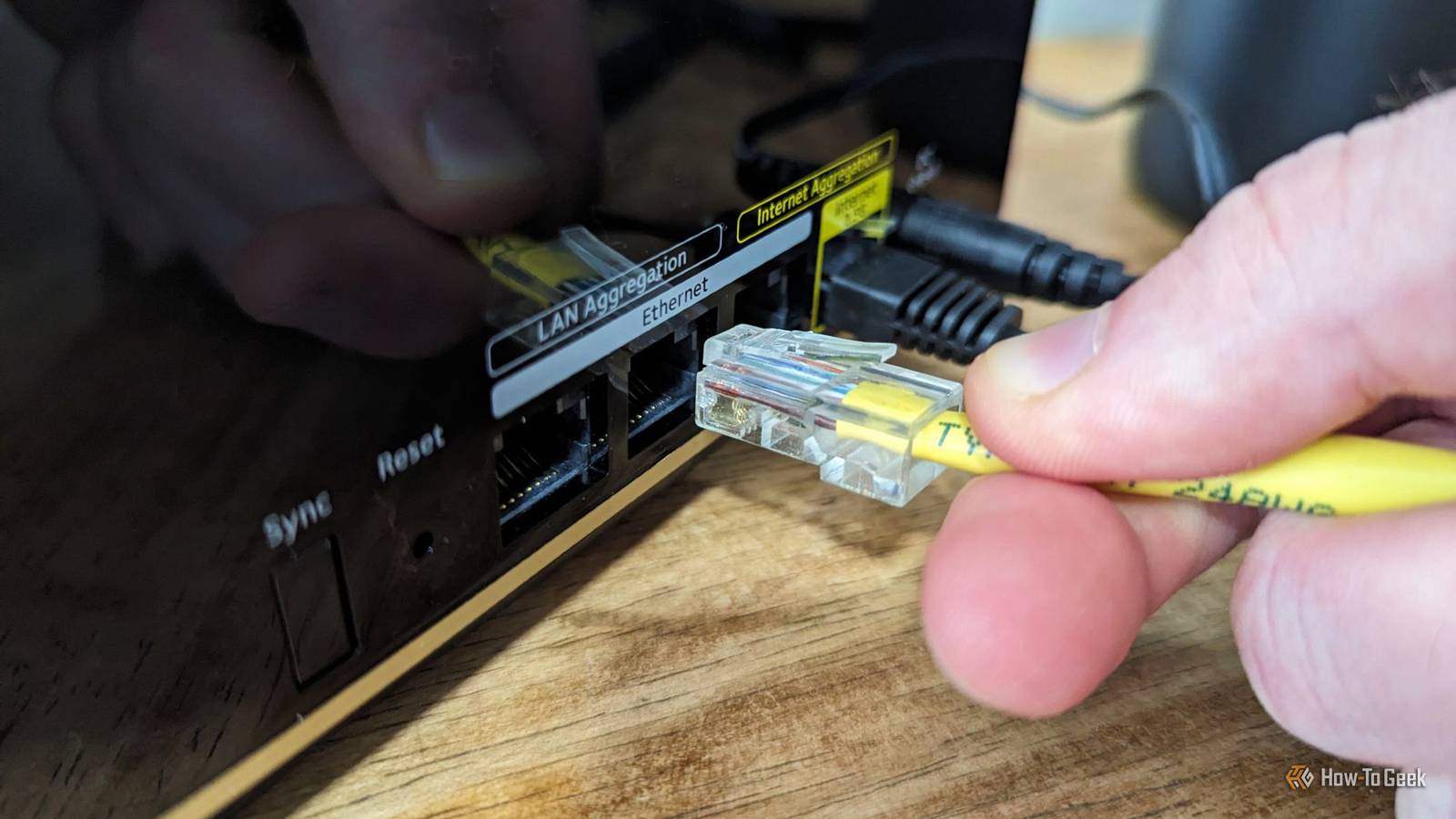
Published Nov 9, 2026, 9:30 AM EST Patrick Campanale has been in the tech space for well over a decade, specializing in PC/gaming news and reviews, as well as maker-focused products to build small businesses. With a start in technology back in 2010 surrounding the Palm/webOS ecosystem, Patrick spent his formative years developing mobile applications as well as blogging for various publications, eventually leading to starting his own website in 2014. After running a technology blog for a few years, he stepped out of that role and into the world of high-end custom PC manufacturing and building, with a focus on YouTube video production and overclocking. Then, in 2017, Patrick joined the 9to5Toys team as an editor/writer/reviewer with over 14,000 articles being published during his time there, ranging from deals and roundups to in-depth reviews on the latest technology, video games, 3D printers, and more. In his free time, Patrick loves to create projects from wood using various robots and methods, including leveraging the technologies of CNCs and lasers. If Patrick isn't working on a computer or playing video games, he's likely in his 2-car garage workshop creating something unique. In addition to all this, Patrick is also the media director at his local church where he feels God has called him to serve, and he loves every minute of it. While you might think to plug your desktop or smart home hub into your router’s Ethernet port, there’s a lot more to hardware for internet. From your printer to game console and even laptop, here are five things you might not have realized should be plugged into your router’s Ethernet ports. A printer While not all printers have an Ethernet port, many do—especially once you graduate from the throw-away models into the tank or laser printer category. Most printers these days have Wi-Fi, though, so why would you want to plug a printer into an Ethernet jack on your router? Having a wired network connection on a printer just makes everything more reliable. I’ve had multiple print jobs fail over Wi-Fi because of a signal issue with my router, but Ethernet fixes all of those issues with ease. Brother HL-L3295CDW Brother's HL-L3295CDW Color Laser Printer packs a print speed of 31 PPM for both black and color pages, has a 250-page capacity in the main tray and 30 page in the multipurpose tray, and features built-in Wi-Fi connectivity. With AirPrint compatibility and duplexing as stock features, this printer is perfect for your small or medium business as well as home office use. Laptop My main work machine is a laptop docked as a desktop (though I’m ready to replace it with a proper desktop). As such, I have a Thunderbolt 5 dock at my desk, which handles all the I/O I need to use my laptop as a desktop—including networking. While I have a Wi-Fi 7 router, and can hit multi-gig transfers wirelessly, I still rely on a wired network connection for my computers whenever possible. Wi-Fi is great, but wired Ethernet connections are simply more reliable and offer lower latency. Not all laptops have built-in Ethernet jacks these days. In fact, very few do outside thicker gaming models. That’s why, even if I don’t have my Thunderbolt dock handy, I keep a USB-C to Ethernet adapter in my laptop bag. If you want better (and more reliable) networking performance on your laptop, plug it into one of your router’s Ethernet ports. Plugable 2.5G USB-C/A Ethernet Adapter Brand Plugable Connection USB-C/A Plugable's universal plug-and-play USB-C/A 2.5G Ethernet adapter brings multi-gig networking to any computer you plug it into. Compatible with macOS, Windows, ChromeOS, and even iOS, this Ethernet adapter is perfect for adding Ethernet to a computer that doesn't have it, or simply upgrading your system with multi-gig networking. It also is compatible with everything from Thunderbolt 5 all the way down to standard USB 3.0. Nintendo Switch 2 Credit: Tim Brookes / How-To Geek The Nintendo Switch 2 brought with it many upgrades over the original model—networking being one of the big ones. While Wi-Fi is fine for some online gaming tasks, it’s possible that your Switch 2 might not be in the ideal position for optimal wireless performance. In those instances, Ethernet is the solution. The new dock included with the Switch 2 retains the built-in Ethernet port found on the OLED model, making it easier than ever before to connect your Switch 2 to wired internet. One of the main things that Ethernet can help with on Switch 2 is game download speeds, as you’ll have a very stable network connection that can download titles much faster than Wi-Fi in most instances. Nintendo Switch 2 4K Capability Yes, docked 4K Capabilities HDR The Nintendo Switch 2 is the company's latest hybrid home console, with more powerful graphics and processing, a larger 7.9” LCD touch screen with support for HDR, and more online features. PlayStation / Xbox Credit: Patrick Campanale / How-To Geek If you want a competitive edge over your competition in online gaming, then plug your PlayStation or Xbox into your router’s Ethernet port. While both consoles do support Wi-Fi, and it’s the default connection method for most people, Ethernet is just a better connection. I’ve already mentioned it several times, but it bears repeating how much lower the latency is and how much more stable the connection is compared to Wi-Fi. One thing that can make even the best internet connection feel slow is terrible ping—which Wi-Fi is known for, and connecting to your network via Ethernet solves. Connecting your console to Ethernet instead of Wi-Fi could help with lag spikes, latency issues, and other networking-related problems you might run into when playing games online. So, if you’ve had issues in any of those areas, try plugging your console into an Ethernet port on your router and see if it solves the issues. Xbox Series X 4K Capability Yes 4K Capabilities 2160p The Series X is the most powerful current-generation console and offers access to Microsoft Game Pass for a large library of subscription games out of the box. It also doubles as a UHD Blu-Ray player! Apple TV / Roku / Fire TV I don’t know about you, but I am constantly streaming content to my TV from my Plex server. I use an Apple TV for this, but what I’m about to say still applies to Roku and Fire TV just the same: use Ethernet. Already well-established, the lower latency and more stable connection that Ethernet offers can greatly benefit your streaming media player. Having your media streamer hardwired into your network helps to ensure a lag- and stutter-free streaming experience. While it doesn’t take a robust network to stream most TV shows or movies, having a solid connection can help make sure your streaming experience stays smooth. Roku Ultra Operating System RkuOS Connectivity luetooth, Ethernet, HDMI, USB, Wi-Fi The impressive Roku Ultra has everything you'd want from a streaming device, with Dolby Vision and Atmos providing quality 4K picture and sound. Using Wi-Fi for everything seems to be the default for most people. While Wi-Fi is extremely convenient, it’s just not as reliable as a hardwired connection—and I don’t think it ever will be. As Wi-Fi gets better and faster, Ethernet stays solid when it comes to stability and reliability. In my own homelab, I have a multi-gig connection between my laptop and router with Wi-Fi 7, but I still choose to use a wired 2.5Gb/s Ethernet connection because file transfers are simply more reliable and stable over Ethernet than wireless. So, if you still have devices on Wi-Fi that can be on Ethernet, it’s time to move over to the reliable side and plug that cable in.
I stopped trusting Wi-Fi for these 5 gadgets, and here is why
Full Article
Original Source
Read the full article at Howtogeek →KhanList aggregates and links to publicly available news content. We do not host full articles from third-party sources. Always verify important information with original sources.