
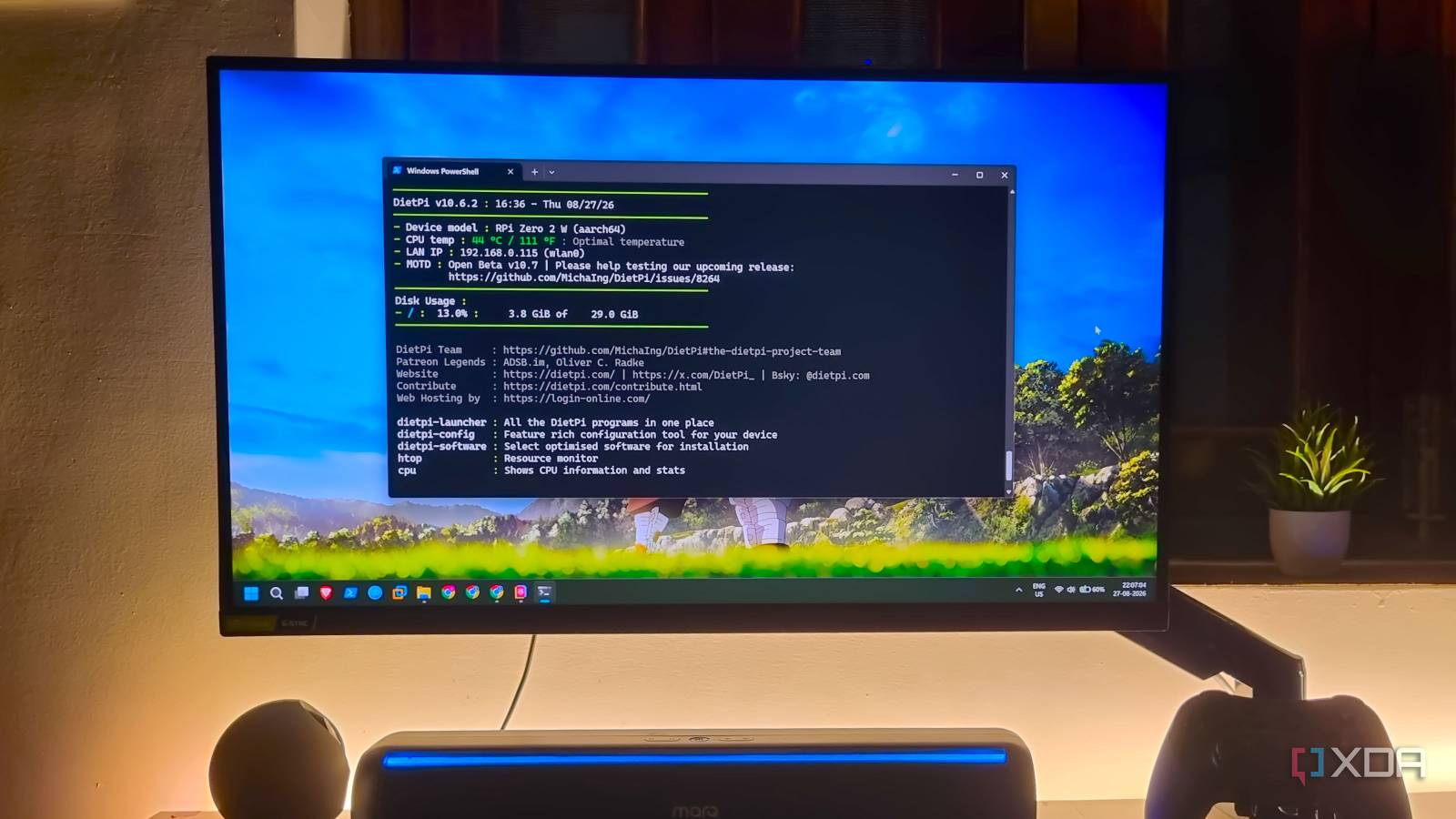
Published Aug 27, 2026, 3:31 PM EDT Abhishek is an author at XDA who covers computing. He has loved computers since he got the Lenovo G570 in 2012. Abhishek holds a master's degree in computer applications and began his writing career in 2018. He loves writing how-to articles, listicles, and informational posts on popular operating systems and web services. He closely follows the Windows Insider program and tests new Insider builds to discover upcoming experimental features and upgrades. His past work includes long-term collaborations with reputed publications like Tom's Hardware, and Windows Latest. When not writing anything, he is busy watching new episodes of One Piece or searching for something binge-worthy. Choosing the perfect Raspberry Pi OS isn't for the faint-hearted. Many options exist, and each tries to stand out, even though they share the same Linux OS. The most obvious choice is Raspberry Pi OS Lite, which comes without a desktop environment, and you must navigate the CLI interface to manage the device. However, it's not the most interesting choice for a new user or anyone who's not comfortable with a pure CLI operating system. I moved from Raspberry Pi OS Lite to Armbian andfinally settled on DietPi for all my SBCs. It's one of the best choices I've made, and there's no better alternative: DietPi is a lightweight, extremely convenient Raspberry Pi operating system. Let's discuss why I moved to DietPi and why I stopped looking for the next best thing. Raspberry Pi OS Lite is decent But it's not meant for everyone While the official Raspberry Pi OS has a desktop edition, it doesn't make sense for every Raspberry Pi model. Usually, when you buy an SBC, the idea is to build small-scale projects rather than use it as a normal computer. Another issue is that only the powerful Raspberry Pi models, like the Raspberry Pi 4B or the Raspberry Pi 5, can have the hardware resources to comfortably run both the GUI OS and apps on it. I have a couple of Raspberry Pi Zero 2Ws, and they cannot run the desktop edition of the official OS in full glory. So I looked for lighter options, and the next best thing was Raspberry Pi Lite OS. Even though it has the latest software updates and support, it's not what any beginner would prefer. Migrating from a desktop OS to pure CLI is chaotic, and the official OS doesn't do much to help in this scenario. You only get a device configuration menu that you can navigate with the keyboard, and you have to manage the rest of the tasks with shell commands. But DietPi doesn't assume that everyone is proficient with CLI and offers the best of both worlds with its design. DietPi is miles better A thoughtful approach to SBC OS When you first boot up DietPi, it doesn't look very different from other CLI distros. It just has a few more labels that describe the current OS version, IP address, and a few other entries. It didn't have the temperature stats label when I tried it a while back, but with the new update, the terminal shows that information as well. You'll rarely find it in any other Raspberry Pi distribution, and you will have to run commands to fetch this information. The next and most useful thing in DietPi is its whiptail menus. These are the menus you see when you boot up your BIOS and can navigate with the keyboard. DietPi takes this concept and implements it as a cornerstone of the OS design. So, you now have a huge assortment of custom tools that you can use via these whiptail menus. DietPi-launcher is the first thing that you'll run into, as it acts as a folder to list all the available tools. Software installation becomes a piece of cake with the dietpi-software tool, and a great example of that is NextCloud installation. It's not as simple as installing a single tool because you need to set up the core app, a database, and install additional dependencies to get it working. But if you use the dietpi-software tool, the whole process reduces to just a few clicks. All you need to do is browse the software, select it, and then install it. DietPi handles everything else, right from a database setup to additional dependency installation, and you don't need to type a single command. There are several preconfigured software options listed in the browse section. You'll find all the popular ones, like media servers, local cloud servers, download tools, and more. If you want the most common self-hosted tool, not a niche one, the dietpi-software utility can help. Core functionalities are built in Ample tools and a lightweight resource footprint Before I describe other useful CLI tools present in DietPi, one major reason for picking it is its lightweight design. DietPi lists the benchmarks on its official website, but I wasn't convinced and tried it myself. Armbian crossed the 100 MB mark, and so did the official Raspberry Pi OS Lite, but DietPi managed to stay under 70MB memory usage. Such a low memory consumption paired with low storage use is hard to find in an OS that bundles so many useful tools and features. The main advantage of low resource consumption is that you get maximum free resources for running your self-hosted tools on a low-end SBC. The Raspberry Pi Zero 2W is a great example: it packs just 512MB of memory, yet I can run three Docker containers without running out of memory. The OS uses about 70MB, leaving the rest for running Docker, its containers, and Tailscale. For other useful CLI tools, I love dietpi-drive_manager, which lets me easily mount external storage drives. Whenever you build a project that relies on an external storage device, the utility lets you create permanent fstab entries using its menus. So, you don’t have to edit configuration files to mount the storage manually. Similarly, the dietpi-explorer utility lets you browse the main boot drive and external storage and run other operations like speed tests, drive formatting, and more. I can also change read and write permissions for a specific app using this tool. Another one that I like is the ability to check, modify, and change the service state on your SBC. Each tool that you use creates a service, and when it glitches or doesn’t start properly during boot, the dietpi_services utility can be a reliable asset. SD cards aren’t the most reliable storage option, and adding an external drive for backup is necessary. On other Raspberry Pi operating systems, you would have to use the dd command and test the script to correctly identify and write the backups to the drive. But dietpi-backup makes it child's play: just add a storage drive, select the backup frequency, and then never worry about such stuff again. I use the backup feature because I run Vaultwarden on the SBC, and having a complete system backup can help if the SD card falters. No more confusion DietPi is the best SBC distro, in my opinion, and I won’t be switching for a while. It keeps on improving, and the bundle of useful CLI tools encapsulated in easy-to-use whiptail menus makes it a joy to work with an SBC. No other distro can match its lightweight nature, and it has strong, if not the best, community support. Raspberry Pi 5 CPU Arm Cortex-A76 (quad-core, 2.4GHz) Memory Up to 8GB LPDDR4X SDRAM The Raspberry Pi is back, and the fifth iteration of the SBC is a lot more capable than the older models. From a new quad-core Arm Cortex-A76 CPU, support for dual monitor setups at 4K 60Hz, and a dedicated power button, there's a lot to love about this palm-sized computer.
I stopped searching for the perfect Raspberry Pi OS because DietPi won by a landslide
Full Article
Original Source
Read the full article at Xda-developers →KhanList aggregates and links to publicly available news content. We do not host full articles from third-party sources. Always verify important information with original sources.