
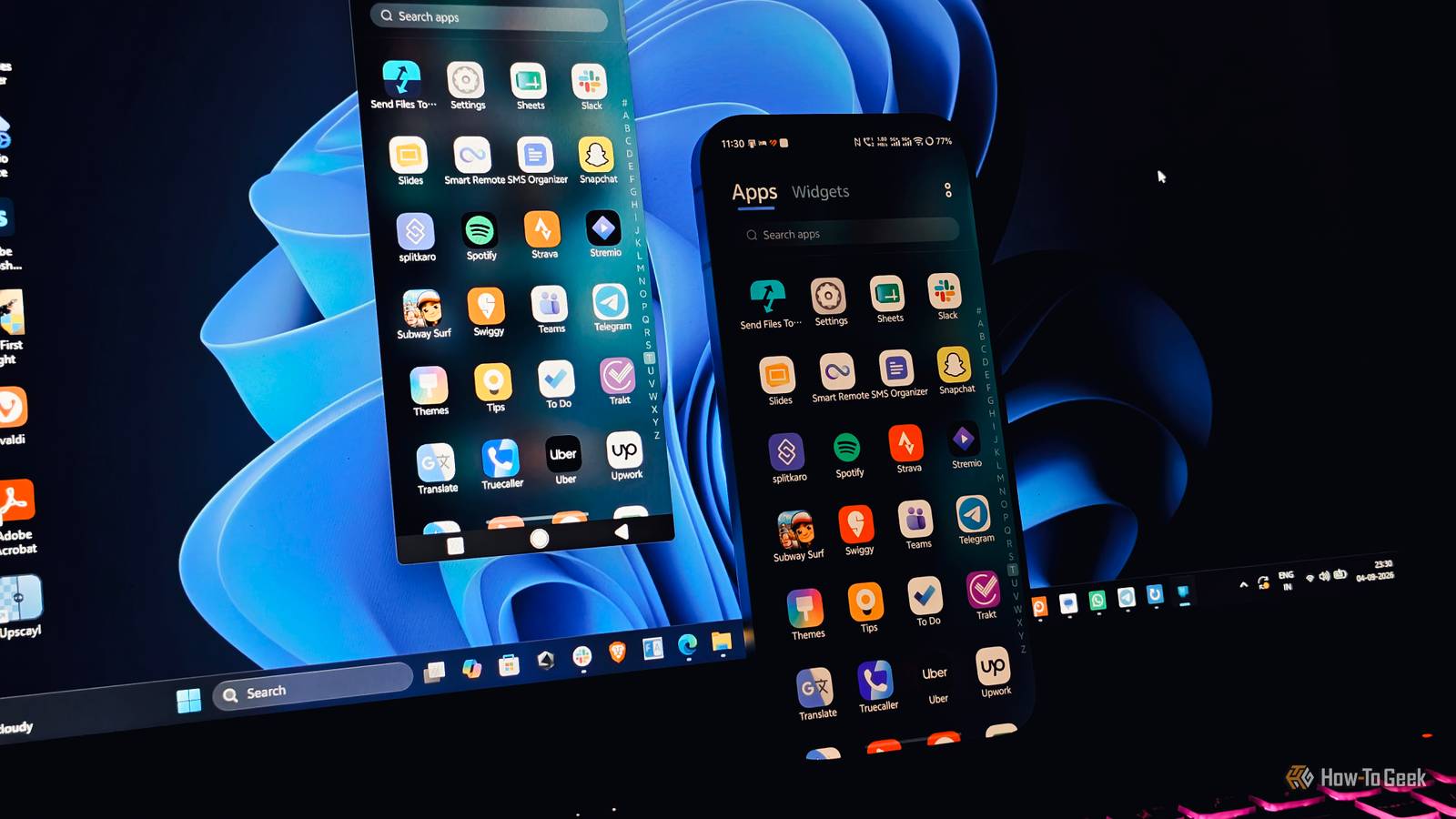
Published Sep 6, 2026, 1:00 PM EDT Vishwamoorthy's interest in tech started early, as a school student, watching Pixel 2 XL camera review videos and being awestruck by what a phone camera with excellent software could do. That curiosity stuck with him: since 2022, he's published over 1,500 articles covering smartphones, Android, and consumer tech news at FoneArena, one of India's leading tech publications. Lately, he's obsessed with how AI is reshaping the business world, the deals, the products, the quiet feature rollouts nobody notices until they're everywhere. Reading and writing about tech is what keeps him going; doomscrolling is what keeps him honest. Microsoft’s Phone Link is arguably the best cross-OS integration tool that closes the gap between your smartphone and Windows PC. For Android in particular, Microsoft has built some strong partnerships with major OEMs like Samsung, OnePlus, ASUS to integrate deeply with the OS, unlocking powerful features such as screen mirroring, app streaming, and cross-device clipboard. With my Android phone always staying connected to my Windows 11 PC, I often leverage these three features: using my phone camera as a high-end webcam, accessing recent photos instantly, and streaming my Android apps directly on my PC. This seamless cross-device experience has certainly reduced my habit of always searching for my phone and getting distracted while working. Drag and drop recent photos instantly Bypass wired transfer or cloud syncing for seamless desktop editing Modern Android flagships capture incredible, high-resolution photos, but scrutinizing those shots or editing them on a 6-inch screen isn't always ideal. When I want to view my gallery pictures on a large monitor, run them through desktop editing software, or simply back them up to an SSD, I skip the wired or cloud transfers entirely. Microsoft's Phone Link facilitates this wirelessly, letting you view your gallery pictures with just a few clicks. To do so, open the Windows Start menu, and you'll notice a dedicated panel for Phone Link, which informs you of your phone battery status, recent notifications, and a quick menu for opening your Photos, Messages, dialing a number, and sending files. Once you click the Photos option, you can view the pictures from your gallery, interact with them, and even open them directly for editing or copying to your desired location. This adds a lot more convenience than mailing photos yourself or transferring them with a cable to view or edit them on your Windows 11 PC. On some Android phones from brands like Samsung, HONOR, OnePlus (Full list of supported devices), Photos along with full storage of your phone can be managed wirelessly via Windows File Explorer. This is due to deep integration with software skins from those mentioned brands. Use your phone as a high-end wireless webcam Even though laptop hardware standards have improved over the years, the quality of the in-built webcam is often quite poor, at least on 90% of laptops and desktops available in the market. To fix this, the immediate solution might be to go with a dedicated webcam, which is a fair option. However, Windows 11 has a built-in feature that allows you to use your Android phone's high-quality front or rear camera as a webcam. This feature has saved me a lot of time, as I hardly attend video calls, and when needed, I don't need to buy a dedicated webcam; I just use my Android phone instead. To try this yourself, head over to your Windows settings and click the Bluetooth and Devices option. Under this, click the Mobile Devices option, which shows your Android phone connected to your desktop via Bluetooth. Choose your Android phone, and enable the Use as Connected Camera option. You give it a quick test by opening the camera app on your desktop and switching the camera to your mobile device. Though this is not directly baked into the Phone Link app experience, it is a pre-built Windows 11 feature that uses Phone Link's backend technology. Stream Android apps directly on your desktop A surprisingly effective hack for staying away from your mobile feeds I feel the ability to stream your Android apps directly on your desktop instantly is the most powerful feature enabled by Microsoft's Phone Link software. Oftentimes, while working, you will reach for your phone to access some utility app to perform an operation, only to get distracted for a longer duration than expected. In such scenarios, you can go to the Apps section of Phone Link, which will list all Android apps on your device for you to access. Once you click an app, you'll be asked for permission on your phone to cast the app on your desktop, and that's it. You can start using apps on your desktop with a mouse or trackpad to navigate the UI and a keyboard for typing. The app you opened will stay active on your desktop as a dedicated window. You can open multiple apps at a time depending on your Android phone's capabilities, and they generally work seamlessly in my experience. At first, using an Android app on a desktop with a mouse felt weird, but once I got used to it, I tended to use the app only for its intended purpose and found myself not getting distracted by picking up my phone during work. The little friction of using apps on my desktop makes sure I don't mindlessly scroll my phone while working. As mentioned earlier, certain Phone Link features require deep OS-level integration to function as expected. Google Pixel devices lack this integration, so app streaming is currently exclusive to supported devices from brands like Samsung, ASUS, HONOR, OnePlus, etc., Make or attend calls from your PC Talk to your friends while keeping your eyes on the monitor While app streaming and photo syncing rely on Wi-Fi, Phone Link also leverages a standard Bluetooth connection to turn your Windows machine into a hands-free calling setup. This means your phone just needs to stay within Bluetooth range to maintain a reliable connection, while your PC's mic and speaker take care of your call quality. You can navigate to Phone Link's Calls feature via the Start menu or by opening the app itself on your desktop. You get a digital dialer, alongside recent calls, and an option to search for your contacts to dial instantly. This has become my most used feature while multitasking. When your friends call you in the middle of a coding session, you don't need to break your flow; just hit the Accept on PC button when the notification arrives. Phone Link has become a one-stop solution for connecting Android and Windows Microsoft's Phone Link is often less explored among Windows enthusiasts. The recent improvements and collaboration with brands to deeply integrate the Link to Windows tool on Android have certainly paid off. Having been a Phone Link user since its early days, I can vouch that the connection stability has improved quite a bit, and the cross-device experience has become much more seamless.
I stopped reaching for my phone during work thanks to this Windows 11 feature
Full Article
Original Source
Read the full article at Howtogeek →KhanList aggregates and links to publicly available news content. We do not host full articles from third-party sources. Always verify important information with original sources.