
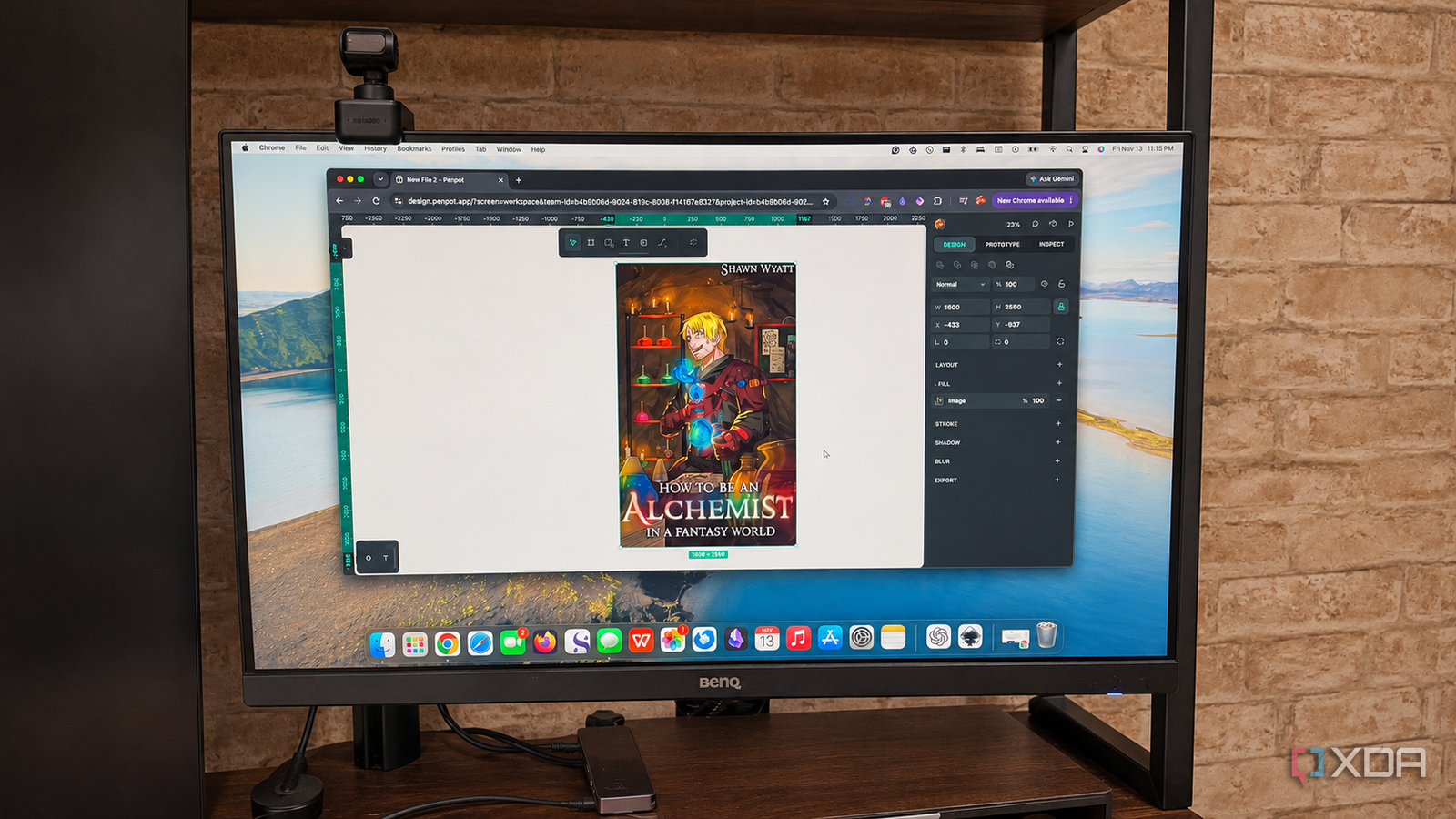
Published Nov 15, 2026, 2:00 PM EST Patrick is a seasoned writer with more than a decade of experience, specializing in any and all things tech. His work has been featured on platforms like CNET, Yahoo, Xfinity, and many other outlets. When not typing away, he can be found with his nose in a book. For years, Canva was the most convenient option when I needed to make small changes to a picture or generate something for social media, and I found its advanced features worth the cost of the subscription. But as I continue my quest to unsubscribe from everything I possibly can, I started looking for an alternative to Canva that could match the functionality I needed and was also open-source. I thought of several alternatives (Inkscape was the first I tried), but I landed on Penpot. The free version of Penpot covers my everyday work My marketing doesn't need another subscription I primarily used Canva to create social media and promotional content. Banner ads and brochures were easy to put together in a short amount of time, and that let me spend most of my time writing instead of marketing. Penpot makes it easy to do all of those things, and I can create an image from scratch using my own text, images, and design elements. The platform supports exports to JPEG, PNG, WebP, SVG, and PDF, and I can also create export presets for different formats. Canva doesn't support SVG export except in paid plans, but Penpot offers it for free. For book marketing, I sometimes make a poster or a flyer that I can hand out at signings. Penpot is excellent for that, and I can add my own files for easy reference. It's useful to keep all of the design elements for my various books, especially those in connected series, in a single location. Reusable components make repeated designs easier A little setup saves me from making the same edits twice One of Penpot's strongest features is the ability to create reusable elements. I can place these in multiple graphics, and when I update or change the original, the copies also reflect the change (although I can set copies to override the changes, such as displaying different text). The most straightforward example of this would be something like my author name. It appears in a certain style and font that remains the same no matter the book—it's part of my author branding—and it lives in a footer that appears frequently throughout my promotional material. Let's say I create a release announcement for a new book. I can grab that author name element and add it in without starting from scratch. Or maybe I need to throw together a banner advertising an upcoming promotion; again, the author name element is already there and ready to go. I have more control over where my designs live Launch materials stay editable long after release day Penpot is a web-based application, but it allows me to export editable files to my computer and import them into another project later. Those exports can include shared libraries and bring those assets into the new project, or even a new Penpot installation. For example, when I launch a book, a lot of graphics go into that: Instagram posts, Facebook banner ads, etc. Once the launch campaign is over, I can save it as an editable file on my computer. If I ever need those files later, they're available as a working design instead of a flattened PNG file. If I want even more privacy, I can self-host Penpot. It's easy enough to do through Docker, although I opted to just use the web-based service for now. Once I get a proper home lab set up, though, I'll likely give Penpot a dedicated container that gives me total control over my data. But Canva still makes starting from scratch easier Ready-made templates are part of what you pay for Penpot is a great tool if you already have assets ready to go and a layout in mind, but Canva excels at providing users with integrated templates for everything from event invitations to business cards. That's not to say Penpot doesn't have templates; the community collection has a tremendous amount of useful resources, but much of what's available is catered toward interface and product design applications rather than social media content. And that's where the two programs differ in the biggest way. Canva makes it easier to quickly throw together a few elements and come out with an end result that looks polished, while Penpot requires more initial design work. I don't need every Canva feature Penpot doesn't have to match every single Canva feature to earn a place in my workflow. I mostly need to put together promotional graphics and keep them available for future edits, and Penpot does all of those things without charging a dime. The option to self-host is something I intend to explore later, too. Canva does have an advantage in offering ready-made layouts, but I don't mind putting in a bit of work upfront to create reusable elements and cut another subscription from my budget. Penpot Penpot is an open-source design platform that caters to teams and collaboration.
I stopped paying for Canva after finding an open-source app that covers everything I actually used it for
Full Article
Original Source
Read the full article at Xda-developers →KhanList aggregates and links to publicly available news content. We do not host full articles from third-party sources. Always verify important information with original sources.