
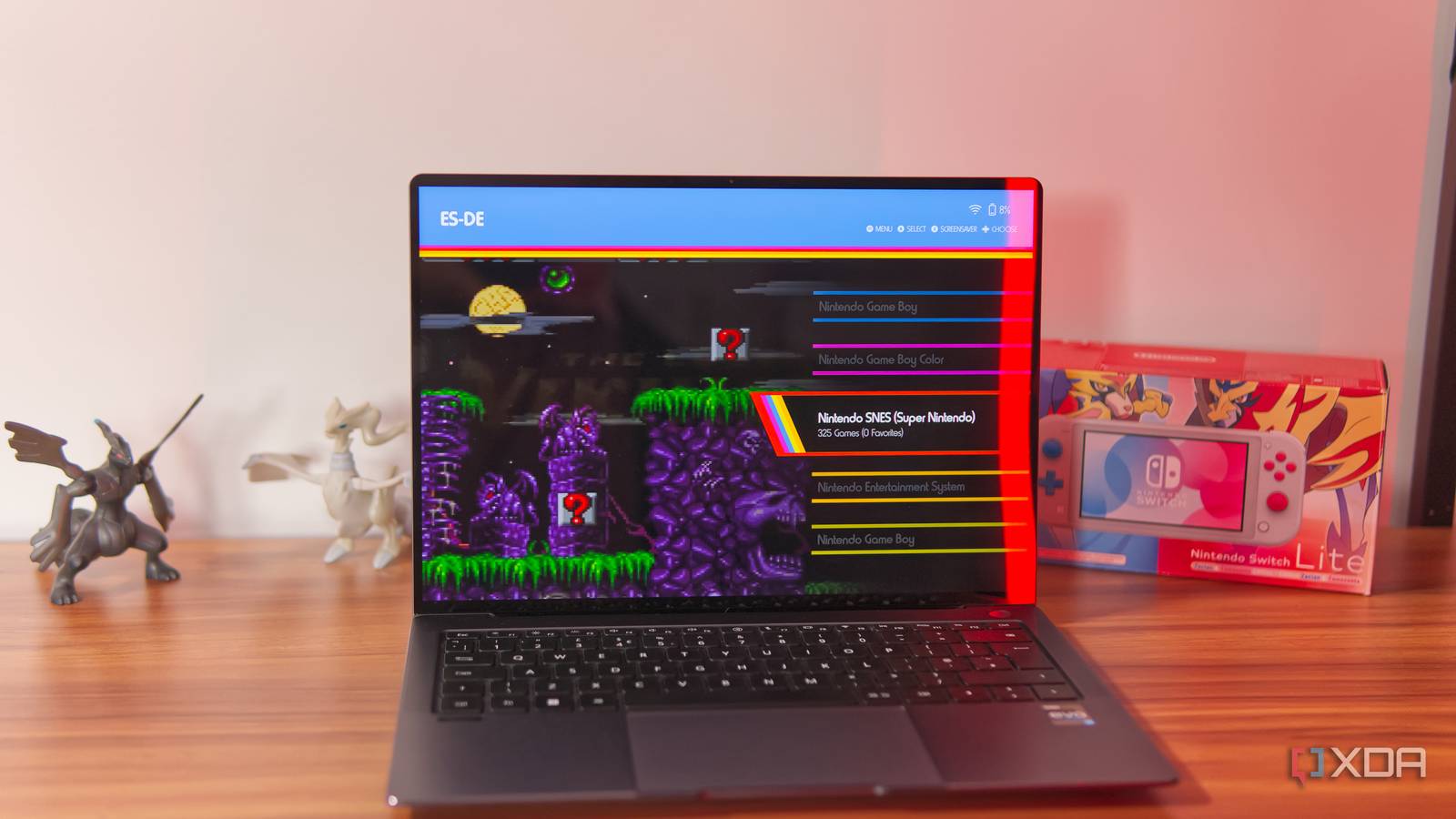
Published Oct 2, 2026, 3:00 PM EDT João has been covering the tech world for over 7 years, with a heavy focus on laptops and the Windows ecosystem. I also love all things tech and videogames, especially Nintendo, which he's always happy to talk about. Prior to joining XDA in 2021, he worked at Neowin: https://www.neowin.net/news/poster/jo%C3%A3o-carrasqueira/ Emulation is hands-down the best way to experience the seemingly endless library of games on older consoles, but making that happen can feel like a chore at times. You have to set up emulators and organize your games properly, even when you try to simplify it with a solution like EmuDeck. But I wanted my retro gaming setup to be as frictionless as possible, so I built a system that makes things work for me. Now, whenever I get a new game, it goes into my library automatically with no problems, and it's ready to play. EmuDeck is still a great starting point Take most of the work out of it While you can definitely build and organize your library yourself, EmuDeck is a great solution that makes a big chunk of this project much easier. It was originally made for the Steam Deck, but it works just as well on Windows, and all you need to do is run the installer and wait for it to do its thing. EmuDeck installs the basic emulators you need, along with Emulation Station (ES-DE), a frontend that makes browsing your games much more pleasant. Emulation Station organizes your games by console, and it offers quick jump and filtering options so you can find games more quickly. Another thing this does is create the folder structure Emulation Station depends on to categorize all your games. When you set up EmuDeck with the default settings, your C: drive will have an Emulation folder, which then has a roms folder, and then all the folders for each platform you could possibly emulate. You need to place ROMs for each platform in the respective folder, which then lets ES-DE present them to you in a beautiful format. The problem is that you have to drag your ROMs to the correct folder every time, and it's a pretty large pool of folders, so it can take a while. So then I had to automate the organization part. Organizing my games became easy I just let my computer do it for me This part is where things get really interesting thanks to a program called File Juggler. This is technically a paid application, but you can use the free trial indefinitely, and it's perfect for this situation. File Juggler automatically moves and organizes your files based on criteria you set, so for this experiment, I just created rules for the platforms I cared about most. Basically, File Juggler scans my Downloads folder, and whenever it finds a file with an extension that matches a known ROM format, it moves it to the appropriate folder. For example, for NES games, I set it to move any file ending in .nes from the Downloads folder to the C:\Emulation\roms\nes folder; of course, you'll have to adjust if you changed your ROM directory when setting up EmuDeck. Then just repeat that for the other platforms I play, such as SNES, Nintendo 64, and Game Boy. File Juggler can also scan subdirectories, so if you accidentally extract files into a subfolder, you're still covered. If you download ROMs from the internet, they often come in ZIP files, so for this to work, I usually have to extract the ROM file first. But this doesn't take much thought. If you use an archive manager like WinRAR or 7-Zip, you can simply right-click a file and choose Extract here to get the raw file directly in the Downloads folder, where File Juggler can take it and move it to the appropriate place. This also works with multiple files, so if you download ROMs in bulk, it makes things even easier. Admittedly, setting up all these rules can still take a good bit of time, but you only have to do it once, so you get that time back fairly quickly as you download more and more ROMs in the future. My library is stunning now All organized and easy to find With this combination fully set up, it's now easier than ever to enjoy the retro games I want to play. I've always loved how Emulation Station can present these old titles in such a beautiful way. There are tons of themes for ES-DE to let you choose how games are presented, but all of them categorize your games by console, let you create a collection of favorites, or simply show your recently played games so you can quickly get back to where you were. Once you scrape the metadata for the games in your library, you can add box art, screenshots, and trailers to the UI, making the whole experience feel like a museum honoring these retro titles. It's amazing to experience these games this way in the modern era. The most annoying part of the process was always moving my ROM files into the correct folder, since I usually ended up juggling two windows to drag and drop, and jumping into the right folder every time was a pain. File Juggler fixes that and lets me stop thinking about where my files are going. The retro gaming setup of my dreams If you've been wanting a retro gaming setup that's as frictionless as possible, I'd say this is it. It's perfect for a living room setup, and all you need to do is set ES-DE to launch at boot so you can have a console experience without even touching Windows. You'd only need to use Windows to download new games, and even that's easier with File Juggler.
I stopped manually organizing my ROM files, and my retro gaming setup finally feels frictionless
Full Article
Original Source
Read the full article at Xda-developers →KhanList aggregates and links to publicly available news content. We do not host full articles from third-party sources. Always verify important information with original sources.