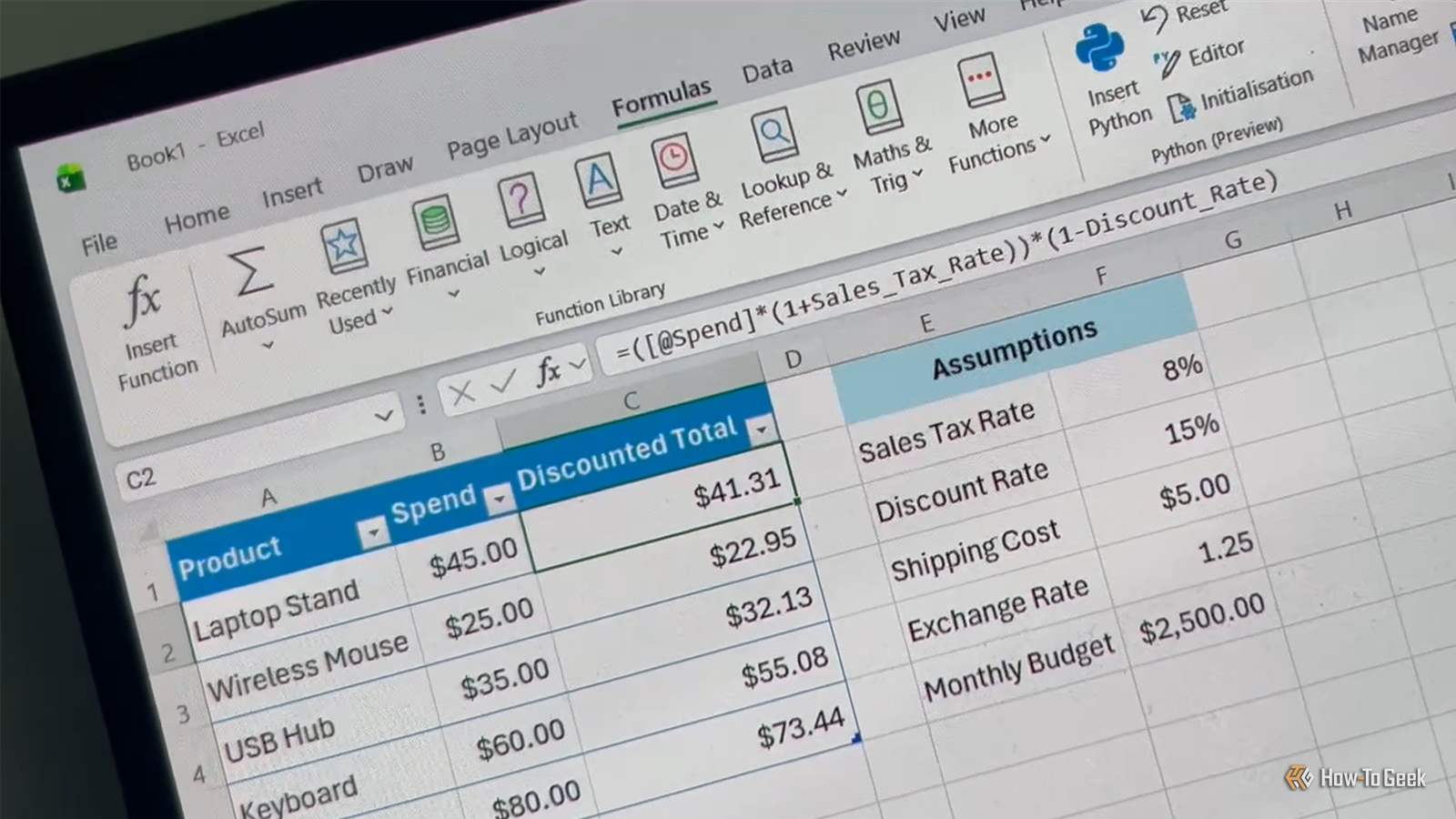
Published Aug 7, 2026, 6:30 AM EDT Tony Phillips is an experienced Microsoft Office user with a dual-honors degree in Linguistics and Hispanic Studies. Prior to starting with How-to Geek in January 2024, he worked as a document producer, data manager, and content creator for over ten years, and loves making spreadsheets and documents in his spare time. Tony is also an academic proofreader, experienced in reading, editing, and formatting over 3 million words of personal statements, resumes, reference letters, research proposals, and dissertations. Before joining How-To Geek, Tony formatted and wrote documents for legal firms, including contracts, Wills, and Powers of Attorney. Tony is obsessed with Microsoft Office! He will find any reason to create a spreadsheet, exploring ways to add complex formulas and discover new ways to make data tick. He also takes pride in producing Word documents that look the part. He has worked as a data manager in a secondary school in the UK and has years of experience in the classroom with Microsoft PowerPoint. He loves to encounter problems in Microsoft Office and use his expertise and legal-level training to find solutions. Outside of the Microsoft world, Tony is a keen dog owner and lover, football fan, astrophotographer, gardener, and golfer. The best Excel formulas are the ones that explain themselves. That's why I use named ranges whenever I can. Creating them one by one, though, feels like unnecessary admin—especially in larger spreadsheets. Since discovering Ctrl+Shift+F3, it's become one of my most-used Excel shortcuts. I try to give everything in Excel a meaningful name Names make formulas easier to understand One of the biggest improvements I've made to my spreadsheets over the years is getting into the habit of replacing cryptic references with meaningful names wherever it makes sense. For Excel tables, I rely on structured references to give columns meaningful names. But for everything else, named ranges are often the better fit. It starts with small things. If I have a value that I reference throughout a workbook, I'll usually assign it a name instead of repeatedly referring to the same cell. In this example, I have a sales tax rate stored in an assumptions area of my workbook and want to use that rate to calculate the sales tax for each item in my data. A formula like: =D2*$H$2 works perfectly well, but I have to remember what $H$2 contains. After creating a name for that cell, the formula becomes: =D2*Sales_Tax_Rate Both formulas calculate the same result, but the second immediately tells me what that value represents, making the formula easier to review while helping others understand my workbook more quickly. Ctrl+Shift+F3 turns headings into named ranges A few seconds of setup can save minutes of manual work The one downside to named ranges is that creating them manually doesn't scale very well. If a workbook contains dozens of constants or reusable values, defining each one individually quickly becomes repetitive. That's where Ctrl+Shift+F3 comes in. Rather than typing every name one by one, Excel can generate them from the labels already added to the worksheet, provided each label sits directly beside the cell or range it describes. In this example, my worksheet contains several reusable values that I'll reference throughout my workbook. After selecting the entire range, labels included, I press Ctrl+Shift+F3. Excel then asks where the labels are located. In my case, they're in the left-hand column, so I can check Left column and click OK. Within seconds, every label becomes a named range. To quickly check that everything worked correctly, I usually either open the Name Box drop-down or the Name Manager on the Formulas tab. Labels must follow Excel's naming rules Excel has fairly strict rules about what counts as a valid name, and in some cases, Create from Selection helps with this. As you can see in the example above, Excel automatically converted: Sales Tax Rate to: Sales_Tax_Rate However, there are some rules that the shortcut can't work around, so it's worth checking before you generate your names: Names must start with a letter or an underscore (_). After that, they can contain letters, numbers, periods, and underscores. Names can't look like cell references, like A1, R1C1, and Z100. Names can contain up to 255 characters, though that's unlikely to be a problem in most spreadsheets. Names aren't case-sensitive. Sales_Tax_Rate, SALES_TAX_RATE, and sales_tax_rate are all treated as the same name, so you can't create multiple names that differ only by capitalization. Writing formulas with names is much easier Excel even autocompletes them as you type Once the names are in place, I stop thinking about cell references altogether. Instead of remembering where a value lives, I simply refer to it by name. For example, if my table contains a column called "Spend," and I've created named ranges for Sales_Tax_Rate and Discount_Rate, a formula like: =([@Spend]*(1+$F$2))*(1-$F$3) becomes: =([@Spend]*(1+Sales_Tax_Rate))*(1-Discount_Rate) where [@Spend] is a structured reference that points to the "Spend" value in the current table row, while Sales_Tax_Rate and Discount_Rate are named ranges I've created using Create from Selection. Both formulas return the same result, but the second tells me what each value represents without forcing me to jump back to the worksheet. Another benefit is that I don't have to remember every name I've created. As soon as I begin typing a formula, Excel's IntelliSense suggests matching names automatically. If I type: =Disc Excel offers Discount_Rate as an autocomplete suggestion, so I can use the Down Arrow key if needed to select it, then press Tab to add the reference. One other advantage is that names generated by Create from Selection have workbook-level scope by default, meaning I can reference them from formulas on any worksheet. Named ranges aren't limited to single cells. You can also use them for ranges, constants, and formulas as your workbooks become more advanced. I don't rewrite my old formulas by hand Apply Names updates existing formulas automatically One thing to note is that creating named ranges doesn't automatically update formulas you've already written. In other words, if your workbook already contains formulas that use cell references, they'll continue using those references even after you've created names. Fortunately, there's no need to edit every formula. On the Formulas tab, expand the Define Name drop-down menu in the Defined Names group, then click Apply Names. Excel selects every available name by default, so in most cases all you have to do is click OK. Excel then scans your workbook and replaces cell references with the corresponding named ranges where possible. In most cases, you can leave the two checkboxes at the bottom of the dialog selected. The first ensures Excel replaces references regardless of their reference type, while the second allows it to use row and column names where available. A few things can stop the shortcut from working Most problems are easy to fix Create from Selection is generally very reliable, but if it doesn't produce the results you expect, one of these issues is usually the cause: Your labels aren't touching the data. Blank rows or columns between the labels and the data can prevent names from being created correctly. You have duplicate labels. Names must be unique. If you have duplicate labels in the same workbook, Excel cannot create multiple workbook-level references with identical names. Some labels don't follow Excel's naming rules. As I mentioned earlier, Create from Selection usually replaces spaces and other unsupported characters with underscores, but it can't create every possible name. If something seems to be missing, open Name Manager to see exactly which names were generated. You selected the wrong label location. If your headings are in the left column but you tick Top row (or vice versa), Excel won't create the names you're expecting. Double-check the options in the Create Names from Selection dialog before confirming. Names are worth the effort For me, Ctrl+Shift+F3 removed the only part of named ranges I disliked: creating them manually. The next step was using the LET function to assign names to values inside formulas and using LAMBDA to create custom reusable functions with named parameters. Together, they made my formulas easier to write, read, and maintain.
I stopped manually naming ranges in Excel—this little-known shortcut does it in seconds
Full Article
Original Source
Read the full article at Howtogeek →KhanList aggregates and links to publicly available news content. We do not host full articles from third-party sources. Always verify important information with original sources.