
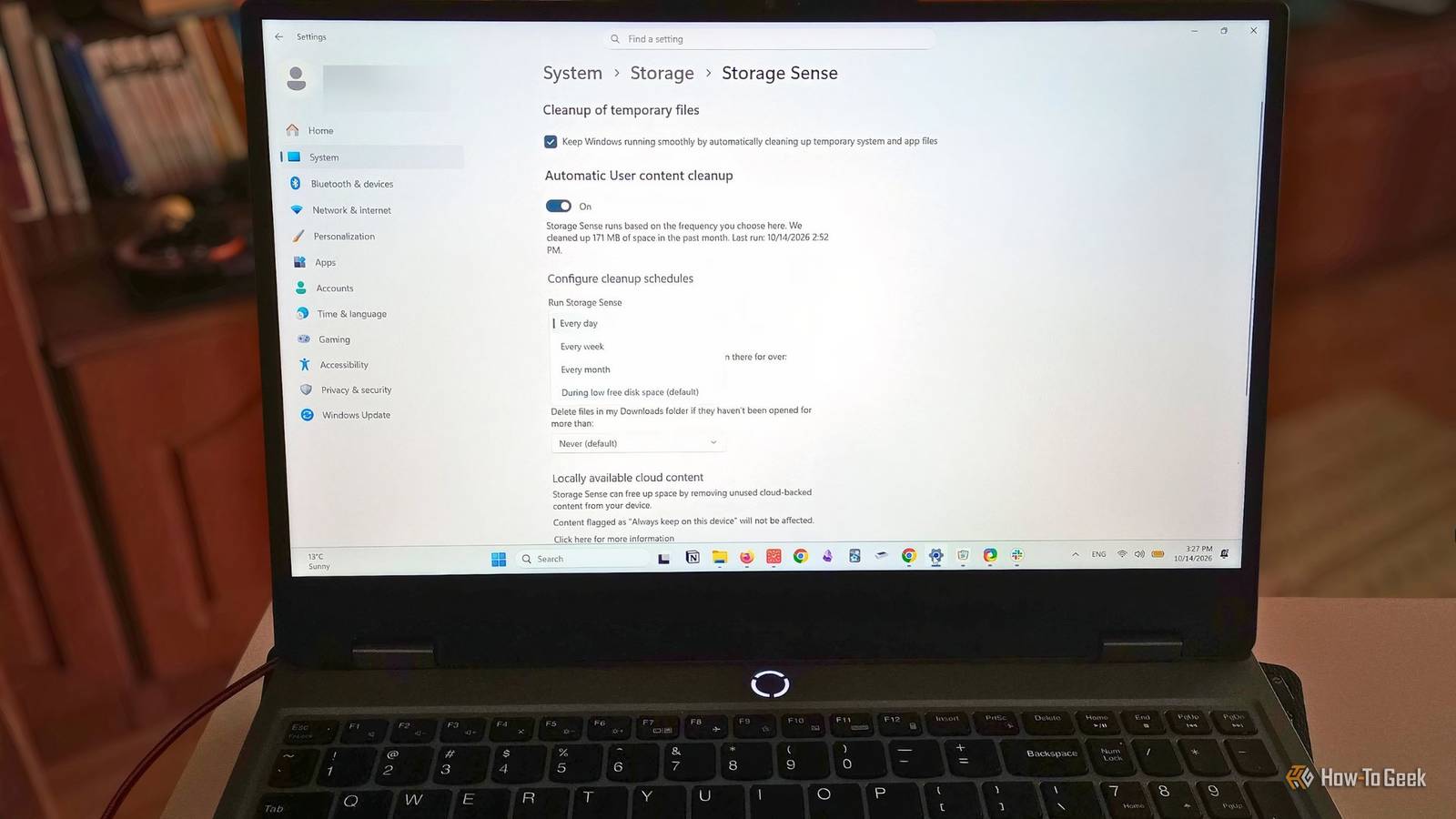
Published Oct 18, 2026, 8:00 PM EDT Diana's interest in technology spans many years. Her favorite areas include consumer software, everything Windows-related, VPNs, and graphic design tools. She's always on the lookout for tools and features that make tasks easier, boost creativity, and improve everyday life. When she finds something interesting, chances are she'll have something to say about it. It's been a while since I had to deal with a serious storage-related problem in Windows, which is likely why I didn't pay much attention to Storage Sense. I've stumbled upon it many times in Settings, but I figured I was all good because I use Disk Cleanup and regularly check what's on my computer. Turns out I was missing out because, while there's some overlap, these don't fix the exact same problem, and Storage Sense automates tedious tasks I've been doing almost daily, like cleaning the Recycle Bin and the junk-hogging Downloads folder. Junk can accumulate fast, and running low on space can interfere with performance. So let me show you what Storage Sense does and how to set it up based on your exact needs and habits. The cleanup tool I wish I'd tried sooner Storage Sense is one of those built-in Windows features that is dormant by default. It has been around since Windows 10 version 1703, and its main purpose is to prevent your system drive from running out of space. It runs on a schedule and is somewhat customizable. Here's a quick look at what it can do: Clean temporary system and app files Empty the Recycle Bin Remove files from the Downloads folder Make eligible OneDrive files online-only For each category, you can set up custom retention thresholds. Setting up Storage Sense Set your own rules and let Windows do the rest What I like about Storage Sense is that it's straightforward, and once you configure it the first time, it takes care of the cleanup on a regular basis. It doesn't handle every little maintenance detail, but it automates tasks that you would do by hand anyway if you don't want to make a mess out of your PC. Here's how to get started: Go to Start and open Windows Settings. Select the System section. Pick Storage and look for Storage Sense in the Storage Management section. Click on it to open available options. Turn on Storage Sense under the Automatic User content cleanup section. From here on, you can customize the rest of the setup depending on how comfortable you are letting Windows delete your files. "Run Storage Sense" (first option in the scheduling submenu) determines when Windows will run the cleanup. You can use it in case of emergencies, when space runs low, or routinely: every day, every week, or every month. With the settings below it, you tell Storage Sense what to do when it runs. For example, let's say you set Storage Sense to run weekly, but you only want to delete Recycle Bin files every 30 days. The tool will run and clean up what you allow it to clean, but only touch and remove the files that, on that date, have been in the bin for more than 30 days. Anything newer will stay until it meets the criteria. Personalize cleanup schedules based on how you use your computer How you mix and match these settings depends on how much freedom you want to give Windows to automatically delete certain files. The safest option that can help you restore some space is to set it to run "During Low Disk Space", allow it to clean temporary files, and select "Never" for everything else. This way, if your computer is about to run out of storage, but you might have important files in a folder like Downloads, Storage Sense will only handle totally unnecessary clutter without touching anything important. Or you can give it more control over some areas. My current setup is that I let it run weekly, delete Recycle Bin files every 7 days, and handle Downloads every 30 days. This way, I give myself some time to sort out any potentially important things I might have left in the Downloads folder. You can also set up Storage Sense to turn synced files in OneDrive to online-only if you haven't opened them in 1 day, 14 days, 30 days, or 60 days. If you want to add any exceptions here, open your synced files, right-click, and set them to "Always keep on this device". As long as you're sure the files synced successfully, you don't have to worry about losing them. Assuming you can connect to the Internet, you can access them whenever you want. Storage Sense won't clean up your entire PC Don't expect a cure-all for every byte of clutter Credit: Storage Sense documentation on the Microsoft website. If you think Storage Sense will work like a full PC cleanup utility, you'll be disappointed. This Windows built-in tool is specifically made to manage and maintain the storage in your system drive, which is, in most cases, the C: drive. Its main purpose is to maintain space so that Windows and its routine operations run smoothly. It will not touch anything on other drives or automatically scan and identify large files you're no longer using, delete app-specific caches, or uninstall unused apps. For a more thorough cleanup, you can use it in tandem with other built-in tools such as Disk Cleanup, which handles all drives and will remove hidden junk such as temporary files, Recycle Bin contents, thumbnails, or diagnostic files. The Storage section in Windows Settings also gives you a comprehensive overview of the types of files taking up space and your options for freeing it up. By combining a few smart Windows storage settings and good maintenance habits, you'll keep your system organized and prevent low storage without constant intervention. Never ignore low storage You don't want to wait until your drive is full Using a drive at full or almost full capacity can cause all sorts of mishaps, particularly when Windows needs space for updates or temporary operations. If there's no more space to download anything new, Windows updates will fail or be delayed. This can leave your system vulnerable to new threats that security updates are designed to address. A nearly full drive can also impact performance. You may start noticing apps becoming unresponsive or taking longer to execute basic tasks. That's because Windows uses disk space for temporary operations and virtual memory, and if there's little to no space, more and more tasks will fail. There's no official recommendation on how much space you should save, but a rule of thumb many go by is keeping at least 10% of your system drive free. Routine maintenance goes a long way Storage Sense works best as part of a cleanup system. You can use it alongside Disk Cleanup and the other storage options in Windows Settings. In most cases, you don't need to use third-party software for storage maintenance, although tools that help you visualize and sort out what takes up space can come in handy at times. All in all, Storage Sense is a convenient option for automating tasks that anyone who cares about their storage already does by hand.
I stopped manually cleaning up Windows 11 storage after turning on this built-in tool
Full Article
Original Source
Read the full article at Howtogeek →KhanList aggregates and links to publicly available news content. We do not host full articles from third-party sources. Always verify important information with original sources.