
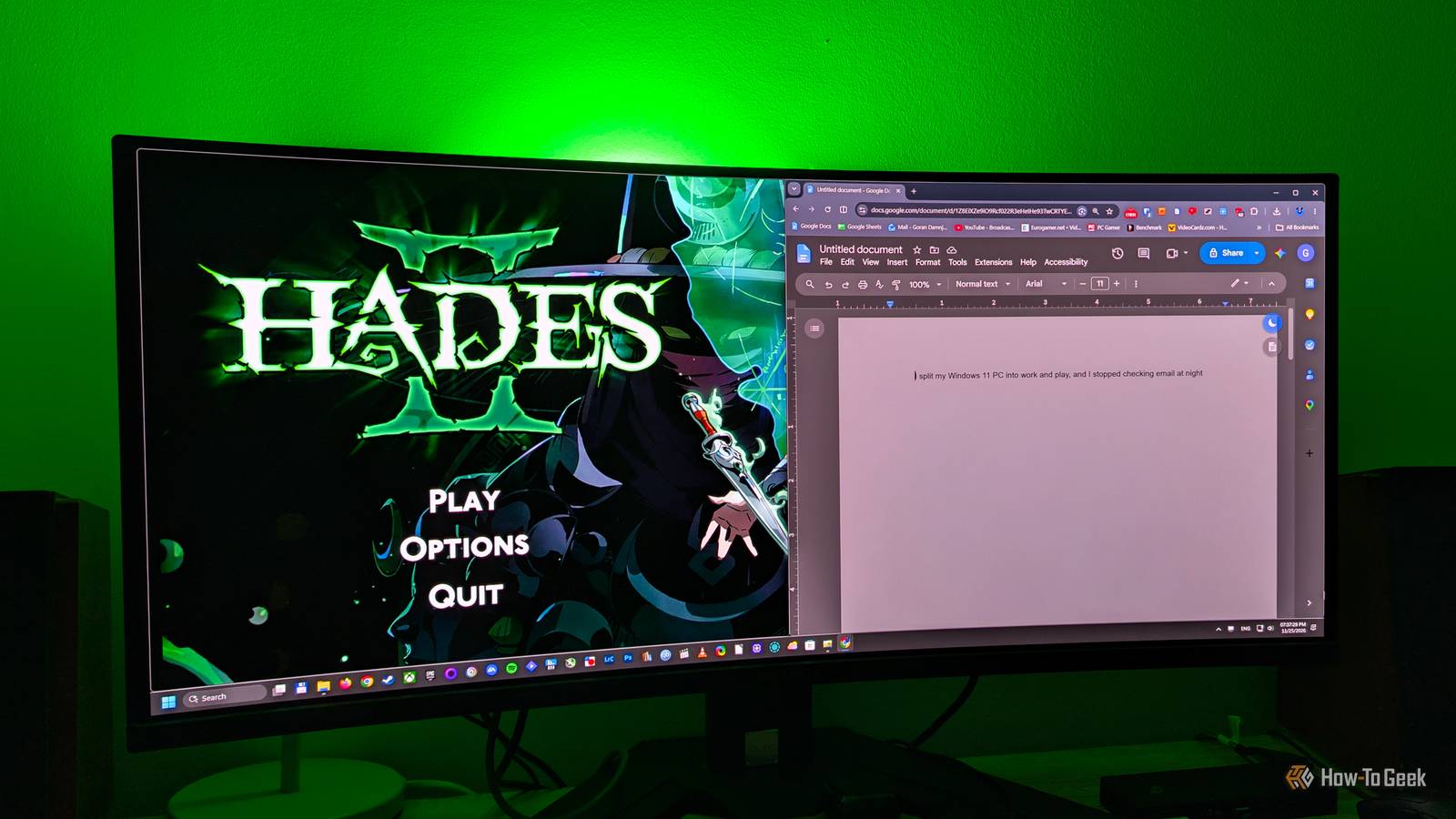
Published Nov 25, 2026, 8:00 PM EST Ever since he got his first smartphone, the legendary Nokia 6600, back in 2005, Goran became obsessed with technology. This obsession had only gotten worse after he received his first gaming PC a couple of months later. He fell in love with video games in the early '90s, shortly after embarking on his gaming journey with the Sega Master System II and SNES. Since then, he has built dozens of PCs, played thousands of games, and authored hundreds of articles about PC hardware, gaming hardware, and video games. He knows everything there is to know about the PC gaming and PC hardware space, and while his console gaming knowledge isn't as comprehensive, he considers himself a console veteran. Goran has almost a decade of experience writing about tech and video games for numerous web publications including TechSpot, TechPowerUp, and EsportsHeadlines. He has been writing for How-To Geek since December 2022. When he isn't gaming or deciding which component of his PC to upgrade next, you can find him strolling around Novi Sad while listening to music and contemplating what to play next. After getting fed up with Windows bugs and glitches, I got myself an M4 Mac mini, which was a bargain when it came out, and switched to macOS for work. The two-computer setup, with the Windows desktop for gaming and personal stuff and the mini for work, had worked wonderfully for more than a year and a half, but around June of this year, I started using my Windows desktop for days on end for work, even when not writing about Windows. Days turned into weeks, and as I'm writing this, I haven't used the Mac mini for more than a month, doing all my work on the Windows desktop once again. In the meantime, I fully embraced virtual desktops on Windows after getting a taste of them through Mission Control on macOS. I made a few other changes that now let me keep my personal and work stuff separate and keep me from thinking about work when it's me time. Using one browser for work and another for personal use is key I had tried doing both in one, but the experiment ended in failure Back when the Mac mini was my primary workhorse, I started using Firefox for both work and fun thanks to tab groups. The setup had worked well when I used one computer for work and another for personal stuff and gaming, because Firefox on macOS had only a few personal tab groups, with most groups being dedicated to work. But after I started working on Windows again, things got messy fast because I needed so many tab groups. I don't like using different profiles in the same browser because it means constantly switching between them, forgetting whether I'm on my personal or work profile, and adding to the clutter when working. So I quickly decided to go back to the two-browser setup I had used for years before my one-browser experiment, with Firefox for private things and Chrome for work. Thanks to Windows virtual desktops, this setup has been working great for me so far. My primary virtual desktop is for personal stuff; all the others are for work When you use your PC for work and play, virtual desktops are a must I always have at least two virtual desktops open on my Windows PC. The first one is for personal stuff and gaming, with the second being my main work desktop where I write in Google Docs. The best thing about virtual desktops is that when it's time to work in the morning and I click the Chrome icon in the taskbar, the browser window opens on my main work desktop, moving me to that desktop in case I was on the gaming desktop. This way, I can open Firefox, catch up on the news, maybe watch a YouTube video or two, then click the Chrome icon and be automatically transferred to the work desktop. This is not only handy in the practical sense, but it also automatically puts my mind into work mode, the same way seeing the macOS desktop did when I worked on the Mac mini. Aside from being great for separating work and private stuff, virtual desktops also help reduce clutter. I can use one desktop for writing, another for editing images in Photoshop, and a third for editing photos I take in Lightroom, and quickly switch between them using Task View, which I mapped to the button right behind the scroll wheel on my MX Master 3S. As a result, the gaming desktop stays unsullied by work-related stuff, and I don't visit it until I'm done for the day. Sure, there are some limitations with Windows virtual desktops. For example, I can't have unique icon layouts on different desktops (being able to delete game icons on the work desktops would be fantastic), Wallpaper Engine doesn't support setting different wallpapers for each virtual desktop, and I can't mute other desktops. Still, this setup works really well for separating my work and personal spaces on the same PC. Once I close Chrome, I know I'm finished for the day. And since I have the email-fetching extension installed only in Chrome, I don't get new email notifications when using Firefox. When I want to take a peek at my work emails, I have to consciously open Chrome, which I've stopped doing when using the PC outside work hours, thanks to my updated PC gaming setup. I still game on my PC, just not at my desk Playing from the couch keeps me from dwelling on work or wasting hours on YouTube Back before I got my first handheld PC, I played PC games exclusively at my desk. This would lead me to open the work browser "just for a minute to check Slack" more often than I'd like. I also frequently caught myself mulling over work-related stuff during me time. Another issue was that I'd get ready for a gaming session and then open Firefox and waste hours browsing the web, ultimately not even getting to play any games. Much has changed since then. I've gotten into handheld PCs and now mostly game on them, streaming demanding games locally from my Windows desktop. A few months ago, I also got a new TV that's fantastic for gaming and connected it to the PC with an HDMI cable. Now my handheld PCs get 2D games and others that just feel better on a handheld, while I use the TV for most other games. While I still game a lot on my Windows desktop, I do that from the comfort of the couch, either on the TV or by streaming games from it to one of my handheld PCs. This way, when I want to game, I actually end up playing games instead of wasting hours on YouTube or Reddit, which is pretty hard to do when you're holding a controller instead of using a mouse and keyboard. Chilling on the couch and not sitting at the desk also means that work rarely crosses my mind while I'm enjoying my favorite pastime. And thanks to Windows 11's Xbox Mode, I can launch any game, change various settings, and even toggle HDR, all with a controller. I ended up using my Logitech K400 Plus keyboard—which I originally got to control my PC when sitting in front of the TV — for just one thing: switching the display from the monitor to the TV. Using the Mac mini as a work-only machine was great, but this setup is almost as good I still like macOS and love the Mac mini; it's just that the call of Windows, an OS I'd used for decades before switching to a Mac, was too hard to ignore. While I was at first reluctant to return to a single-PC setup for work and play, it's been going swimmingly thanks to Windows virtual desktops and keeping my work and personal stuff separate in different browsers. Add the fact that I play games at my desk once in a blue moon, and I've managed to go back to using one PC for everything without checking my work emails or letting my mind drift back to my job during my off hours.
I split my Windows 11 PC into work and play, and stopped checking email at night
Full Article
Original Source
Read the full article at Howtogeek →KhanList aggregates and links to publicly available news content. We do not host full articles from third-party sources. Always verify important information with original sources.