
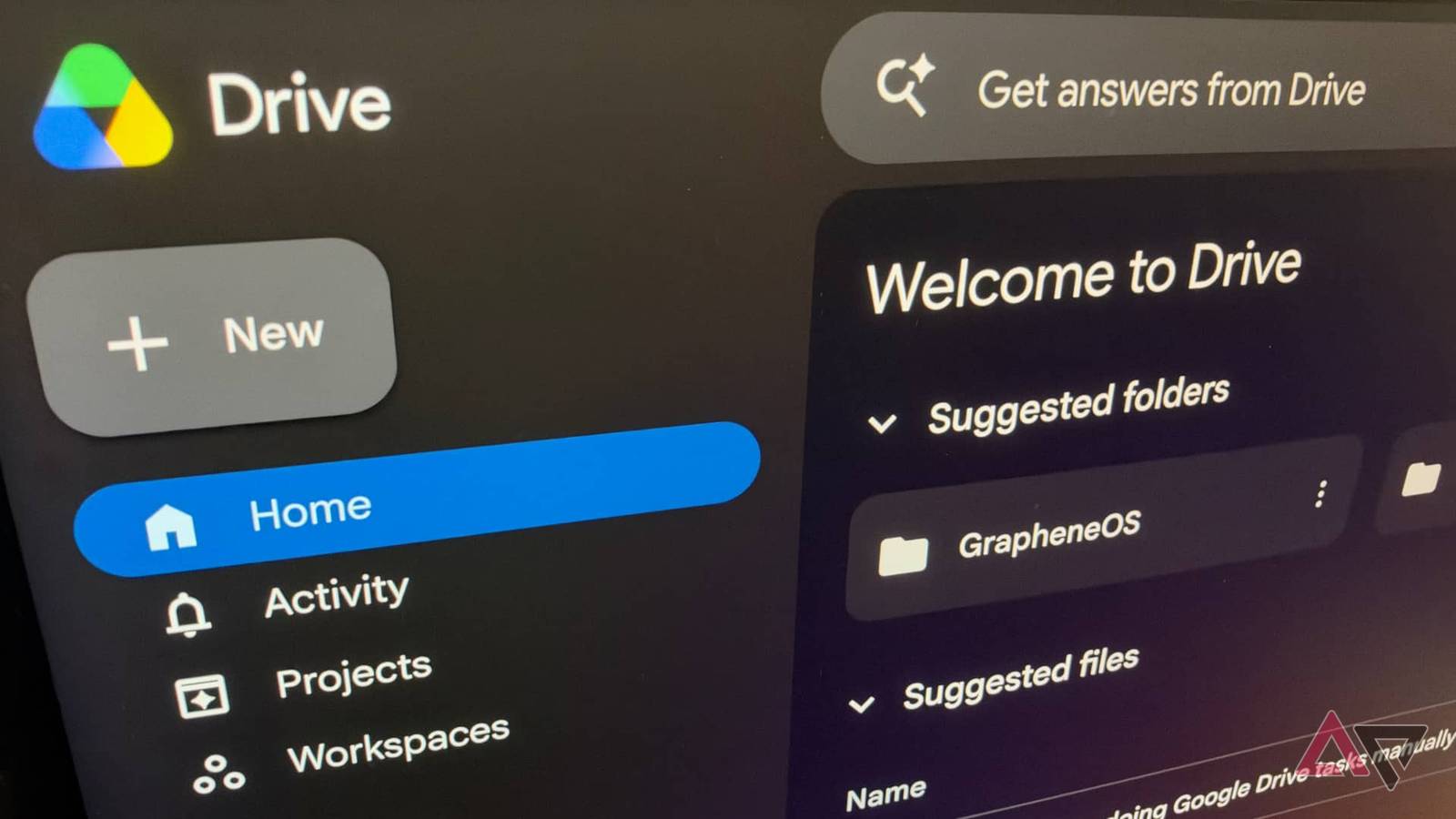
Published Nov 13, 2026, 1:00 PM EST Jesse is a lifelong technology enthusiast who has been exploring smartphones and mobile tech for more than two decades. He began his career in IT consulting and project management before making a career change into tech journalism in 2007 with iLounge. During that time, he authored three editions of iPod & iTunes Portable Genius for Wiley Publishing and has since written for iDrop News, Lifewire, SlashGear, and Digital Trends. While Jesse remains strongly immersed in the Apple ecosystem, you'll commonly find him rocking both an iPhone and a Pixel at the same time, where he likes to live on the edge with the latest iOS and Android betas. His tricked-out smart home also responds equally well to "Hey Siri," "Alexa", and "OK Google." His other hobbies include reading, curating his Plex library, and helping out at his local church with everything from live video production to governance. Google Drive is more than just a digital filing cabinet. Its greatest superpowers are its sophisticated web app and tight integration with other Google services. That comes with a price, though: Google Drive has more than the usual number of knobs and buttons in its UI, making it easy to get lost in a sea of clicking and tapping. Thankfully, you'll find plenty of shortcuts — and some of them are productivity game-changers. Although I've played with plenty of Chrome extensions and Workspace add-ons, the built-in features have significantly sped up the way I interact with it. Skip the 'New' button Create a Google Docs document in 9 keystrokes Google Drive has a nice big rectangular New button in the upper-left corner of the web UI, but I can't remember the last time I clicked it. It may be the most obvious way to create a new Google Docs document or Sheets spreadsheet, but it's far from the quickest. You don't need to visit Google Drive. Instead, click in the address bar in any browser and type what you want to create, such as "docs.new" for a Google Docs document. Google cleverly registered the ".new" top-level domain a few years ago, and it works with several Google services: docs.new creates a new Google Docs file. sheets.new creates a new Google Sheets file. slides.new creates a new Google Slides file. vids.new takes you to the Google Vids creation screen. pics.new takes you to the Google Pics creation screen. forms.new creates a new Google Form. cal.new creates a new Google Calendar event. keep.new creates a new Google Keep note. You can save any of these as bookmarks if you create new Docs, Sheets, or Slides files often enough. I'm content to use the keyboard, and those keystrokes have become embedded in my muscle memory. These also work across multiple Google accounts. Tacking a slash and a number onto the end creates the file in another account (for example, docs.new/2 for a new Docs file in your secondary account). You can use the New button in Google Drive to create folders and upload files, but I find the keyboard shortcut CTRL+C followed by F (on Mac) is faster (ALT+C and F on Windows). There are also shortcuts for uploading files and folders, but I find it much faster to drag and drop them into the browser window. Keeping a file in multiple folders Don't make copies — create shortcuts Sometimes I need to keep a file in more than one folder, like shared budget overviews or project briefs for teams I'm collaborating with. Making a copy risks things getting out of sync, so in most cases, it's better to create a shortcut. This points back to the original file or folder, so you're always working with the original no matter where you open it from. To create a shortcut, right-click on the file and choose Organize, then select Add shortcut from the menus. You can also select the file with the keyboard and press CTRL+CMD+R (Mac) or CTRL+ALT+R (Windows). From there, choose the folder where you want to drop the shortcut. You can identify shortcuts by a curved arrow on top of the icon. Double-clicking or tapping a shortcut opens the original, and a shortcut can be moved or deleted like any other file — but it only affects the shortcut. One word of caution: placing a shortcut in a shared folder — or even a Shared Drive — won't automatically share the original file. Everyone can see the shortcut, but you'll need to adjust permissions manually. I consider this a feature, as it makes it easier to share read-only reference material in a collaborative folder. Search smarter, not harder Avoid needless scrolling by using Search Operators It's easy to type a simple keyword like "invoice" in the Google Drive search bar and let your eyeballs and scroll wheel find what you're looking for. But if you have tens of thousands of files like me, that often means scrolling through a few hundred irrelevant PDFs, Sheets worksheets, and other decade-old files. Instead, I rely on Google's Search Operators. If you're not familiar with the lingo, you can use the filter chips below the search field, but I find the fastest way is to use the prefixes. For example, invoice type:pdf after:2026-01-01 narrows my results to only files from this year. Tossing in owner:me is also useful for excluding files shared by others. Specifying title:invoice is also helpful if I want to ensure I'm searching for only file names, not their content. That's much more than I want to type on a mobile keyboard, so I use the filter chips on Android and iOS. Scan documents with a tap Ditch the third-party scanning apps I spent years taking pictures with the camera and then uploading them to Google Drive before the built-in document scanner came to the app. Still, even scanning into Google Drive can feel a bit cumbersome sometimes, and plenty of third-party apps promise a more seamless scanning experience. But you can replicate that in Google Drive — at least on Android. That's because there's a widget for that. To add it, long press the Drive icon on your home screen, tap Shortcuts, and either drag-and-drop the Scan widget to where you want to place it, or tap the plus button to drop it into the next available slot. Put your key files and folders front and center Save time hunting and pecking by using 1x1 Drive shortcuts You can also drop icons for your most important files and folders onto your home screen so you can open them with a single tap. These can be folders or files, and they're easy to add, so you can switch them out as you finish one project and start another. To add a 1x1 Drive shortcut, long press the Drive icon, tap Widgets, then Drive shortcut 1x1, then + Add, and select the file or folder you want to link the shortcut to. Alternatively, you can create a shortcut from Drive by tapping the three-dot button beside any file or folder and tapping Add to home screen. On the desktop, you can also achieve something similar by bookmarking the page from the Drive web UI. Reducing friction and saving taps It didn't take me long to adjust to this faster way of working, to the point where it's now second nature. The keyboard shortcuts are in my muscle memory, and if I navigate to a given file or folder in the Drive app more than twice a day, I turn it into a shortcut. The great thing about these tips is that none of them require learning code or re-engineering your workflow. It's mostly about making a few small changes and building new habits.
I spent years doing Google Drive tasks manually before discovering these quick shortcuts
Full Article
Original Source
Read the full article at Androidpolice →KhanList aggregates and links to publicly available news content. We do not host full articles from third-party sources. Always verify important information with original sources.