
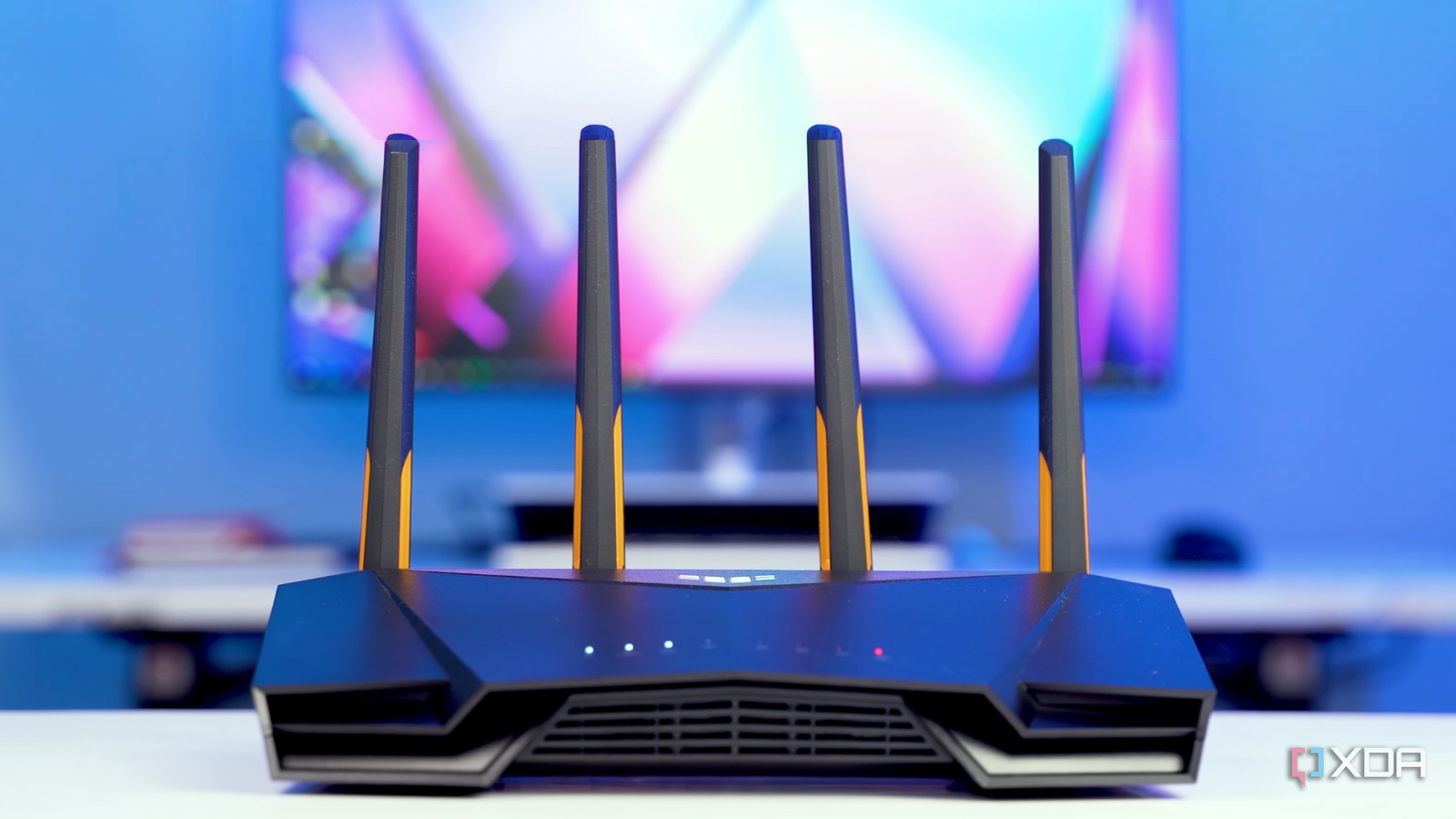
Published Oct 9, 2026, 1:00 PM EDT Shivansh began his tech journey as an avid reader of tech publications, which inspired him to launch his career in video media at Sillycorns. He has led content across multiple tech YouTube channels and Instagram accounts, crafted go-to-market (GTM) strategies for Vivo, and consulted on digital growth. Coming full circle to his roots in written media, he now delivers deep-dive tech journalism. Outside of his professional work, Shivansh loves watching movies, riding bikes, and playing cricket. Everyone blames their ISP first. I did it for weeks, with speed tests at 2 a.m., long stares at the gateway Xfinity rents me, and eventually a second router bought on sale. The speed tests always came back fast, around 918 Mbps, while my calls kept freezing for half a minute at a time. What actually fixed it was bridge mode, a setting that turns the gateway into a plain modem, and it took me 20 minutes. The speed test kept saying I was wrong Wired and Wi-Fi went down at the same moment My setup was the one most people never touch. An Xfinity XB7 gateway sat on a living room shelf doing three jobs at once: modem, router, and Wi-Fi for 41 devices. Most are tiny things, like smart plugs and a thermostat that phones home every few minutes. The dropouts never showed up in a speed test because they never lasted long enough. Everything would go dark for 15 to 40 seconds, then come back as if nothing had happened. So I started a log: a ping -t 1.1.1.1 window running on my desktop, plus a note on my phone whenever the TV showed its no-connection screen in the middle of Sunday football. Over seven days, I counted nine dropouts. Wired and wireless dropped at the same moment every time, which ruled out the Wi-Fi. That left the line, the modem, or the router half of the gateway, and I couldn't tell them apart while they lived in the same box. Splitting them up is exactly why the fix worked. My first fix made two routers argue My new router snitched on my old one I bought an ASUS TUF Gaming AX4200, a Wi-Fi 6 gaming router, plugged its WAN port into the gateway, and called it a night. ASUS's spec sheet lists a 2GHz quad-core processor and 512MB of RAM, which is plenty for a home full of smart plugs. Wi-Fi felt snappier straight away, and I went to bed feeling smug. The smugness lasted until the next evening. I tried to open my Jellyfin server from my phone on cellular, and it just spun. I'd forwarded the port on the ASUS, and the ASUS was doing exactly what I'd asked. Nothing was getting to it. The culprit was double NAT, which just means two routers are each rewriting addresses on the same trip out. The ASUS could open a door on its side, but the gateway kept its own door shut, so outside requests died at the first box. You can check for it in about 10 seconds on Windows. Open Terminal and run tracert -d 1.1.1.1. My first hop was 192.168.50.1, the ASUS, and my second was 10.0.0.1, the gateway. Two private addresses in a row means two routers are translating. On a Mac, traceroute -n 1.1.1.1 shows the same thing. The ASUS had noticed too, since its DDNS page warned that the router seemed to be sitting behind another NAT. Caught in 4K by my own router. Bridge mode took 20 minutes, mostly finding a sticker One warning box, then nothing broke Xfinity's support page lays out the steps. You open the Admin Tool at 10.0.0.1, sign in as admin with the password from the sticker on the gateway, go to Gateway -> At a Glance, and click Enable next to Bridge Mode. Here's where my 20 minutes actually went. Five of them were me on the floor with a phone flashlight, reading a sticker on a gateway wedged behind a speaker. A few more went to the Xfinity app, because newer gateways make you switch on Admin Tool access there before 10.0.0.1 will even load. Then came the warning box, which says bridge mode will disable the gateway's router and turn off its private Wi-Fi. That's the whole point, so I clicked OK. The gateway restarted, the ASUS picked up a public address on its WAN status page, and tracert showed one private hop instead of two. My Jellyfin server answered from cellular on the first try, and I cheered in an empty room. Two details caught me out. Only one Ethernet port on the gateway stays active in bridge mode, so the router has to be the only thing plugged into it. And bridge mode doesn't turn off the Xfinity WiFi Home Hotspot, the public network some gateways broadcast for other customers. That's a separate toggle in the app. Then I ran the same log for another week. Measure (7 days each) Gateway as router Gateway as modem + ASUS Dropouts of 10+ seconds 9 Times I power-cycled something 4 Wired download, median of five tests 918 Mbps 936 Mbps Wired ping to 1.1.1.1 14 ms 13 ms Speed barely moved, which is the point. The 918 from that Tuesday became 936, and that's noise. What changed was the boring stuff. No dropouts, no power-cycling, and no calls frozen mid-sentence. Bridge mode hands you a few new jobs The gateway stops being Xfinity's problem Bridge mode isn't free. With it on, the Xfinity app still handles your account, but it can't manage your network anymore. Xfinity's WiFi Extenders, the pods it offers for dead zones, stop working, and its CyberSecure add-on goes away too. Everything those features did is now my job. Firmware updates, the firewall, guest Wi-Fi, and coverage in the back bedroom all live on the ASUS, and when something breaks, I start troubleshooting. I've logged into the router more this month than I logged into the gateway all last year. It won't help everyone, either. An XDA colleague swapped an ISP router for their own on fiber and saw no change at all. If your gateway isn't dropping out, and you don't need port forwarding, it's probably fine. And if you change your mind, it's reversible: plug a PC into the gateway with a cable, open the Admin Tool, and set Bridge Mode back to Disable. Check for double NAT before you call your ISP A month in, the ping window on my desktop is the most boring thing I own. That Tuesday call had nothing to do with the line coming into my home, because Xfinity was delivering more than 900 Mbps the whole time. My gateway was just doing one job too many. If your internet is fast but flaky, run tracert and count the private hops before you call anyone. I won't blame the ISP again, at least not until I've checked that first.
I spent 20 minutes turning my ISP router into a plain modem, and my network finally stabilized
Full Article
Original Source
Read the full article at Xda-developers →KhanList aggregates and links to publicly available news content. We do not host full articles from third-party sources. Always verify important information with original sources.