
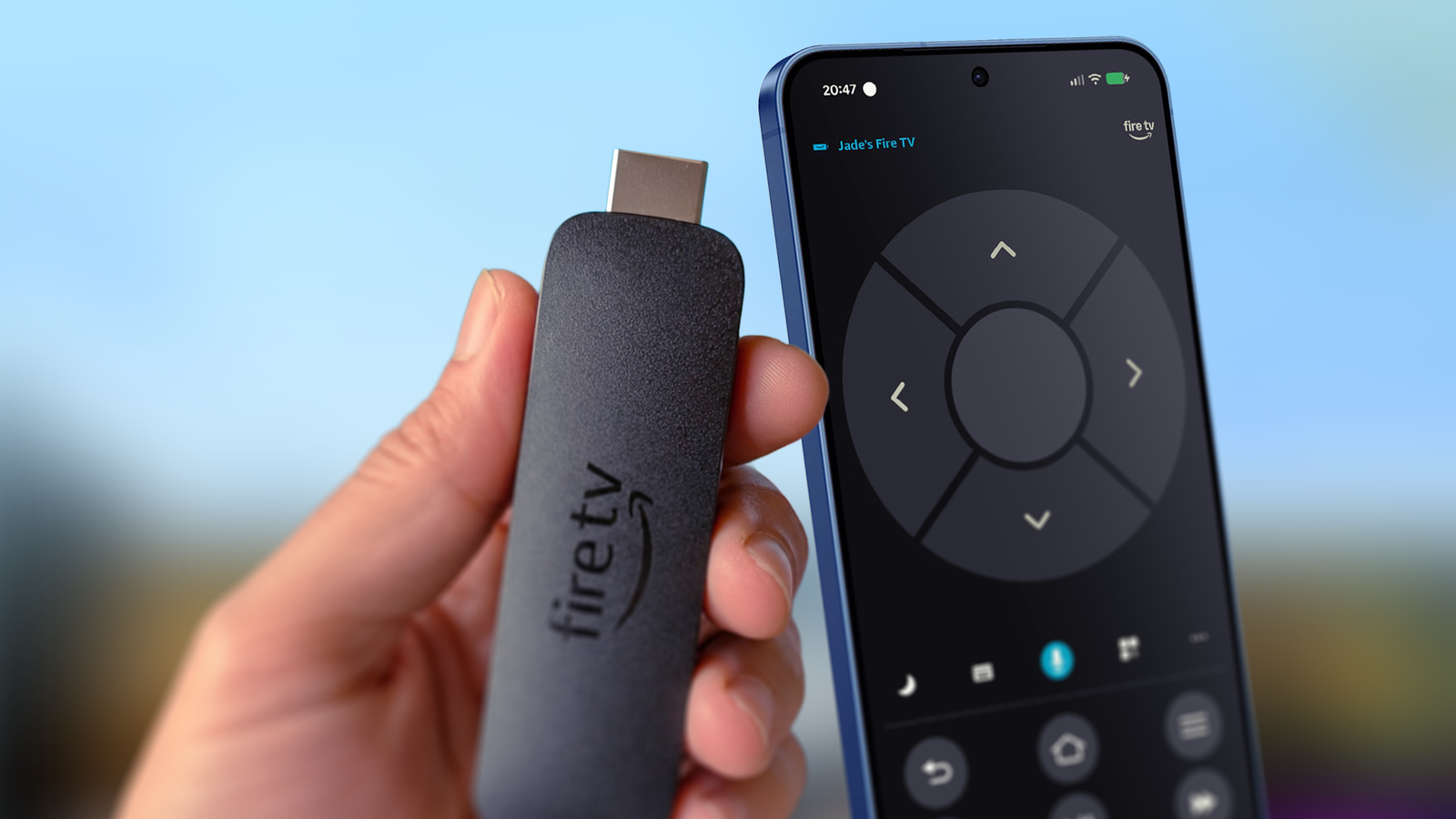
Published Aug 31, 2026, 7:00 AM EDT Jade Bryan is a Feature Author at Android Police with over a decade of tech reviews and news reporting experience, stretching back to the Symbian era and the early days of Android. He covers the breadth of the mobile industry, specializing in operating system deep-dives, app testing, and hardware analysis. In his spare time, you can find him tinkering with his Android devices and wearables, seeking ways tech can improve daily life. He also enjoys playing MMORPGs, traveling, or feeding stray cats and dogs. This year, I planned to set up a new Fire TV in our bedroom, but the decision was not straightforward, leaving me with a dilemma. I was torn between sticking with my aging Fire TV Stick or upgrading to the Google TV Streamer. Staying with my Fire TV means richer, wider access to free content, but it has a drawback. I have an aging device, and I will lose software support sooner rather than later. It has also started to slow down because of recent Fire TV OS updates and system restrictions. However, I hate spending another Benjamin or so on new hardware, so I decided to live by the classic adage, "make do and mend." Fortunately, I found ways to restore my Fire TV Stick and get the most out of it through a few simple app downloads. Why your Fire TV stopped working Turn your phone into a full Fire TV remote Most major reasons users stop using their Fire TV devices are that they're outdated or have become clunky to navigate over time. Many can also relate to having an Alexa Voice Remote that stopped working or became damaged. Worse yet, some might have lost the remote. Depending on the model, replacing the physical Alexa controller can be costly. While I have not lost the Alexa Voice Remote for my Fire TV Stick 4K, and I hope I never do, using your phone is a handy alternative to a standalone controller. The mobile app is especially useful if you lost the original remote or are dealing with a broken controller on an older Fire TV. I installed the Fire TV app on both my Google Pixel and Samsung Galaxy phones, which is more convenient whenever I lose track of which of the 17 couch cushions and room corners swallowed the physical remote. How to use the Fire TV app Control and search content on your phone It is easy to install, completely free on Android and iOS, and supports most hardware starting from the 2nd-gen Fire TV Stick up through the Fire TV Stick Lite. To pair it, make sure your Fire TV is turned on and connected to the same Wi-Fi network as your phone. When launching the Fire TV app, you will be prompted to run a quick scan for available Fire TV hardware on your local network. Select the device you want to connect to, confirm the pairing code on your screen, and you are ready to go. That's certainly quick. Alternatively, tap the device icon in the upper-left corner to initiate pairing manually if the prompt does not appear automatically. After the app is set up, you can navigate using the virtual D-pad or use your phone's full keyboard to type text, saving your thumbs from clicking through individual letters on a TV screen. You can also browse movies and TV shows across Amazon's streaming library and launch them from your phone to your TV screen. There are minor limitations to keep in mind. As with older Alexa remotes, the app cannot manage TV volume or power toggles because it lacks infrared or CEC support, so you may need your original TV remote for basic power controls. Still, that is a tiny compromise for bringing an Amazon streaming stick back to life without buying new parts. Taotlus is a clean and snappy option Another reliable way to revive an aging Fire TV is by using an alternative launcher. It acts as a lightweight replacement for the default Fire TV OS home screen, which has become too process-heavy on older Fire TV models. For newer hardware running Fire TV OS 8 or sticks that have recently updated to it, installing custom third-party launchers has become trickier after Amazon locked down system controls. Thankfully, a few supported launchers are still available from the official Amazon Appstore. Taotlus is one of the best options, and it's free to download. It is a lightweight app manager that displays all your installed streaming services in a tidy, distraction-free grid layout. It makes your Fire TV navigation smoother and more responsive, since opening apps from a list excludes Amazon's suggested content and ads. While Fire TV OS prevents you from setting Taotlus as your permanent default launcher on boot, you can easily open it whenever you turn on your TV. On newer devices like my Fire TV Stick 4K Max or the Fire TV Stick 4K Plus, the operating system supports resuming to the last opened app when waking from sleep. This means you can jump back into the Taotlus launcher rather than staring at Amazon's sluggish home hub. To make launching it even faster, you can pin Taotlus to the front of your home screen app bar. Highlight the app, press and hold the Select button until the options menu appears, and choose Move to front. Purge background apps to increase available memory Install Background Apps and Process List Fire TV OS keeps recently opened apps lingering in the background, which quickly accumulates and slows down your entire system. This performance drop is especially noticeable on older Fire TV models with dated processors and less RAM. You can manually kill background services and apps by digging through the system settings, but it is tedious and frustrating. Instead, I rely on a utility called Background Apps and Process List, which streamlines the cleanup process with a built-in shortcut to close all active tasks. It is available on the Amazon Appstore. Go to the Appstore and search for the app's name. I recommend running the tool whenever you accumulate several apps in the background. Inside the app, you get a clean overview showing which background services are hogging your system. Select the Close All Apps button, and the tool will run each background task one by one in seconds, which is quicker than hunting through system menus. Amazon wants you to buy a new streaming stick, but these apps prove you don't need one These simple tweaks keep your older Fire TV running smoothly without touching complex developer menus or risking unofficial system modifications, so that's why I recommend them to any casual streamer. They're not definitive fixes, but they prove your Fire TV isn't broken and that you don't need to spend another $50 on a brand-new or replacement Fire TV dongle. 9/10 Operating System Fire OS Downloadable Apps Yes Resolution Up to 4K The Amazon Fire TV Stick 4K Max 2023 features a faster processor and larger memory. It can also run games faster than the non-Max models.
I skipped upgrading to new Fire TV hardware after a quick app download restored my old stick
Full Article
Original Source
Read the full article at Androidpolice →KhanList aggregates and links to publicly available news content. We do not host full articles from third-party sources. Always verify important information with original sources.