
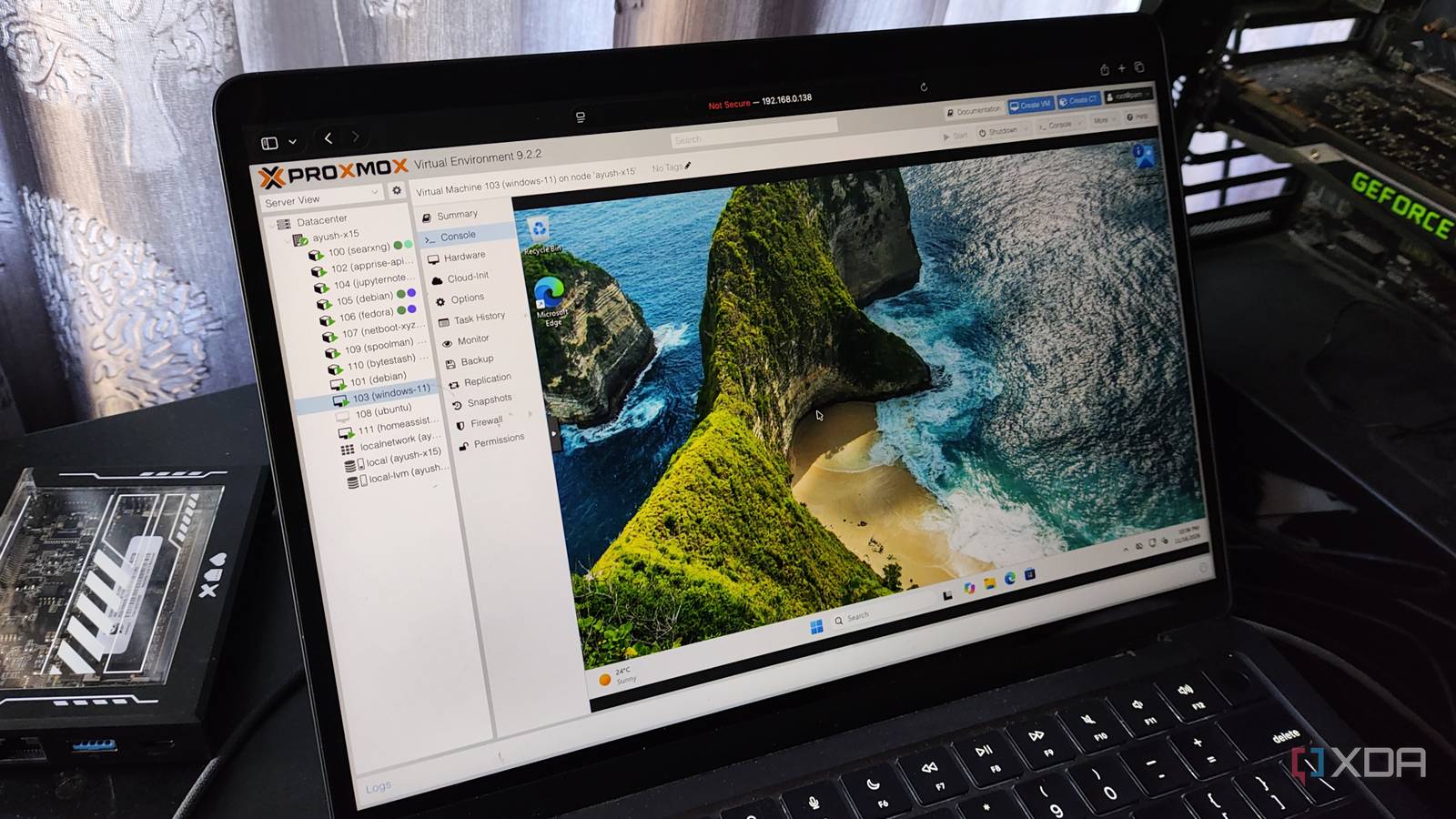
Published Nov 23, 2026, 1:30 PM EST Ayush Pande is a PC hardware and gaming writer. When he's not working on a new article, you can find him with his head stuck inside a PC or tinkering with a server operating system. Besides computing, his interests include spending hours in long RPGs, yelling at his friends in co-op games, and practicing guitar. When I first got into Proxmox, I spent a lot of time living out my distro-hopping and self-hosting fantasies. After all, it’s lightweight enough to handle a couple of Linux-based virtual guests despite possessing all sorts of advanced services to help me run wacky distros. In fact, I’d even set up Qubes OS, Android, and nested ESXi instances on my Proxmox nodes, just so I could tinker with them from a centralized UI and use snapshots to bring them back online when my experiments inevitably bring them down. That said, all it took was a virtualized FreeBSD instance to make me realize that Linux isn’t the only ecosystem I can run on Proxmox. Since I was already looking for a testing ground for my Windows 11, I decided to spin up Microsoft’s flagship OS inside a VM. Well, one thing led to another, and my Windows 11 VM snowballed into a powerhouse that can replace entire bare-metal setups. I initially deployed a Windows 11 VM just for my PowerShell and automation experiments It’s handy for projects that I’d never want to test on my daily driver The biggest advantage of virtual machines is being able to restore them in a few seconds when things go wrong, and it’s what made me want to opt for a virtualized Windows 11 instance in the first place. I’ve been playing with Ansible playbooks for a long time on the Linux front, and I really wanted to tinker with Windows-specific modules. But since my daily driver is already overburdened with all sorts of FOSS tools, a Windows 11 VM served as the right testing ground for my experiments. And then you’ve got the PowerShell scripts and Windows Task Scheduler projects I’ve always wanted to work on. But having already broken my Windows 11 daily driver with a misconfigured script, I’m well aware of how easy it is to mess up a perfectly-functional system with the wrong commands. So, I went full-throttle into a Proxmox-based Windows 11 setup that I could tinker with, break, and restore to my heart’s content. Well, as long as I allocated over 8GB of RAM and remained generous with the CPU cores, my Windows 11 experimentation ground worked fairly well. Of course, I had to enable the EFI disk at the VM creation wizard and install the VirtIO drivers for the Ethernet adapter and SCSI drives when setting up Windows 11, but the initialization process was fairly simple. I also had a somewhat sluggish experience at first, but all it took was getting rid of noVNC … Switching to RDP made my Windows 11 instantly better for everyday tasks I’m really glad I went with the Pro version of Windows 11 When I was choosing the Windows 11 variant at the initial setup process, I decided to go for the Pro edition simply because I wanted to tinker with nested Hyper-V, good ol’ GPE, and BitLocker encryption. However, Remote Desktop Protocol turned out to be the actual standout feature of Windows 11 Pro for this project, as it added some much-needed performance oomph to this VM. By default, Proxmox uses the noVNC console, which is already pretty slow on lightweight Linux VMs, let alone something as bloated as Windows 11. Not to mention, a barebones setup doesn’t support clipboard sharing or audio playback, meaning it was only good for simple experiments. However, accessing my dev environment over RDP not only made it feel a lot more responsive, but it even let me paste the contents of my client machine’s clipboard and listen to audio on the VM. Over time, I began arming it with simple productivity apps, and to my surprise, the experience was fluid enough that I had no issues working on my everyday tasks inside the virtualized environment. Passing a GPU to my Windows 11 instance increased its utility multifold It can even double as a reliable remote gaming server If there was one aspect where my virtual machine proved to be inadequate, it was demanding tasks that needed the superior processing capabilities of a graphics card. On the productivity front, my After Effects and Blender experiments were constrained by the CPU-only setup, and I don’t even need to spell out how troublesome it was to run typical gaming titles without a dedicated GPU. So, I decided to take the plunge into the GPU passthrough rabbit hole. And now that I’ve spent well over a few years using everything from old GTX 1080 and Arc A750 cards to a (somewhat) newer RTX 3080 Ti within Windows 11 VMs, passing a graphics card to a virtual machine is pretty easy on Proxmox. Yes, I had to edit a couple of config files with the right device IDs, but the entire process barely takes an hour, and it’s well worth the extra hassle. Typical video-editing tools work well with GPU passthrough, and although there’s a slight overhead due to the virtualized aspect of this setup, the performance difference between my Windows 11 VM and a bare-metal system is fairly minimal. For gaming, I had to switch from RDP to Apollo + Artemis, as the latter combo delivers far less latency for games that require fast response times. But Parsec works just as well, and it’s a lot easier to set up, too. As for the performance, I could run plenty of indie titles and even triple-A single-player games at 1080p 60FPS on a “mere” GTX 1080-powered setup. The only caveat is that games featuring anti-cheat technology tend to flag the virtualized setup immediately, meaning typical e-sports titles are out of the picture in a Windows 11 VM. But considering that most of my gaming sessions involve long single-player games and occasional friendslop titles, I’m perfectly fine with this DIY remote gaming server. All it takes is a little bit of legwork, and you can build a reliable Windows 11 VM A Proxmox-powered Windows 11 VM may seem somewhat complex, but it’s relatively easy to get up and running – and I say that as someone who still has one such instance deployed on a first-gen Ryzen 5 PC. Plus, it’s a neat option for folks (like yours truly) who want to break out of Microsoft's bloat-heavy ecosystem without losing access to PowerShell, Adobe, and other neat features. In fact, I’d go so far as to say that with the right tweaks, a GPU-laden Windows 11 virtual environment can indeed replace my barebones machine. Proxmox Proxmox is an open-source platform built on Debian Linux designed for server virtualization.
I run Windows 11 in a Proxmox VM as my daily desktop, and I don't miss bare metal at all
Full Article
Original Source
Read the full article at Xda-developers →KhanList aggregates and links to publicly available news content. We do not host full articles from third-party sources. Always verify important information with original sources.