
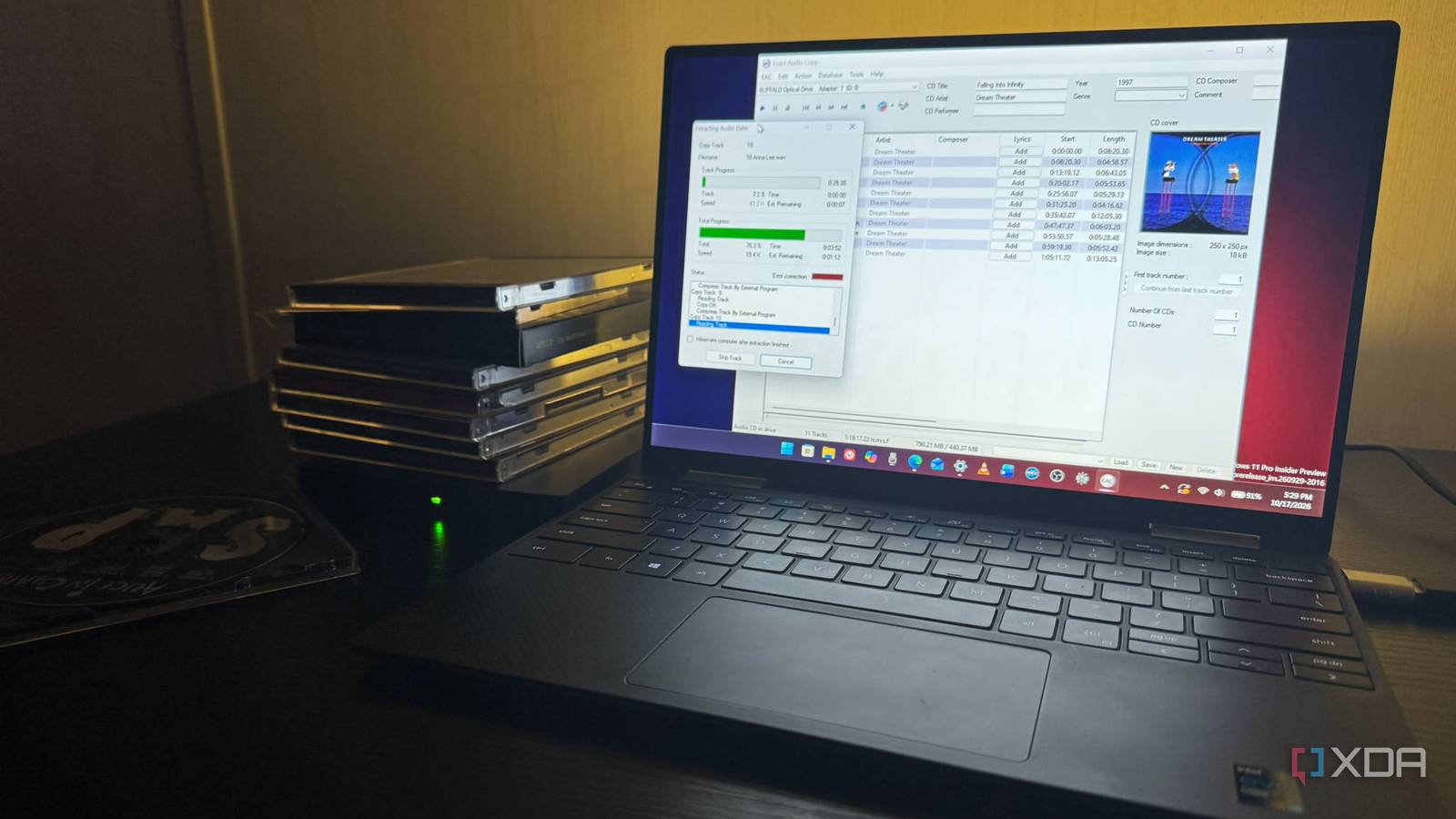
Published Oct 19, 2026, 11:31 AM EDT Based in rural Minnesota, Brian Burgess worked in IT for 10 years before finding his passion for writing about consumer technology. Brian earned his degree in computer and network technology in 2000. He held various IT positions, including help desk support, router installations for IBM, database administration, and other associate network administration roles. He's been a personal technology journalist for 18 years and has written thousands of articles about Microsoft products and services, Android, iOS, streaming, and more. He has written for notable tech sites including XDA, InformationWeek, How-To Geek, Byte, groovyPost, and others. When he is away from the keyboard, you will hear him playing guitar, working outdoors, and watching Star Trek. Years ago, I ripped many of my CDs to 320kbps MP3 files, thinking I was preserving quality while saving storage space. However, as my storage and music delivery methods have improved, I realized I needed something more. Even at higher bitrates, the difference in audio quality between a compressed MP3 and a lossless audio file is night and day. Now that I have a decent audio system, I've finally revisited my CDs and re-ripped them to the free lossless audio codec (FLAC). Gone are the days when I needed MP3s to stick on an iPod. Re-ripping my discs to a higher-quality lossless format is a better audio upgrade than the highest-end sound system I could afford. Ripping CDs after so long Choosing an optical disc and software Since it had been so long since I ripped a compact disc, I had to think for a while about how I would do it. I'd been ripping Blu-rays for so long that I wasn't even sure my 4K drive could read a CD. Plus, I kind of forgot how. I threw a CD into the drive; it recognized it, and it all started coming back to me. At first, though, I was clumsy. When I put in a disc, Windows AutoPlay didn't recognize it (I had it enabled). I could see an audio CD in the drive in File Explorer; I just needed to open it in VLC to play it. Once I confirmed the CD worked, I knew I could start ripping. Then I thought about which ripping software I would use, and which would work best for a workflow to get through a large collection. You can rip CDs to FLAC using Media Player on Windows, but it no longer has automatic artist lookup. So I looked at other options, including Exact Audio Copy (EAC), an open-source utility called fre:ac, and dBpoweramp, all of which include album/artist/track lookup. Each has pros and cons, but for me, the difference came down to having a large disc collection and needing an efficient workflow. Better audio everywhere A higher-quality music experience on all my screens I wanted to re-rip my CDs because, back in the day, I ripped them for MP3s to fit on an iPod or other device. But MP3s sound hollow and small, while lossless audio files offer a richer, fuller, more immersive sound. So, after ripping my discs, I added the FLAC files to my Jellyfin and Plex servers for lossless audio on devices throughout my home. I also use apps like Jellybox or the Plex companion app — Plexamp, which act like self-hosted Spotify-like music players. I also enjoy flipping between albums on the big screen through an Android TV box connected to my sound system. That is where I listen to my music the most, and the audio quality is phenomenal. Jellybox Jellybox is a music-only client for Jellyfin that looks and works like other streaming players. Except this is for the self-hosted music that you own. CD-ripping software Finding an app for lossless quality and efficient workflow I liked fre:ac because it is open-source and offers plenty of options, but it has a bit of a learning curve and still took too long to rip a CD. I would use it to rip an occasional disc, but I needed a more efficient process. The audio quality of my ripped CDs was great; the only issue was the slow workflow. EAC is an app everyone who grew up in the 90s should remember, and the UI still looks like it belongs in that era. It has plenty of options, including verifying the disc rip with multiple passes. EAC retrieves artist, album, and track name with its CUETool DB Metadata Plugin. It accesses music databases like MusicBrainz, Discogs, and FreeDB metadata. Keep in mind that EAC's job is to give you an "exact" copy of your CD. It does a tremendous job, too. When I chose the Test & Copy Selected Tracks option, it made multiple passes on each track and encoded them to FLAC. Still, even when I chose Action > Copy Selected Tracks > Compressed to speed up the rip, it took around 30 minutes to rip a CD. It was slower than what I wanted for this project. I stopped using "Secure" mode, switched to Burst mode, and set it to eject the disc after a successful rip. This only took 10 minutes to rip the disc. But it reads audio without EAC's sync or secure reading checks. It didn't sacrifice sound quality on the CDs I ripped, and I compared logs; each album had the same Copy CRC checksums. It still wasn't the workflow I wanted. However, I'll keep it as a backup tool for ripping stubborn CDs. Bulk ripping CDs Finding a fast ripping workflow for stacks of discs The final contender was dBpoweramp, which isn't free (trialware) but offers a 21-day trial. That was more than enough time to re-rip my CDs to FLAC. It has a more modern interface, and its settings are preconfigured for accurate, fast ripping. However, I set the rip speed to maximum, and it's faster than EAC. It also opens with the FLAC format selected by default. I set a destination drive and checked the option for it to eject after each rip. It found the artist and album information right away, and after tweaking a few things, I just clicked the rip button. When one CD finished, I took it out and put in the next one from my stack. It created high-quality, lossless copies of my discs, most of which aren't scratched or smudged because they have been sitting in a rack for years. I tried some older CDs with more wear and scratches, and it could read them. It had trouble with a few severely scratched discs, but I used EAC on those. After the trial, dBpoweramp is $48 for a personal license. But the 21-day free, fully functional software gave me enough time to re-rip my collection. dBpowerAMP dBpoweramp is a full suite for ripping CDs to lossless quality and converting various music file types. Replacing my MP3s by re-ripping my CDs to FLAC I wouldn't consider myself an audiophile, but I know what quality audio is and how to get it. Some people can't hear the compression difference between an MP3 and lossless audio, but I can. A high-quality FLAC rip gives me a full, immersive music experience. I would suggest dBpoweramp for a quick 3-week ripping excursion. I kept a stack of discs next to my computer, popped a new one in about every 10 minutes, and filled my drives with music I wanted to listen to. I have some CDs left to do, but EAC can handle those.
I ripped my CDs again after 20 years of old MP3s, and it's the best audio upgrade I've made in ages
Full Article
Original Source
Read the full article at Xda-developers →KhanList aggregates and links to publicly available news content. We do not host full articles from third-party sources. Always verify important information with original sources.