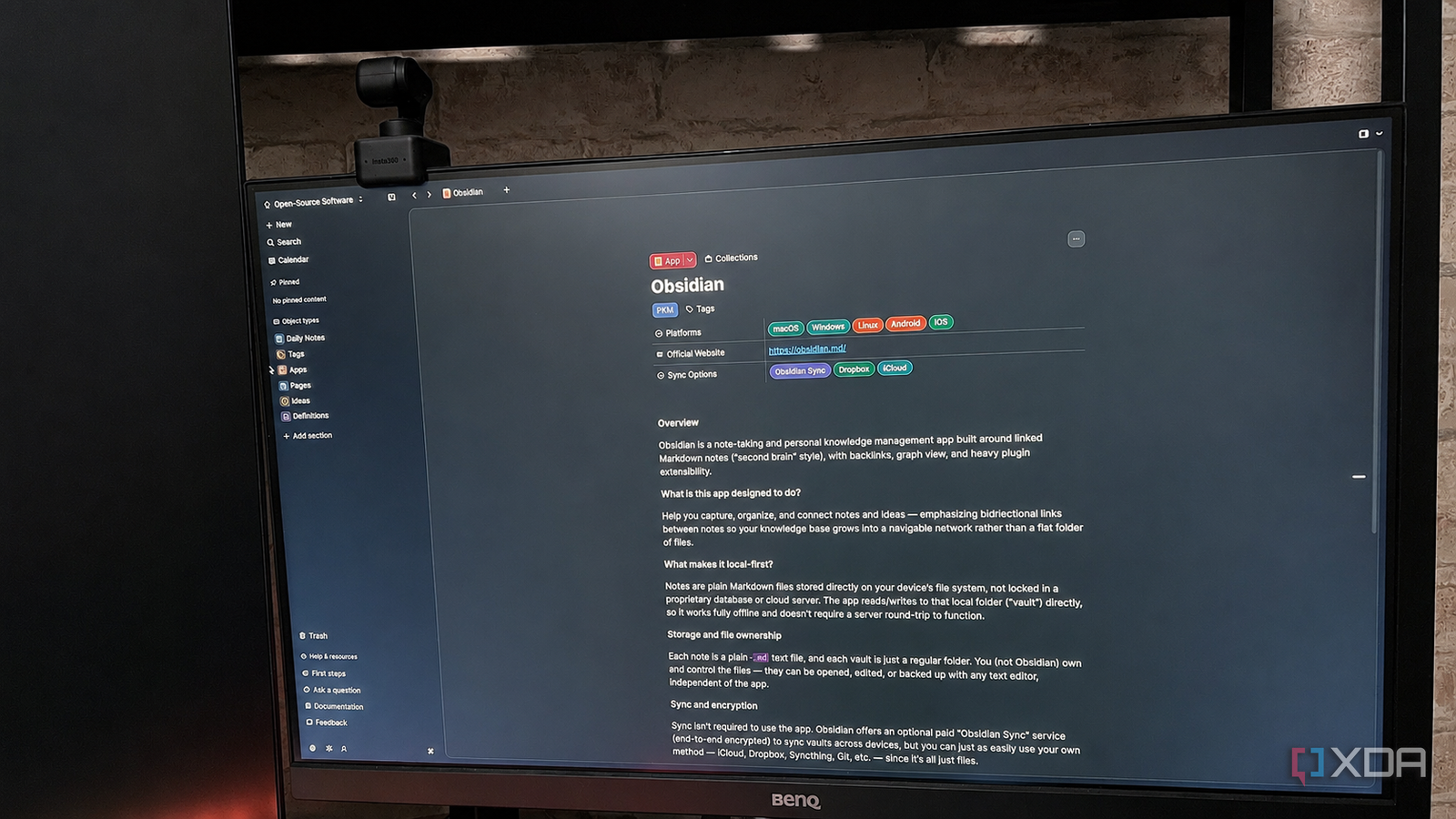
Published Jul 26, 2026, 1:00 PM EDT Patrick is a seasoned writer with more than a decade of experience, specializing in any and all things tech. His work has been featured on platforms like CNET, Yahoo, Xfinity, and many other outlets. When not typing away, he can be found with his nose in a book. Whenever I hear the terms "PKM" or "second brain," I assume it's yet another app trying to be Notion or Obsidian. That was my initial impression of Capacities, too, but the interface was intriguing enough that I decided to try it out for a week and test how well it held up in comparison to my primary Obsidian vault. What I discovered surprised me. While Capacities does share some similarities with Obsidian, it's also different in several significant ways. I'd argue the biggest way is that it encourages you to organize your information differently; whereas you can drop a note into Obsidian without assigning any tags, Capacities asks you to at least loosely categorize the information. The fact that it makes you think about it before saving it helps prevent the sort of digital clutter that can be all too common in other note-taking apps. From there, the functionality only expands. There are a lot of similarities to Obsidian that made Capacities feel pretty familiar, but a fair number of trade-offs, too. Capacities is broken down into object types Every note has a designated role When I create a new note in Capacities, I can choose from a slew of different object types. Many of these types are designed to connect together; for example, the "Book" type naturally connects to the "Person" type for an entry on the author. If I want to highlight particular snippets from the book, I can create a "Quote" entry that links back. Like Obsidian, Capacities supports bi-directional links and automatic linking. It's easy enough to create a link to an existing object — just type @ or use brackets—but you can also create an object by highlighting a section of text and selecting the + icon in the context bar. At first glance, it's more complicated than just throwing in a note, but on the other hand, I can still go back and create links later. It's just a bit more work. Each object type has its own icon, and while there are more than a dozen different pre-built types to choose from, you can also create your own. These also get icons, but if you're only using the free version of Capacities, the options are limited to emojis. There are specific icons to choose from, but that requires Capacities' Pro subscription. Properties feel much the same They're incredibly similar to Obsidian Properties are one of my most-used tools for organization in Obsidian, and Capacities adopts a similar approach that makes it easy to see relevant information at a glance. For my test, I compiled a list of open-source applications with their relevant information. It's something I need to look up on a regular basis, so I thought I'd gather it all in one place. Capacities' properties let me designate what platforms an app works on, what sync options it offers, its official website, and more. Like the core objects, I was able to designate custom properties and select from a variety of types, including Text, Labels, Checkbox, Aliases, and more. Options became more granular as I dug into the settings. For example, I wanted a "Platforms" property where I could see whether an app was available on macOS, Windows, etc. I chose the Label type, specified that I wanted to be able to select multiple options versus a single one, and then applied that change across the entire Space (Capacities' version of a vault). The Daily Note feature gives me quick-capture options without demanding organization Capacities still allows for scattered, random thoughts As I was learning my way around Capacities, I was afraid I wouldn't be able to quickly write down things that came to mind unless I had a designated area for it. Daily Notes solves that problem; it creates an entry for each date, and I can easily write down anything that comes to mind (and link it to existing content with the @ symbol). I can utilize this space to make quick to-do lists or capture stray thoughts. Obsidian has a similar feature, but I found I didn't use it often. Capacities kind of revolves around it, and anything I write down in a daily note that proves to be worthwhile can be turned into a dedicated object later. Capacities stores data in a proprietary format They aren't Markdown files The biggest downside to using Capacities is that your data isn't entirely in your control. Your data is stored online, just not as a Markdown file. It's also not fully encrypted, which raises quite a few data privacy concerns. I initially tested Capacities by importing my existing Obsidian vault, and between the import and conversion process, it took several hours. On the bright side, there's a built-in game I could play, even if I was terrible at it. Capacities isn't local-first in the same sense as Obsidian. I can export my space as a backup feature, but it adds an extra step to data security and still doesn't give me the same level of control I've come to expect. So what's the verdict? In the end, as interesting as Capacities is, I found myself wishing for the flexibility Obsidian offers. Capacities has a prettier interface out of the box, but I found it had a higher learning curve than Obsidian. Yes, Obsidian can get quite complicated once you add plugins into the mix, but at its core, it's a note-taking app. Capacities is a bit more than that, and I could see it being intimidating to less tech-savvy users. Capacities Capacities is a note-taking software that uses objects rather than folders for easier organization.
I replaced Obsidian with Capacities for a week to see if it could keep up
Full Article
Original Source
Read the full article at Xda-developers →KhanList aggregates and links to publicly available news content. We do not host full articles from third-party sources. Always verify important information with original sources.