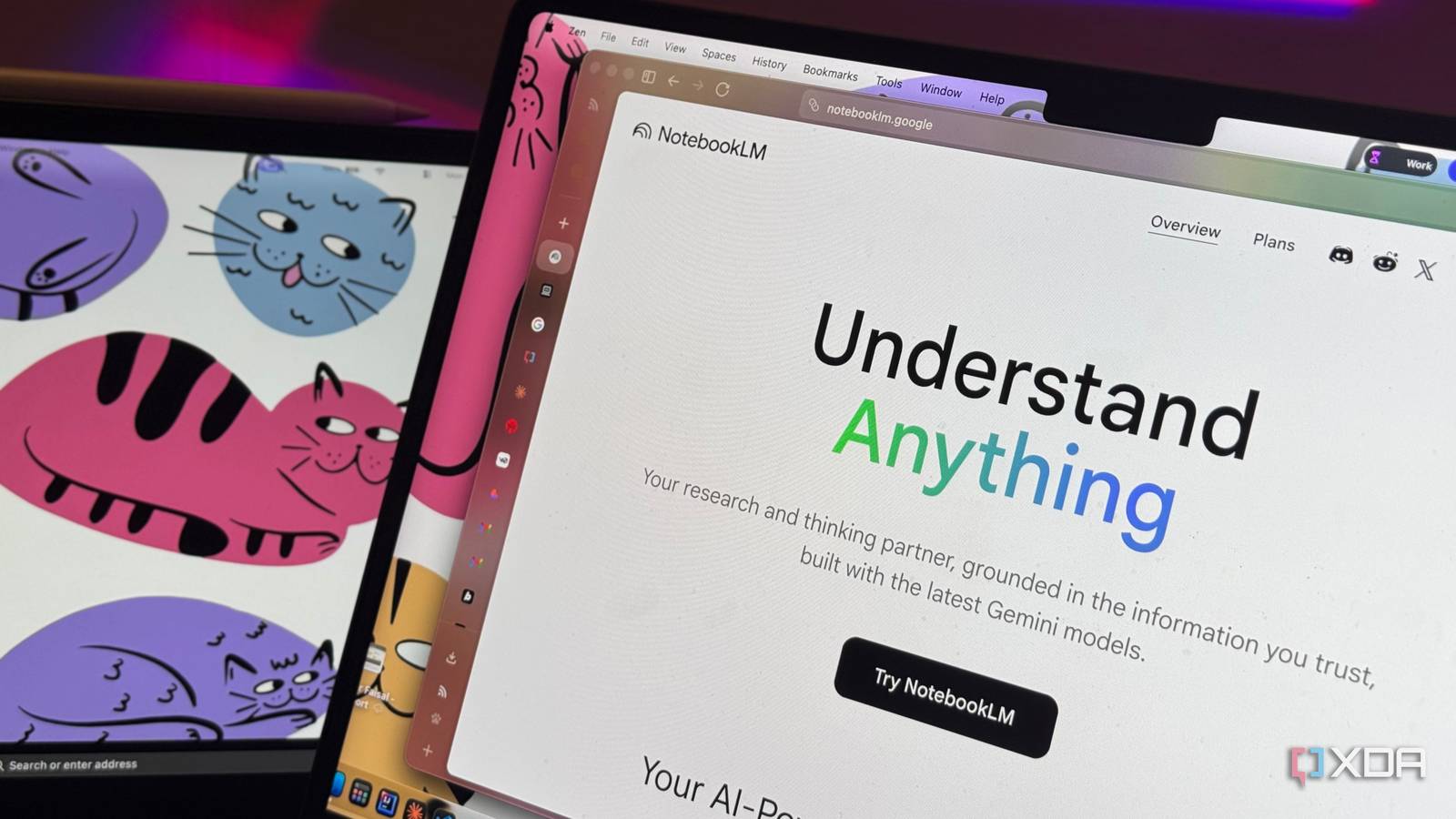
Published Aug 15, 2026, 9:30 AM EDT Mahnoor Faisal is a tech journalist covering AI and productivity tools with bylines at XDA, SlashGear, MakeUseOf, Laptop Mag, and Android Police. She's been writing professionally since she was sixteen, and has since penned hundreds of articles. This includes in-depth coverage of AI tools like NotebookLM to breaking news across the AI space. Her passion for technology started when she received her first iPod Touch (4th generation) on her 8th birthday, and she's been deep in the tech world ever since. Currently pursuing a degree in computer science, Mahnoor brings both a journalist's eye and a technical foundation to her coverage of how AI is reshaping the way we work and learn. Most people use Google’s AI-powered research assistant, NotebookLM (now called Gemini Notebook), to research faster and get a better grasp of a topic. And that makes sense, since that’s exactly what it’s designed for. For the longest time, I did the same: I relied on Gemini Notebook mostly for research and to prep for college midterms and finals. What I didn’t realize, though, is that I could integrate Gemini Notebook into my life beyond academics. I started using it to help with work, pairing it with tools like Slack and Excel, and even began using it to watch Netflix shows and read books. Weird, I know. One of the first Gemini Notebook experiences I tried was using the tool to watch lengthy YouTube videos, and since then, I’ve mostly stopped watching YouTube the traditional way. Instead, I use Gemini Notebook to consume videos. To make this workflow a lot easier, I decided to replace my "Watch Later" list with a Gemini Notebook queue. And honestly, it just completely changed the way I consume content. Why do I even need a Gemini Notebook queue for my YouTube "Watch Later" anyways? My secret to actually finishing my YouTube Watch Later list As I mentioned above, I've been using Gemini Notebook to "watch" YouTube videos for quite a while. But during this time, my process wasn't exactly as organized as I wanted it to be. Every time I wanted to watch a YouTube video using Gemini Notebook, I'd create a new NotebookLM notebook, upload the video's URL as a source, and that's when the watching process would actually begin. Sometimes, I’d come across a video I wanted to watch on YouTube while working or studying. Since I can't drop everything to watch the video right then, I typically add it to my "Watch Later" and then come back to it at a later time (if I even remember it). Even if I do remember, I have to go through the whole process again — opening Gemini Notebook, creating a new notebook, adding the URL, and setting everything up from scratch. It works, but it felt tedious and inefficient. So, I figured it was time to simplify things and build a single space where my entire YouTube "Watch Later" queue could live. Here’s how I set it all up, step by step Using extensions to speed up the process When I first decided I wanted to create a dedicated "Watch Later" queue in Gemini Notebook, I knew exactly how I was going to achieve it. Part of me thought it'd be difficult to actually implement, but it was surprisingly straightforward. Not too long ago, I wrote an in-depth article explaining how (and why) I created an "Everything" notebook in Gemini Notebook. So, what I did here was follow the same idea: I created a single NotebookLM notebook. Now, of course, I had some videos already sitting in my YouTube Watch List that I hadn't watched yet. So, I headed to my YouTube Watch List and began populating my notebook with those videos. Manually adding each link would've taken quite a bit of time, so I used a Chrome extension to speed up the process. Though there are a bunch of Chrome extensions available to make adding YouTube URLs to Gemini Notebook much easier, my favorite is the Gemini Notebook YouTube Link (Source) Automator, which is an extension primarily created for YouTube videos. It's perfect for this task, since it lets you add up to 100 videos to your notebook with the click of a button. All you need to do is head to your Watch Later list on YouTube, click the extension icon, select the extension, and hit the Extract Playlist button. The most recent 100 videos from your playlist will instantly be pulled. In my case, my Watch List had fewer videos, so those were all pulled in at once. Then, all you need to do is head to the notebook you just created, click the extension icon, and hit the Add All to Gemini Notebook button. As easy as that! You'll even get to see all the videos added one by one, and you won’t have to do a thing manually. The above process was to create my Gemini Notebook Watch Later queue for the very first time. From that point onward, every time I'd come across a YouTube video I wanted to watch, instead of adding it to my YouTube Watch Later playlist, I'd use either the extension above or the WebSync extension to instantly add the video to my Gemini Notebook Watch Later notebook. This way, everything stays in one place, and I don't even have to open YouTube again to view my queue. How I actually use my Gemini Notebook Watch Later queue Here's where the magic begins Every time I want to "watch" a YouTube video using Gemini Notebook, I simply head to the dedicated notebook I created and select only the video I want to watch. This way, Gemini Notebook only pulls insights from the specific video I've chosen, rather than combining all the other videos in the queue. Keep in mind that the AI tool doesn't actually watch the video. Instead, it uses the transcript and analyzes it. You can then generate a summary of the video, ask Gemini Notebook to highlight the key points, and even answer any questions you may have about the concept. You can also generate Audio Overviews, Video Overviews, and more. Once I've completely "watched" the video, I remove it as a source from my Gemini Notebook Watch Later notebook. This keeps the queue clean and ensures I always know which videos I still need to go through, making the whole process organized and easy to manage. I wish I created a Gemini Notebook Watch later queue sooner f there's one regret I have, it's that I didn’t create a Gemini Notebook Watch Later queue sooner. Once I set it up, I realized how much time and mental energy I had been wasting trying to keep track of videos on YouTube.
I replaced my YouTube "Watch Later" with a NotebookLM queue and transcripts, and it completely changed how I consume content
Full Article
Original Source
Read the full article at Xda-developers →KhanList aggregates and links to publicly available news content. We do not host full articles from third-party sources. Always verify important information with original sources.