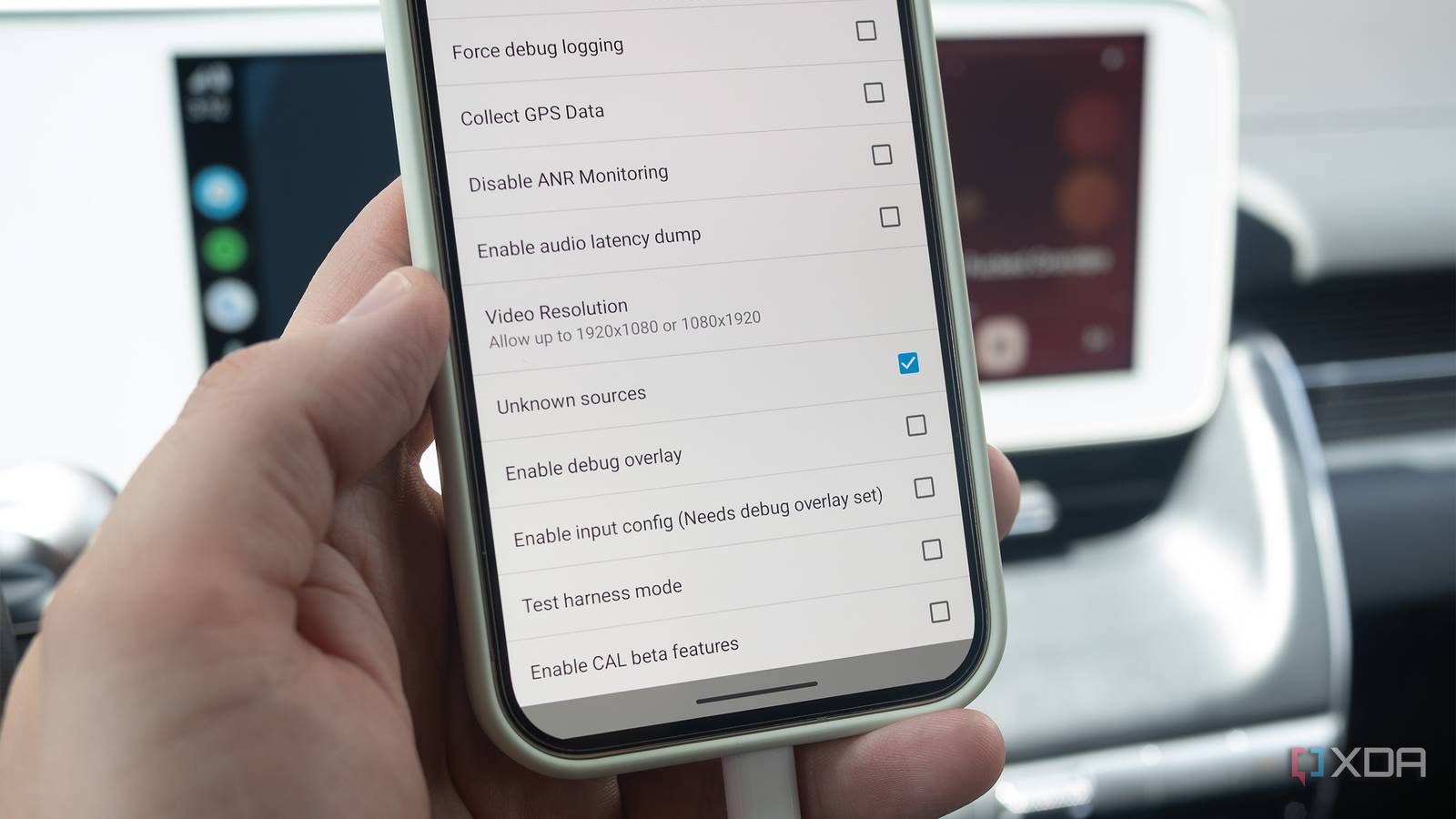
Published Jul 24, 2026, 11:30 AM EDT Patrick O'Rourke is XDA's News Editor and Entertainment Segment Lead. Previously, he was Pocket-lint's Editor-in-Chief, the Editor-in-Chief of Canadian tech publication MobileSyrup, and earlier in his career, he worked as the technology editor at the Financial Post and Postmedia. He's based in Toronto. Over the past 15 years, he's written thousands of articles. Patrick has also interviewed dozens of tech industry executives and covered GDC, E3, Gamescom, WWDC, Apple keynotes, Samsung Unpacked events and more. Patrick has a BA in journalism from Toronto Metropolitan University. Sideloading apps on Android Auto can be a very finicky process. Specific permissions can be confusing and vary by phone, the apps themselves are often unreliable, and platforms like Android Auto Apps Download (AAAD) sometimes stop working and go down for days at a time. Still, there are a few genuinely useful sideloaded Android Auto apps that add new functionality to the in-car infotainment system, like AABrowser, which lets you browse the internet in your car, or CarStream, a basic app that lets you watch YouTube in Android Auto (only use apps like this when your vehicle is parked). Getting them up and running is often a hassle, but I'd argue that it's worth the effort. With all of this in mind, I recently uncovered an alternative Android Auto sideloading method that allows me to avoid AAAD entirely (which is great, since paying for the premium version sucks) and still have the app icons show up directly in the in-car infotainment system's launcher. This Android Auto sideloading method worked with Pixel 10 Pro, which isn't rooted and is running Android 17. It will likely work on other Android devices, but your mileage may vary. The steps will also be slightly different depending on what device you're using. With Google's Android Developer Verification initiative and a new, more complicated, advanced sideloading flow coming to install apps from unverified developers, this method of sideloading Android Auto apps might only continue to work for the next few months. It's time to enable Android and Android Auto's Developer Modes The process takes a few brief steps First off, I needed to turn on Android's Developer Mode (these steps are for the Pixel 10 Pro running Android 17). This allowed me to install apps from unknown sources on my smartphone: Open the Settings app on your Android device. Tap About Phone. Open Software Information (with my Pixel 10 Pro, this is in the About Phone screen setting). Find your phone's Build Number, and tap it seven times in a row. If you've done this correctly, you'll see a message stating Developer Mode Enabled (a notification letting you know you have just a few taps left should appear). Now, it's time to turn on Android Auto's Developer Mode, giving you access to the platform's various developer options: Open the Settings app on your Android phone. Navigate to Connected Devices (it's the second option). Tap on Android Auto (with my Pixel 10 Pro, I need to tap Connection Preferences first). Scroll down and tap Version until Developer Settings are enabled. I wish I knew about the Unknown Sources setting months ago It's important to make sure you're always installing apps from safe sources The world of Android sideloading — and in particular Android Auto sideloading — can get shady very quickly. As a rule, I only download Android Auto apps directly from GitHub that have positive community discussions surrounding them and an ample number of Stars and Watchers. It's also important to keep in mind that this sideloading method isn't totally foolproof. There are reports that more recent Android Auto updates are removing sideloaded apps from the platform's launcher. In general, apps that bypass Google's Android Auto restrictions and feature screen mirroring or the ability to play YouTube videos often get blocked first when Google makes the changes. Nevertheless, it's a very streamlined way to install sideloaded Android Auto apps when it works as expected. After following the above steps, I enabled Unknown Sources under Android Auto's developer options. To do that, I followed these steps: Open the Settings app on your Android device. Navigate to Connected Devices and then Connection Preferences. Now scroll down to Android Auto, tap the Three Dots in the top-right corner of the screen, and select Developer Settings. Next, scroll down to Unknown Sources and tap the box beside it. With that out of the way, I'll use AABrowser as an APK example. First, I found the official GitHub repository for the Android Auto web browser and downloaded the corresponding file. I then installed it and went through the required permissions (you'll see a message like "Allow from this source" or "Install unknown apps." And that's it — AABrowser instantly showed up in my Android Auto under Customize Launcher and directly on my vehicle's infotainment system.
I replaced my old Android Auto sideloading method with this, and it's so much easier
Full Article
Original Source
Read the full article at Xda-developers →KhanList aggregates and links to publicly available news content. We do not host full articles from third-party sources. Always verify important information with original sources.