
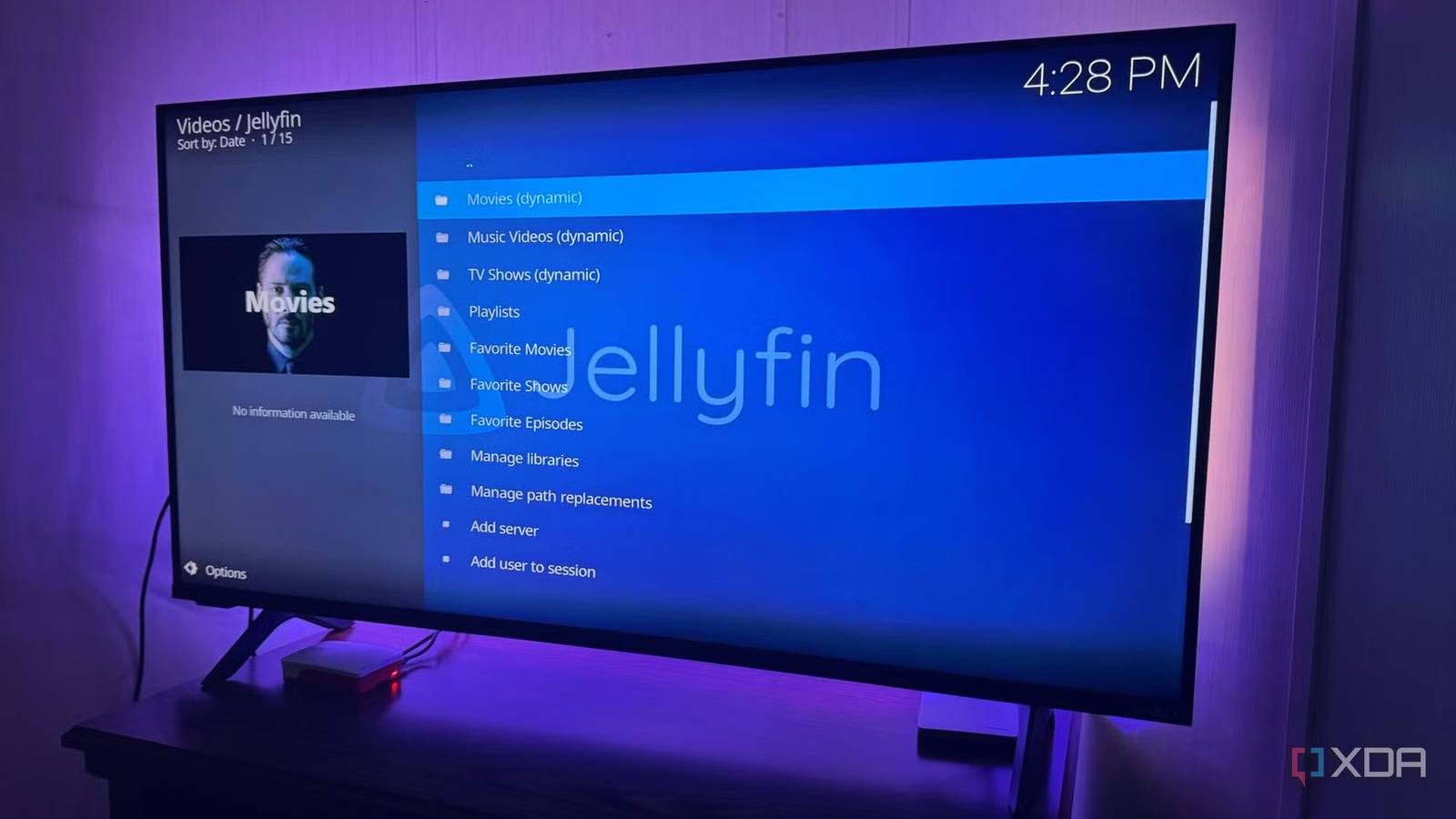
Published Sep 18, 2026, 8:30 AM EDT Based in rural Minnesota, Brian Burgess worked in IT for 10 years before finding his passion for writing about consumer technology. Brian earned his degree in computer and network technology in 2000. He held various IT positions, including help desk support, router installations for IBM, database administration, and other associate network administration roles. He's been a personal technology journalist for 18 years and has written thousands of articles about Microsoft products and services, Android, iOS, streaming, and more. He has written for notable tech sites including XDA, InformationWeek, How-To Geek, Byte, groovyPost, and others. When he is away from the keyboard, you will hear him playing guitar, working outdoors, and watching Star Trek. One issue with self-hosted media is buffering on certain devices. I have an older Chromecast that has had trouble playing content from Jellyfin, so I decided to grab a used Raspberry Pi to create a dedicated media-client setup with LibreELEC and Kodi to build my own Chromecast receiver for my media library. I also installed the Jellyfin add-on for Kodi, and so far it has streamed my content successfully without buffering issues. A new Raspberry Pi doesn't cost much, but I wanted to see if an older model could do it, and it turned out to be a good investment. Buying a used Raspberry Pi Finding the right model and configuration matters For my setup, I got a used Raspberry Pi 4 Model B with 4GB of RAM for a modest price. I flashed the box with LibreELEC 12.2.1, which includes Kodi. After that, I installed the Jellyfin for Kodi add-on (version 2.1.0+py3) to connect the Pi to my Jellyfin server. LibreELEC is a stripped-down, lightweight OS that I installed on a 128GB microSD card. It boots directly into Kodi, so I can quickly access my Jellyfin server to view movies and shows. Not all older Raspberry Pi devices are good candidates for a self-hosted media receiver. Look at something like my Raspberry Pi 4 with 2 to 4GB RAM, a Raspberry Pi 5 with 4GB RAM, or the Pi 400 keyboard kit. Lower-end Pi models aren't recommended for the current LibreELEC+Jellyfin Kodi client because LibreELEC has weaker video support on older Pi devices. But you can always try an earlier version, with trade-offs. You'll get good playback on older video formats, but you'll be stuck on an older Kodi version with less add-on compatibility and no security or feature updates, so results will vary. When in doubt, get the most powerful one you can. LibreELEC Putting the used box to the Jellyfin test Once I got everything installed and hooked up, I discovered that LibreELEC with Kodi is an OS that stays out of my way more than the Android TV interface. It's such a light OS that I forget it's there. I'm only in Kodi long enough to select the Jellyfin add-on and get into my media collection. I can use my TV's remote to navigate titles and move around Kodi or LibreELEC settings when I need to. The Raspberry Pi I use to watch content has little to no buffering, unlike the Chromecast. Of course, the Pi has more connectivity security since it can be plugged into Ethernet. A Chromecast is limited to Wi-Fi, which immediately puts it behind a Pi with Ethernet connectivity if feasible. I recommend plugging the Pi into your router if possible. If running a long cable from the router is impractical, the Pi 4 has Wi-Fi, but I've seen more signal drops and buffering. I started playing a recently ripped UHD 4K Blu-ray movie from my Jellyfin server, and it played without a hitch on my Pi 4, which was physically wired to the network. I experienced no buffering issues on my first attempt and have had little to no buffering when playing movies or shows via my Pi for the past week. One thing I find irksome with the Pi 4 and my configuration is that when something isn't showing, it takes longer than I would like for it to update my library. I'm not sure if that's a Kodi, Jellyfin, LibreELEC, or Pi issue, but I'll keep looking into it. I didn't want to use a keyboard and mouse once I hooked up the Pi to my TV. So I set up my TV's remote to work with Kodi by enabling the CEC Adapter in Kodi (Settings > System > Input > Peripherals > CEC Adapter). This provided a more natural Chromecast-like experience since I could navigate my library from the comfort of my couch. You can also use a Bluetooth remote by checking the option in LibreELEC Bluetooth settings. Raspberry Pi tradeoffs It's not a replacement for streaming services Switching from a Chromecast device to a Raspberry Pi comes with a few caveats. It's an excellent way to view your self-hosted media from Jellyfin, Plex, or Emby. It's not a clean replacement for viewing commercial streaming services. Communities make streaming service add-ons, but they're unofficial and unreliable. LibreELEC is a stripped-down, purpose-driven version of Linux meant to run Kodi and not a full Android/GoogleTV experience. Still, the more worthless content I see on streaming services, the happier I am to be building my own media library. I didn't replace every streaming service available on Chromecast with the Raspberry Pi, and it can't do that tangibly. However, I did use it to replace the Chromecast as my self-hosted media receiver. Jellyfin apps on Google's dongle can buffer a lot. I don't subscribe to many streaming services and wait for new movies and shows to come out on disc. Especially since movies disappear from streaming and I want to own the content. The Pi and LibreELEC+Kodi make for a great receiver for my self-hosted media. Also, a Chromecast is typically better for streaming apps, requires less maintenance, and handles certain proprietary HDR/DRM formats. LibreELEC also doesn't support Dolby Vision or HDR10+, but does support HDR10/HLG when connected to a compatible TV. Still, after experiencing how light LibreELEC runs on a low-powered device like my used Pi 4, the Google TV interface feels bogged down by comparison. A Raspberry Pi replacing my Chromecast Overall, the Pi has worked well as a client for viewing media on my media server. I used Jellyfin for this article, but you can also use your Pi as a client for Plex or Emby, since Kodi has client add-ons for each platform. It can stream my DVD or lower-quality media files, as well as UHD 4K MKV rips. However, the lack of HDR10+ and Dolby Vision could turn some users off.
I replaced my Chromecast with a Raspberry Pi running Kodi, and it plays everything without buffering
Full Article
Original Source
Read the full article at Xda-developers →KhanList aggregates and links to publicly available news content. We do not host full articles from third-party sources. Always verify important information with original sources.