
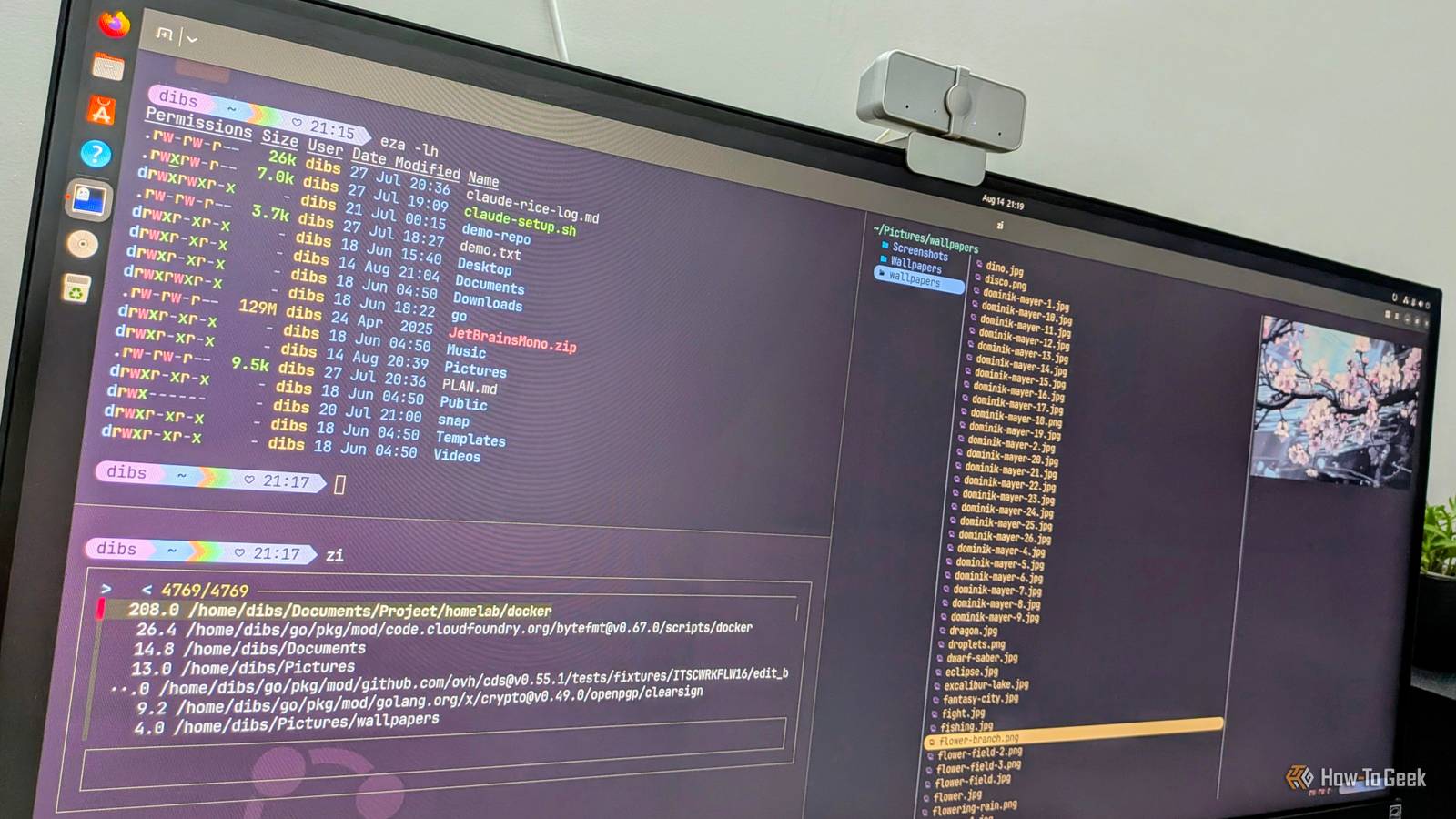
Published Aug 20, 2026, 6:30 AM EDT Dibakar Ghosh is a tech journalist at How-To Geek, where he focuses on Linux, Windows, and productivity tools. His goal is simple—help readers at every skill level get more done with the tech they use every day. He began his writing career in 2016 with WordPress tutorials, later moving into digital marketing, where he spent years reviewing complex tools for marketers. His work has also appeared on Authority Hacker, where he’s shared in-depth guides on digital workflows and online productivity. That experience now shapes his journalism, blending analytical depth with practical, real-world advice. When he’s not writing or testing software, Dibakar is usually watching movies or playing video games. He’s a huge Christopher Nolan fan and a strong proponent of the theater experience. In gaming, he has sunk hundreds of hours into Insomniac’s Spider-Man series, Returnal, Prototype, Darksiders, and Final Fantasy titles. The ls and cd commands are as old as Linux itself—older if you consider their actual Unix-based origins back in the 1970s. Now, while both of them are just as reliable as they used to be, a few modern alternatives have cropped up promising faster performance and more intuitive workflows. I decided to give them a try, and as it turns out, they’re good enough that I’ve retired both cd and ls from active duty. A drop-in replacement that's more than just a fresh coat of paint eza is a modern, Rust-based replacement for the ls command. Technically, it’s a fork of a slightly older, currently unmaintained project called exa, which was also centered on modernizing ls with Rust. In terms of functionality, eza covers everything ls does and then some. Most of the ls flags also map to eza, but not all of them. That said, eza is fairly intuitive, and it shouldn’t take you too long to get used to it. Here are some of the flags you’ll be using regularly: eza shows a basic directory listing equivalent to ls eza -l shows a long listing with permission information eza -lh shows the same long listing as -l, but with human-readable file sizes eza -la shows a long listing including hidden files eza -l --icons shows a long listing with icons eza -l --sort=modified sorts the listing by modification time eza -l --sort=size sorts the listing by file size Now, the key advantage of using eza is that you get better defaults that give you more information, along with quality-of-life improvements. This includes color-coded files, directories, permissions, and sizes in the listings, which makes the output look nicer and easier to scan. Also, if you have a Nerd Font installed, eza can display icons beside filenames based on their extensions. This can quickly help you figure out whether you’re looking at a config file, an image, or something else. You can also use eza to render directory contents as a tree, which makes it far easier to visualize the file hierarchy. However, the main highlight of using eza over ls is its native Git support with the --git flag. Run eza -l --git inside a repository, and every tracked or ignored file gets a marker showing whether it’s new, modified, or ignored. This saves you from constantly bouncing between ls and git status. Overall, I find eza to be an excellent alternative to ls. Still, switching to it was somewhat hard for me because of my years of muscle memory typing ls—and I know I’m not going to be the only Linux user with that problem. Luckily, this is an easy fix. You can simply create an alias like this: alias ls="eza" alias ll="eza -l --git --icons" alias tree="eza --tree" Add these three lines to your .bashrc or .zshrc—depending on which shell you’re using—and every ls you type from now on will run eza under the hood. This way, your muscle memory stays intact, and it basically feels like ls got a huge version overhaul. zoxide replaced cd The smarter way to move around your filesystem zoxide is a better and smarter cd, also written in Rust. It aims to solve a fundamental problem almost all of us have faced when using cd. When trying to change directories with cd, you either have to remember and type the full path or tab-complete your way through it. zoxide solves this by letting you jump directly to a directory without having to enter its full path. For example, instead of using cd ~/Documents/projects/homelab/Docker to navigate to my Docker directory, I can simply type z Docker. It’s also case-insensitive and works with partial path matches. This means z docker or z dock will also take me to my Docker directory. The tool works by creating an internal database of the directories you visit and ranking them based on frecency—a combination of frequency and recency. Directories you visit often get a higher score, while directories you’ve visited recently get a boost on top of that. As a result, the more you use zoxide, the better and more accurate it gets. That said, instead of waiting for it to do its thing, you can also use the zoxide add and zoxide edit commands to add directories to its database and adjust their rankings manually. Now, while using zoxide, you’ll eventually run into a situation where two directories have the same name, like: ~/Documents/projects/homelab/Docker and ~/Documents/projects/test/Docker If I use z docker, it will land me in the homelab path because that’s the one I use most. But I can easily go to the test path by mentioning it in the query: z test docker. The only thing to remember is that while you can skip directories in a path, you can’t change their sequence. So, based on the example above, z project test docker will work, but z test project docker won’t. I should also mention that zoxide can integrate with fzf, the fuzzy finder. With fzf installed, type zi instead of z, and you’ll get an interactive fuzzy-search menu of your ranked directories. Just start typing, and you can see the list narrow down until you find the specific directory you’re looking for. It’s genuinely the fastest way to move around a large filesystem that I can think of. Yazi as a terminal-based file browsing experience Because sometimes you just want a file manager Commands like cd, ls, eza, and zoxide are single-shot CLI (Command Line Interface) tools that are useful for finding that one file or a specific piece of information about a file. However, if I want to browse my filesystem—drilling into directories and checking what’s inside—running list-and-jump commands over and over feels clunky. In those situations, it’s better to use a full TUI (Terminal User Interface) app like Yazi. It basically works like a graphical file manager, but inside your terminal. It gives you a three-column layout, with the parent directory on the left, the contents of the selected directory in the middle, and a preview pane on the right showing the selected file or the contents of the selected folder. The preview pane can display rendered code with syntax highlighting, PDFs, text files, and even images (if your terminal supports image rendering). When it comes to navigation, Yazi uses Vim-style keybindings. So, if you’re comfortable using H-J-K-L as arrow keys, you’re going to be fine. At this point, you could argue that a graphical file manager is better, but those are generally slower and potentially inaccessible if you’re working with a server that doesn’t have a desktop environment. For reference, Yazi is also written in Rust, uses asynchronous I/O, and is blazing fast. Time to modernize your Linux PC Switching from ls and cd to eza and zoxide is one of the most low-effort, high-impact improvements you can make to your Linux setup. Neither command will disrupt your regular workflow, and both bring a lot of quality-of-life improvements. And by aliasing them to their familiar names, you can completely sidestep muscle memory getting in the way.
I replaced cd and ls with these modern Linux commands—and I’m not going back
Full Article
Original Source
Read the full article at Howtogeek →KhanList aggregates and links to publicly available news content. We do not host full articles from third-party sources. Always verify important information with original sources.