
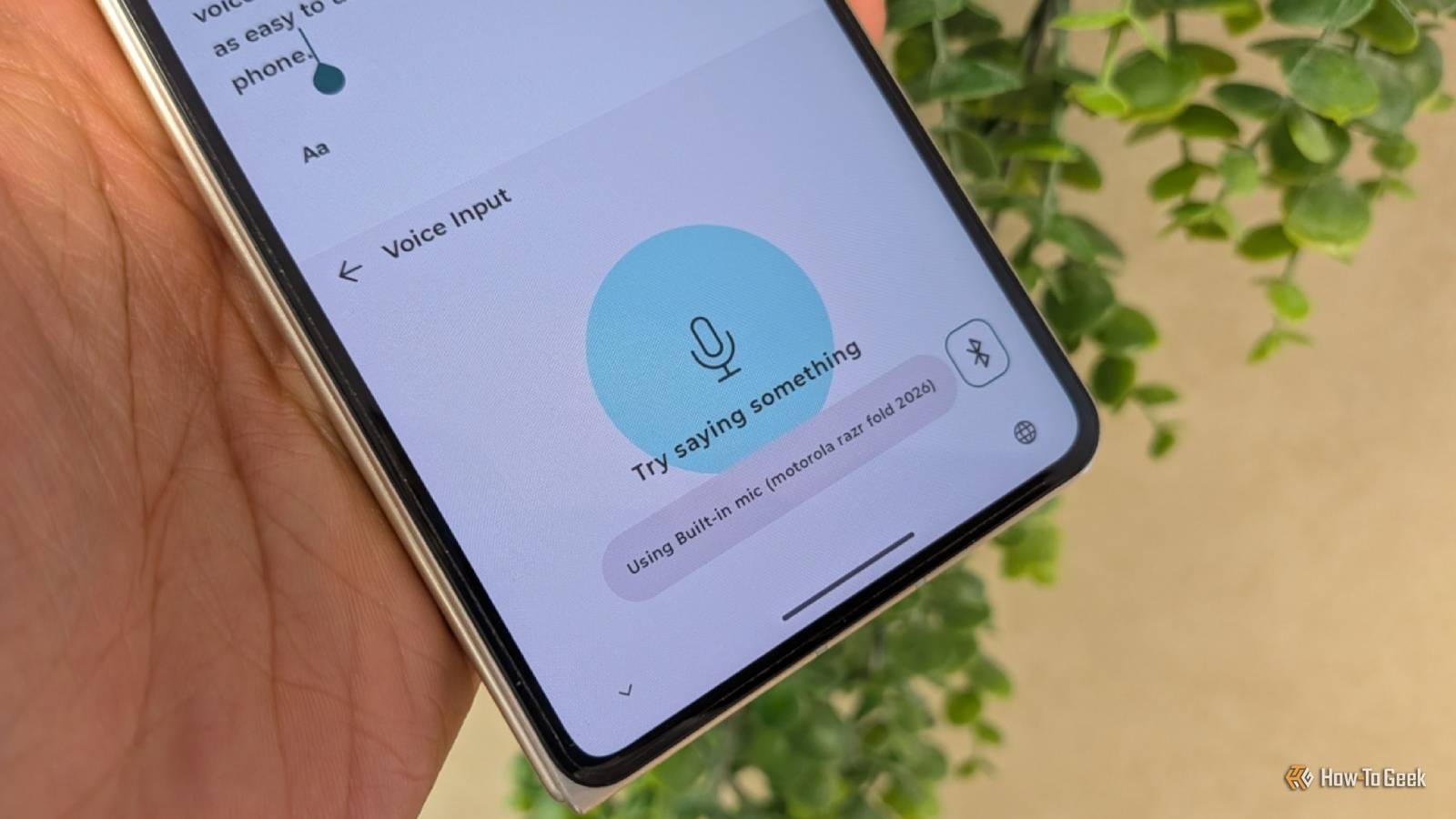
Published Aug 22, 2026, 8:45 AM EDT Bertel is a lifelong tech enthusiast with over a decade of experience writing thousands of articles about Android devices, Linux, and more. Before joining the How-To Geek team, Bertel wrote for the likes of MakeUseOf, MakeTechEasier, and Android Police—at the latter he wrote over 3,500 articles. He delights in helping others decide which tech to bring into their lives... and which tech to do without. Bertel graduated from the College of William and Mary in 2012 with degrees in History and Government. He has spent his entire career as a tech journalist covering Android, Linux, wearables, smart home devices, and more. I make heavy use of voice dictation—I'm actually speaking the words you're reading right now. But I'm squeamish about the privacy concerns of Gboard and the connectivity requirements of Wispr Flow. Fortunately, I've found a private, offline-only option that is just as good—if not better. I've replaced Google with FUTO Voice Input One of the best private Android keyboards also has the best private voice input For a long time, switching to a private and open-source keyboard came with significant compromises. Suggestions were unreliable, and gesture swiping wasn't available at all. FUTO Keyboard is among several modern open source Android keyboards that now rival Gboard. This keyboard is an easy drop-in replacement, and as it turns out, the same is true for FUTO Voice Input. FUTO Voice Input is not a baked-in part of FUTO's keyboard app. It is an optional add-on, but it is one that integrates seamlessly. Unlike FUTO Keyboard, Voice Input does require the network access permission, but that is because it needs the ability to download models for offline use. Once downloaded, voice dictation works regardless of whether you have an active internet connection. There's a microphone on my keyboard, just like in Gboard My workflow doesn't need to change Credit: Bertel King / How-To Geek If you know how to use Google Voice Input, then you know how to use FUTO. Whenever my virtual keyboard appears, there is a microphone icon in the top right corner. When I tap this icon, my virtual keyboard goes away, and a microphone appears, indicating that I am using voice-to-text. There's a pulsating circle around the microphone that expands as my phone detects my voice and shrinks during pauses. This means I can use FUTO Voice Input without making any changes to my existing workflow. This is an important distinction between FUTO and some other open source alternatives, like Notely Voice, which require me to use a specific app to dictate text that I can then copy and paste elsewhere. FUTO Voice Input works in any input field where I can type. That makes it as useful for responding to text messages or performing web searches as it is for writing out lengthy drafts, as I am now. The quality of the results is shockingly good FUTO lets me choose between accuracy and speed Voice input methods can live and die by the quality of their transcription. For the past few months, I have made heavy use of Wispr Flow largely because it has the best transcription results of any service I've seen yet, but also because it allows me to speak for much longer periods without it quietly turning off. The thing is, it's not that great in places where I don't have a strong internet connection. Not only does Wispr Flow often not work, but it spins for a while before it even tells me that it failed. With the default settings, FUTO Voice Input isn't as hands-off as Wispr Flow. Like Google Voice Input, I need to monitor it as I talk. If I take a pause while talking without looking at the screen, I often look back to find that it has stopped listening. But I later discovered an "auto-stop on silence" option that largely solves this problem, making FUTO feel much more like Wispr Flow. Like many voice dictation tools, FUTO doesn't pick up on many product names. For example, it currently writes "Wispr Flow" as "whisper flow." Thankfully, there is a way to make FUTO Voice Input results better. While the default model emphasizes speed over accuracy, I've chosen to download a larger model that flips the priority. Inside the app's settings, you can choose between the fastest model, the slowest model, or one in between. To my surprise, I see no difference in speed when switching from the fastest model to the slowest one on my Motorola Razr Fold. I imagine this story is likely the same on any other flagship phone. With FUTO Voice Input's quality cranked all the way up, I find it to be superior to the results I get from Gboard. That's because FUTO Voice Input waits to hear everything I have to say before it starts to transcribe my words. By contrast, GBoard transcribes each word as I go. Listening for the entire context allows FUTO Voice Input to more accurately capitalize words and insert the correct punctuation. Like my colleague who has recently been impressed by the quality of the built-in voice dictation in Windows, I no longer feel the need to seek out a premium alternative. FUTO Voice Input isn't perfect, but it's close enough FUTO's voice transcription tool can't yet do everything that Google's can do. I can't insert a comma just by saying "comma," nor can I tell FUTO to go back and delete something I just said—but that does nothing to diminish how awesome it is that a fully free and private voice transcription tool now exists that is just as easy to use as the one that comes with my phone.
I replaced Android's voice typing with an offline option that respects my privacy
Full Article
Original Source
Read the full article at Howtogeek →KhanList aggregates and links to publicly available news content. We do not host full articles from third-party sources. Always verify important information with original sources.