
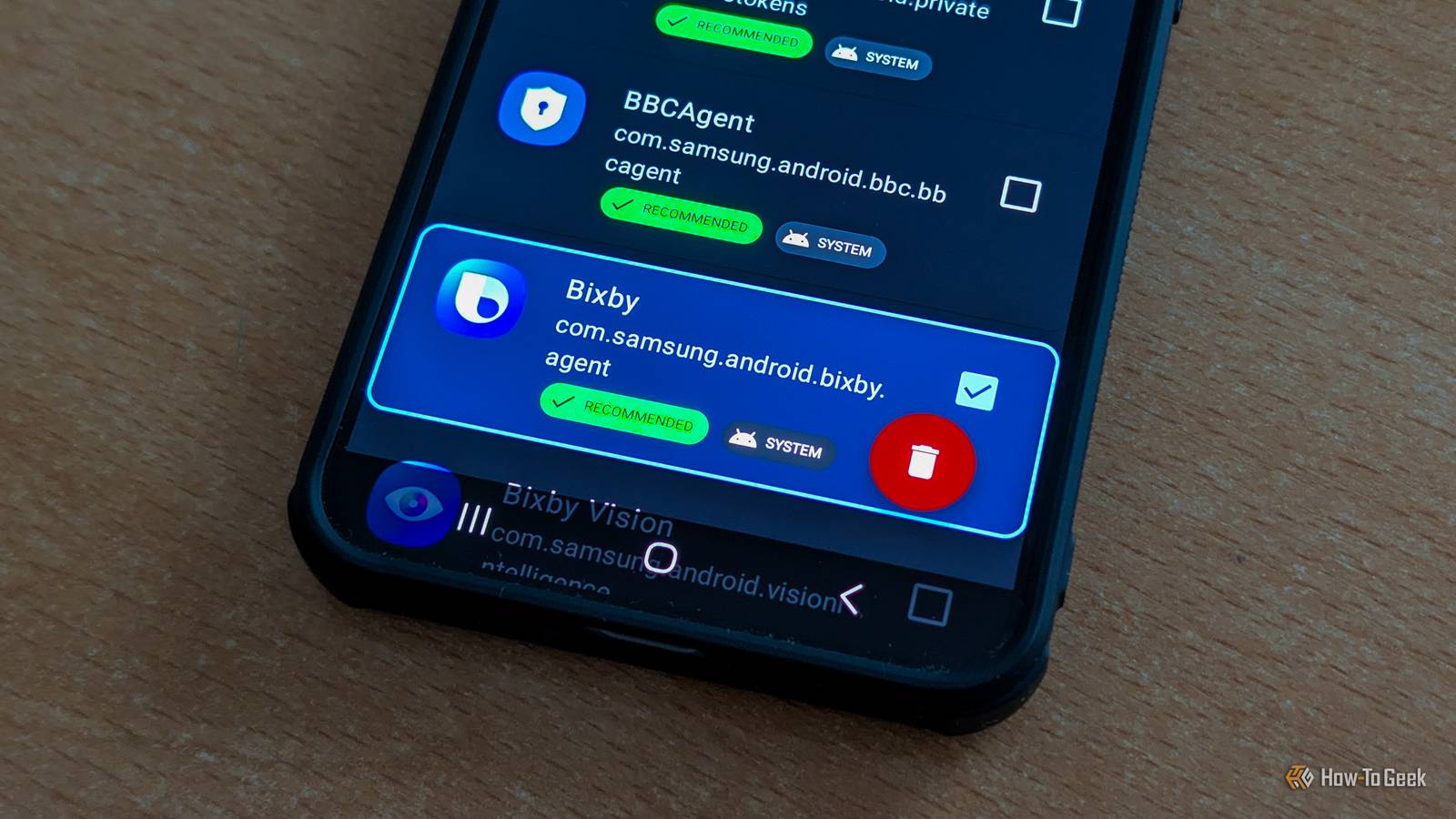
Published Nov 29, 2026, 1:00 PM EST Ever since he got his first smartphone, the legendary Nokia 6600, back in 2005, Goran became obsessed with technology. This obsession had only gotten worse after he received his first gaming PC a couple of months later. He fell in love with video games in the early '90s, shortly after embarking on his gaming journey with the Sega Master System II and SNES. Since then, he has built dozens of PCs, played thousands of games, and authored hundreds of articles about PC hardware, gaming hardware, and video games. He knows everything there is to know about the PC gaming and PC hardware space, and while his console gaming knowledge isn't as comprehensive, he considers himself a console veteran. Goran has almost a decade of experience writing about tech and video games for numerous web publications including TechSpot, TechPowerUp, and EsportsHeadlines. He has been writing for How-To Geek since December 2022. When he isn't gaming or deciding which component of his PC to upgrade next, you can find him strolling around Novi Sad while listening to music and contemplating what to play next. I'm not going to lie, Samsung is pretty generous when it comes to the number of preinstalled apps the company allows you to remove from your Galaxy phone. You can easily uninstall many "core" One UI apps such as Samsung Browser, Calendar, Samsung Health, Samsung Find, Samsung Members, and more. You can even remove some Google apps you can't on a Pixel phone, like Google Drive and YouTube Music. But there is still a good chunk of apps One UI prevents you from banishing for good. Luckily, all you need nowadays to get rid of them is two apps and a bit of your time. This is a far cry from the amount of work it took to debloat your Samsung Galaxy phone in the past, and a most welcome change. Debloating your Galaxy was annoying back in the day You either needed to root the phone or hook it to a PC Years ago, the only way to actually uninstall bloatware apps from a Samsung Galaxy phone without rooting it was with a PC that had ADB (Android Debug Bridge Utility) installed on it. Truth be told, the procedure was fairly straightforward (you'd just hook the phone to the PC with a USB cable and run some simple ADB commands), but the process was annoying, not only because some people didn't have easy access to a PC, but also because not everyone was comfortable messing with ADB and typing commands. Rooting, on the other hand, allowed people to uninstall bloatware with an app such as Bloatware Remover. The catch was that rooting had been a hassle on Samsung phones for years, even before the company locked down the bootloader for good, and it could also trip Samsung Knox and void your warranty. Fast-forward to the present day, and the process is simpler than ever. You don't need a PC, and you don't need to root the phone either. Two apps and some free time will do the trick. Nowadays, all you need is Shizuku and Canta Just disable Auto Blocker, enable Developer options, and you're off to the races The app combo you need to send bloatware on your Samsung Galaxy to the shadow realm consists of Shizuku and Canta. The first one, Shizuku, grants Android apps access to a number of system functions they could previously access only on a rooted phone. It's an essential app that I recommend to every Android power user. The second app is Canta, a debloater that leverages Shizuku to uninstall system apps you can't remove by going to your phone's settings. Installing the two and enabling the Shizuku service is very simple. I did it on my partner's Galaxy S25 in a matter of minutes and started to debloat her phone immediately after. The first step of the process is disabling Auto Blocker, which prevents you from enabling wireless and USB debugging on Samsung Galaxy phones. To do so, open Settings, go to Security and privacy, tap Auto Blocker, and turn it off. Keep in mind that Auto Blocker can turn itself back on 30 minutes after you disable it. If you plan to use Shizuku regularly, you'll want to prevent it from doing that, since Auto Blocker disables wireless debugging, which Shizuku needs to start its service after every reboot. After you finish this, download and install Shizuku and start its service, a process that includes enabling Developer options on your phone. You can check the entire step-by-step process of enabling Developer options and the Shizuku service in my explainer. In case the original version of Shizuku gives you trouble (I didn't encounter any issues on a Galaxy S25 running Android 17 and One UI 9, but your mileage may vary), you can download and install a fork of Shizuku that comes with official Android 17 support. Once you're done with Shizuku, download and install Canta, and launch the app. You'll get a no-warranty disclaimer, which is par for the course for debloater apps, and once you're in, you'll have a massive list of system apps you can uninstall from your phone. All you have to do is select any app, tap the Uninstall button, grant Canta permission in Shizuku, and confirm. That's it! Don't just go and apply a scorched-earth strategy to built-in apps Even the apps labeled as Recommended can be useful to many people If you haven't done this before, you might be surprised by how many apps there are. Many of those aren't standalone apps, but services that work in the background and provide all kinds of functionality. Since Canta integrates with the Universal Debloat List, which keeps track of which system apps across different phone brands are safe or unsafe to remove, you'll see a label under each app telling you just how safe removing it is. I recommend sticking with the Recommended apps, and even then skipping those you aren't sure about or might use in the future. The easiest way to do this is to let Canta only show you Recommended apps, and then read what each one does before removing it because, in a good number of cases, you might actually need it. For instance, Adapt sound is a very handy One UI feature that tests your hearing while you're wearing earbuds and then boosts frequencies you have trouble hearing. Similarly, Smart Switch is another handy app that lets you easily transfer content and data to a new Samsung phone, which is a godsend when upgrading. Conversely, you can freely remove apps such as Bixby and Bixby Vision if you aren't interested in Samsung's AI assistant (just make sure to remove all of its components, which you can find by searching for "Bixby" in Canta), as well as stuff like Galaxy Avatar (no one needs these eerie AR emojis), and OneDrive and Link to Windows (if you're not using the two services, of course). If you don't use Google Gemini, feel free to remove that one too, and the same applies to Google Meet and Google Photos. Whatever you decide to remove, just make sure to check what each app does before uninstalling it, and don't start removing apps willy-nilly. I debloated my partner's phone in a jiff with this combo Thanks to Shizuku and Canta, I managed to debloat my partner's Galaxy S25 in less than half an hour. I took a conservative approach, so I only removed stuff she approved, such as Bixby, OneDrive, Gemini, Galaxy Avatar, Link to Windows, Samsung Pass, and a few other apps and services. I didn't save a massive amount of storage (less than 1GB), but the important part is that I was able to easily get rid of every app she didn't need but couldn't uninstall the usual way.
I removed stubborn Samsung Galaxy bloatware without a PC or root, and it was a walk in the park
Full Article
Original Source
Read the full article at Howtogeek →KhanList aggregates and links to publicly available news content. We do not host full articles from third-party sources. Always verify important information with original sources.