
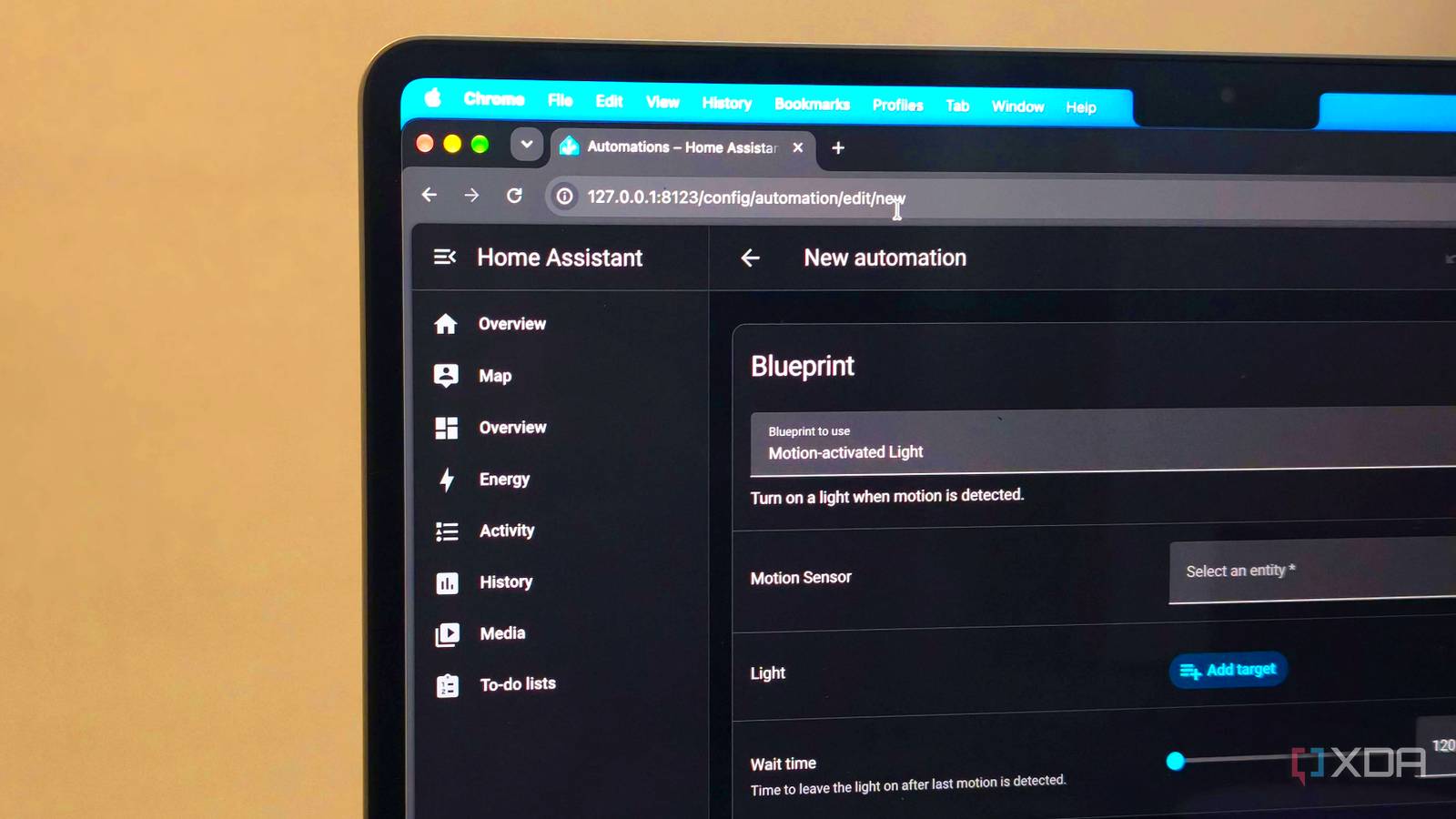
Published Nov 10, 2026, 5:00 PM EST Anurag is an experienced journalist and author who’s been covering tech for the past 5 years, with a focus on Windows, Android, and Apple. He’s written for sites like Android Police, Neowin, Dexerto, and MakeTechEasier. Anurag’s always pumped about tech and loves getting his hands on the latest gadgets. When he's not procrastinating, you’ll probably find him catching the newest movies in theaters or scrolling through Twitter from his bed. I've been using AI coding agents for quite some time now, and they've made it much easier to build and experiment with projects that I wouldn't have attempted otherwise. But Home Assistant has always been a little different. Working on automations often requires you to copy YAML files, explain how different devices and entities are connected, and go back and forth between the agent and Home Assistant to test changes. More recently, I started using the computer use feature in Codex to let it inspect my Home Assistant setup and handle some of these tasks itself, but that burns through tokens very quickly. A better solution I discovered just last month was an add-on that lets you run Codex directly inside Home Assistant, with access to its config files. Codex makes a lot more sense inside Home Assistant It can work with your existing configuration One thing about Home Assistant is that even a relatively simple automation can involve several moving parts. You might have a motion sensor controlling a light, a separate presence-based routine, and another script that changes how the same light behaves at night. When something goes wrong, or you want to make changes, you need to account for how all these things work together. The HA Codex add-on gives you a terminal that runs within Home Assistant, with read and write access to its configuration directory. Codex can go through your existing YAML files, inspect automations and scripts, and understand how you've organized things. For example, if I want to improve a lighting automation, I can ask Codex to inspect the relevant files first. Codex can look at the triggers, conditions, and actions, identify other scripts that might be involved, and suggest changes based on what's already there. That's a lot more convenient than asking a coding agent to generate an automation from scratch and then figuring out how to make it fit into my setup. However, access to config files doesn't give it live information about device states or automation history. You still need to provide that context when necessary. And you could achieve similar file access with Codex running on another computer. Getting Codex running inside Home Assistant You only need an add-on The easiest way to get Codex running inside Home Assistant is through the HA Codex add-on, available on GitHub. It's a community-developed project, so you won't find it in Home Assistant's default app store. You'll need to add its repository manually. To install it, open Home Assistant and head to Settings -> Apps -> App Store. From there, open the repository management menu and add the following URL: https://github.com/ambient-home-systems/ha-codex Once you've added the repository, HA Codex should appear in the app store. Install it, start the add-on, and enable the Show in sidebar option. You can now open Codex directly from Home Assistant's sidebar, just like any other app. The first time you launch it, you'll need to authenticate. The easiest option is to select Log in with a different device, which gives you a URL and a temporary code. Open the link on another device, sign in with your ChatGPT account, and complete the authorization. You'll need an account with Codex access, although the add-on also supports API-key authentication if that option is available. You can choose which model Codex uses, adjust its reasoning effort, and enable session persistence, so your terminal stays active when you navigate elsewhere in Home Assistant. I would also leave Skip command approvals disabled, since Codex has permission to modify your configuration files. The add-on also has an optional setting called Allow Home Assistant control actions. You can enable it to let Codex validate your configuration and request supported reload actions, which is useful when testing changes without manually reloading everything. I put Codex to work on my smart home Building and fixing automations became easier One of the first things worth trying with Codex is improving an automation that already exists. For example, I have presence-based routines that control my lights depending on whether I'm home and the time of day. I can ask Codex to examine the existing logic, check for conflicting conditions, and suggest changes. It can also show me exactly what it wants to modify before I approve anything. If an automation stops working after a change, Codex can also inspect the YAML, check for syntax errors, and look at any scripts or other configuration files involved. Of course, there are limits to what it can diagnose from the files alone. If a motion sensor isn't reporting correctly or an automation isn't triggering, I'll still need to check Home Assistant's traces and device history to figure out what's happening. The add-on becomes particularly useful when you enable Home Assistant control actions. After making a change, Codex can run a configuration check and reload supported components, including automations and scripts. You can then test the updated automation in Home Assistant without necessarily restarting the entire system. I wouldn't let it make these changes without approval, though, because even a small mistake could affect other routines. One thing to keep in mind There is one limitation worth mentioning. The add-on requires Home Assistant OS, so if you're running Home Assistant in Docker, you can't install it directly. You'd need to run Home Assistant OS instead, potentially in a virtual machine. A VM isn't necessary if you're already running Home Assistant OS on dedicated hardware.
I ran Codex inside Home Assistant, and having it next to my smart home changed how I code
Full Article
Original Source
Read the full article at Xda-developers →KhanList aggregates and links to publicly available news content. We do not host full articles from third-party sources. Always verify important information with original sources.