
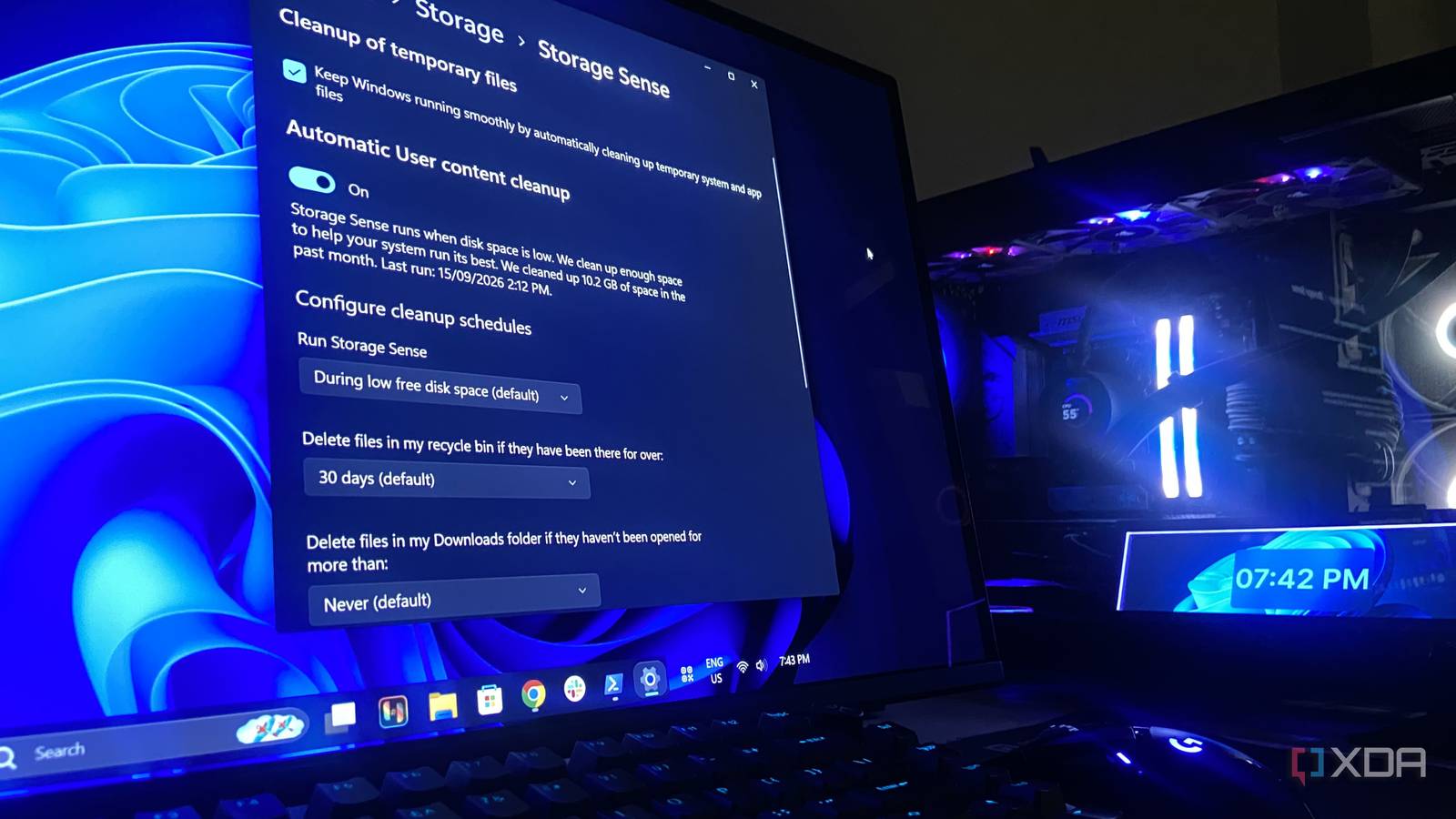
Published Sep 16, 2026, 8:00 PM EDT Abhinav pivoted from a career in banking to pursue his first love in writing. Even while working full-time, he continued contributing as an editor-at-large, a role he has held for more than 7 years. A lifelong tech enthusiast who has built three gaming and productivity powerhouse PCs since 2018, his passion for technology keeps him closely following the semiconductor industry, from NVIDIA and AMD to ARM. His MSc dissertation explored how artificial intelligence will reshape the future of work, reflecting his curiosity about the wider social impact of emerging technologies. On Windows 11, Storage Sense does a decent job at what you would expect it to do in the background. Mine freed about 1.67GB just this morning, bringing its total for the past month to 10.2GB, all on the default settings that Windows 11 shipped it with without my having to configure anything. What most users aren't aware of, though, is that the feature itself has a couple of limitations. It only has permission to clear user-level files like temporary data, the Recycle Bin, Downloads, and OneDrive copies. By design, it can't touch Windows' component store, where superseded system files can pile up after every update. Additionally, it only runs when your storage drive is low on space, unless you change the schedule. Storage Sense doesn't regularly clean up your drive by default But you can schedule it the way it suits you One of the aspects that surprises most users, who are reassured that Storage Sense is continuously optimizing their storage and cleaning up their junk, is not how, but when it works. If you've never configured this feature since you first installed Windows 11, chances are, it's set to run only when your drive is low on space. Naturally, this doesn't do a lot of users with sizable storage drives any good, and if you're not regularly filling your storage device to the brim, there's a chance Storage Sense hasn't been doing anything at all. Luckily, this has a simple fix. All you would have to do is search for Storage Settings and then go into Storage Sense, where you will find an option to tune how frequently it runs. You can configure when Storage Sense runs by using the dropdown and choosing between daily, weekly, or monthly. Additionally, you can also choose how frequently your Recycle Bin is cleared out, or delete files in your Downloads folder if they haven't been touched in the last 14, 30, or 60 days. There's another option for OneDrive that can turn files into online-only placeholders if you haven't opened them for a set period, choosing between one, 14, 30, or 60 days for that, too. Storage Sense never cleans your whole drive It can touch your files, but not whatever Windows puts on it The four categories where Storage Sense handles cleanup have all got one thing in common, in that, they all belong to you. This includes Temporary data, the Recycle Bin, the Downloads folder, and locally cached OneDrive files. Windows can safely clean them up because doing so is unlikely to affect how the operating system works. On the other hand, the component store is classed differently. This is where Windows keeps older versions of system files after updates, mainly so it can allow a user to roll back changes if an update causes problems. Those files are found in the WinSxS folder, and everything inside it is treated as a part of the OS rather than clutter. That's exactly why Storage Sense does not touch them. The very same applies to disabled Windows features and parts of the driver store. My component store was holding 11.84GB of junk And that's nearly 12GB of data Storage Sense cannot clean up To go even further, I ran the following command in an elevated terminal. For context, this command inspects the Windows component store (specifically the WinSxS) folder and fetches some insight on whether a cleanup could be warranted. It's read-only, so it gives you a safe first look: Dism /Online /Cleanup-Image /AnalyzeComponentStore Mine reported an actual component store size of 20.14GB, with 11.84GB of that listed as backups and disabled features. If you check the WinSxS folder in File Explorer, you'll see a slightly different number. Mine showed 21.70GB, which makes it easy to assume that Windows is hoarding more than 20GB of junk, but it isn't that simple. WinSxS makes use of hard links, which means some of the files counted in that folder are also being used by Windows elsewhere. Explorer counts those files again, making the folder look larger than the amount of storage it occupies. DISM is therefore the number that's worth a second look at. Of the total 20.14GB, 8.27GB was shared with the running Windows installation and wasn't reclaimable. That left roughly 11.84GB that wasn't shared, and it's the one that Storage Sense has no visibility into. It had been running on schedule for a month, while nearly 12GB of data sat in a folder that was outside its remit the entire time. Windows 11 is not a lean operating system, so, for many devices, Storage Sense matters. Which is why its limitations hurt users. Storage Sense works better when you know what it isn't for In a Windows 11 Reddit thread from 2023, a user called the feature "frustratingly close to being useful", and that sentiment encapsulates the problem with Storage Sense. It's one of those features that reassures you that it will handle the junk your operating system (and yourself) produce day after day, only to reveal its limitations the moment you put it under a magnifying glass. Windows 11 is not a lean operating system, so, for many devices, Storage Sense matters. Which is why its limitations hurt users. During my experiments with Storage Sense I found that it doesn't come close to cleaning the amount of data Windows can accumulate over time, and leaves out entire categories of potentially reclaimable storage outside its reach. Some of it is by design, and some of it is by the way of how its defaults are configured. The good news, however, is that you can configure at least some of it to optimize your storage, and then deploy deep cleaning programs to take care of the rest.
I ran a single command and found more garbage on my Windows 11 drive than Storage Sense cleaned all month
Full Article
Original Source
Read the full article at Xda-developers →KhanList aggregates and links to publicly available news content. We do not host full articles from third-party sources. Always verify important information with original sources.