Published Aug 8, 2026, 5:30 PM EDT Abhinav pivoted from a career in banking to pursue his first love in writing. Even while working full-time, he continued contributing as an editor-at-large, a role he has held for more than 7 years. A lifelong tech enthusiast who has built three gaming and productivity powerhouse PCs since 2018, his passion for technology keeps him closely following the semiconductor industry, from NVIDIA and AMD to ARM. His MSc dissertation explored how artificial intelligence will reshape the future of work, reflecting his curiosity about the wider social impact of emerging technologies. Undervolting your GPU is one of the safest and most effective ways to reduce its thermal output, but it is actually the side effect of undervolting that makes it appealing for those in enthusiast circles. You see, silicon has a rather obvious relationship with throughput. If you give it less voltage at the same clock speed, it draws less power for the same throughput, which means it stays cooler and boosts higher for longer. One of the reasons why undervolting isn't popular amongst casual users is the fact that it can look more complicated than it really is. If you're someone doing it for the first time, you can expect a lot of time experimenting with the voltage-frequency curve, testing for stability, and then doing it all over again if a driver update wipes the profile. Most users don't know that you can skip all of that and enjoy similar gains just by dragging a slider on a free utility. Undervolting is not very beginner-friendly Tuning the voltage-frequency curve can be anxiety-inducing Undervolting comes across as really simple and straightforward to me, but the presumption that it must look as easy to everyone else needed a little bit of reflection. I benchmark, test, and run CPUs, GPUs and memory kits for a living, and so it comes naturally to me. I must confess, I've had my own fair share of disasters that ended with black screens and no display while playing around with voltage-frequency curves, perhaps more times than I'd care to admit. As such, for someone who has just assembled their first build and is looking to tune their new graphics card, the entire proposition starts to look quite daunting. One look at the V/F curve is usually enough for most to just shut down the utility and continue tuning the settings that are easier to tune. After all, why would one try to "fix" what isn't broken? That, I believe, is what is most unfortunate, because it robs PC owners with an opportunity to not only enjoy the most stable performance their hardware is capable of delivering, but also enjoy cooler temps, lower noise, less power consumption, and in turn, greater longevity for their GPUs, which have become more expensive than ever in this odd economic paradigm. Power-limiting is the closest you can get to undervolting Indeed, for a "fraction of the effort" involved What most users don't realize, is that one does not have to necessarily touch the V/F curve at all to enjoy the benefits that they get with undervolting their card, and I say that because the alternative is an approach that I have taken countless times in the past. But before you reach for the MSI Afterburner's power slider, there are a few things worth understanding. Power limiting itself is a form of undervolting, which is something MSI officially state in their dedicated undervolting guide. The only difference is that the curve editor method delivers slightly more efficient results, likely because it is more closely tuned to the individual clock and voltage curve of the GPU. With this method, there are a few obvious advantages as well. If you're a total beginner, you get to skip the hassle that comes with dropping your VF curves, setting curve offsets, and rinsing and repeating the process with each benchmark run. Instead of all of that, you get a simple slider, and there's not a lot that can go wrong if you know what you're doing. Reducing the power limit lowers power and temperatures and restricts the maximum power budget, and therefore often results in slightly lower sustained clock speeds under heavy load when compared to a V/F curve undervolt that allows you to maintain peak clocks at lower voltages. How to undervolt your GPU using the power slider It's as easy as it gets, and you get all the performance your GPU has to offer The only requirement to undervolt your GPU using the power limiting method is a free utility called MSI Afterburner. Most enthusiasts who have been into overclocking and undervolting might already be familiar with the utility, but if you've got a version already installed, it's worth checking MSI's website for the latest update so you get the latest features and the most stable build. Once you have an instance up and running, you'll notice the Power Limit (%) slider in the bottom-right corner. Now comes the fun part. You want to decrease the power slider down to 90% for the first time (as 95% or above achieves close to nothing, I tested it) and run an instance of a GPU-dependent game or a benchmarking tool. I use 3DMark to check for stability, but free utilities like FurMark are just as good. Here, you'd want to record your GPU clock, Voltage, Temperature, and Memory Clock for referral later. Ideally, one stops the testing when they find a good balance between FPS and power, but I like to take it a little further than that. If you've been following my coverage, you'd know it's possible to overclock and undervolt at the same time, so I like to reclaim the thermal headroom I achieve via undervolting and translate it into raw performance. I've published a benchmark run covering both standard undervolting and overclocking, and as you can see, it's possible to reduce temperatures and reclaim some throughput at the same time with this form of tuning. Metric Baseline 80% Power Limit 80% PL + Overclocked 3DMark Speed Way Score 6408 6189 6253 Peak core clock 2835 MHz 2790 MHz 3000 MHz Average core clock 2723 MHz 2548 MHz 2316 MHz Memory clock 1338 MHz 1313 MHz 1563 MHz Average temperature 73°C 68°C 69°C MSI Afterburner MSI Afterburner is one of the best overclocking software with many extra features to monitor your PC's performance. There's no excuse for not giving it a go Every chip that comes off the wafer and goes into making a GPU has a slightly different voltage tolerance, and AMD, Nvidia and their board partners cannot individually test each chip to fine tune for the minimum required voltage. As such, there's a strong likelihood that your GPU would be a lot more efficient than it is allowed based on the defaults set by chipmakers. Undervolting, either by using the V/F curve editing method or by power limiting, is one way to reclaim that efficiency. As simple as this method is, there's no reason not to try it yourself.
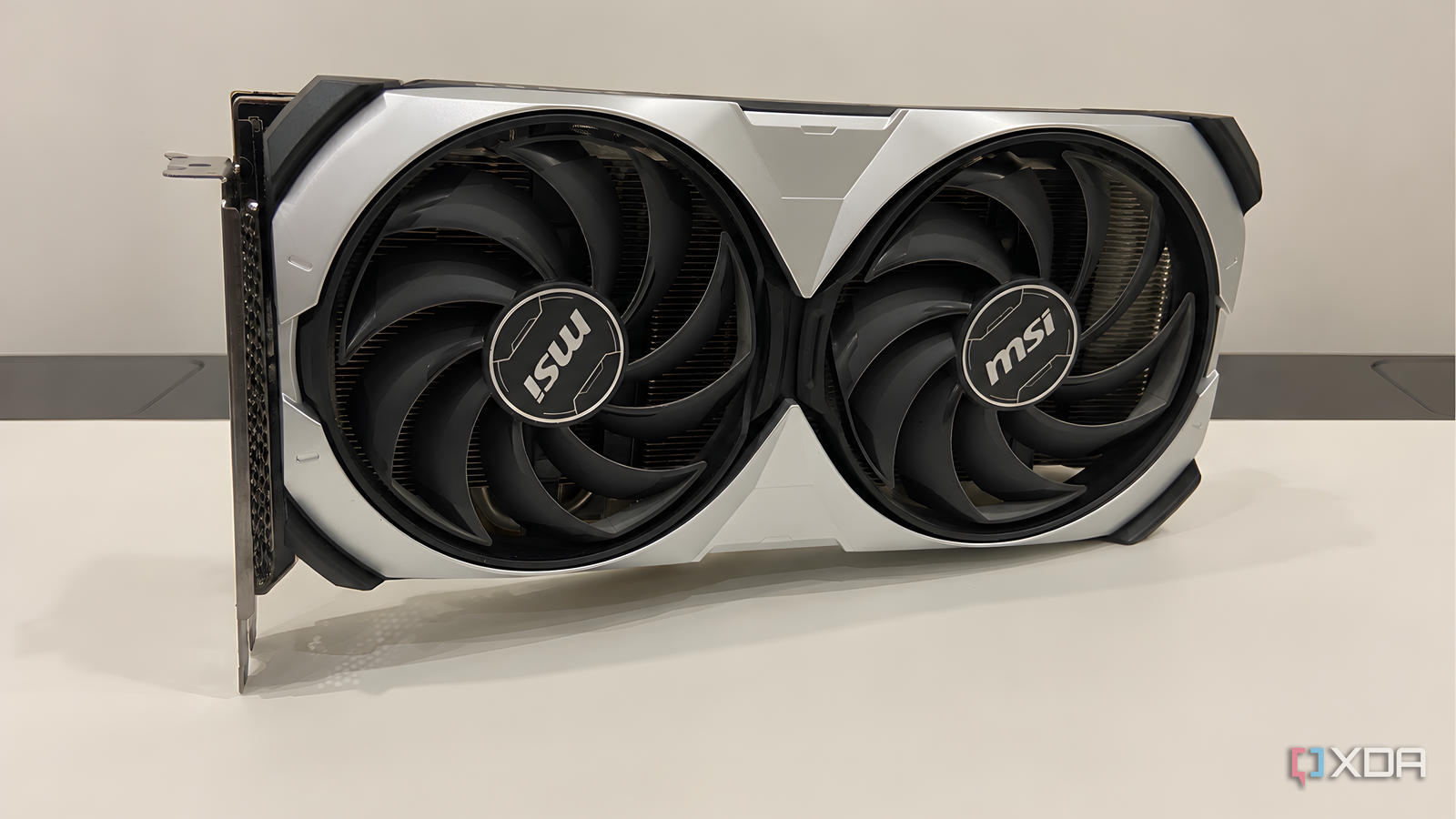
I power-limit every GPU I own instead of undervolting, and the performance gains are almost identical for a fraction of the effort
Full Article
Original Source
Read the full article at Xda-developers →KhanList aggregates and links to publicly available news content. We do not host full articles from third-party sources. Always verify important information with original sources.