
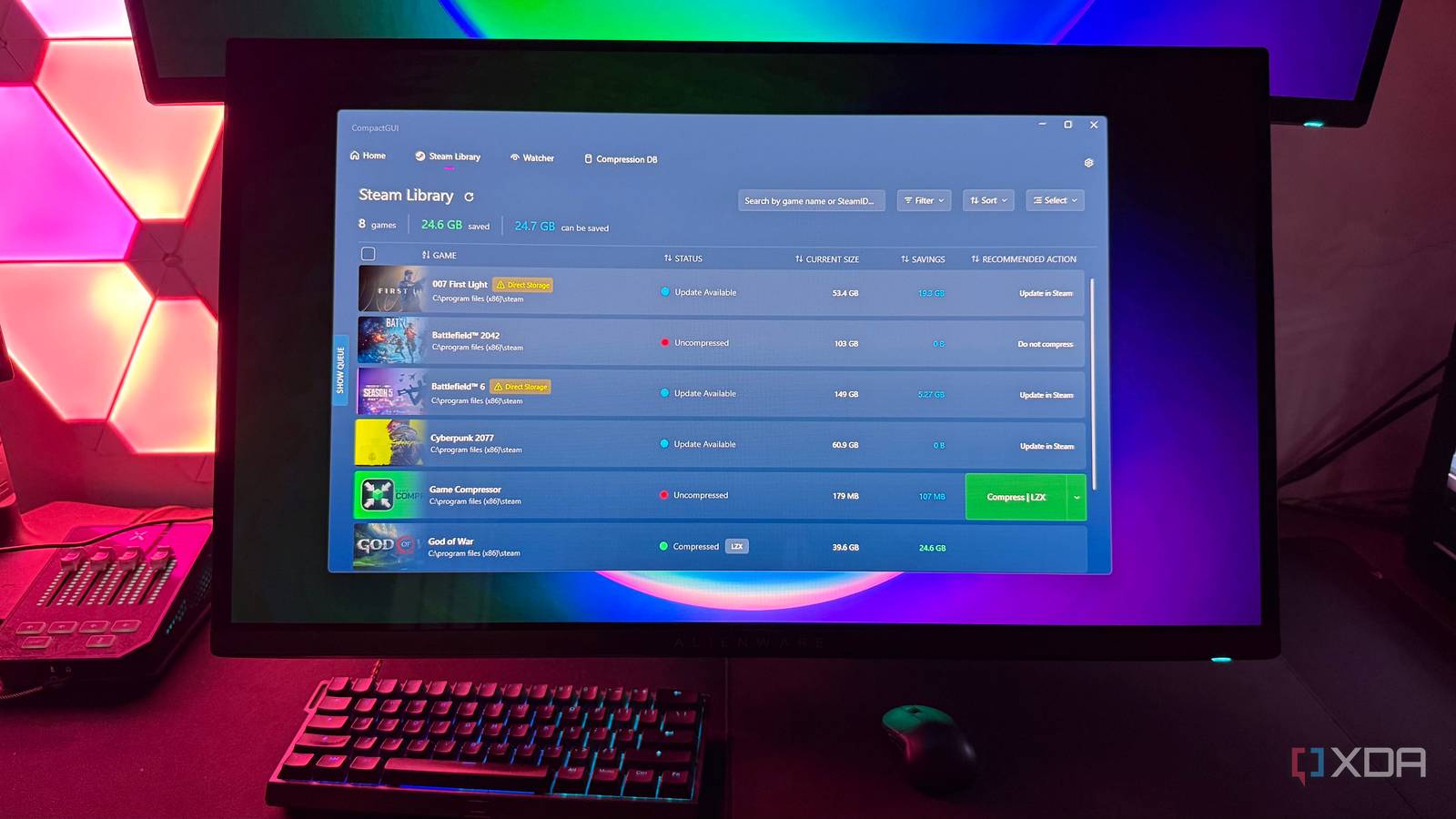
Published Oct 28, 2026, 6:00 AM EDT Hamlin has been in the tech field for over nine years. Since 2017, his work has appeared on MakeUseOf, Android Police, OSXDaily, Beebom, and more. He served as the Senior Editor at Valnet's MakeUseOf for over two years before joining XDA. He uses a high-end gaming rig for desktop use and a MacBook for traveling, but dislikes some of the quirks of macOS. You're more likely to catch him at the gym or on a flight than anywhere else. A little over a month ago, I spent $6 on Game Compressor to compress my game library and free up hundreds of gigabytes of space on my SSD. After all, with newer AAA releases easily taking up over 100GB each, even a 2TB NVMe can quickly feel limiting. The best part about using Game Compressor is that games run just as well after compression — as long as you're careful. For instance, I managed to save 25GB on God of War alone without any performance issues, making that $6 feel like money well spent. Then, when I wrote about this tool, some of our readers mentioned CompactGUI, a free and open-source alternative that uses the same compression algorithms as Game Compressor. Naturally, I was curious how it stacked up, so I gave it a shot, and it didn't disappoint. Looking back, I probably could've saved that $6, but I don't completely regret buying Game Compressor either. Still, you're probably better off trying CompactGUI first since it offers most of the same functionality for free. CompactGUI does almost everything Game Compressor does You don't have to pay to use Windows' built-in compression algorithms The truth is, you don't need Game Compressor or even CompactGUI to compress your games in the first place. You can use the LZX compression algorithm natively in Windows using the compact.exe command-line tool. You use CompactGUI or Game Compressor for a GUI that makes the process easier, so you don't have to mess around with Command Prompt every time you want to compress a game. More importantly, you know which games are actually worth compressing in the first place. Both CompactGUI and Game Compressor show potential storage savings before you commit to compressing a game. They also warn you if a game uses DirectStorage, since compressing its files can interfere with DirectStorage's optimized I/O path and cause stutters or longer loading times. So, as far as the core functionality goes, CompactGUI and Game Compressor are almost identical. And if you're getting essentially the same experience with both, that $6 starts to feel like an unnecessary expense. Its Steam library integration is what closes the gap You don't have to point it to the game folder anymore The Steam library tab is a recent addition to CompactGUI, introduced with version 4.0 Beta 10. Before that, you had to manually browse to a game's installation folder every time you wanted to compress it, which wasn't nearly as convenient as Game Compressor. And to be fair, that alone would have been enough for me to justify spending that $6. But now that it shows all my Steam games in a separate tab, it finally feels like it's catching up to Game Compressor in convenience. You can sort and filter your installed games, select multiple titles for compression, and even switch to a faster compression algorithm like XPRESS16K or XPRESS8K. There's also a community-driven compression database that gives you an idea of how much space you can potentially save on thousands of different games, so you don't have to waste time compressing something that barely benefits from it. In fact, if the potential savings are too low for a game in the Steam library tab, CompactGUI recommends against compressing it. But Game Compressor still has an edge Its broader game library support might be worth $6 to some of you As much as I like what CompactGUI offers for free, especially now that it integrates with my Steam library, Game Compressor still has the upper hand in one area: its ability to detect games installed through different launchers. For instance, it can automatically detect games installed through Epic Games Store, Xbox, Riot Client, EA App, and Ubisoft Connect. So if your game library is spread across multiple platforms like mine, Game Compressor might be a better fit. Sure, CompactGUI can still compress any folder, but manually locating it is an extra step I don't want to deal with. Game Compressor showing everything in one place makes it worth the $6 I paid. After all, the whole point of using these tools is to make compression easier. At the end of the day, $6 isn't a lot of money to spend on something that saves you time and effort. But if you just want to compress a few games and call it a day, CompactGUI gets the job done for free. CompactGUI is enough to see if game compression is worth the trouble It's not like you're going to spend every day going through your library to see which games you can compress and how much space you can save. For most of you, this might pretty much be a one-and-done process. And for that, I don't think you need to spend $6 on Game Compressor when CompactGUI does the same thing. Whether you're comfortable paying that price comes down to how much you value convenience, especially if your games aren't just from Steam. While I don't regret paying for Game Compressor, I still probably wouldn't have bought it if I had tried CompactGUI first. And if you're just looking to quickly free up some space, there's really no reason not to try the free alternative first. CompactGUI CompactGUI is a free, open-source tool that uses Windows' built-in compression algorithms like LZX to reduce storage space taken up by games and other programs.
I paid $6 to compress my Steam library, but this free open-source tool is better
Full Article
Original Source
Read the full article at Xda-developers →KhanList aggregates and links to publicly available news content. We do not host full articles from third-party sources. Always verify important information with original sources.