
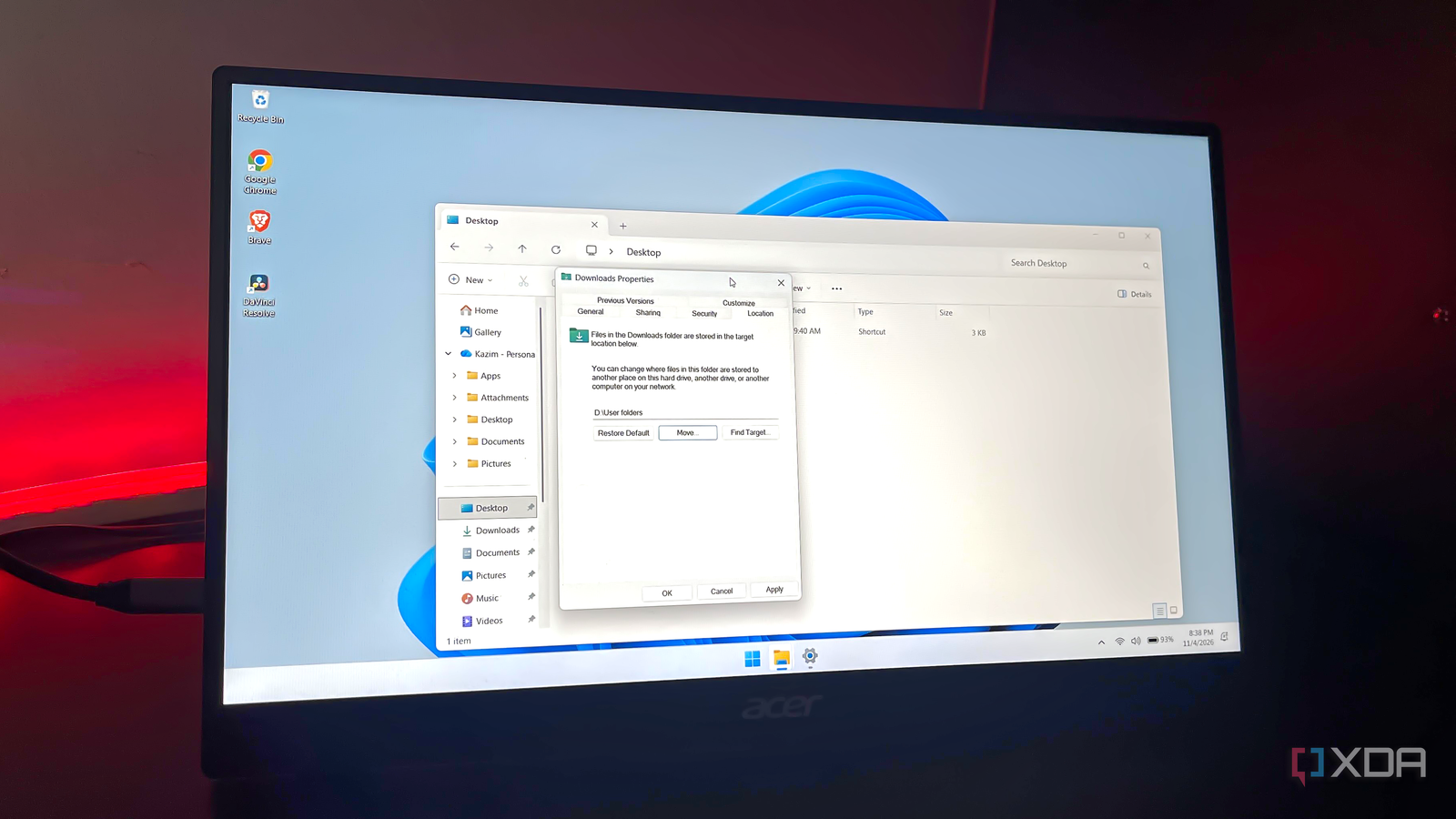
Published Nov 6, 2026, 9:00 AM EST With over five years of experience in the tech industry, Kazim excels at simplifying complex topics, making them accessible to tech enthusiasts and general readers alike. He has extensively covered the Windows ecosystem, from Windows 7 to Windows 11. When he’s not writing, you’ll find Kazim planning weekend getaways or diving into tech verticals beyond his expertise. If you are a long-time Windows user, you must have been in one of those situations where a complete reinstall seems like the only viable solution. I agree, Windows has several built-in troubleshooting tools now, but there are still times when even the in-place or repair upgrade fails to work. After being in the situation a couple of times, I decided to take matters into my own hands, and moving the Windows user folders was the first thing I did. It may sound like something really complex, but the process is fairly straightforward. It also has a couple of other benefits, including faster performance, though that wasn't why I initially made the change. All I had in mind, at that point, was to make reinstalls less stressful, and moving the Windows user folders did help. Why reinstalling Windows feels scary It's not about lost time Frankly, I don't mind losing apps or configured settings after a reinstall. You can re-download those apps, and app settings tied to your account can be restored. None of that is a problem for me. The entire reinstall process, followed by installing apps and personalizing the system, takes at most a couple of hours. The bigger problem for me is data loss, or precisely, losing personal data. When you reinstall Windows, everything on the system drive is wiped clean. Though the OS creates a "Windows.old" folder, I am not a big fan of it. And like most everyday users, I don't create frequent backups. If something is important, a copy of it stays on my external HDD, but I don't regularly back up everything on the system. After losing files and important data on two occasions, I decided to move the Windows user folders to a second drive. And every Windows reinstall since then has felt like a routine troubleshooting step rather than something scary. Moving user folders to another drive It shouldn't take more than a few minutes When you get to moving the Windows users folder to another drive, you will realize the process is incredibly simple and straightforward, as long as you move the folders individually (one at a time). If you try to move the entire "Users" directory at once, it will require a different approach and is only recommended for new Windows installations. To move the user folders, first create new ones on the drive you want to move them to. Once done, right-click any user folder in File Explorer, select Properties, and go to the Location tab. Here, click Move under the existing path, then go to the new folder location, select it, and click Select Folder. Finally, click Apply and OK to save the changes. If asked whether you want to move all the files in that particular user folder to the new location, click Yes. Using the same steps, you can move the other user folders, like Desktop, Downloads, Documents, Pictures, Music, and Videos, to the new drive. The best part about this method is that no major functionalities or apps break; at least none did in my case. Everything simply uses the new path instead of the old one. And if you ever want to revert the changes, open the Location tab for a user folder, click Restore Default under the path, and confirm whether you want to move the files back to the original location. Lastly, if you ever have to reinstall Windows, you can similarly redirect the new user folders to existing Windows user folders on the other drive, and everything goes back to the way it was. There are other benefits too Improved performance and more room on the system drive Moving the Windows user folder to another drive can improve your system's performance, too. However, I wouldn't suggest you get your hopes up right away, because a lot of factors are involved. Generally, more free space on the C: drive gives the system more breathing room and can improve performance. So, if you constantly notice your C: drive is running out of spaceand you have exhausted all options, moving the Windows users folder isworth considering. On my system, the user folders combined took up roughly 20GB of storage. Now, I think I can go on for another year or more before the need to clear space on the system drive arises. You have to be careful, though A few things can go wrong As I said earlier, moving the Windows user folders is easy as long as you operate at the folder level, stick with one at a time, and use the native method. Even then, there's the possibility that something might break, though the chances are much lower. OneDrive is an example. The app may need to be reconfigured after you move the folders. Although since I don't use OneDrive, it wasn't a problem for me. Similarly, I ran into another small issue. If you are working on a file that's stored in the user folder you are moving, make sure to save the changes before you proceed. That's common advice, but it's easy to overlook, especially if most of your data lives in user folders. For me, it was a Notepad file I was using to take some quick notes. I would do anything to avoid data loss Back to where this all started: the idea of preventing data loss during Windows reinstalls. Let's face it. We have to reinstall Windows occasionally, especially when file corruption runs deep, and it's smart to take the necessary precautions beforehand. This way, when the time comes, reinstalling Windows won't feel scary. And yes, your system may end up getting a performance boost, something you weren't even actively seeking.
I moved my Windows user folders to a second drive, and reinstalling Windows stopped being scary
Full Article
Original Source
Read the full article at Xda-developers →KhanList aggregates and links to publicly available news content. We do not host full articles from third-party sources. Always verify important information with original sources.