
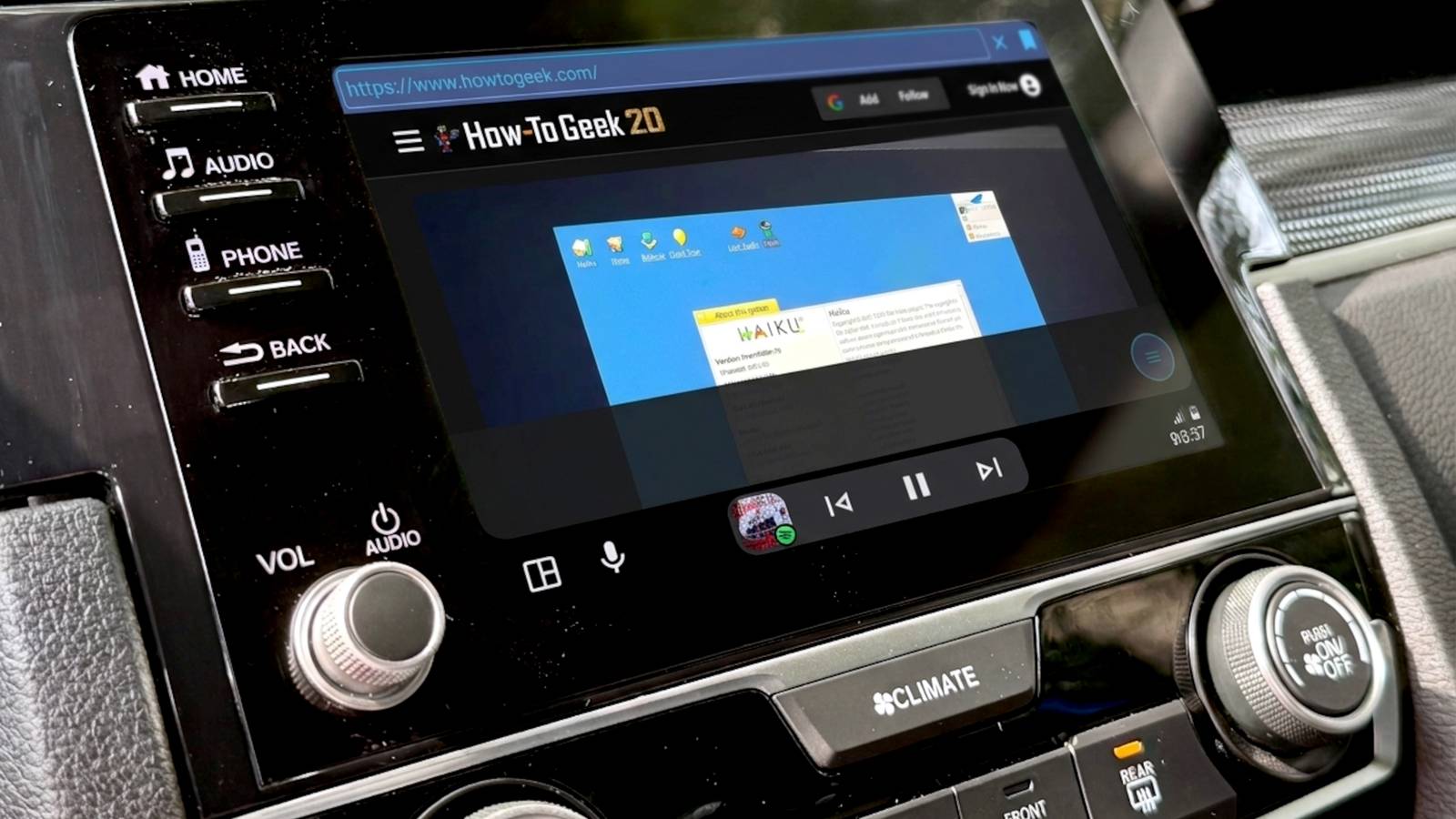
Published Nov 2, 2026, 9:00 AM EST Former radio and TV guy (I Heart Radio and PBS). Now a writer, researcher, and musician who writes about the absurdity of our modern world and other offbeat topics. Specializes in weird music, the old web, retro video games and tech, and researching strange, yet interesting things. His work has appeared in Vice, Tedium, Star Trek.com, Today I Found Out, Typebar, SyFy Wire, and How To Geek. Currently working on a variety of music, web, and writing projects. Visit him on the web at https://djbuckfreelance.neocities.org/. I dig Android Auto. It's a fun way to use your phone's functions in the car, but it's heavily restricted sometimes. Recently, I found an app that works as a media player and web browser. Well, you know what that means for a nerd like me: monitoring my homelab remotely when I'm parked. I use it for more than that now, too, and it's slowly becoming one of my new favorite Android Auto apps. I had a lot of issues installing this on my Motorola. But on my Samsung Galaxy Z Fold 5? It worked in a few minutes. So phone type absolutely matters. Getting started with XtreamPlayerFree A unique Android Auto app that does more I found the XtreamPlayerFree app on GitHub. Created by a coder calling themselves malebuffy, the app is offered as a free APK file. It's clearly being actively developed, as the most recent version was released on October 24, 2026. I downloaded it on my main Android phone and installed it. To get it to work with Android Auto, you need to also install AAEnabler. AAEnabler is supposed to "force" an app to become available on Android Auto. You also have to enable Android Auto’s Developer Settings (it’ll be in the Android Auto settings; tap on the version number 10 times). Once you’ve done that, you’ll want to enable “Unknown Sources” from Android Auto’s 3-dot menu. Download, install, and use APKs at your own risk. After installation, it asked me for notification and location permissions. Since I'm using Android Auto, it makes sense to have those active. But your experience may vary. I actually did choose to disallow location, but notifications were just fine. Since I'm testing this as a homelab thing, it didn't really make sense to have location turned on, in my opinion. The app also needs permissions for accessing the device’s photos and video. Again, your response to this will vary based on your needs, but for me, I went ahead and allowed limited access. If I'm going to use it to test video from my phone, it kind of needs it. Once inside the app, I was greeted with a minimal interface. There was a media hub, an audio and comms section, and a system and content section. The location-based weather at the top was a nice touch, although it wasn’t displaying correct info. With all of that nailed down, I took the app for a test run in my car. It’s, shockingly, not just a run-of-the-mill media hub I tested playback of a local video, and it worked really well. I also checked out YouTube. There was just a tiny bit of lag loading the video, but it did work. So there's that. After the first time I used it, a pop-up appeared that said, “This is a free version. If you paid for this application, you were scammed.” I like it, and it's a fair point. The developer made this completely free to use and download, so don't pay for it. Before taking it out to the old Android Auto Head Unit, I decided to mess around with the settings a little bit. Under the settings tab, you have several different options like interface, controls, playback, media, add-ons, and other. If you go to Settings > Android Auto, you have a ton of customization options available. I changed the Application to mirror my system settings, although I thought about using Liquid Glass (whatever that is). I changed my Theme layout to “tiles,” so it'll be easier for me to touch an option from the Head Unit. I also toggled on full-screen mode, but I left everything else pretty much unchanged, including leaving the navigation bar at the bottom of the screen. I also enabled the web browser utility, because you know I'm going to try to get online and surf the web while I'm in my vehicle, as well as access my homelab monitoring tools. Not while I'm driving, of course, but just to see if it works. And if it does, I can use it while I wait for somebody, or I can use it for different homelab experiments. Nothing is more frustrating than when I'm stuck behind somebody at a green light because they're scrolling on their phone. The purpose of this is not to do that. Please don't do that. Thankfully, browser and video players disable themselves when you drive, so you really can only use it while parked. Connecting to your homelab from your vehicle With a built-in browser, you can do even more There are a few very useful aspects of this app. First off, like my favorite music app, it’s something you can use with Android Auto. If you're playing files locally, it's a surprisingly good media player. If you're doing some streaming, depending on your connection, you might have slightly slower loading times. I wasn't super keen on that. Browsing is pretty nice. It's best if you create a few bookmarks so that you don't have to speak to you with a bunch of searches. But I really didn't have to do too much with it to load my favorite sites. But better than that, you can use its browser to access your homelab monitors from your vehicle. While you’re parked, of course. I usually have a network monitor running 24/7. With this app’s built-in browser, I can remote into it from my freaking car. That's pretty handy because now I can monitor uptime or figure out if there is something offline when I'm not even near my lab. I love that. Since I’m connected to the internet, I could browse or read some articles, too. What I’ve been using it for is remoting into my Raspberry Pi (which holds my network and lab monitoring stack) and checking it for issues or downtime. I access the port for my VPN (Tailscale)by using the Raspberry Pi’s Tailscale IP address, followed by the port. For example: if you have something on port 9800, you'll grab your Raspberry Pi or other Device’s Tailscale IP address, put that in the browser bar, followed by:9800. You also need to have Tailscale running on the phone to get it to work properly. So whether I’m waiting for my wife to finish shopping or just want to see what’s going on in my homelab while sitting in a parking lot, this app lets me do it. It’s something I never thought would be available on Android Auto. It’s nice because it doesn’t require any major messing around inside of Android Auto, and it’s almost a plug-and-play experience. Android Auto needs stuff like that, and it’s great to see it come to life from like-minded developers and hobbyists these days. Take your browser on the road with you I can't overstate how much I've enjoyed using this app on Android Auto. Having the availability of a browser and video/media player while you're parked is amazing. And it's something that is worth trying whether you're a regular Android Auto user or somebody who likes to experiment with it like me.
I monitor my homelab from my car now, thanks to a free sideloaded Android Auto app
Full Article
Original Source
Read the full article at Howtogeek →KhanList aggregates and links to publicly available news content. We do not host full articles from third-party sources. Always verify important information with original sources.