
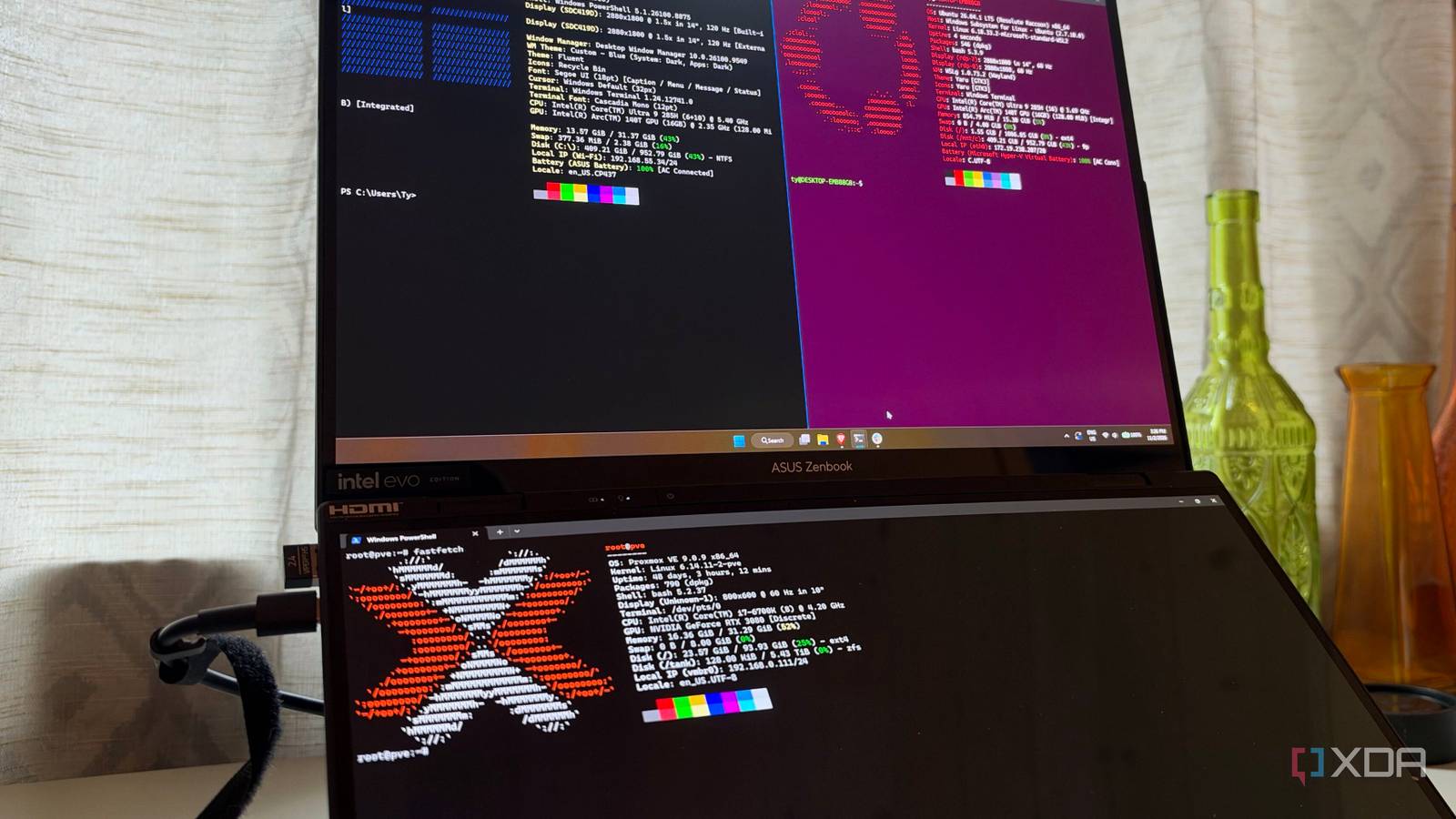
Published Nov 3, 2026, 9:00 AM EST His love of PCs and their components was born out of trying to squeeze every ounce of performance out of the family computer. Tinkering with his own build at age 10 turned into building PCs for friends and family, fostering a passion that would ultimately take shape as a career path. Besides being the first call for tech support for those close to him, Ty is a computer science student, with his focus being cloud computing and networking. He also competed in semi-pro Counter-Strike for 8 years, making him intimately familiar with everything to do with peripherals. For many years, I have been splitting my command-line attention on Windows into three different areas. PowerShell ran in its own console window, WSL had its own terminal window, and SSH went through PuTTY or whichever SSH client I had been trying that month. Finding the right shell meant tabbing through a stack of black rectangles until I found the right one, and eventually I grew tired of going through that song and dance. I went looking for a terminal client that could do it all, but the fix I found was already installed on my PC. Windows Terminal ships with Windows 11, and while a lot of users just use it as a fancier PowerShell window, it's actually surprisingly capable at performing the other two tasks at the same time. Every shell is a profile in Windows Terminal And they come pre-configured for the most part Windows Terminal organizes everything around profiles, and most of them are already built for you. When I installed Ubuntu through WSL, a profile appeared for it within the new-tab menu without me needing to open the settings at all. PowerShell works the same way, and you can set a default for what's used when you open Terminal. SSH was the real piece that sold me because it's what I use the most. It can read your OpenSSH config file and generate a profile for every host in it, which is super useful in a home lab context. I can have my Proxmox host and LXCs, mini PC, and VPS all in one place without needing to move to another application or type usernames and addresses. Opening the profiles can be done without moving your mouse hand off of the keyboard: Ctrl+Shift plus a number opens a profile by its position in the list, which is super handy once you commit it to muscle memory. No more confusion in SSH sessions I know where I'm working at all times Having every machine in my home lab be one click away is convenient, but the continuity improvement mattered more. Each profile can have its own tab color, so my Proxmox host gets a red tab and the VPS gets a different color from my local shells. That isn’t really a "safety" feature, but it makes it much harder to run a destructive command on the wrong machine because I glanced at the wrong window. Split panes are the other big win I started using all the time. Holding Alt while picking a profile from the new-tab menu opens it as a split instead of a new tab. That lets me keep a local PowerShell or WSL session on one side and the Proxmox host on the other. When I worked with multiple windows previously, I had been arranging that by hand every time, but I no longer have to with that simple keyboard shortcut. It always opens exactly how you left it The settings pertaining to defaults are quite good By default, the Terminal will open a single tab with whatever default profile is selected when you launch it, but if you change it to open windows from your previous session, you can easily restore all tabs and panes on launch, which includes SSH profiles. This is a super underrated feature, and it's a big reason why I stuck with Windows Terminal. I can safely close all of the windows I had been working with before I leave my desk without worrying about needing to set them all up again later. There are alternatives with their own strengths They exist for a reason Windows Terminal is incredibly capable for something that comes installed by default on your system, but it's not the only option, and there are others that have plenty of merit. WezTerm is one example of a shell that's cross-platform and carries configs across between operating systems, which can be useful. There's also Tabby, which is a popular graphical SSH connection manager with SFTP built in. I've used both of these previously, and they can be better than the default Terminal for a lot of applications. Even the default terminal in VS Code, if you're working in it, can suffice just fine. I'm sticking with the default anyway Windows Terminal is already there and has the features I want Windows Terminal's best strength is that it's already installed. It ships with Windows 11 and acts as the default terminal, and it’s open source, so there’s nothing to install and no feature tiers, unlike some third-party applications that can cap saved sessions and SSH tunnels. Some of its gaps also have answers that can live outside of the app itself. For multiplexing, running tmux on the remote machine keeps sessions alive no matter which client disconnects, including the SSH app on my phone. To me, that's more robust than a session tied to one terminal. For file transfers, scp works from both PowerShell and WSL and rsync does with a bit of extra setup, though I'll admit that SFTP can be incredibly useful. It's something I reach for when I'm working with complex file structures, but not something I want to use by default. It's not the best at anything, but it's good at most things Windows Terminal doesn't have absolute feature parity with every third-party terminal that's used for SSH, WSL and PowerShell, but it's pretty good at a lot of the basics you'd ask for, and the fact that it comes with my install already means I don't need to go looking for something else to get stuff done. Spending the 20 minutes that's needed to set up profiles, SSH configs and tab colors is more than worth your while.
I made Windows Terminal my home for PowerShell, WSL and SSH, and stopped juggling three windows
Full Article
Original Source
Read the full article at Xda-developers →KhanList aggregates and links to publicly available news content. We do not host full articles from third-party sources. Always verify important information with original sources.