
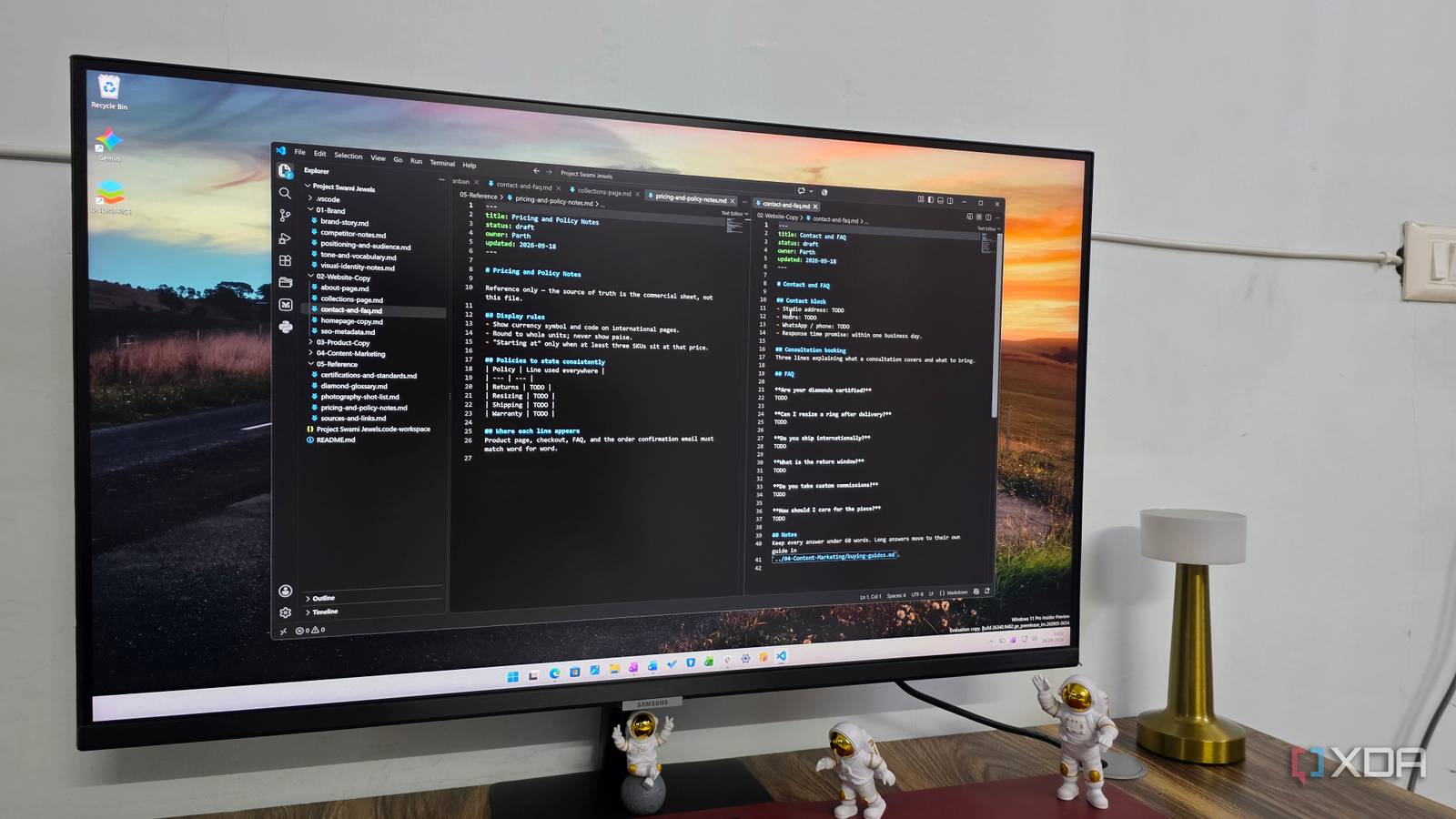
Published Sep 18, 2026, 4:00 PM EDT Parth, a seasoned tech writer, wields the keyboard (or pen) with finesse to unravel the intricacies of both Windows and Mac operating systems. He has covered evergreen content on mobile devices and computers for multiple publications over the last six years. You can find his work on AndroidPolice, GuidingTech and TechWiser. Whether it’s demystifying system updates, deciphering error codes, or exploring hidden features, Parth’s prose guides readers through the binary maze. When not immersed in tech jargon, you’ll find him sipping chai, pondering the next software review, and occasionally indulging in a friendly debate about mechanical keyboards. I never expected VS Code to replace some of the productivity apps I use every day, but that is exactly what happened. What started as a simple experiment to keep a few article drafts next to my coding projects quickly turned into a much bigger workflow change. VS Code is still where I go when I need to work on code, but lately I spend just as much time using it as my writing desk, planning board, and personal productivity hub. I created one workspace for my entire writing workflow Markdown turned VS Code into a proper writing app The biggest change for me was creating a dedicated VS Code workspace instead of treating every article or client project as a random collection of files. I now keep drafts, research notes, references, checklists, and supporting material under the same roof. It sounds simple, but it cuts down on app switching during the day. Recently, I was working on a client website called Swami Jewels. Here, I need to keep track of website copy, product descriptions, SEO notes, technical requirements, and even database-related work for custom ring requests. I can create a Swami Jewels workspace in VS Code with separate folders for copy, SEO, product pages, research, and development. I can have a homepage.md, about.md, and custom-rings.md sitting alongside a project checklist and technical notes. Markdown is what really made this setup click for me. It keeps my environment clean. I can add headings, tables, links, bold text, quotes, and checkboxes without dealing with a busy formatting bar. I can draft an entire product page in Markdown, structure it with H2s and H3s, add SEO notes at the top, include links to reference material, and maintain a checklist at the bottom. Search and split view changed how I research and write Flying through my workspace Once a project starts getting bigger, VS Code’s search becomes useful. With Swami Jewels, I am not dealing with just one document. I may have homepage copy, product descriptions, SEO notes, custom jewelry pages, and development files sitting inside the same workspace. I can search the entire project in seconds. Split view is another feature that changed how I write in VS Code. I often keep my main draft open on one side and supporting material on the other. While working on Swami Jewels, I might have custom-rings.md open on the left and my SEO research or project brief on the right. That lets me check target keywords, project details, and tone guidelines without switching between docs at the top. This setup is especially useful when I am rewriting something complex because I can compare the original copy with my new version side by side. Extensions take the VS Code setup to the next level A major strong point The real power of VS Code starts showing once I bring extensions into the picture. I can easily add the functionality I need directly inside VS Code. For instance, when I am in the early stages of a project, I don’t always want to start with neatly organized paragraphs. Sometimes, I need to throw ideas onto a canvas, connect different concepts, and figure out how everything fits together. Here is where I use the Excalidraw extension to brainstorm the website structure and visualize how different sections of the project relate to each other. I can take visualization even further with Mermaid diagrams. Since Mermaid uses simple text syntax, I can quickly create flowcharts and diagrams without leaving my notes. For example, I can map the entire custom jewelry journey from a customer submitting a ring request to consultation, design approval, and final delivery. Then there are extensions that bring Kanban-style project management directly into VS Code. I can create columns for ideas, research, writing, review, and move tasks between them as the project moves. Of course, it can’t replace Trello, but for my small projects, it gets the job done. AI fits naturally into the workflow The new Agents Manager view is amazing AI is another reason VS Code works so well as my productivity hub. Since my drafts, research, project notes, and supporting files already live inside the workspace, I can bring an AI agent directly into the context instead of copying information back and forth. I can ask it to summarize research, refine an outline, brainstorm alternative headings, clean up rough notes, and even create a quick website mockup for the upcoming client meeting. The newer Agents window takes this further. It gives me a centralized place to start, monitor, and review agent sessions across projects. VS Code runs my daily workflow VS Code is still a coding app at heart, but I no longer think of it as just a coding app. Once I started using Markdown, workspaces, folders, extensions, search, and a few simple planning tricks, it quietly became one of the most useful productivity tools on my desktop. Of course, it will not replace every dedicated writing or project management app, and I don't need it to. For my workflow, the real appeal is having fewer apps, fewer distractions, and one flexible workspace that handles far more than I expected.
I made VS Code my writing and planning hub, not just my coding app
Full Article
Original Source
Read the full article at Xda-developers →KhanList aggregates and links to publicly available news content. We do not host full articles from third-party sources. Always verify important information with original sources.