
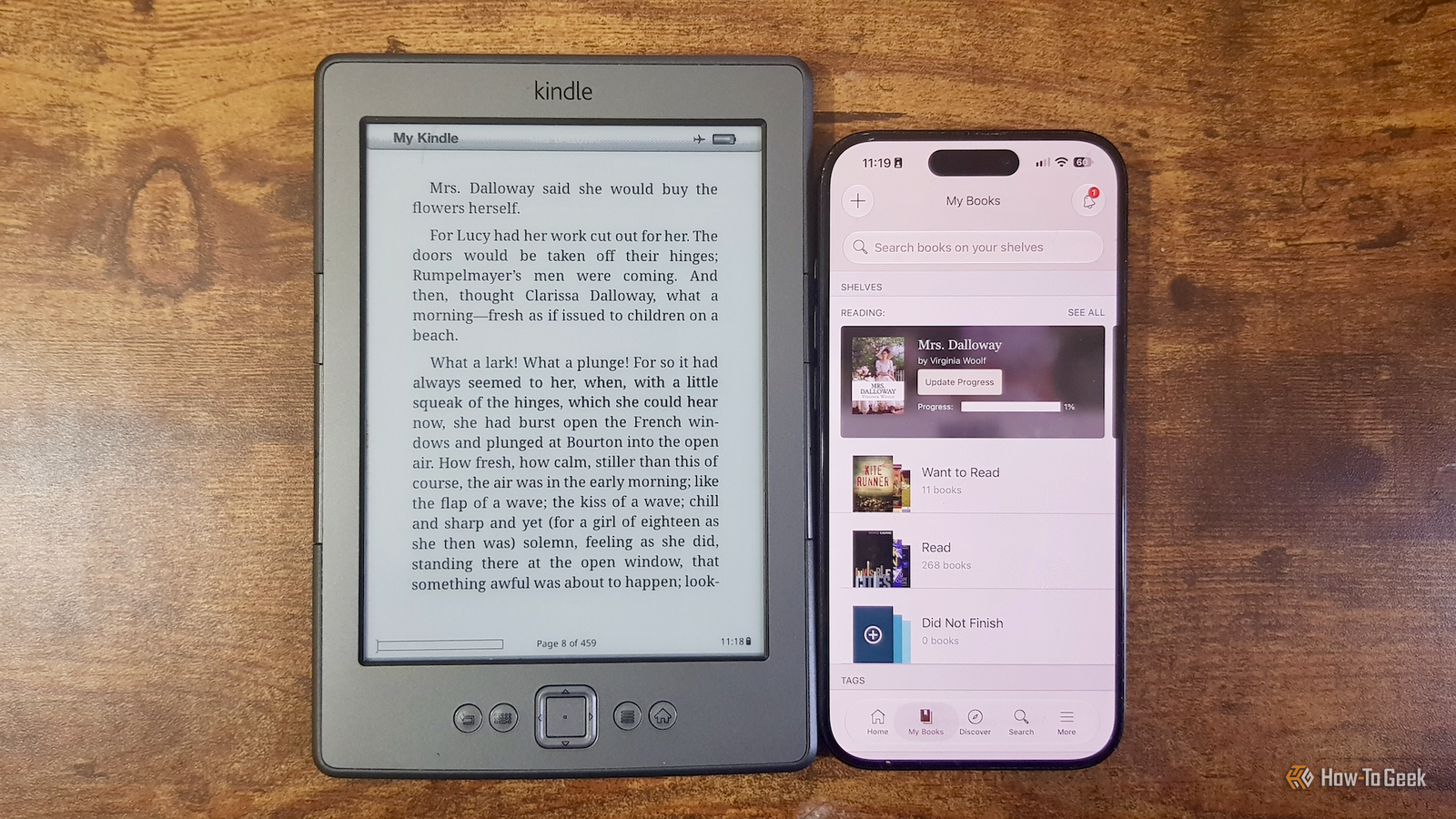
Published Oct 26, 2026, 6:30 PM EDT Adam has a degree in Engineering and has a life-long interest in technology. He has been writing for over a decade for various print and online publications, with a focus on consumer tech. He joined How-To Geek in 2024 while working at Pocket-lint. As well as being a long-term fan of Apple products, he also has a strong interest in smart home tech, running a Home Assistant server at home to automate all his smart home devices. He believes that the ideal smart home should work with minimal interaction from the user, with automations running as if by magic rather than requiring you to push buttons on a control panel. You can find more of his work on Muck Rack. Many newer Kindle models allow you to link your Kindle and Goodreads accounts so that the reading progress on your Kindle shows up in Goodreads. This was never the case for my old Kindle 4, and if you jailbreak a newer Kindle and read using KOReader, you lose the benefits of this native integration. Thankfully, I was able to use a KOReader plugin to get my reading stats to sync with Goodreads. KOReader already tracks the information that I need Goodreads is a social app for readers that you can use to track the books you're reading, make lists of books you want to read, leave reviews, see what your friends are reading, get recommendations, and more. One of the most useful features is that you can use Goodreads to track which books you're currently reading and which books you've finished. For many modern Kindle models, it's possible to link your Kindle and Goodreads accounts so that data can be shared between the two. Once set up, when you start a new book on your Kindle, it will be added to Goodreads and marked as Currently Reading. When you've finished, your book is marked as Read. This integration was never supported on my fourth-generation Kindle, which Amazon has now dropped support for completely. I jailbroke the Kindle and installed KOReader instead, and KOReader can natively track my reading statistics. Unfortunately, there's no native way to share this data with Goodreads. A small plugin adds the feature to my jailbroken Kindle ShelfSync is a free, open-source KOReader plugin that can share KOReader reading stats with a Goodreads account. It supports syncing with other tracking services, such as StoryGraph, Hardcover, and Pagebound. You can install the plugin by dropping it into the KOReader plugins folder or install it directly from your Kindle using the Storefront plugin. Linking to Goodreads is a little more complicated than with a standard Kindle; you can't simply connect directly your Goodreads account. Instead, you have to sign in to Goodreads on a computer and use ShelfSync's cookie-import tool to copy the browser cookies that tell Goodreads that you're already signed into your account. Once you're done, ShelfSync can access your Goodreads account without you needing to enter your account details and password on the Kindle, which was a huge relief for me, since entering text on a non-touch Kindle is a horrific process. My Goodreads data now updates automatically Current books, progress stats, and completed books all show up in Goodreads Once I had ShelfSync set up and connected to Goodreads, I took it for a spin. I tried opening Mrs. Dalloway by Virginia Woolf, a book that I knew wasn't already on my shelf in Goodreads. After I'd opened the book, I checked Goodreads, and there in my Currently Reading section was Mrs. Dalloway. I started reading, and with the default setting of five-minute updates, Goodreads was getting continual updates of my reading progress. This felt a bit too much like I was spamming my own Goodreads account, so I changed the ShelfSync settings to update after every 25% of the book was completed. ShelfSync can also automatically update progress whenever you open the book. When I finished the book on my Kindle and marked it as Finished, the status in Goodreads changed to Read, and I was one book closer to completing my Goodreads Reading Challenge for the year. I didn't touch Goodreads other than checking the updated status; all the updates happened automatically thanks to ShelfSync. It's not as seamless as the Kindle integration Sometimes it doesn't work completely automatically It wasn't all plain sailing; using ShelfSync isn't quite as seamless as the native Kindle integration. This isn't hugely surprising, since Amazon owns Goodreads and uses a proprietary method to link accounts, with no useful Goodreads API available to other apps. Sometimes when I open a new book, ShelfSync can't find an exact match in the Goodreads library. I then have to confirm on the Kindle which Goodreads title matches the one I'm reading. The saved cookie can also expire or be rejected, so I had to set up the Goodreads Cookie Refresher companion tool to run on my mini PC to supply fresh cookies as needed (mmm, fresh cookies). One other quirk may have been solely down to using a very old Kindle model, but when I opened KOReader, ShelfSync tried to sync my current progress before Wi-Fi had finished connecting, so the update failed. I had to add a small script that waits for a Wi-Fi connection before ShelfSync sends any updates. On the flip side, ShelfSync can do things that the native Kindle Goodreads integration can't. Since the native integration links your Amazon Kindle account with your Goodreads account, if you sideload books that aren't part of your Kindle account, these books don't normally get synced with Goodreads, although there are some workarounds. ShelfSync has taken one more job off my hands I've always been terrible at keeping Goodreads up to date, so I'd keep ending up having to manually add a ton of books, which I'd then have to mark as Read. With ShelfSync, it's all done for me, so I can always see just how far behind my Reading Challenge target I really am.
I made my jailbroken Kindle update Goodreads automatically and now my reading stats are always up to date
Full Article
Original Source
Read the full article at Howtogeek →KhanList aggregates and links to publicly available news content. We do not host full articles from third-party sources. Always verify important information with original sources.