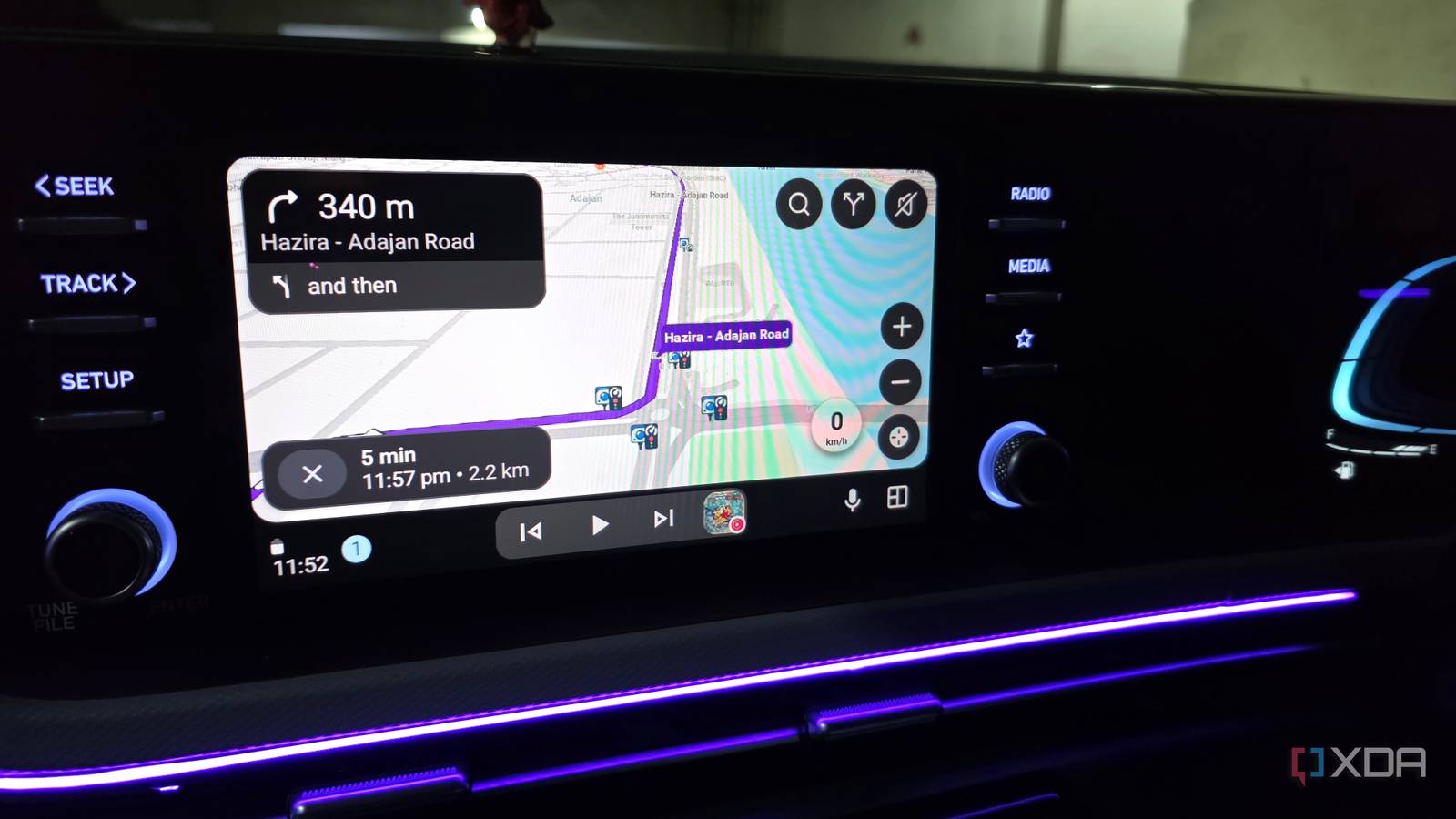
Published Aug 15, 2026, 8:30 AM EDT Parth, a seasoned tech writer, wields the keyboard (or pen) with finesse to unravel the intricacies of both Windows and Mac operating systems. He has covered evergreen content on mobile devices and computers for multiple publications over the last six years. You can find his work on AndroidPolice, GuidingTech and TechWiser. Whether it’s demystifying system updates, deciphering error codes, or exploring hidden features, Parth’s prose guides readers through the binary maze. When not immersed in tech jargon, you’ll find him sipping chai, pondering the next software review, and occasionally indulging in a friendly debate about mechanical keyboards. Android Auto is supposed to make driving easier, but I realized my setup had slowly become a little too busy for its own good. Between constant notifications, unnecessary apps, music controls, and unreliable voice commands, there was always something asking for my attention. So I went through Android Auto with one goal: remove anything that tempted me to look at the screen longer than necessary. A few simple changes turned out to be a game-changer for my driving. I redesigned the Android Auto launcher I stripped my launcher to the essentials One of the first things I did was clean up the Android Auto launcher. Over time, it had filled up with apps I barely touched in the car, and every extra icon made the interface feel busier than it needed to be. I went into Android Auto’s launcher customization menu, hid the apps I never use while driving, and moved my favorites right to the top. Waze, YouTube Music, Phone, and Fuelio are now always within easy reach, so I spend less time scanning the screen. I also pinned my favorite contacts, so I don’t have to dig through my call history or contact list whenever I need to reach someone. Most of the time, I am calling the same handful of people anyway, so keeping them front and center makes much more sense. Message previews were an obvious distraction Message alerts stopped stealing my attention Message notifications were probably one of the easiest distractions for me to eliminate. Whenever a new WhatsApp or text message appeared on Android Auto, seeing even the first line was enough to make me curious about the rest. I might not open the conversation, but my eyes would still leave the road for a moment to read what had popped up. That was exactly the kind of unnecessary distraction I wanted to remove. So I opened the Android Auto Settings on my phone and disabled Show first line of messages. Now, incoming messages don’t immediately reveal their contents on the dashboard. I also turned off the Play message chime toggle. That second change made an even bigger difference than I expected because every notification sound used to grab my attention and make me wonder who had messaged me. I haven’t completely cut myself off from messages while driving. Android Auto can still handle communication when I actually need it, especially through voice commands. I turned off automatic music playback Music no longer starts without asking I also disabled automatic music playback in Android Auto. I used to like the convenience of having Spotify or my local music resume the moment Android Auto connected, but it also meant audio started whether I wanted it or not. Sometimes I was still backing out of a tight parking space, talking to someone in the car, or simply wanted a quiet drive, and the music immediately got my attention. Turning off Start Music Automatically toggle gave me that control. Now, Android Auto connects without launching into whatever I was listening to earlier. If I want music, I start it once I am settled or use a Gemini action (more on that in a minute). It’s a small setting, but the tweak makes the whole experience feel a little calmer. I removed controls I kept touching Taskbar widgets looked useful at first because they kept media controls and other shortcuts within easy reach. The problem was that ‘easy reach’ also made them easy to fiddle with. I would catch myself skipping tracks, checking what was playing, or tapping around simply because those controls were always visible at the bottom of the screen. On my relatively small car display, they also added more visual clutter than I wanted. So I turned the taskbar widgets off and removed those playback controls sitting there inviting me to interact with them. I created Gemini Actions for common tasks Gemini lets me keep looking ahead Instead of removing functionality from Android Auto completely, I tried to move as many common tasks as possible to Gemini. I created a handful of actions for things I regularly do on the road, so I can trigger them with my voice instead of digging through apps and menus. One of my favorites is sending my ETA to my wife on Google Messages. Rather than opening Messages, finding the conversation, and typing something out, I can simply tap the Gemini action icon and get the job done. I use the same approach for entertainment. I usually play my YouTube Music downloads when I get into the car. Instead of opening the app and moving to the Downloads menu, I created a Gemini action for the same and performed those actions in no time. Check out my dedicated post to learn how to set them up. Cut the clutter while driving Android Auto is still one of the most useful tools in my car, but I enjoy it a lot more now that I have stripped away the things that kept pulling at my attention. My dashboard now feels cleaner, easier to glance at, and my drives are calmer without getting distracted by unnecessary interactions.
I made Android Auto safer by removing these distractions
Full Article
Original Source
Read the full article at Xda-developers →KhanList aggregates and links to publicly available news content. We do not host full articles from third-party sources. Always verify important information with original sources.