
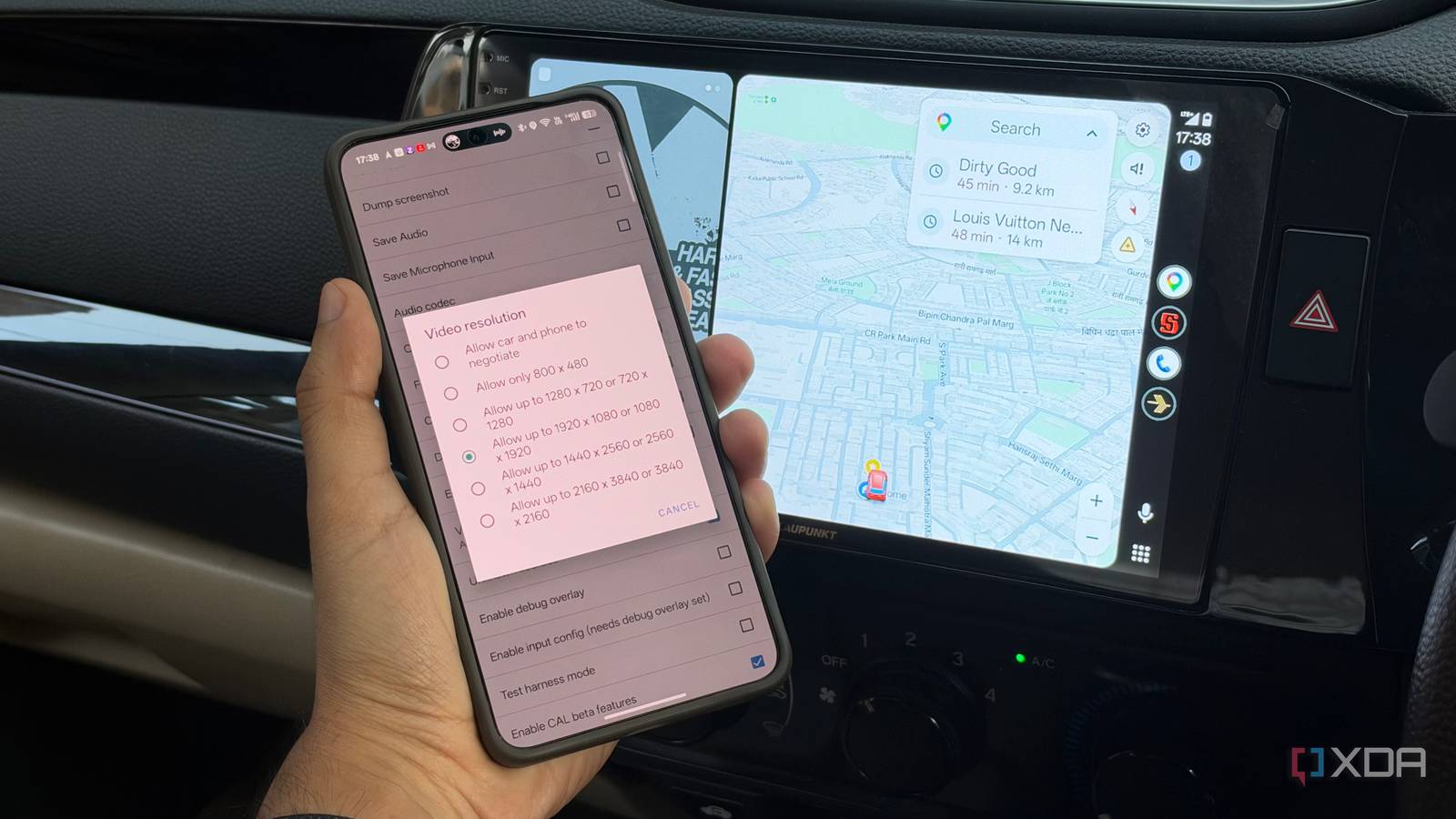
Published Sep 30, 2026, 11:30 AM EDT Dhruv Bhutani has been writing about consumer technology since 2008, offering deep insights into the personal technology landscape through features and opinion pieces. He writes for XDA-Developers, where he focuses on topics like productivity, networking, self-hosting, and more. Over the years, his work has also appeared in leading publications such as Android Police, Android Authority, CNET, PCMag, and more. Outside of his professional work, Dhruv is an avid fan of horror media spanning films and literature, enjoys fitness activities, collects vinyl records, and plays the guitar. My car didn't ship with Android Auto support, so I use an aftermarket infotainment system. This means Android Auto generally works fine in my car, but one annoying problem has been plaguing me. The screen has never looked as sharp as I think it should. This is most noticeable around things like Google Maps and Waze, where the icons and text look softer than expected. In fact, anything with fine details tends to look upscaled. That shouldn't happen on a modern, high-end head unit with a tack-sharp HD display. It turns out, the problem was simple. My phone wasn't negotiating the resolution correctly with the display, and all it took to fix it was changing the video resolution deep within Android Auto's developer options. That one setting made Android Auto look much cleaner on the same setup, without any hardware changes. Android Auto doesn't always use the correct resolution How to force Android Auto to use a higher resolution Credit: Here's the problem. Android Auto doesn't simply mirror whatever is on your phone. The phone renders the Android Auto interface and sends a video stream to my car's head unit. That part is straightforward enough. But before that, the phone and head unit negotiate the resolution they will use. Android Auto supports everything from a low-res 800x480 pixel stream to a Full HD 1920x1080 video stream. In theory, that negotiation should detect the infotainment system's display resolution and pass it to Android Auto. However, in practice, it doesn't always work like that consistently, especially if you're using a third-party Android Auto head unit. And when the resolution negotiation doesn't happen as expected, you can get streams that look soft, especially on higher-resolution car screens. That's where the developer options come in. Most people never need to interact with the Android Auto settings on their phone. The entire process is extremely seamless. However, when things don't go according to plan, that's where you go. The Android Auto app has a hidden developer menu which exposes, amongst other things, video resolution options. To reach this menu, go to Settings on your phone, find Android Auto, go to Version Information, and tap it repeatedly to enable developer mode. This unlocks a three-dot menu under developer settings. From there, scroll down the developer menu, tap Video Resolution, and set it to allow up to 1920x1080. Disconnect and reconnect Android Auto, and you'll see the difference immediately. Navigation is where you notice it most Street names and road markings become much easier to read Before we talk about just how big an improvement this is, it's worth noting that switching the resolution isn't some sharpening filter. Instead, it forces your Android phone to render the Android Auto stream at a higher resolution. If you're running a particularly old phone, that higher resolution could cause stutters. However, most modern phones should work particularly fine. The biggest upgrade you'll see is during navigation. I spend a lot of time using Google Maps or alternatives like Organic Maps through Android Auto. While a lower-resolution stream is fine for basic navigation, a higher-resolution stream is essential for reading place names comfortably. Whether it's street names or road markings, a sharp interface makes it easier to read. Navigation benefits from a sharper stream, but it's not the only use case. For example, I use Symfonium for my personal music library. When I have it up on Android Auto, a sharper screen makes browsing albums and playlists more comfortable. It also makes album art look better. The same extends to other media streaming apps like Pocket Casts for podcasts, or even Spotify if streaming music is more your thing. Elsewhere, I don't do much messaging while driving, but if I do glance at the screen, the sharper text rendering is appreciated. The best part of solving this problem is that the solution is one and done. Once you switch the output resolution, you don't need to change it every single time. It sticks. Similarly, you don't need to change any hardware or make any software investment. It's a simple solution to a simple problem. I've never had a reason to dig through Android Auto's settings. However, with this resolution mismatch bothering me incessantly, I decided to do something I should've done sooner. In fact, it proved that sometimes it's worth looking beyond those standard settings. Switching the display resolution settings was all it took for my phone to output a higher-resolution video to my Android Auto head unit. As a result, I get sharper visuals in Google Maps, Organic Maps, and Waze. Additionally, it makes text look sharper in everything from messaging apps to music streaming apps. If your Android Auto screen looks a bit blurrier than it should, this is the one setting I'd recommend checking.
I made Android Auto render at a higher resolution in developer settings, and my car's screen finally looks sharp
Full Article
Original Source
Read the full article at Xda-developers →KhanList aggregates and links to publicly available news content. We do not host full articles from third-party sources. Always verify important information with original sources.