
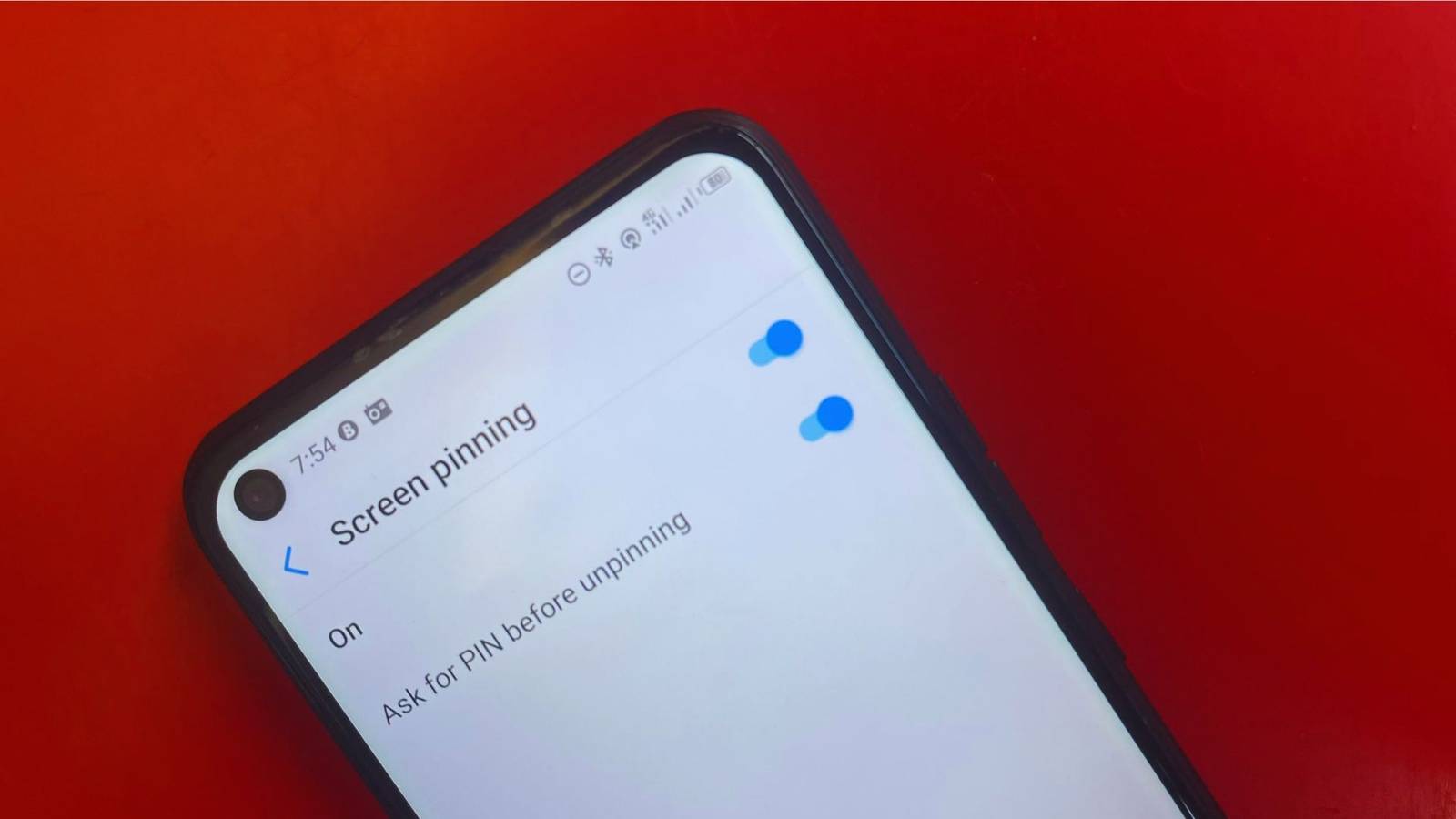
Published Nov 6, 2026, 5:00 PM EST Victor is a Features Author at Android Police with several years' experience in writing about tech. His focus is on Android, apps, software and Google products. He's particularly interested in how smartphones and the software that runs on them impact our day-to-day lives. He likes to look at new features, find out how the apps work and then explain the technology in an accessible way. Outside writing, he enjoys playing FPS games, going for runs and catching up with his favourite series. I don't mind if someone checks my phone for a minute. Maybe they want to see a photo, watch a video, or make a quick call. What I don't want is for them to leave that app and start going through the rest of my phone. My phone has conversations, emails, photos, and all sorts of other things I'd rather keep private. I found an easier way to deal with this on Android: screen pinning. It keeps my phone on one app until I choose to exit it. Android's screen pinning limits a user to just one app What happens when you pin an app? Screen pinning (also called App pinning) prevents app switching by locking an app to your screen. I can pin My Gallery, and users can view photos, but they can't navigate to the home screen or open the menu to launch other apps. A user can't leave the app unless I unlock it. I also like that this feature doesn't require installing another app. Handing someone your unlocked phone is a different proposition from handing them access to one app. Someone may want a picture, but your phone isn't limited to that; they could return to the home screen and open something else by accident or intentionally, and I'd rather not leave that door open. Screen pinning is useful if you want someone to go through your Gallery, watch something on YouTube, or have a quick search on Chrome. I can open up the app they want, pin it, and hand them the phone without giving them easy access to the rest of my phone. How I enable screen pinning on my Android phone Finding the setting and securing pinned apps Screen pinning can be tricky to find because different Android phone brands don't always lay out their settings the same way. However, for most Android devices, you can find it under Settings > Security > Screen pinning. I also turned on the Ask for PIN before unpinning option. You really shouldn't skip that. Otherwise, someone could leave the pinned app without entering your screen lock credentials. Your phone may have a slightly different Settings menu. It could be under Security, Security and privacy, or a similar heading, depending on the manufacturer and Android version. If you can't find it, search within the Settings app for "screen pinning" or "app pinning." After enabling screen pinning, I tap the Recent Apps button to see all my open apps. I look for the app I want, tap its icon above the preview, and select Pin from the menu. The app stays on the screen, and the person using my phone can't switch to another app or go back to the home screen. What I like most about this feature is that notifications and the notification drop-down are inaccessible. So they can't see when I get a new message or a private notification. They can still use the app I've given them access to; they just have to unpin it in order to get back to the rest of the phone. How I unpin an app when someone returns my phone Getting back to the rest of my phone To unpin an app, I tap and hold the Return and Recent Apps buttons at the same time. Since I turned on the option to require an unlock PIN, I have to input it before I can leave the pinned app. The method may vary slightly for Android devices depending on the navigation. With gesture navigation, swipe up from the bottom of the screen and hold. Screen pinning has a few limitations worth knowing It doesn't protect what's inside the pinned app One thing to be absolutely clear about: screen pinning doesn't stop someone from using the app. If I pin Chrome, the person with the phone can still see the tabs and use the app's features. Screen pinning restricts access to other apps, but it won't hide the information in the app you've pinned. I see screen pinning as an additional layer of security, not a substitute for the phone's normal security and privacy measures. It doesn't protect data in the app you've pinned, and it won't stop someone from looking at anything in the app. I now have more control when someone borrows my phone Screen pinning gives me a straightforward way to share my phone without opening everything for someone to go through. It's extremely quick to enable, requires no further download, and works with the apps I have. Screen pinning isn't a perfect privacy tool, but it's helped me with a small issue more often than I expected. You won't need it every day, but it's useful to have if someone wants to borrow your phone.
I lock my phone to one app before handing it over; you should too
Full Article
Original Source
Read the full article at Androidpolice →KhanList aggregates and links to publicly available news content. We do not host full articles from third-party sources. Always verify important information with original sources.