
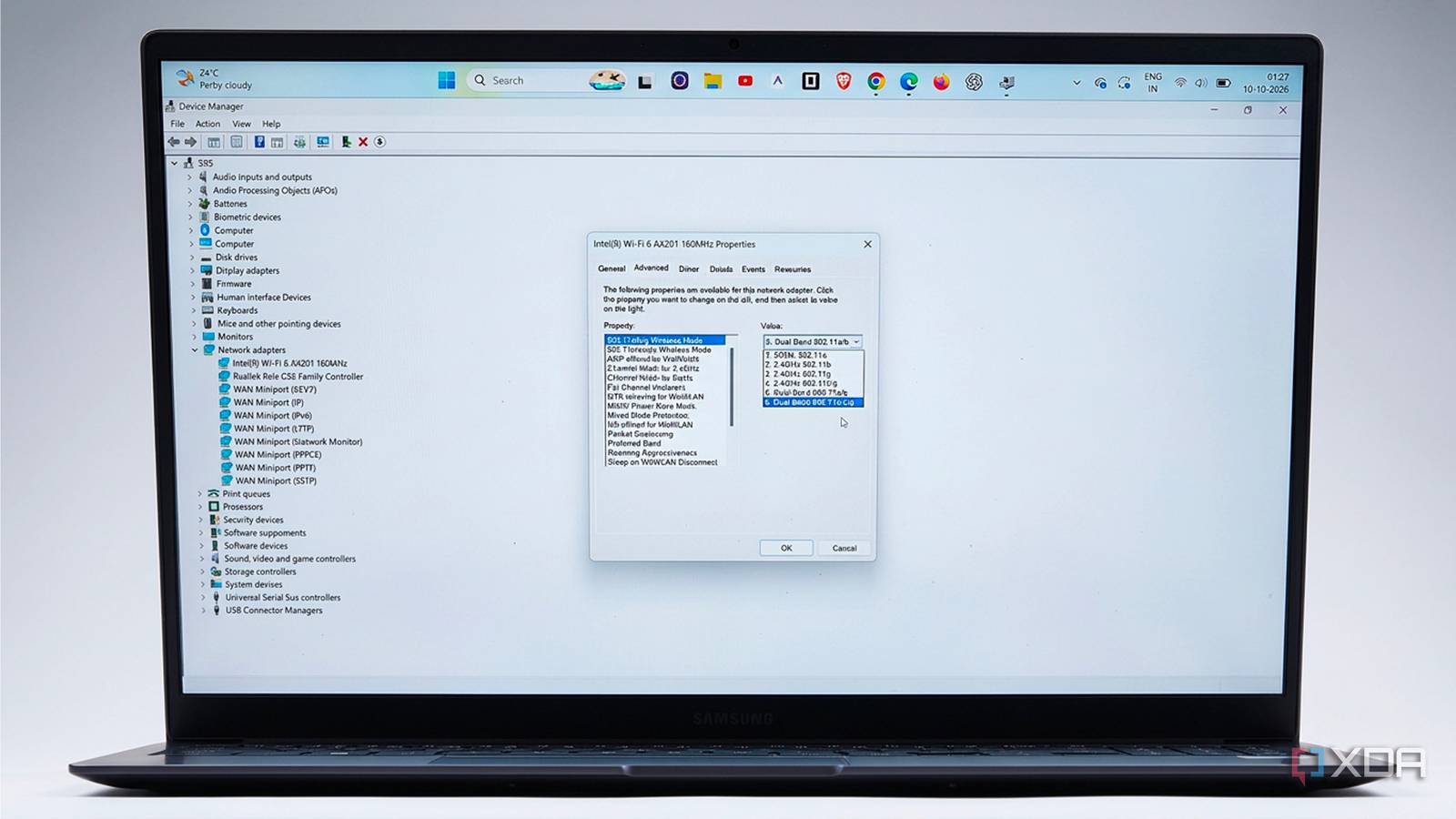
Published Oct 10, 2026, 5:00 PM EDT Shivansh began his tech journey as an avid reader of tech publications, which inspired him to launch his career in video media at Sillycorns. He has led content across multiple tech YouTube channels and Instagram accounts, crafted go-to-market (GTM) strategies for Vivo, and consulted on digital growth. Coming full circle to his roots in written media, he now delivers deep-dive tech journalism. Outside of his professional work, Shivansh loves watching movies, riding bikes, and playing cricket. My Samsung Galaxy Book4 pulled 41Mbps at my desk one Tuesday night, on a 500Mbps fiber plan, from an ASUS TUF Gaming AX4200 two rooms away. Smart Connect, which is ASUS’s name for band steering, had parked it on 2.4GHz again, the crowded band my smart plugs already fight over. I’d blamed the drivers, the laptop, and the bathroom wall, in that order. Band steering is one of those router defaults almost nobody touches. Normally, your device picks its own band, the same way your phone decides when to let go of weak Wi-Fi. Band steering lets the router overrule that choice. So I ran a two-week test at the same desk, and the gap was bigger than I’d guessed. Band steering put my laptop on the slower band most nights The math wasn’t mathing The setup was boring on purpose. The laptop is the Core i3 version of the Samsung Galaxy Book4, a Wi-Fi 6 machine on Windows 11. The TUF-AX4200 runs stock firmware with Smart Connect on, which is how it shipped. Every evening at 9 p.m., I ran three Speedtest passes and checked which band I was on in Settings -> Network & internet -> Wi-Fi, where the connection’s properties list the network band. The router put me on 2.4GHz on four of the seven nights. My median download for the week was 63Mbps, and on the worst night, that Tuesday, it was 41Mbps that started all this. Twice it switched bands in the middle of a video call, which froze my face mid-sentence for about four seconds each time. A colleague now has a screenshot of me looking deeply betrayed by a spreadsheet. The annoying part is the router’s own spec sheet. ASUS rates the TUF-AX4200 at up to 3,603Mbps on 5GHz and 574Mbps on 2.4GHz, so it kept steering me onto the band it rates six times slower. On the three nights it let me stay on 5GHz, I got well over 250Mbps. The signal was fine, and the math wasn’t mathing. Band steering reads signal numbers, not rooms It never asked what I was about to do ASUS is unusually open about how Smart Connect decides. Its Smart Connect FAQ shows the rule page, where the triggers are mostly signal strength and link speed, plus a Bounce Detect setting meant to stop devices from flip-flopping. In ASUS’s own example, a device steered twice within 60 seconds stays on its current band for 180 seconds. That’s sensible logic for a router that can’t see your floor plan. At my desk, 5GHz sits around -68 dBm, inside the range ASUS calls good, but only just, since it draws that line at -70 dBm. When someone closes the bathroom door, it dips past that line for a moment, and the router decides 2.4GHz looks safer. It doesn’t know I’m about to join a call or download a 40GB game. The second problem has a clear cause. Windows also picks a band on its own, and the adapter setting that guides it, called Preferred Band, defaults to No Preference on Intel’s Wi-Fi cards. Mine was still on that default. So the laptop and the router were both deciding, and they kept disagreeing. ASUS even warns that a device’s Wi-Fi preferences can make the Smart Connect rule ineffective or cause frequent disconnections. That matched my call log almost exactly. Week two: picking 5 GHz myself was five times faster Four minutes, one new Wi-Fi name, zero frozen calls Turning band steering off on ASUS firmware means giving each band its own network name. On newer firmware, that’s under Network -> Main network profile, where I left only 5GHz ticked and added a second network for 2.4GHz. Older firmware has a plain toggle at Wireless -> General -> Enable Smart Connect. Either way, splitting the bands is the whole trick. On the laptop, I connected to the new 5 GHz name and set Preferred Band to Prefer 5GHz band in Device Manager, under the Wi-Fi adapter’s Advanced tab. That stops Windows from wandering back if the old network ever reappears. The connection’s properties in Settings then listed the network band as 5 GHz. On a Mac, Option-click the Wi-Fi icon to see the channel. Then I ran the same test for seven more nights. Week 1: router picks Week 2: I pick Nights on 5 GHz 3 of 7 7 of 7 Median download 63 Mbps 318 Mbps Median upload 31 Mbps 207 Mbps Median ping 34 ms 15 ms Calls that froze 2 The median download went from 63Mbps to 318Mbps, a little over five times faster, and ping dropped from 34ms to 15ms. I didn’t lose a single call. I’ll admit I ran the test an eighth night just to enjoy it. Band steering still earns its keep on my phone Things that move need a router that thinks None of this makes band steering useless. It just makes it the wrong tool for a laptop that never leaves my desk. My phone is the opposite case: it goes from the living room to the backyard, where 5GHz falls apart, and the old combined network handled that handoff without me noticing. Now my phone sometimes clings to the 5GHz name in the yard for a few painful seconds before it remembers the 2.4GHz network exists. There’s also a newer wrinkle. Wi-Fi 7’s Multi-Link Operation, which lets a device use more than one band at once, relies on those bands being part of one network. If you have a Wi-Fi 7 router and a Wi-Fi 7 laptop, keep the faster bands together and split off 2.4GHz at most. My TUF-AX4200 is Wi-Fi 6, so that wasn’t my fight. So my rule now is simple. Anything that sits still gets pinned to a band, and anything that roams can take its chances with the router. Turn off band steering for devices that stay put That Tuesday’s 41Mbps feels like a long time ago, even though it was three weeks back. The router wasn’t broken, and neither was the laptop. They were both guessing, and I was the only one in the room who knew where the desk was. If your laptop or desktop lives in one spot, give it its own band and see what your speed test says. Mine was leaving about 250Mbps on the table, which is honestly a little embarrassing.
I let my router choose my Wi-Fi band for a week, and my laptop lost 80% of its speed
Full Article
Original Source
Read the full article at Xda-developers →KhanList aggregates and links to publicly available news content. We do not host full articles from third-party sources. Always verify important information with original sources.