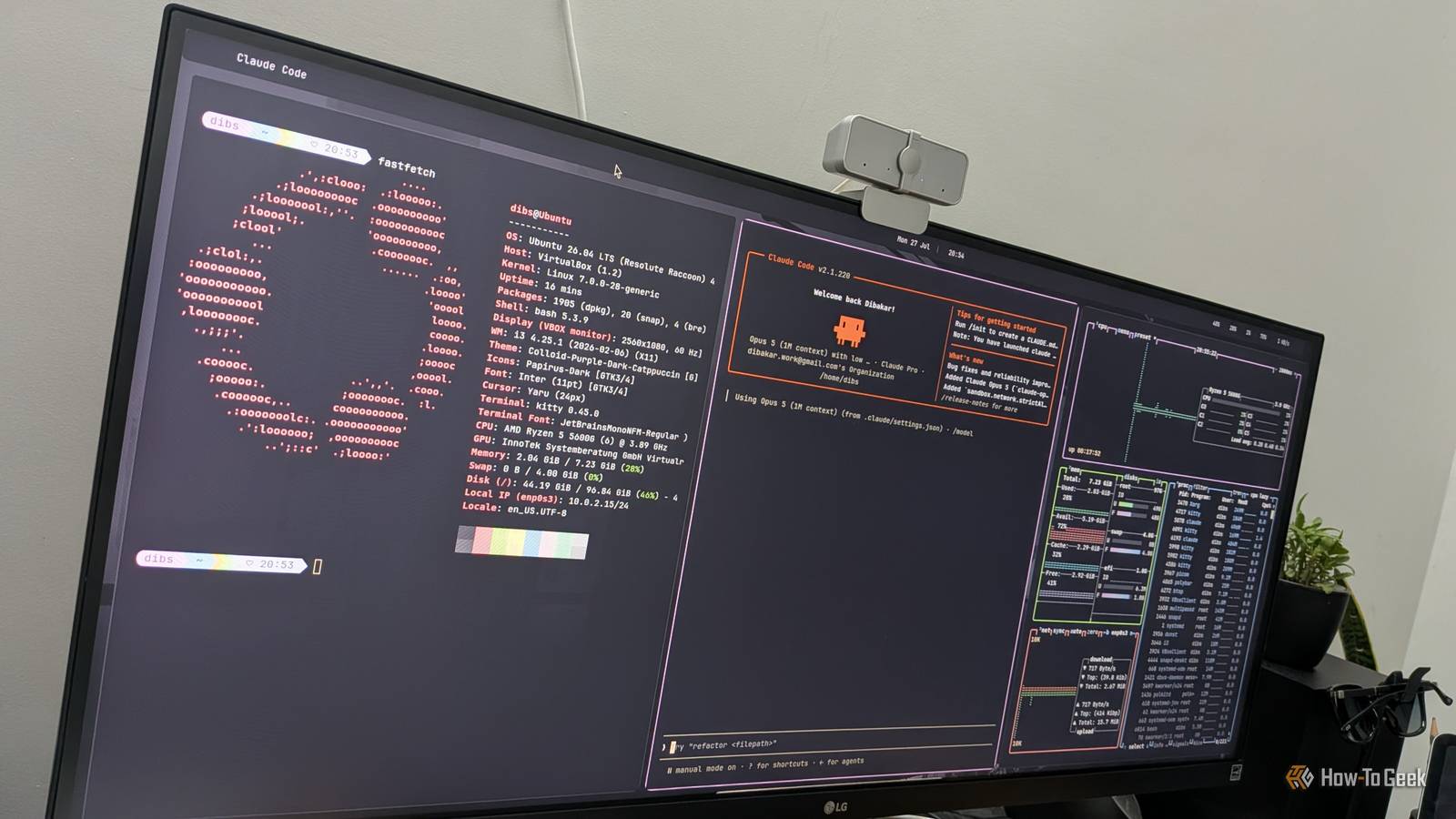
Credit: Dibakar Ghosh | How-To Geek Published Jul 30, 2026, 8:45 AM EDT Dibakar Ghosh is a tech journalist at How-To Geek, where he focuses on Linux, Windows, and productivity tools. His goal is simple—help readers at every skill level get more done with the tech they use every day. He began his writing career in 2016 with WordPress tutorials, later moving into digital marketing, where he spent years reviewing complex tools for marketers. His work has also appeared on Authority Hacker, where he’s shared in-depth guides on digital workflows and online productivity. That experience now shapes his journalism, blending analytical depth with practical, real-world advice. When he’s not writing or testing software, Dibakar is usually watching movies or playing video games. He’s a huge Christopher Nolan fan and a strong proponent of the theater experience. In gaming, he has sunk hundreds of hours into Insomniac’s Spider-Man series, Returnal, Prototype, Darksiders, and Final Fantasy titles. Sign in to your How-To Geek account I've always loved how much freedom Linux gives you to customize your desktop. I've spent years ricing GNOME and KDE Plasma, but I've always avoided window managers (WM) like i3 and Hyprland. Without a graphical interface, customization feels more like programming than personalizing your desktop. I recently decided to give WMs a try, but building a polished setup would easily consume an entire Saturday for me. That's when I had an idea: what if I let Claude do the heavy lifting? The result wasn't just dramatically faster—it looked better than almost anything I'd built myself. Claude is perfect for Linux customization An AI that can actually read and write your config files Credit: Dibakar Ghosh | How-To Geek The unique thing about customizing your Linux desktop is that almost everything is defined by plain-text configuration files. Your window manager's keybindings, your status bar, your terminal colors, your fonts, and even your wallpaper behavior are all controlled by files in your home directory. Change a config, reload the application, and the desktop updates instantly. That's exactly the kind of workflow AI agents excel at. Claude Code runs inside your terminal and can inspect your existing configuration, edit files, and execute commands to verify its own changes. When I ask it to recreate a desktop from a screenshot, it first checks my distribution, identifies what's already installed, reads my Hyprland configuration, and then starts making incremental edits. Within seconds, I can watch my desktop gradually transform as each component reloads. However, what I found most useful wasn't the file editing—it was the research. When I rice my desktop manually, half the time goes into identifying what's actually in a screenshot. Is that Waybar or Eww? Which Nerd Font are they using? What color scheme are they using? Claude identifies those components in seconds, checks whether they're available for my distribution, and tells me whether the setup is worth recreating in the first place. This requires Claude Code, the terminal version of Claude, not the claude.ai website. If you don't have a Claude subscription, ChatGPT CLI or Google's Antigravity CLI work too. The important part is giving the LLM access to your local Linux file system. Also, use the most capable model you can, since better reasoning generally leads to fewer configuration errors. How I set up Claude to customize my Linux PC A four phase process that stands between you and chaos You could simply open Claude Code and type, "Make my desktop look like this image." It would probably work. But it could also install packages without asking, modify configuration files without creating backups, and leave you with no record of what changed. Using a well-defined prompt is what separates a reckless run from one that behaves like a careful sysadmin. As such, I wrote a prompt that enforces a structured workflow. The prompt breaks the job into four phases, with a hard stop between each one. Phase 1 is a read-only audit. Claude identifies your Linux distribution, window manager, display server, and existing configuration files without modifying anything. Phase 2 is the planning stage. It analyzes the reference image, lists every package it wants to install with an explanation for each one, and waits for your approval. Phase 3 is preparation. This is my favorite part. Instead of letting Claude execute sudo commands, it writes every privileged command into a single script called claude-setup.sh, with a comment above each one explaining exactly what it does. You can review the script and run it yourself if everything checks out. This way, Claude never runs with root privileges. The script also creates a system snapshot before making any changes, giving you a rollback point if something goes wrong. Phase 4 is the build. Claude customizes your desktop one component at a time, creating a Git commit after every change so you always have a detailed history. I've shared it at the end of this article so you can copy it as-is. All you have to do is open Claude Code in your home directory, paste in the prompt, and describe the setup you want. You can provide a screenshot or simply describe the look you're after and let Claude figure out the implementation. I tested this workflow on an Ubuntu virtual machine, asking Claude Code to install and configure i3 based on its own research and aesthetic judgment. The entire process took a little over an hour, consumed roughly 290,000 Claude 3 Opus 5 tokens, and produced a fully functional i3 desktop with almost every component working as intended. Building something similar manually would have easily taken me an entire afternoon. How to ensure Claude doesn’t mess up anything A little vigilance goes a long way The idea of letting an AI run commands on your PC for an hour should make you a little uneasy—and that's a good thing. What if it installs a compromised package, opens an unnecessary port, or breaks part of your existing setup just to recreate a desktop? The best way to prevent that is to review the commands Claude proposes and avoid letting it run unattended. Granted, this can feel torturously boring. As such, if you'd rather let Claude work unattended while also minimizing the risk, I recommend spinning up your Linux distribution in a virtual machine first. Let Claude Code make all of its changes there, inspect the configuration files it creates, and only copy them over to your main system once you're satisfied with the results. I also designed my prompt to keep a running log at ~/claude-rice-log.md. Every action is timestamped, along with the files Claude modified and a brief explanation of why it made each change. Even after the process finishes, you can review the log to understand exactly what happened during the automated ricing session. Claude has made Linux a lot more accessible Claude, and LLMs in general, have made Linux more accessible than ever before. Linux has no shortage of documentation, but much of it assumes prior knowledge or expects you to piece together information from multiple sources. But now, instead of you jumping between forum posts, GitHub repositories, and wikis, you can ask an LLM to explain unfamiliar concepts, adapt instructions to your setup, and even automate repetitive configuration tasks. Now, if you'd like to try this workflow yourself, here's the Claude Code prompt I used to customize my Linux PC. I want you to redesign my Linux desktop to match the reference images I've attached. Work in four phases. Do not skip ahead, and stop for my approval between each. Maintain a file called ~/PLAN.md throughout: after Phase 2 approval, write the approved plan into it as a checklist, and tick off each item as it's completed. If this session ever restarts, read ~/PLAN.md and ~/claude-rice-log.md first and resume from where they left off. PHASE 1 — AUDIT (read-only) Do not modify anything. Determine: - Distro, version, package manager, desktop environment / window manager, display server (X11 or Wayland), shell, GPU driver - Which config files currently control my desktop's appearance, and where they live - Which of the tools needed for the target look are already installed - Whether git is installed - Whether a snapshot tool exists (timeshift, snapper, or a Btrfs root) Report all of this to me before doing anything else. PHASE 2 — PLAN Research what the reference images use — WM, bar, launcher, terminal, fonts, icon and GTK themes, compositor. Cite the sources you're basing this on. If you cannot confidently identify the exact tools from the images, say so explicitly and propose the closest well-documented equivalents instead — do not guess and present it as fact. Then give me: - A written plan of exactly what you'll change and which files you'll touch - A list of every package to be installed, with a one-line reason for each Wait for my approval, then write the plan into ~/PLAN.md as a checklist. PHASE 3 — PREP Once I approve: - Initialize a git repo in ~/.config. Add a .gitignore that ignores everything by default (*) and whitelists ONLY the directories you plan to edit (e.g. !hypr/, !waybar/, !kitty/). Commit the current state as "pre-claude-baseline" and tag it. This needs no root — do it yourself. - Write ONE shell script called claude-setup.sh in my home directory containing only the steps that require sudo: creation of a system snapshot FIRST, then package installation. Nothing else goes in it. - Every line in the script must have a comment above it explaining what it does. - If no snapshot tool is available, installing one and taking the snapshot must be the first actions in the script. - The script must not contain any `curl | sh` / `wget | sh` patterns, and must not write to files outside the package manager's normal operation. - Do not run the script. Tell me to read it and run it myself. PHASE 4 — BUILD After I confirm I've run the script: - Make changes one component at a time. Commit to git after each component with a descriptive message, and tick it off in ~/PLAN.md. - Never overwrite an existing config file without first copying it to .bak. - Append every action you take to ~/claude-rice-log.md as you go: timestamp, what you changed, which file, why. - Before telling me to reload the WM or log out, validate config syntax with the tool's own checker where one exists (e.g. hyprctl reload, i3 -C, sway -C) and report the result. Also tell me how to reach a TTY (Ctrl+Alt+F3) and restore the .bak file in case the graphical session breaks. - Do not run sudo. If something needs root, stop and give me the exact command so I can run it myself. - After each component, tell me what to look at to verify it worked. Rules for the whole session: - Never run rm -rf, dd, mkfs, chmod -R, or chown -R on anything. - Never pipe a downloaded script directly into a shell. - Never edit anything outside my home directory. - Ask before installing anything not on the approved Phase 2 list. - If a command fails, do not improvise workarounds involving root or system files — report the failure and wait.
I let Claude customize my Linux PC—and it did a better job than I ever could
Full Article
Original Source
Read the full article at Howtogeek →KhanList aggregates and links to publicly available news content. We do not host full articles from third-party sources. Always verify important information with original sources.