
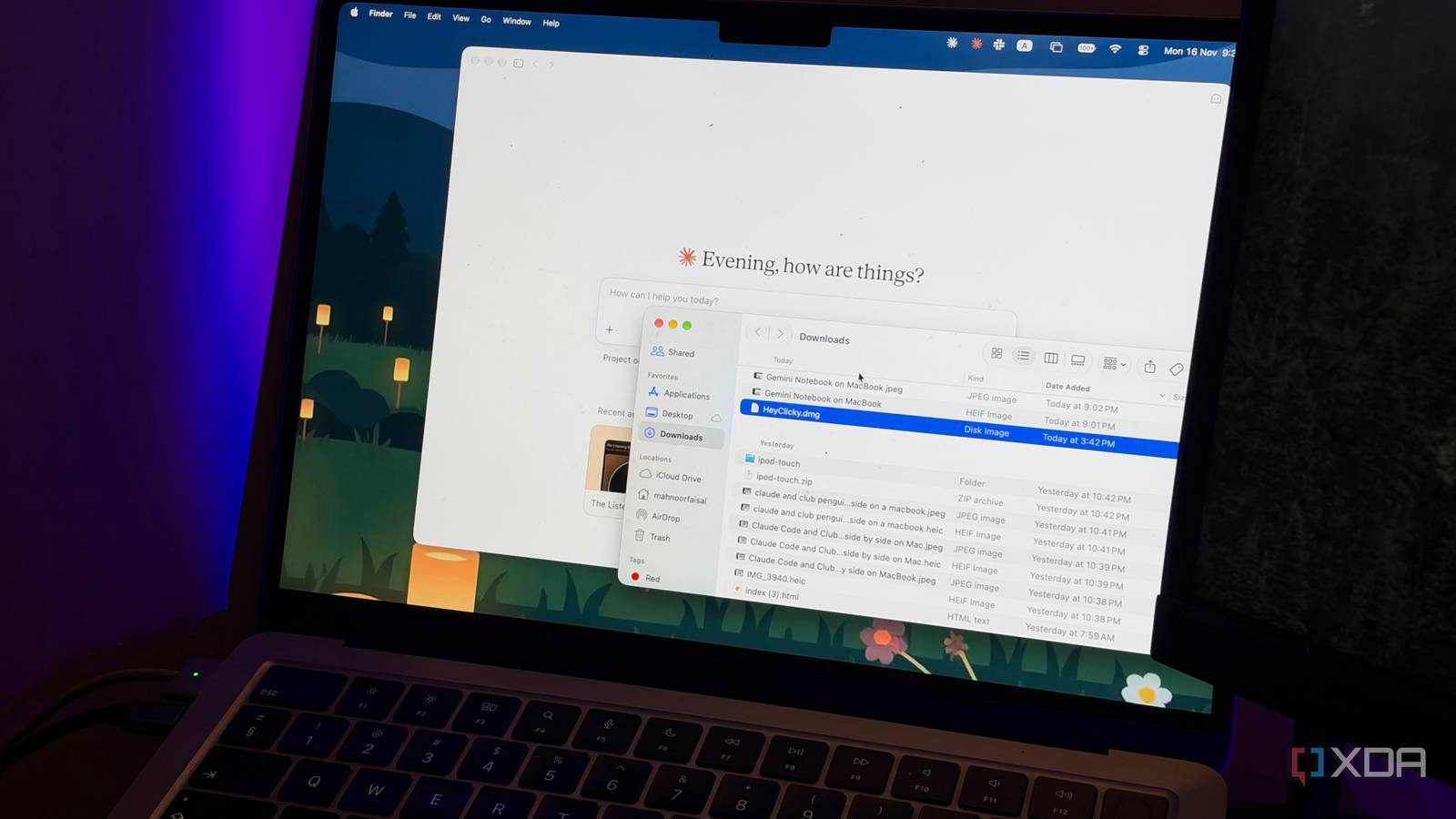
Published Nov 17, 2026, 7:30 AM EST Mahnoor Faisal is a tech journalist covering AI and productivity tools with bylines at XDA, SlashGear, MakeUseOf, Laptop Mag, and Android Police. She's been writing professionally since she was sixteen, and has since penned hundreds of articles. This includes in-depth coverage of AI tools like NotebookLM to breaking news across the AI space. Her passion for technology started when she received her first iPod Touch (4th generation) on her 8th birthday, and she's been deep in the tech world ever since. Currently pursuing a degree in computer science, Mahnoor brings both a journalist's eye and a technical foundation to her coverage of how AI is reshaping the way we work and learn. My vision board for the last few years has consistently had one goal that I've not quite been able to tick off: become a more organized person. I've tried just about everything to make it happen, from downloading countless productivity apps to creating elaborate systems that I inevitably abandon a few days later. Yet, somehow, I always find myself right back where I started. My laptop's Downloads folder is perhaps the best example of this. Beyond the few days that follow after I get the random motivation to organize the mess, my device goes right back to being a dumping ground for screenshots, PDFs, installers, and files I don't even remember downloading. So, instead of waiting for my next burst of motivation, I decided to let Claude Code take over and clean out my Downloads folder every Friday. This is one of those low-stakes automations that just makes sense Some of the best automations are also the simplest One of the first tasks I experimented with using Claude Code and Cowork was organizing my desktop. That's always been an experiment I run manually once every few weeks, though, since my priorities for what I'd like to see on my desktop change every few days. My desktop also often has sensitive data like bank statements, contracts, and passport information that I keep around for easy access, and that's not data I'd want an AI agent handling automatically without my supervision. My Downloads folder, on the other hand, is a different story. Most of what's in there is temporary clutter, and I rarely have a reason to keep things in any particular order. As someone who writes a lot about different tools after testing them, a good chunk of my Downloads folder consists of installers for apps I've downloaded purely for the sake of testing them for an article or roundup. The ones I end up liking usually make their way to my desktop or Dock, while the rest just sit in my Downloads folder until I'm running low on storage and finally decide to do something about them. Then there are the countless images I AirDrop from my phone or camera for articles, PDFs I've downloaded for research, and random documents I probably haven't opened since downloading them. I also have a dedicated folder for one of my image-related workflows, which is incredibly useful while I'm working on an article, but leaves behind a bunch of files I have absolutely no use for once the week is over. I figured I might as well move that folder into Downloads and have Claude clean it up alongside everything else. The only real exception is anything college-related, since I'm constantly downloading lecture slides, assignments, and other study materials that I might need again. Apart from those, though, most of what's sitting in my Downloads folder is stuff I've either already used or completely forgotten about. That's precisely why this felt like the perfect low-stakes task to automate. I set Claude Code loose on my Downloads folder every Friday I turned a one-time cleanup into a weekly routine Setting this up was perhaps the easiest part of the entire experiment. I decided to use Claude's desktop app rather than go through the terminal, since it already has a built-in feature for scheduling tasks. I headed to the Claude Code tab, clicked More in the left sidebar, and selected Scheduled. From there, I clicked New task in the top-right corner and chose Set up manually. There's also a Create with Claude option, which probably would've made the process even quicker, but since this was really a one-time setup, I figured I might as well configure everything myself. The setup screen was straightforward. I could give the task a name, enter instructions explaining exactly what I wanted Claude to do, and choose when it should run. I set the schedule to Weekly, selected Friday, and picked 8 PM as the time. My thinking was that by Friday evening, I'd probably be done downloading most of the files I'd need for the week, making it the perfect time for a cleanup. There was one more important thing I needed to configure under Advanced settings. Since I wanted Claude to organize files stored locally on my MacBook, I enabled Only on this computer and selected my Downloads folder under Local folder. The catch is that my Mac needs to be on and awake for the task to run, but given that I'm typically working or studying at that time, I figured 8 PM was the best time for this task. I made sure Claude knew what to keep and what to delete A little AI housekeeping goes a long way While setting up the scheduled task itself was pretty straightforward, figuring out exactly what I wanted Claude to do required a little more thought. After all, I didn't want it to simply go through my Downloads folder and delete everything older than a week. That would've been easy enough to accomplish with a basic automation, and would've defeated the entire purpose of using an AI agent. I created a brand-new automation for the sake of this article to demonstrate how the setup works. The exact prompt I use for my own weekly cleanup is a lot more customized to my workflow and the kinds of files I regularly download, but the one below covers the same basic instructions and should be a good starting point if you'd like to set up something similar. I wanted Claude to figure out what was worth keeping and what was just taking up space. I used a tweaked version of the following prompt: Every Friday, review and clean up my Downloads folder. Use filenames, file types, dates, and context to identify files I no longer need, rather than simply organizing everything by extension. I frequently download app installers for testing software and writing articles, AirDrop images and screenshots from my phone and camera, and download PDFs and other research materials. Identify old installers, duplicate downloads, and temporary files that are no longer needed. There's also a dedicated folder containing images used for a recurring weekly workflow. Anything in that folder older than seven days can be moved to Trash. Important: Preserve anything related to my college coursework, including lecture slides, assignments, study notes, academic papers, and other university-related files. However, I frequently download the same academic materials multiple times by accident, so please identify and remove exact duplicates. Compare file contents rather than relying on filenames alone, and always retain at least one complete copy. Don't treat differently edited versions of the same document as duplicates. Don't permanently delete anything or overwrite existing files. Move confirmed duplicates and clearly unnecessary temporary files to Trash, and put anything you're unsure about into a Review folder instead. At the end of each cleanup, provide a summary of what you removed, what you preserved, how many duplicates you found, and anything that needs my attention. A test run I just ran to demonstrate how this works ended up moving 53 items totaling around 766 MB to the Trash, identifying 34 exact duplicates, and reducing the number of entries in my Downloads folder from 634 to 579. Nine of those duplicates were college-related, which was satisfying considering how often I accidentally download the same lecture slides and assignments. Claude compared the contents of the files using SHA-256 hashes, checked whether old installers belonged to apps I already had installed, and even verified that the contents of certain ZIP files matched their extracted folders before moving them to Trash. It also knew when not to make a decision. Claude preserved files that appeared to be different edited versions of the same document, left sensitive documents alone, and moved three files it wasn't completely sure about into a separate Review folder. It even flagged a recently downloaded installer that I was still using for testing, rather than getting rid of it. Nothing was permanently deleted, so I could still restore anything from Trash if needed. For something I'd normally put off until my Downloads folder became an absolute nightmare, that's a pretty impressive result from a single run! I've been using the one that's been custom-built for my workflow for a while now, and it's saved me a lot of time and effort. More importantly, it's one less thing I have to remember to do every week, which, for someone who's been trying to become more organized for years, is a win in itself!
I let Claude Code clean out my Downloads folder every Friday, and it's the most useful thing I've automated
Full Article
Original Source
Read the full article at Xda-developers →KhanList aggregates and links to publicly available news content. We do not host full articles from third-party sources. Always verify important information with original sources.