
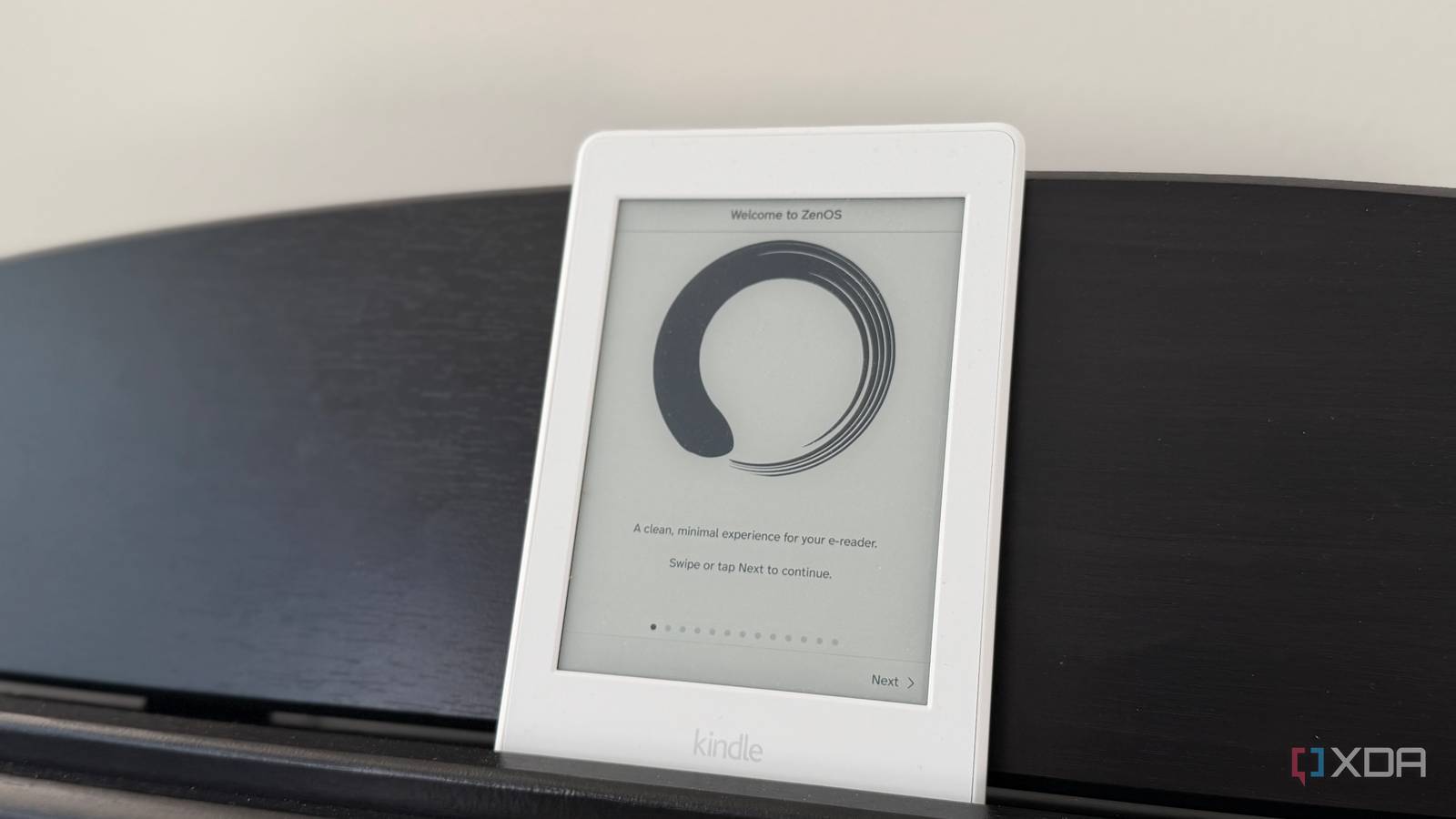
Published Nov 12, 2026, 9:00 AM EST Maker, meme-r, and unabashed geek, Joe has been writing about technology since starting his career in 2018 at KnowTechie. He's covered everything from Apple to apps and crowdfunding and loves getting to the bottom of complicated topics. In that time, he's also written for SlashGear and numerous corporate clients before finding his home at XDA in the spring of 2023. He was the kid who took apart every toy to see how it worked, even if it didn't exactly go back together afterward. That's given him a solid background for explaining how complex systems work together, and he promises he's gotten better at the putting things back together stage since then. My 2015 Kindle Paperwhite has had a strange retirement. I jailbroke it and mostly use it for its Linux capabilities, running it as a Home Assistant dashboard instead of showing me books. KOReader, the open-source reading app that tops any list of the hidden features jailbreaking your Kindle unlocks, came along for the ride when I set that up. I never read on it, because it opens to one of the least welcoming interfaces I've seen on an E Ink device. Until this week. A plugin called ZenOS (formerly Zen UI) sits on top of KOReader and swaps those menus for something that looks like a modern e-reader. A few minutes after I copied one folder over, Amazon's own software felt dated. Here's what it took, what it adds, and where it still falls short. My Kindle was already jailbroken, so the hard part was done Newer jailbreaks have made that first step far less painful KOReader installs on Kobo, PocketBook, and Android e-readers without a jailbreak, but on a Kindle you have to jailbreak first. One of us at XDA already jailbroke an old Kindle, so I won't repeat the basics here. The short version: the last two years have been kind. WinterBreak arrived on New Year's Day 2025, Sanctuary followed in June 2026 and Véra in August, and those two start from the Kindle's own web browser. The Kindle Modding Wiki will give you the rundown of what works on which model. According to the KOReader wiki, the newer methods even bundle a package manager that installs KOReader from the Kindle's search bar. Sure, it still depends on your model and firmware, and the Kindle Modding Wiki is blunt that you can't downgrade a stock Kindle to become eligible. Amazon doesn't sanction any of it, so go in with your eyes open. I got to skip all of that. My Paperwhite is on firmware 5.16.2.1.1; the KUAL launcher still opens, and I already had KOReader 2026.07.2 installed from earlier tinkering. All I had to add was the plugin. KOReader replaces the reading app, and ZenOS replaces the interface One adds the features Amazon never offered, and the other makes them usable KOReader doesn't wipe anything. On my Paperwhite, it's an app I launch from my Library, and when I exit, the normal Kindle software is right where I left it. In exchange, you get a reader that opens EPUB, PDF, CBZ, and a long list of other formats; lets you load your own fonts and set margins and line spacing however you like; and keeps proper reading statistics. It also talks to Calibre and OPDS catalogs, so connecting an old e-reader to a self-hosted server puts your own library a Wi-Fi connection away. The problem is what you see when it starts. Stock KOReader gives you five tabs along the top (the file browser, settings, tools, search, and a hamburger menu), and each one opens into nested lists of options. It's powerful, and it's also horrible to look at. I closed it the first time and went back to my dashboard project. ZenOS is the fix, and to be clear, it's a plugin and not an operating system. I used v4.3.1, which needs KOReader 2026.03 or newer. Installing it meant unzipping one download, copying the zenos.koplugin folder into KOReader's plugins folder over USB, then restarting KOReader. The new home page, cover-first library, and pull-down panel are the obvious changes, but the details are what won me over. The headline feature is Zen Mode. With it off, I counted nine entries across the top of my Paperwhite: KOReader's original five, plus four from ZenOS for the pull-down controls, launcher, Zen Settings, and library. That's a crowd, and it rightly deserves trimming. Turn it on, and the original five disappear. ZenOS's own docs talk about going from a dozen tabs to four, so your count may differ from mine. Nine down to four doesn't sound like much, but the four that remain are places I want to go, and the five that left were setting categories. Getting to my books took three tries It wasn't all obvious. The ZenOS navbar documentation describes a Kindle Library tab, but that needs a separate plugin called kindle.koplugin, which I didn't have, so it never appeared. My next attempt was to pin my documents folder to the launcher under Zen Settings -> Interface -> Launcher -> Buttons -> Add -> Open Folder. That worked, but it was two taps every time. Then I noticed the Library button in the top right can point to any folder. I set it to documents, and now my books are one tap away from anywhere. The setting lives under Zen Settings -> Library -> Folders -> Home folder -> Set home folder. A couple of smaller touches impressed me more than I expected. ZenOS's docs describe brightness and warmth sliders in the pull-down panel, but my Paperwhite has no warm light, and ZenOS never drew a warmth slider there, whether the warmth option in settings was on or off. When I turned on the brightness schedule, it marked KOReader's auto-warmth and night mode plugin as incompatible. The ZenOS docs say that's so the two don't fight, but it's wonderful to see a program that actually handles this gracefully. ZenOS made my 2015 Paperwhite feel like a newer e-reader Scrubbing through a book feels faster than it does in Amazon's software The little touches made the biggest impact, though. Dragging through a book to find my place feels quicker in ZenOS than it does in the Kindle firmware on the same device. I didn't time it, so take that as an impression, but it's not what I expected from a plugin running on top of an app on hardware this old. The status bar worked as soon as I enabled it, and the built-in update check ran and told me there was nothing newer than the version I'd installed. That's not the same as watching it install an update, but it means I won't need the USB cable for the next release if it works as described. I've never really liked the Kindle UI. It works, but it's also designed to sell you more Kindle e-books. The pull-down menu is woefully sparse, and that's where ZenOS moves most of the visual clutter. It's an immediate downgrade every time I exit KOReader to read books from my Kindle+ subscription. It isn't perfect, and some of the limits are KOReader's. Out of the box, books bought from the Kindle Store won't open because KOReader doesn't support Amazon's KFX format or DRM. The ZenOS FAQ points to adding another plugin for native Kindle books, but I haven't tested it, so for now my store purchases stay in the stock reader. The KOReader wiki also warns against plugging into a computer in USB storage mode while the app is running. And this is a third-party plugin on top of a jailbreak, which is two layers that could break on an update. ZenOS is the software my old Kindle should have shipped with One proviso before you go and jailbreak your Kindle. If everything you read comes from the Kindle Store, this is a much harder sell, and Amazon's software will keep doing its job. But if you have a pile of DRM-free EPUBs, a Calibre library, or PDFs you've given up reading on a six-inch screen, this is the best thing I've done to an old Kindle. It took a 2015 Paperwhite I'd written off as a wall display and made me want to read on it again. ZenOS isn't the only option, either. SimpleUI and Project: Title do similar jobs, though the ZenOS README tells you to remove Project: Title first and says it disables other conflicting plugins for you. Next on my list is ZenPM, the plugin manager that ZenOS offers to install from its own settings, because copying folders over USB is the one part of this that still feels like 2015.
I installed this open-source app on my Kindle and it instantly made Amazon’s software feel outdated
Full Article
Original Source
Read the full article at Xda-developers →KhanList aggregates and links to publicly available news content. We do not host full articles from third-party sources. Always verify important information with original sources.