
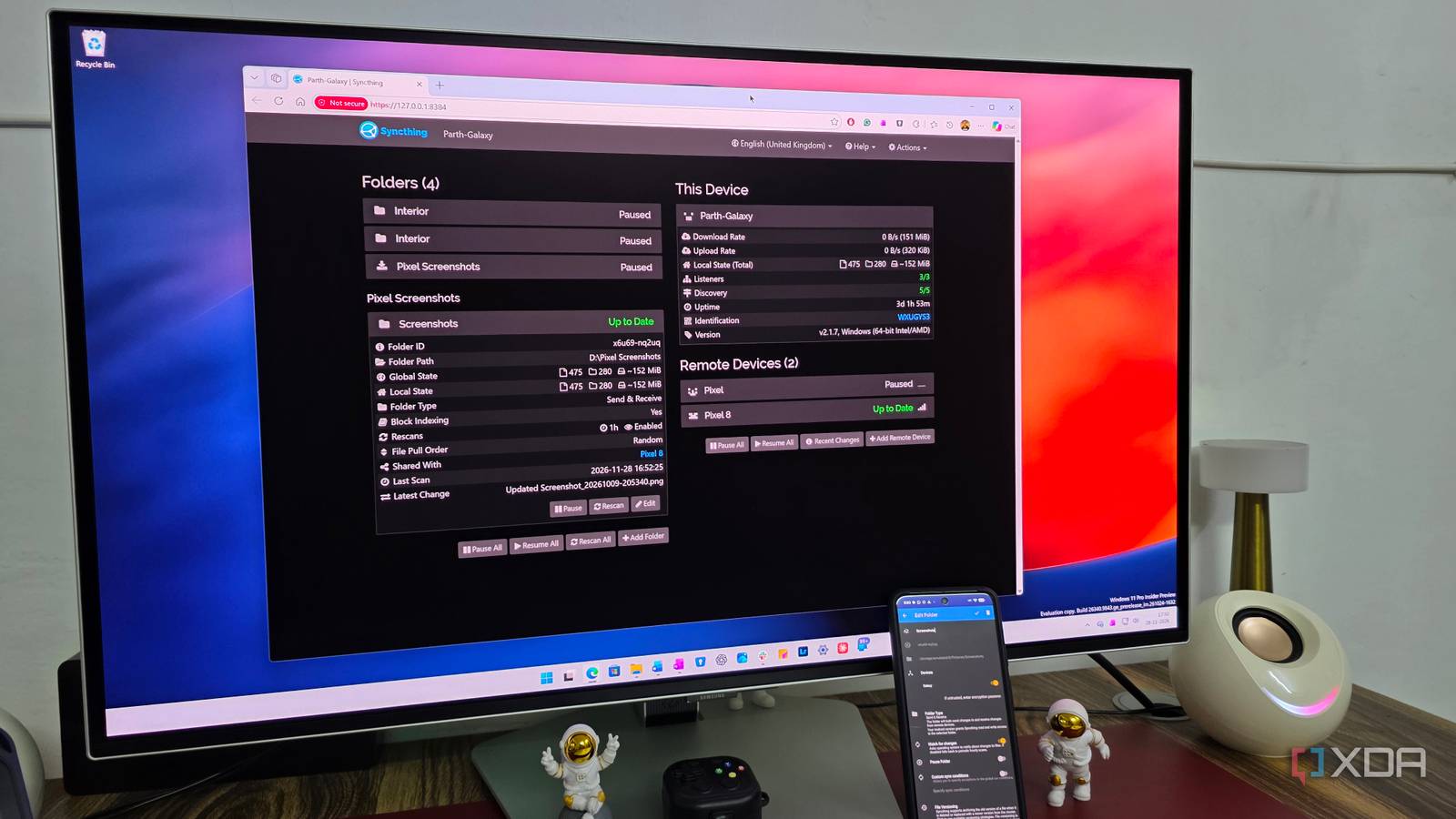
Published Nov 29, 2026, 10:00 AM EST Parth, a seasoned tech writer, wields the keyboard (or pen) with finesse to unravel the intricacies of both Windows and Mac operating systems. He has covered evergreen content on mobile devices and computers for multiple publications over the last six years. You can find his work on AndroidPolice, GuidingTech and TechWiser. Whether it’s demystifying system updates, deciphering error codes, or exploring hidden features, Parth’s prose guides readers through the binary maze. When not immersed in tech jargon, you’ll find him sipping chai, pondering the next software review, and occasionally indulging in a friendly debate about mechanical keyboards. I have relied on cloud storage services to keep files in sync across my Windows PC, Mac, and Android phone. While they get the job done, I have never been fond of storage limits, recurring subscription fees, and the idea of uploading my personal files to a remote server just to access them on another device. That’s when I decided to give Syncthing a try. And after integrating it into my workflow, I have little reason to go back to traditional cloud syncing. Syncthing takes a different approach Privacy and speed sealed the deal Unlike Google Drive and OneDrive, Syncthing doesn’t rely on a centralized cloud server to keep my files up to date. Instead, it establishes a direct connection between my devices whenever possible and synchronizes files between them. I don’t even need to create an account to get started. Each device has a unique ID, which I use to establish a trusted connection with my other devices. Once I pair them, I can decide which folders I want to synchronize and with which devices. One of my favorite aspects of Syncthing is that my files reside on hardware I own rather than on a company’s remote servers. All transfers are encrypted, and only authorized devices can participate in the synchronization process. I don’t have to worry about another company changing its storage policies or increasing subscription prices. The sync speed impressed me just as much. Since my Windows PC, Mac, and Android phone are usually connected to the same home network, Syncthing can transfer files directly over my local network without consuming internet bandwidth. It is also intelligent enough to transfer only the changed portions of a file instead of transferring the entire file again. Whether I am transferring a batch of screenshots, updating documents, or moving large media files, Syncthing makes the entire process feel efficient. Setting it up across my devices A one-time setup pays off Unlike Google Drive or OneDrive, where I can simply sign in with my credentials and start syncing files, Syncthing requires a bit of groundwork. Between pairing devices, configuring folder paths, granting necessary permissions, and adjusting synchronization preferences, it may take a while to get everything up and running. I installed Syncthing-Fork on my Pixel 8 and Syncthing on my Windows PC. After pairing both devices using their unique device IDs, I selected the Screenshots folder on my Pixel and configured a dedicated destination folder on my PC. Since I frequently capture screenshots for my articles, this alone made a noticeable difference in my workflow. Instead of uploading screenshots to Google Drive or transferring them manually using Quick Share, I could find them directly in File Explorer. I followed the same approach for my work documents, personal files, and other frequently accessed folders. I also removed battery restrictions for Syncthing-Fork on my Pixel to improve background sync reliability. On my MacBook, I configured a shared work folder that stays synchronized with my Windows PC. If I switch to my MacBook to continue working from another room, my article drafts, research material, and images are readily available in Finder. Syncthing offers granular controls More than basic file synchronization Syncthing offers a surprising amount of flexibility when it comes to managing how my files are synchronized. For instance, I can configure individual folders as Send Only, Receive Only, or Send & Receive. I use the latter for my work documents across Windows and macOS, while I prefer Send Only on my Pixel 8 for transferring screenshots without propagating changes from my computer back to my phone. File versioning is another feature I appreciate. I can configure Syncthing to retain older versions of files when changes arrive from another device. There is also an option to create ignore patterns, which comes in handy when I want to exclude temporary files, caches, and unnecessary system files from synchronization. I can even configure bandwidth limits, customize folder rescan intervals, pause individual devices, and monitor the entire process from a single dashboard. That said, Syncthing isn’t a perfect replacement for cloud storage. Unlike Google Drive, I can’t simply generate a public link to share a document with my editor. My devices also need to be online simultaneously to exchange pending changes. And since synchronization isn’t the same as backup, I still need a separate backup strategy for important files. However, considering that Syncthing is free and open-source, these compromises are easy to live with. Goodbye cloud, hello digital freedom Syncthing isn’t necessarily a complete replacement for cloud storage, but it has eliminated my dependency on it for everyday file synchronization. Sure, the initial setup requires some effort, and the interface isn’t going to win any design awards. However, once everything is configured, Syncthing quietly does its job in the background. It’s one of those rare free, open-source tools that solves an everyday problem so effectively that I wonder why I didn’t make the switch sooner. Syncthing Syncthing is a cross-platform open-source file syncing tool.
I installed this free app on my Windows PC, Mac, and Android phone and never looked back at cloud syncing
Full Article
Original Source
Read the full article at Xda-developers →KhanList aggregates and links to publicly available news content. We do not host full articles from third-party sources. Always verify important information with original sources.