
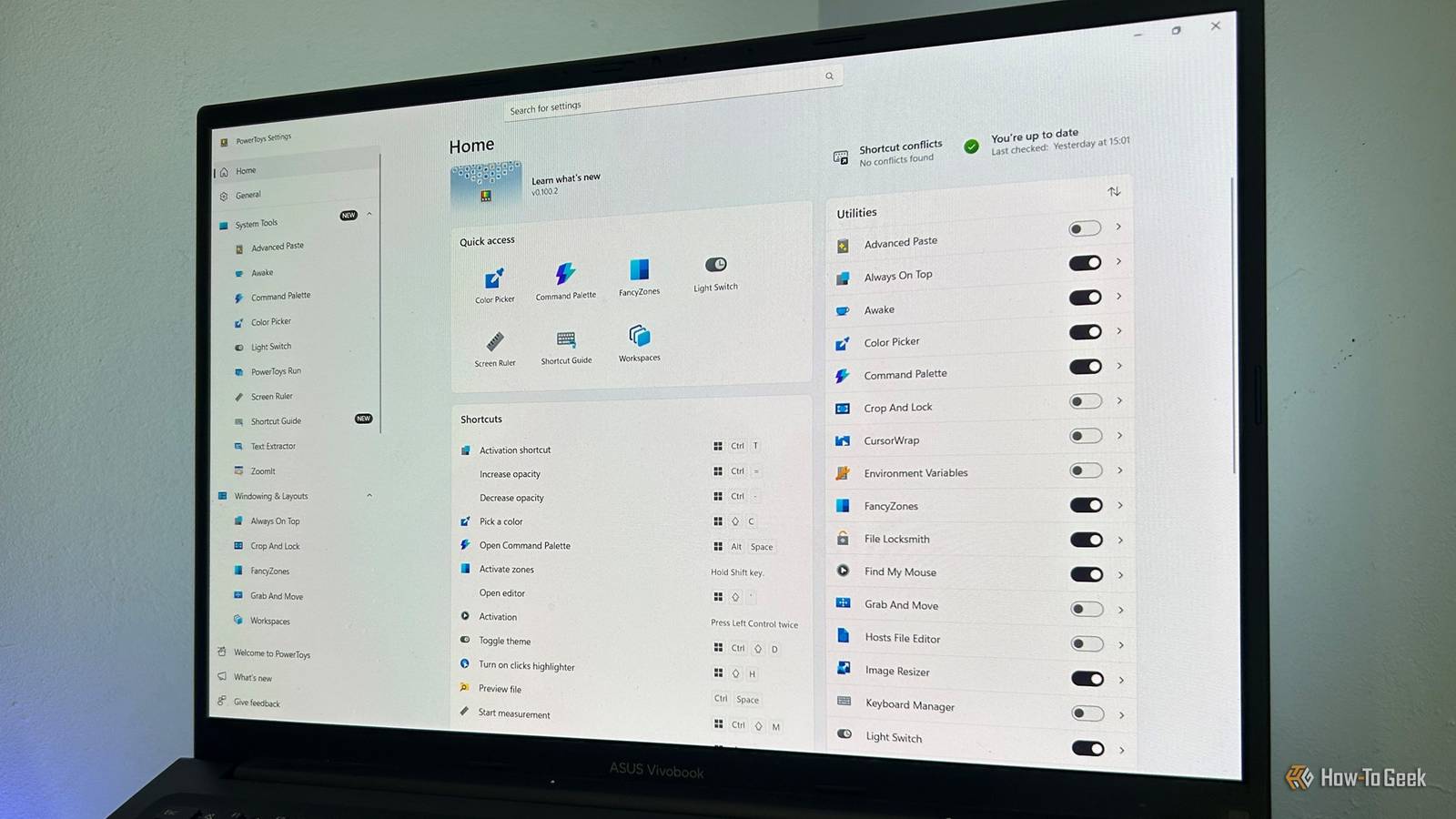
Published Oct 15, 2026, 12:30 PM EDT Tony Phillips is an experienced Microsoft Office user with a dual-honors degree in Linguistics and Hispanic Studies. Prior to starting with How-to Geek in January 2024, he worked as a document producer, data manager, and content creator for over ten years, and loves making spreadsheets and documents in his spare time. Tony is also an academic proofreader, experienced in reading, editing, and formatting over 3 million words of personal statements, resumes, reference letters, research proposals, and dissertations. Before joining How-To Geek, Tony formatted and wrote documents for legal firms, including contracts, Wills, and Powers of Attorney. Tony is obsessed with Microsoft Office! He will find any reason to create a spreadsheet, exploring ways to add complex formulas and discover new ways to make data tick. He also takes pride in producing Word documents that look the part. He has worked as a data manager in a secondary school in the UK and has years of experience in the classroom with Microsoft PowerPoint. He loves to encounter problems in Microsoft Office and use his expertise and legal-level training to find solutions. Outside of the Microsoft world, Tony is a keen dog owner and lover, football fan, astrophotographer, gardener, and golfer. There's something mildly rewarding about downloading an app for one reason and discovering it's useful for several others. I initially installed PowerToys after reading about FancyZones, the tool that lets you create custom grid layouts for snapping and organizing app windows. But the more I explored, the more features I found myself using every day. PowerRename My phone's photo dumps are finally under control I regularly transfer photos from my phone to my PC, particularly when I'm preparing images for articles. The problem is that I might take a bunch of photos of my laptop from different angles for one app, then another bunch for a completely different app. When they're all sitting in the same folder, telling them apart can be a headache. PowerRename lets me add a descriptive keyword to the beginning of multiple filenames at once while keeping their existing numbers. That way, I can distinguish the images for each app without having to rename every file individually. I can also preview the proposed changes before applying them, which is reassuring when I'm dealing with a large batch. This tool is useful for photographers, content creators, and anyone who regularly ends up with folders full of files they can barely tell apart. If you've ever downloaded a batch of similarly named files and wished you could make sense of them quickly, give PowerRename a try. Light Switch My Windows theme follows the sun I often start work before the sun comes up or keep going after it sets, but manually switching between Windows' light and dark modes isn't something I want to think about. Light Switch handles that for me, automatically changing my theme based on the schedule I choose. I've set mine to switch between sunset and sunrise, so my PC adapts to the time of day without me lifting a finger. I also find dark mode more comfortable on my eyes, particularly when I'm working late. I can't say dark mode has any proven health benefits, but I'll take any little improvement to my working environment. You can also adjust the timing with an offset, which is handy if you find the switch happens a little too early or late. For example, if you'd prefer dark mode to kick in an hour before sunset, you can enter -60 in the Sunset field instead of settling for the default timing. There's another unexpected benefit, too. When my PC switches to dark mode, it sometimes serves as a reminder that I've been working for quite a while and should probably call it a day. It doesn't force me to stop working, but at least it gives me a gentle nudge. Find My Mouse I can find my cursor without moving it I use two screens, and it's surprisingly easy to lose track of my cursor when I'm moving between them. Find My Mouse is a simple way to bring it back into view without frantically wiggling the mouse around the desktop. I simply press the left Ctrl key twice, and the screen dims around my cursor to highlight exactly where it is. This is handy when I've lined up my pointer over a tiny button or an Excel cell and don't want to risk moving it away from where I need it. I especially like using it when I return from lunch and want to remind myself where I left off. A more visible cursor can also help people with visual impairments or attention difficulties locate the pointer more easily. It's a small thing, but it's one of those conveniences that makes you wonder how you spent so long managing without it. Peek I don't need to open every file I'm constantly opening files, particularly Excel workbooks, and some of the larger ones can take a while to load. That's fine when I'm ready to work on a spreadsheet, but it's frustrating when I only want to check whether I've found the right file. Peek lets me preview supported files without opening them. Instead of waiting for a workbook to load, I select a file, press the Spacebar, and quickly inspect its contents to decide whether it's the one I need. It's a simple way to avoid opening apps I don't need, especially when I'm working through a folder full of files. And it's not limited to spreadsheets. Peek can also be useful for checking other supported file types, so you don't have to open every document or image just to see what's inside. This is one of my favorite PowerToys features because it saves me from lots of small, unnecessary waits throughout the day. Those few seconds might not seem like much individually, but they add up when you're constantly switching between files. Always On Top I can multitask without constantly switching windows Always On Top is a feature I now use all the time. Whether I'm keeping reference notes visible while creating a form or checking a chat window while working in another app, I can pin the window I need using Win+Ctrl+T so it stays above the others. That saves me from repeatedly switching between apps just to check a detail or read a line of text. It's particularly useful when I'm working with information spread across several apps. I can keep a reference document visible while writing in Word, for example, or leave a set of instructions on screen while working through a task in another app. Even better, I'm not limited to pinning a single window. I can keep multiple apps on top at the same time, creating a custom reference layout on one screen. I can also adjust a pinned window's opacity (Win+Ctrl+= and Win+Ctrl+-), which is handy if I want to keep reference material visible without completely obscuring whatever's underneath. It makes a crowded desktop easier to manage without constantly rearranging everything. Windows gets better when you make it your own FancyZones was the reason I installed PowerToys, but exploring the rest of its tools has made it an even more useful addition to my PC. PowerToys isn't the only way I've made Windows work better for me. I also use StartAllBack to customize Windows 11's taskbar, Start menu, and context menus. The two tools tackle different frustrations, and together, they let me make Windows feel much more like my own.
I installed PowerToys for FancyZones but stayed for these 5 features
Full Article
Original Source
Read the full article at Howtogeek →KhanList aggregates and links to publicly available news content. We do not host full articles from third-party sources. Always verify important information with original sources.