
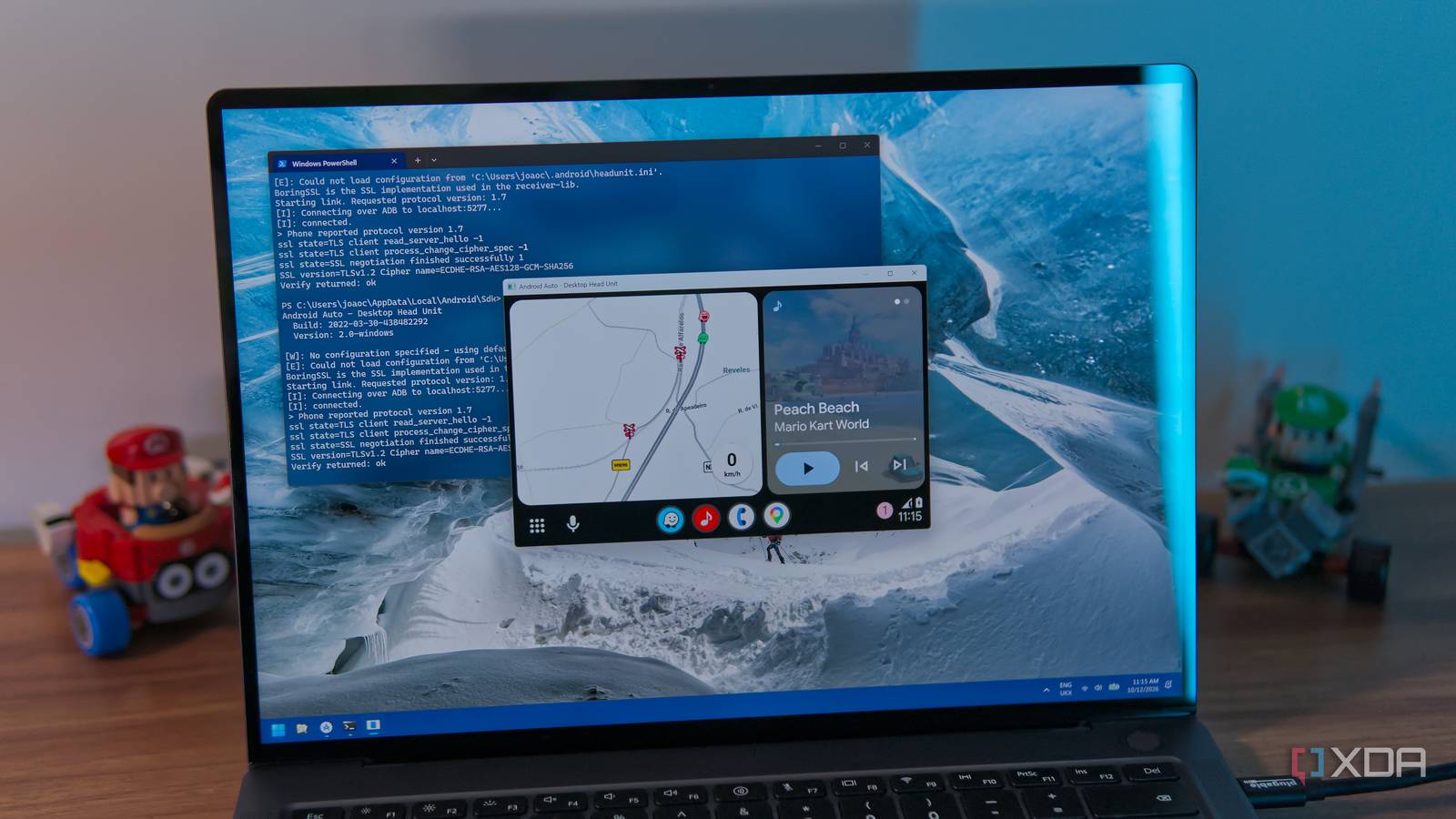
Published Oct 12, 2026, 7:30 AM EDT João has been covering the tech world for over 7 years, with a heavy focus on laptops and the Windows ecosystem. I also love all things tech and videogames, especially Nintendo, which he's always happy to talk about. Prior to joining XDA in 2021, he worked at Neowin: https://www.neowin.net/news/poster/jo%C3%A3o-carrasqueira/ Android Auto is a very useful tool when I'm driving, and in recent months, I've been discovering a lot of new apps and tips for using the service (thanks in big part to some of my XDA colleagues). But unlike a PC or phone, testing Android Auto apps isn't just something I can do quickly at home. I always have to take my phone to my car to see if it actually works as intended. Thankfully, Google provides a solution for this, and it's something you may not have considered. Thanks to the company's official emulator, I can test Android Auto apps well before I get in my car, so I know what to expect when I get there. The Desktop Head Unit is a game changer Any PC becomes a car dash Google's Android Studio toolkit is a treasure trove of useful Android tools even if you're not a developer, and indeed, it lets you test Android Auto, too. You can use Android Studio on Windows, Linux, or macOS, and that includes the Desktop Head Unit feature. Essentially, this lets you use your computer as if it was an Android Auto dashboard, so you can connect your phone to it via USB and check whether your apps will work with it, or if they do what you need them to do. On your phone's side, it will be just like connecting to a real head unit, so everything works normally. How to set it up Once you've installed Android Studio (you can follow most of the default settings), you can open up the SDK Manager under More Actions on the main screen, and then switch to the SDK Tools tab to find the Android Auto Desktop Head Unit Emulator. From there, you technically have two ways you can run Android Auto. Accessory Mode is the recommended option, but I wasn't able to get this working on my Windows PC, so I went with the ADB tunneling option. I suspect accessory mode may work better if you have a Linux machine, however, and it also runs on macOS. To keep things succinct, here's how to get started with ADB tunneling mode: On your phone, start by enabling USB debugging (as described in the first section of this article). Open the Settings on your phone and go to Apps > All apps > Android Auto > Additional settings in the app. Scroll down to the Version number and tap it 10 times to be prompted to enable developer mode, then accept the prompt. Open the overflow menu (the three dots in the corner) and select Start head unit server. You should see a notification indicating that it's running. Connect your phone to your PC and verify that USB debugging is connected. You should have to approve a debugging request on your phone unless you've previously done it for that PC. In Android Studio on your PC, go to the SDK Tools tab and copy the location of the Android SDK shown above the list of tools. Open a terminal window and use cd to navigate to that location: cd {copied_path} Run the following command to start ADB tunneling: ./platform-tools/adb forward tcp:5277 tcp:5277 Start the desktop head unit with this command: ./extras/google/auto/desktop-head-unit This should start the head unit on your PC and connect to your phone as a normally Android Auto setup would. Note that the folder navigation can be made easier or unnecessary by adding ADB and the desktop-head-unit executables to your operating system's PATH environment variables. I've skipped over that here, so these instructions work without additional setup. I don't need my car for testing The DHU is very capable Once it's running, the Desktop Head Unit works just like using an Android Auto dashboard in your car. All your apps are available with the usual tiling options, and if your PC has a touchscreen, you can use it for interacting with the Android Auto screen as your normally would. Otherwise, a mouse or touchpad also works. Because it's meant for developers, there are also tools to test more specific things. For example, Google provides commands you can use to simulate a rotary controller instead of a touchscreen. You can also use your own voice commands for testing, or use the terminal to play a series of included voice recordings for basic commands to see how the system responds. The whole thing runs fairly smoothly, and it's not nearly as demanding as emulating a full phone. After all, an Android Auto unit is mostly just a receiver with a display, all the processing still happens on your phone. You shouldn't need particularly powerful hardware to test this with no issues. This makes things so much easier I love not having to go to my car every time I want to test a new app with it. Having to step out and go into my car is a huge hassle if I'm just testing an app, and I also don't want to wait and test apps during a real drive where things might not work as expected and leave me scrambling for alternatives. Being able to do it all inside using an official Google solution is extremely welcome. And since it works just like the real thing, I can also imagine someone trying to use their computer as an Android Auto dashboard inside their car. You probably shouldn't do that, though.
I installed Google's official Android Auto emulator, and now I test all my apps before they go near my car
Full Article
Original Source
Read the full article at Xda-developers →KhanList aggregates and links to publicly available news content. We do not host full articles from third-party sources. Always verify important information with original sources.