
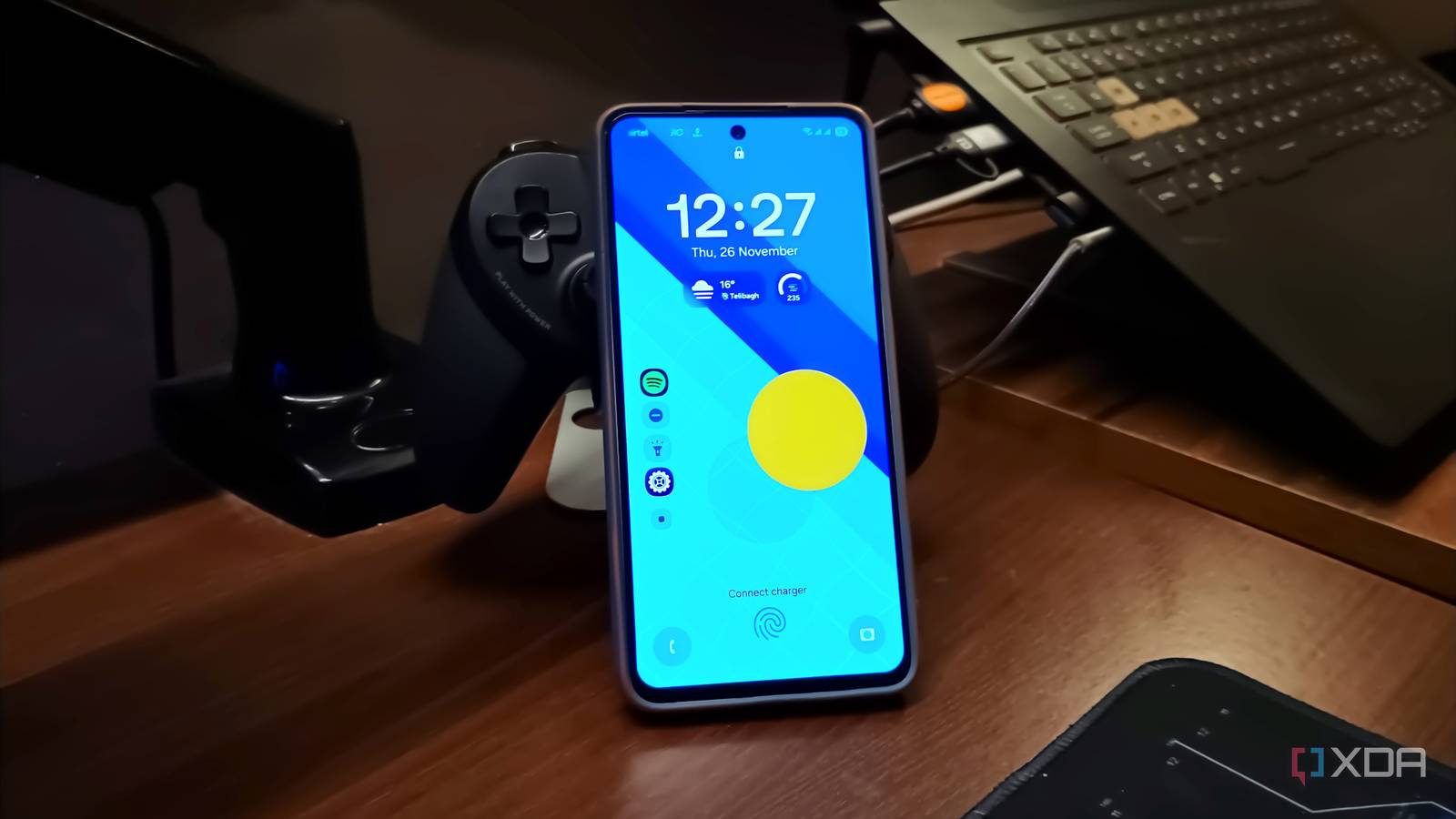
Published Nov 28, 2026, 2:00 PM EST Abhishek is an author at XDA who covers computing. He has loved computers since he got the Lenovo G570 in 2012. Abhishek holds a master's degree in computer applications and began his writing career in 2018. He loves writing how-to articles, listicles, and informational posts on popular operating systems and web services. He closely follows the Windows Insider program and tests new Insider builds to discover upcoming experimental features and upgrades. His past work includes long-term collaborations with reputed publications like Tom's Hardware, and Windows Latest. When not writing anything, he is busy watching new episodes of One Piece or searching for something binge-worthy. The native UI of an Android phone can offer a limited set of features. Samsung One UI is one of the better Android skins in a long time, with a stronger overall feature set and broader customization options. It breaks the norm of installing a third-party app on an Android device to tweak it or add an otherwise essential feature. Samsung also offers the Good Lock app, which can take the One UI customization to greater heights. It's for users who are bored with the standard experience and want to customize the look, gestures, and other elements. Good Lock modules can be a great asset for older phones, like my Samsung Galaxy S21 FE. Don't confuse the app with an Android launcher; it's much more than that. LockStar Making the lock screen more useful When I first installed Good Lock, the first module that caught my attention was LockStar. The reason was the very limited customization options for the lock screen in One UI. The Home Screen page or the Settings app shows a limited set of options for modifying the lock screen. You can change wallpapers and add app icons and actions, and that's pretty much it on my Samsung Galaxy S21 FE. LockStar unlocks more possibilities for the plain lock screen and lets you add widgets. Some widgets should be only for informational purposes, and it would hurt to pin something like your inbox folder. Having it on the lock screen lets you take a quick glance without unlocking the phone. In my case, something like my Asana task page or work calendar could be pin-worthy. Another useful thing that I love about LockStar is its ability to add multiple favorite apps on the lock screen. It's different from simply placing an app icon on the screen and can show a collapsible list. LockStar can also add a couple of useful items to the favorite apps list. So, you don't need to swipe down to open the quick panel or press power or other buttons for the flashlight or DND. NavStar Tuning navigation bar to my liking You can configure your Samsung One UI to display a navigation bar with three buttons at the bottom. I've been using it since day one because the whole gesture thing feels a little weird to me. The default one has a back button, a home button, and a recent apps button. The first thing that NavStar lets me do is change the appearance of the buttons. I can pick from a pre-curated list of button designs and apply them. But that's very basic, isn't it? I agree, and NavStar offers much more than this basic set. You can edit each button icon, replace it with another design, and change the arrangement and alignment. You can even add one more button to the navigation bar, and something like a screenshot button can be very handy here. NavStar also lets you adjust the height of the navigation bar, and I prefer medium over the default design. I also use a hide button feature to force remove the navigation bar while viewing something in full screen. If you use gestures and not the navigation bar, there's a detailed section for it in NavStar too. On my phone, I can adjust sensitivity, icons, gesture handles, and make the navigation bar area transparent. QuickStar Sprucing up the Quick Panel The Quick Panel is the most-visited UI element on any phone because it contains options like wireless networks, Bluetooth, brightness adjustment, and many other useful settings. But it looks like the least interesting part of the whole phone. The Quick Panel doesn't have the same granular customization that is available for other elements like the Home Screen. But if you install the QuickStar plugin in Good Lock, you can alter the appearance and add or remove items from the panel that aren't possible by default. QuickStar relies on Theme Park, another useful Good Lock plugin, for all theme-related customization. There are a few prebuilt ones as well, but the real magic happens inside the custom one. You can adjust colors for each panel, its blur levels, and do the same for notifications. The preview option shows how your preferred design looks in both dark and light modes, helping you decide. Then, you can download the theme and then apply it. Other editing options include icon size modification, which is helpful if you have big fingers and want more space between icons. I can add or remove an indicator icon from the top bar to free up screen space and modify the clock as well. Note that some features I mentioned might not appear in older versions of One UI. Home Up Rebuild your home screen Home Up is the one Good Lock module you should try if you want to completely transform the home screen experience. It’s more detailed and flexible than the native home screen settings, going beyond the usual icon adjustments and layouts. You can enable loop pages, adjust app-icon background blur for animations, enable Finder access by swiping down on the home screen, and even build a DIY version. In my Good Lock version, you can hide favorites, reposition the apps button (which opens the complete app list), and make some folder-level adjustments as well. The home screen is just one component of the plugin, and you can make other adjustments like gesture changes, Edge panel improvements, and more. I use the Task changer option along with the Home screen one to show a slim list of recent apps instead of the usual tilt stack. It reduces the need to unnecessarily swipe to find the previous app. Don’t skip Good Lock It’s rare to see something so powerful as Good Lock from a phone OEM that beats most customization tools. The best part is that it’s completely free, and Samsung keeps updating the modules with new features. There are other useful ones, like NotiStar to maintain your notification history, or MultiStar for better multi-window management. Good Lock is a Samsung app that allows you to customize your Galaxy smartphone with enhanced UI features and additional plugins.
I installed 4 Good Lock modules, and they made my Galaxy phone feel brand new again
Full Article
Original Source
Read the full article at Xda-developers →KhanList aggregates and links to publicly available news content. We do not host full articles from third-party sources. Always verify important information with original sources.