
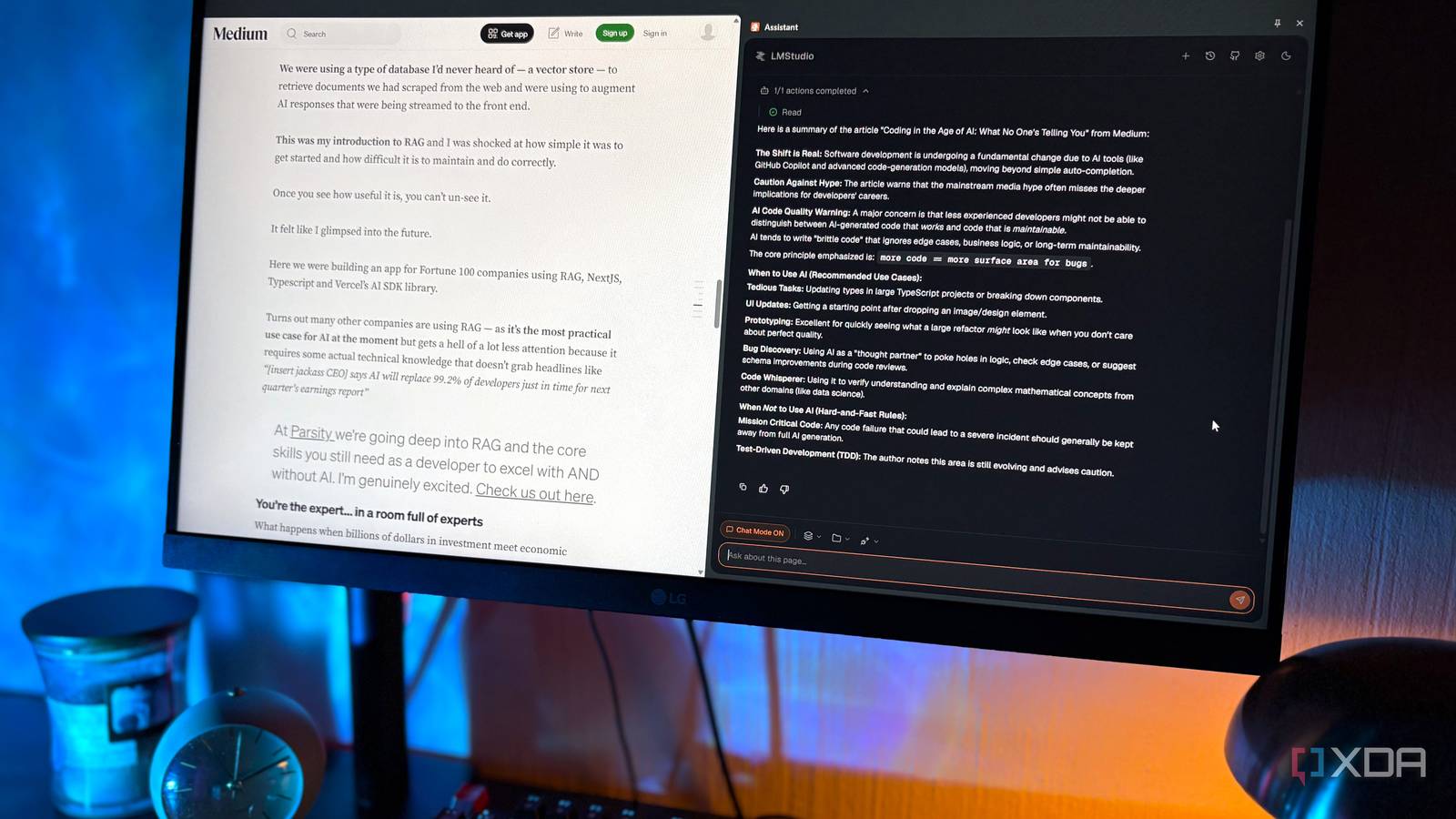
Published Aug 27, 2026, 10:31 AM EDT Nolen began their writing career in 2019, with three years dedicated to editing the Creative section at MakeUseOf. Their expertise lies at the crossroads of technology and creativity, covering areas like photography, video editing, and graphic design. Outside of work, you'll often find Nolen diving into a good book, writing their own stories, or playing video games. AI in your browser has long stopped being a novelty and is now an expectation, if not a necessity. Every major browser has some flavor of it now, and if it doesn't then its next update probably will. The thing is, most people only bump into browser AI in passing, such as a quick summary here and looking up something small there, and don't really notice what happens when you want to lean on the AI assistant as a daily tool. With free browsers, something usually gives when it comes to their assistants. It could be a cap on your usage, restricted model access, or maybe just a nagging thing in the back of your head about where your chats are living. There is a way around this that doesn't involve having to get a subscription, and I've been running it for a few weeks now. It uses a browser I already have installed and something I already had running on my machine… Want to stay in the loop with the latest in AI? The XDA AI Insider newsletter drops weekly with deep dives, tool recommendations, and hands-on coverage you won't find anywhere else on the site. Subscribe by modifying your newsletter preferences! The AI in your browser isn't as free as it looks Every browser AI has its limits There are basically two ways browsers hand you AI. They either host a model for you (usually with a cap or a paywall) or they let you plug in your own API key, which starts costing money the second you use it. BrowserOS, the browser I've been using for a while now, is upfront about this. Its default hosted model has what the docs literally call "strict rate limits", and every settings page nudges you toward bringing your own key. It's not just BrowserOS though. Perplexity Comet went free back in October 2025, but the agentic functions throttle hard on the free tier and Perplexity Pro is $20 a month. ChatGPT Atlas gave you the browser for free but agent mode wanted ChatGPT Plus, another $20. Brave Leo is probably the most generous of the bunch, no account needed and a solid pool of free models, but the good ones still sit behind Leo Premium at $15. There's a pattern here - you get enough AI to try, not so much that you can heavily use it. Option two, bringing your own OpenAI or Anthropic key. This usually ends up being cheaper than paying a full software subscription in my experience, but the bill can still sneak up fast. And then there's the smaller thing that never really gets mentioned: whatever you ask the browser AI, and whatever page it's helping you with, is being sent to somebody else's servers. This might seem obvious to some, but most people don't give it second thought. So if you want those interactions to remain truly private, the only way to go is local. How I hook up my browser to my local LLM The solution takes two minutes BrowserOS lets you swap out its default AI for basically anything, including cloud APIs and local models. Obviously I went local. If you already run something locally then this setup will only take a minute or two. You can spin up a local server if your runner allows it, I always default to LM Studio for this because of how quick it is, and it already has all my pre-configured model params. That server runs at localhost:1234/v1/, which is what BrowserOS ends up talking to. Over in BrowserOS, go to Settings, then AI & Agents. There's a grid of quick provider templates with just about every provider you can think of. Depending on which runner you're running your server from, select it, paste the base URL, and drop in the model ID. I'd also bump up the context window to at least 20k, and don't forget to adjust the temperature. You can test the connection first as well. There's a first-class Ollama template if you're a terminal person, an OpenAI-compatible slot for anything else that speaks the standard, plus templates for Anthropic, Google, OpenRouter, and a few others if you want to plug a cloud key in instead. Living with a browser that thinks on your GPU Some things it does better than the cloud, some things it can't do at all Model choice matters here because the browser wants to call tools, not just talk. A model that's fine for chatting in your regular runner might completely give up when BrowserOS asks it to read a specific tab. So I went with my usual pick, Qwen 3.5 9B (Q4_K_M) because it's the most powerful one I can run on 8gb, and it also happens to be one of the strongest tool-calling models. If your hardware can handle it, I'd probably stay above 7B if you want tool calls to fire cleanly. There are three places the AI shows up in BrowserOS. The Assistant panel on the right (a sidebar that opens on any page), the Chat page (a full-window view of the same assistant), and the Agent home page, which is where BrowserOS wants the agentic stuff to live. There's a catch for local setups though… Local models officially only work in Chat Mode. BrowserOS docs are pretty direct about it: "Local LLMs are not yet powerful enough for Agent Mode." So the practical answer is the Assistant panel with Agent Mode off, and that's where you'll be using your local LLM. The Agent home page still works when you send it a task, it just downgrades itself to chat behavior, and I honestly couldn't find a meaningful difference between that and the Assistant panel once you strip the agent tools out. So at that point it just becomes about which UI you prefer the best. Once you're in the right lane, it becomes pretty obvious what the local model is good at. Summarizing the page you're on is the obvious one, but it also handles synthesis surprisingly well as long as the scope stays reasonable. Comparing two or more open tabs also works really well but it can take long depending on your model, context length, and hardware, so don't expect it to blitz across ten open tabs. Asking pointed questions about the current page (for example, "does this author cite any actual data?") is where it actually shines, because it forces the model to read rather than guess. There's also a feature called Cowork, which is what BrowserOS calls giving the AI access to a specific folder on your disk. It's technically part of the agent toolkit, so with a local model in Chat Mode it might cause more headaches than it's worth. I'd leave it off if you're not planning to use it for anything specific. On privacy, the browser part is still doing what browsers always do, such as sending cookies to wherever you're already logged in. So that doesn't change. What does change is the conversation with the AI, which stays on your machine. The model's on your GPU, the browser talks to it over localhost, and nobody's logging any of it but you. The old browser tradeoff used to be that your browsing was watched by advertisers and your AI queries were watched by AI companies. Half of that is no longer true here. There's a way to skip the browser AI bill entirely If your browser AI usage is light and occasional, the free tier on Brave or Comet will probably be fine, or even the built-in BrowserOS model. But if you've been running into caps recently, or you flinched at your last API bill, or you just don't love the idea of your reading habits being processed on somebody else's servers, plugging your local LLM into BrowserOS is the thing I wish I'd tried sooner. BrowserOS
I hooked up my AI browser to a local LLM and it finally solved my biggest problem
Full Article
Original Source
Read the full article at Xda-developers →KhanList aggregates and links to publicly available news content. We do not host full articles from third-party sources. Always verify important information with original sources.