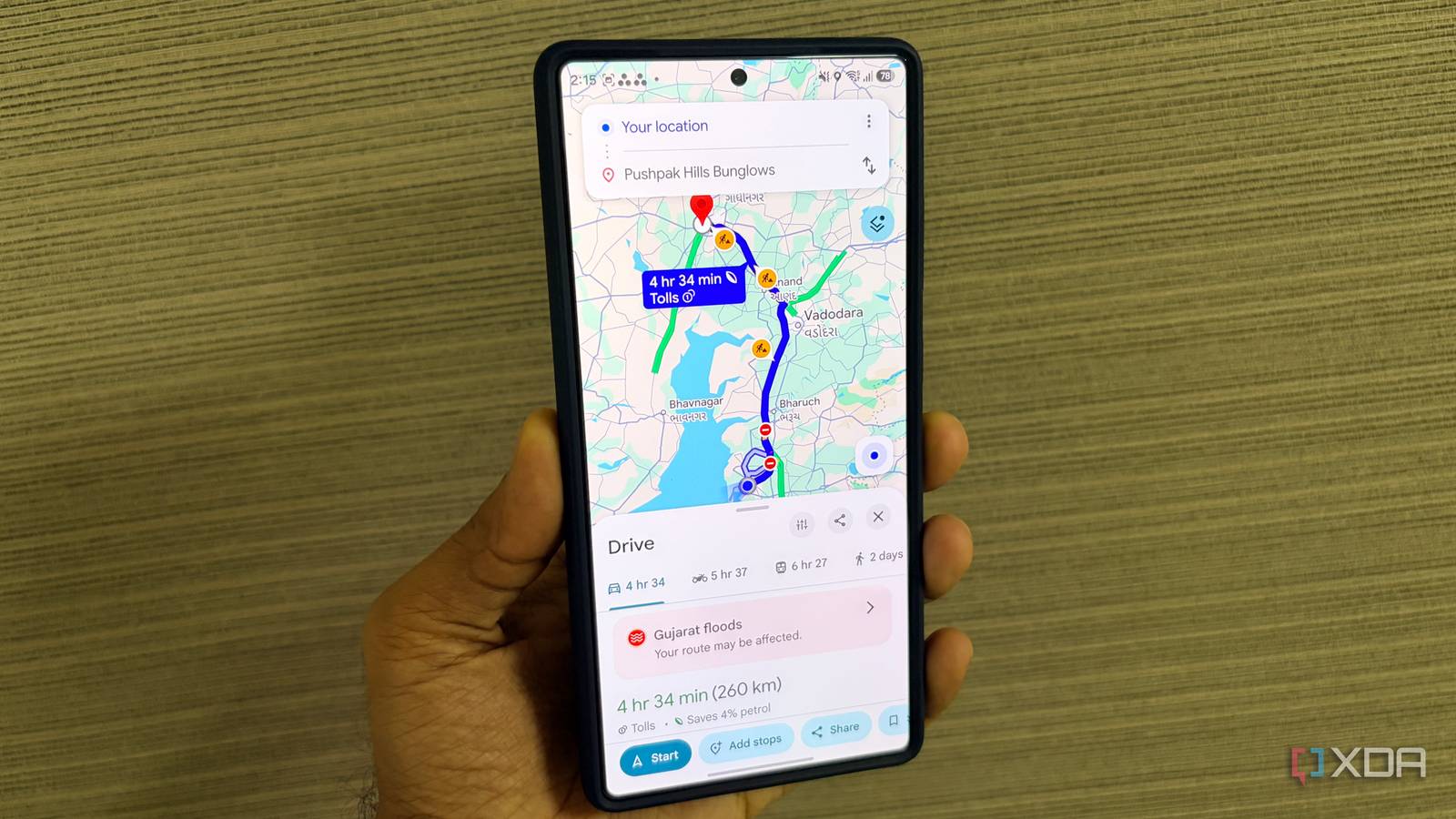
Published Aug 11, 2026, 10:30 AM EDT Parth, a seasoned tech writer, wields the keyboard (or pen) with finesse to unravel the intricacies of both Windows and Mac operating systems. He has covered evergreen content on mobile devices and computers for multiple publications over the last six years. You can find his work on AndroidPolice, GuidingTech and TechWiser. Whether it’s demystifying system updates, deciphering error codes, or exploring hidden features, Parth’s prose guides readers through the binary maze. When not immersed in tech jargon, you’ll find him sipping chai, pondering the next software review, and occasionally indulging in a friendly debate about mechanical keyboards. Google Maps has been one of those apps I use almost without thinking. I open it before nearly every drive, check the traffic, follow the suggested route, and close it once I arrive. After years of using it this way, I assumed I already knew everything that mattered. But while digging through its menus recently, I found several overlooked settings that made navigation more reliable, reduced small everyday annoyances, and changed how I plan trips. I stopped Maps from prioritizing fuel efficiency The green route was not the fastest I initially assumed Google Maps always placed the fastest route at the top. That was not necessarily the case. The app can prioritize a fuel-efficient route when its estimated arrival time is close to the quickest option, which sometimes sends me through unfamiliar internal roads or adds a few unnecessary minutes to the journey. That may be useful when I am trying to save fuel, but most of the time, I simply want the most direct and predictable route. After digging into the navigation settings, I found the Prefer fuel-efficient routes option and turned it off. Google Maps still shows alternative routes and their estimated fuel savings, but it no longer quietly places the greener option ahead of the fastest one. It’s a small change, yet it has made route suggestions feel far more effective. I cleaned up Maps’ notification categories I silenced alerts without losing essentials Google Maps sends far more notifications than I actually need. Along with useful notification alerts, I was also getting recommendations, contribution reminders, place updates, review prompts, and other messages that rarely deserved my attention. My first instinct was to disable notifications for the app completely, but that would have also removed the alerts I rely on. Instead, I opened the app info menu for Google Maps (long-tap the app icon), selected Notifications, and went into Notification categories. Android separates Maps alerts into individual groups, so I could switch off the unnecessary ones while keeping important categories related to navigation, traffic conditions, location sharing, and trip updates enabled. Maps stopped bothering me with irrelevant prompts, but they didn't go silent when something important happened. Auto-updating offline Maps My offline maps stopped going stale Downloading offline maps once is not enough, especially when I regularly travel on long routes that keep evolving. New flyovers open, highway exits change, service roads get redirected, and bypasses appear around growing cities. An outdated offline map may still get me to my destination, but it can miss a newly opened road that could save significant time. That is why I enabled auto-update offline maps in Google Maps. Whenever my phone is connected to Wi-Fi, Maps automatically refreshes the downloaded areas, so I don’t have to remember to update them before every trip. This has become useful on routes I travel frequently, where construction work and new infrastructure can change the recommended path within a few months. Setting my departure time I plan the evening’s drive in the morning Google Maps is not only useful when I am ready to leave. I often use the Set departure time option while planning a trip several hours or even days in advance. Here, Maps estimates how long the journey may take at the selected time, based on typical patterns for that route. This helps me understand whether leaving at 7 AM instead of 8 AM could save time, or whether an evening drive is likely to overlap with rush-hour congestion. I find it useful for airport runs, appointments, meetings, and long road trips where arriving late is not an option. The estimate can’t predict every accident or unexpected road closure, but it gives me a much more realistic starting point. I can plan when to leave, add a safety buffer, and avoid making travel decisions based on how empty the roads look right now. Glancing over traffic patterns before I even leave I check congestion before choosing roads Before leaving home, I now spend a few seconds checking the traffic layer around my area instead of immediately accepting the first route Google Maps suggests. The red, orange, and green lines give me a quick picture of where congestion is building, especially around major junctions, flyovers, and roads leading out of the neighborhood. By glancing at the wider traffic pattern, I can decide which direction to take before navigation fully kicks in. It is useful during office hours, school hours, or weekends when traffic behaves differently than I expect. Google Maps has more to offer Google Maps has always been reliable, but these settings showed me how much better it becomes once I stop using it with the default setup. None of these features completely transforms navigation on its own, but together they remove several frustrations I had simply accepted for years. The surprising part is that most of them were already available, buried inside menus I rarely opened. I only wish I had taken the time to explore them sooner. If you frequently plan trips with groups, check out this handy Google Maps trick.
I have been using Google Maps for years, and I wish I knew about these 5 settings sooner
Full Article
Original Source
Read the full article at Xda-developers →KhanList aggregates and links to publicly available news content. We do not host full articles from third-party sources. Always verify important information with original sources.