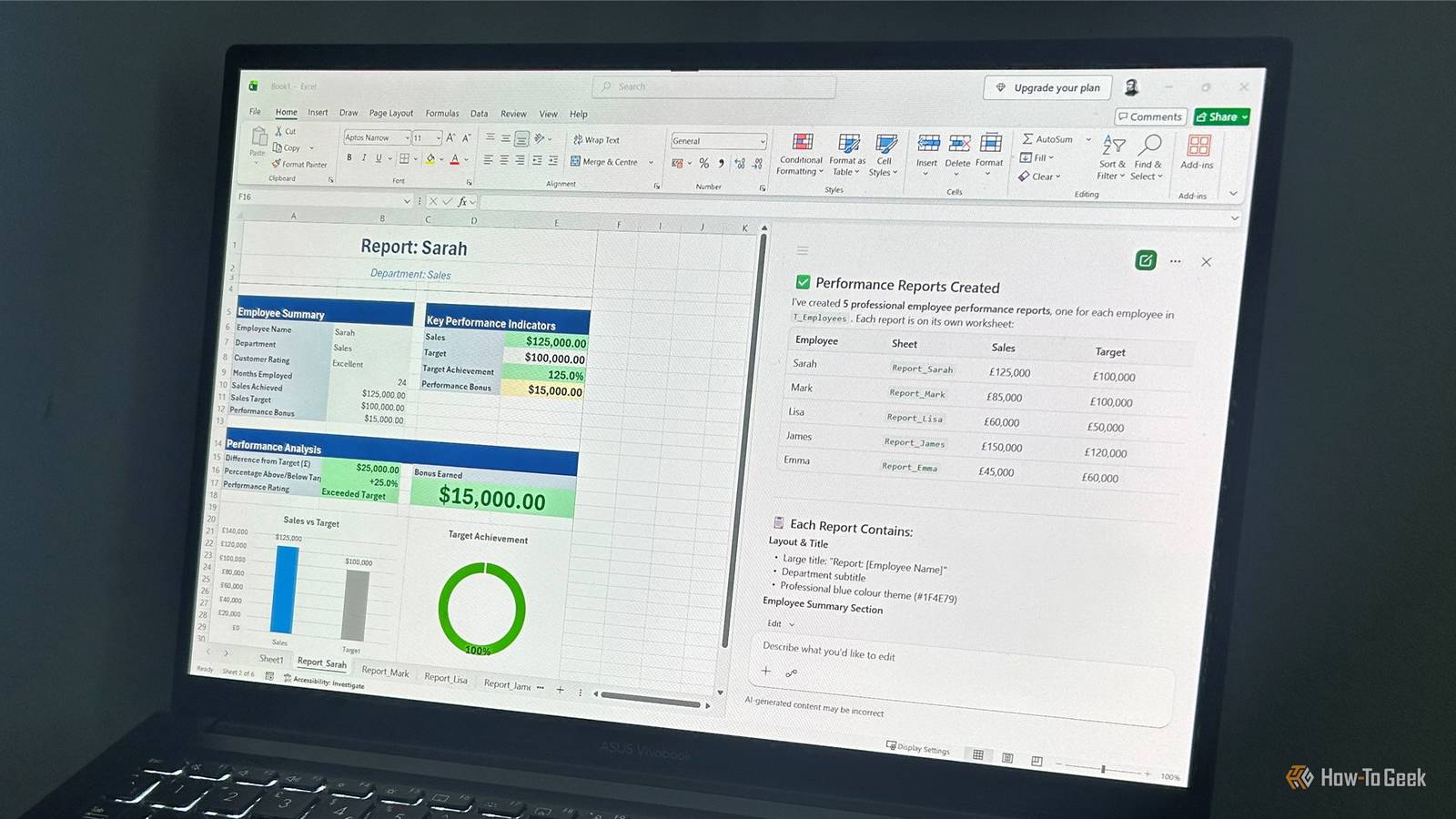
Published Aug 1, 2026, 7:30 AM EDT Tony Phillips is an experienced Microsoft Office user with a dual-honors degree in Linguistics and Hispanic Studies. Prior to starting with How-to Geek in January 2024, he worked as a document producer, data manager, and content creator for over ten years, and loves making spreadsheets and documents in his spare time. Tony is also an academic proofreader, experienced in reading, editing, and formatting over 3 million words of personal statements, resumes, reference letters, research proposals, and dissertations. Before joining How-To Geek, Tony formatted and wrote documents for legal firms, including contracts, Wills, and Powers of Attorney. Tony is obsessed with Microsoft Office! He will find any reason to create a spreadsheet, exploring ways to add complex formulas and discover new ways to make data tick. He also takes pride in producing Word documents that look the part. He has worked as a data manager in a secondary school in the UK and has years of experience in the classroom with Microsoft PowerPoint. He loves to encounter problems in Microsoft Office and use his expertise and legal-level training to find solutions. Outside of the Microsoft world, Tony is a keen dog owner and lover, football fan, astrophotographer, gardener, and golfer. When I first tried Copilot in Excel, I wasn't impressed enough to keep paying for it. It felt more like an interesting extra than something that genuinely improved my workflow, so I downgraded to Microsoft 365 Classic. A year and a half later, I decided to give it another shot by testing whether it could handle more than basic spreadsheet tasks. The results might have just convinced me it was worth resubscribing. I dropped Copilot because it felt like more work than help The answers were useful, but the workflow still felt too manual Credit: Lucas Gouveia/How-To Geek When I first used Copilot in Excel, I went in expecting it to be a genuine productivity boost. Instead, I often found myself spending time explaining my workbook, correcting assumptions, and checking whether the suggestions actually matched what I was trying to achieve. Yes, it could generate formulas, explain features, and suggest ideas, but it didn't always understand the purpose behind a spreadsheet without a lot of guidance. What seemed like impressive responses at first actually needed more checking than I expected. A formula might work in isolation but not fit the structure of the workbook, or a suggested change might simplify the sheet while removing something that was there for a reason. But I have a habit of giving tools a second chance, so I re-upgraded to Microsoft 365 Copilot to see whether things had improved. Copilot created a surprisingly capable dashboard It got the Excel structure right, but not every design decision For my first test, I started with a sales table containing 10 columns. I asked Copilot to create a professional dashboard with KPI cards, PivotCharts, slicers, conditional formatting, and a layout suitable for management. The result was better than I expected. It built a dashboard sheet with KPI cards and charts showing different aspects of the data, all linked back to the original sales table, as well as slicers for visual filtering. The most impressive part was that it created a hidden PivotData worksheet with supporting PivotTables that pulled from the source table, meaning the dashboard was built using proper Excel structures rather than static figures. More generally, the calculations were correct, the KPI cards used live formulas, and Copilot applied a consistent color theme across the dashboard. I also noticed some smaller touches that made the experience smoother. When Copilot created tables, it automatically gave them meaningful names, and when it inserted charts, it added titles automatically. These are minor details, but they reduced the amount of tidying up I normally have to do after building something manually in Excel. However, it wasn't perfect. Charts were inconsistently sized, the slicers didn't connect to every chart as requested, and it added awkwardly positioned frozen panes that cut a slicer in half. The result was functional, but I would still spend time refining it before sharing it. Copilot also formatted my source data—something I didn't ask it to do. Overall, it could build the dashboard, but it didn't always make the same design choices I would've made. One limitation I noticed was that Copilot didn't always save the chat history inside the workbook. While the resulting formulas, charts, PivotTables, and other changes remain in the file, the conversation that created them sometimes didn't. It's something I can work around, but it was a limitation I didn't expect when I first started testing. Copilot built a complex formula I would actually keep It created a LET formula, then helped me make it easier to audit For my next test, I asked Copilot to create a performance bonus calculation in a new column with several rules relating to employees' customer ratings, length of service, department, and whether they exceeded their targets. I gave it a deliberately vague prompt comprising solely the calculation rules, because I wondered how it would approach a complicated calculation without being told exactly how to structure the solution. Specifically, I wanted to know whether it would produce a nested IF formula—something I generally try to avoid in Excel. But no, it used the LET function, separating the calculation into clear variables for sales, targets, bonus rates, rating eligibility, and caps. As a result, although the formula was long, it was still easy to understand and maintain. However, since LET isn't available in older versions of Excel, I asked Copilot to create a second version using helper columns instead. It created a separate calculation table that broke the logic into individual steps, and importantly, the final bonus values matched the LET version exactly. Another advantage was that those intermediary steps were now available for other calculations, whereas they were hidden inside the LET formula. This was probably my most convincing test. Copilot created a formula that worked, then helped me create different versions of the same solution depending on how the workbook needed to be shared and maintained. Copilot turned a data table into reports It removed repetitive setup work, but the finishing touches were still off For my final test, I asked Copilot to build on the previous test by creating individual performance reports for each employee. Each report needed its own worksheet, KPI cards, charts, calculations, conditional formatting, and a layout suitable for PDF export. Again, Copilot got surprisingly close. It created separate report sheets, linked calculations back to the source table, calculated performance ratings, added sales-versus-target comparisons, and created charts showing performance and bonus breakdowns. What's more, the printed PDF versions fit nicely onto a single page. It also handled many of the smaller tasks that usually take time when building reports manually, including formatting, print settings, hidden gridlines, and consistent colors. One feature that could become particularly useful for repeatable workflows is the ability to create a .Rules worksheet, which acts like an instruction sheet attached to the workbook. For example, I could tell Copilot to format currencies consistently, use bold headers, follow naming conventions, or prefer newer functions where appropriate. Those preferences stay with the workbook, meaning I don't have to explain the same requirements every time I ask Copilot to make changes. Most of the issues were visual. Some spacing needed adjustment, and some chart labels overlapped, so I would still need to refine the reports before sharing them. I also needed to tweak some of the currency formatting. But ultimately, Copilot removed much of the repetitive setup work and left me with something that needed improving rather than creating from scratch. Copilot has earned another chance, but it still has more to prove These tests changed my opinion of Copilot in Excel, but I'm not quite ready to say it's essential. It has saved me time on multi-step spreadsheet tasks and is much better at turning ideas into working files than I expected. However, I'm not paying extra just to have a more capable Excel assistant. The real test will be whether it can handle bigger challenges, such as VBA automation, complex data cleaning, repeatable reporting workflows, and other Microsoft 365 apps like Word, PowerPoint, and Outlook. For now, Copilot has gone from something I canceled to something I genuinely want to keep testing. That's a much bigger change than I expected 18 months ago.
I hated Copilot in Excel, but these 3 tests made me change my mind
Full Article
Original Source
Read the full article at Howtogeek →KhanList aggregates and links to publicly available news content. We do not host full articles from third-party sources. Always verify important information with original sources.