
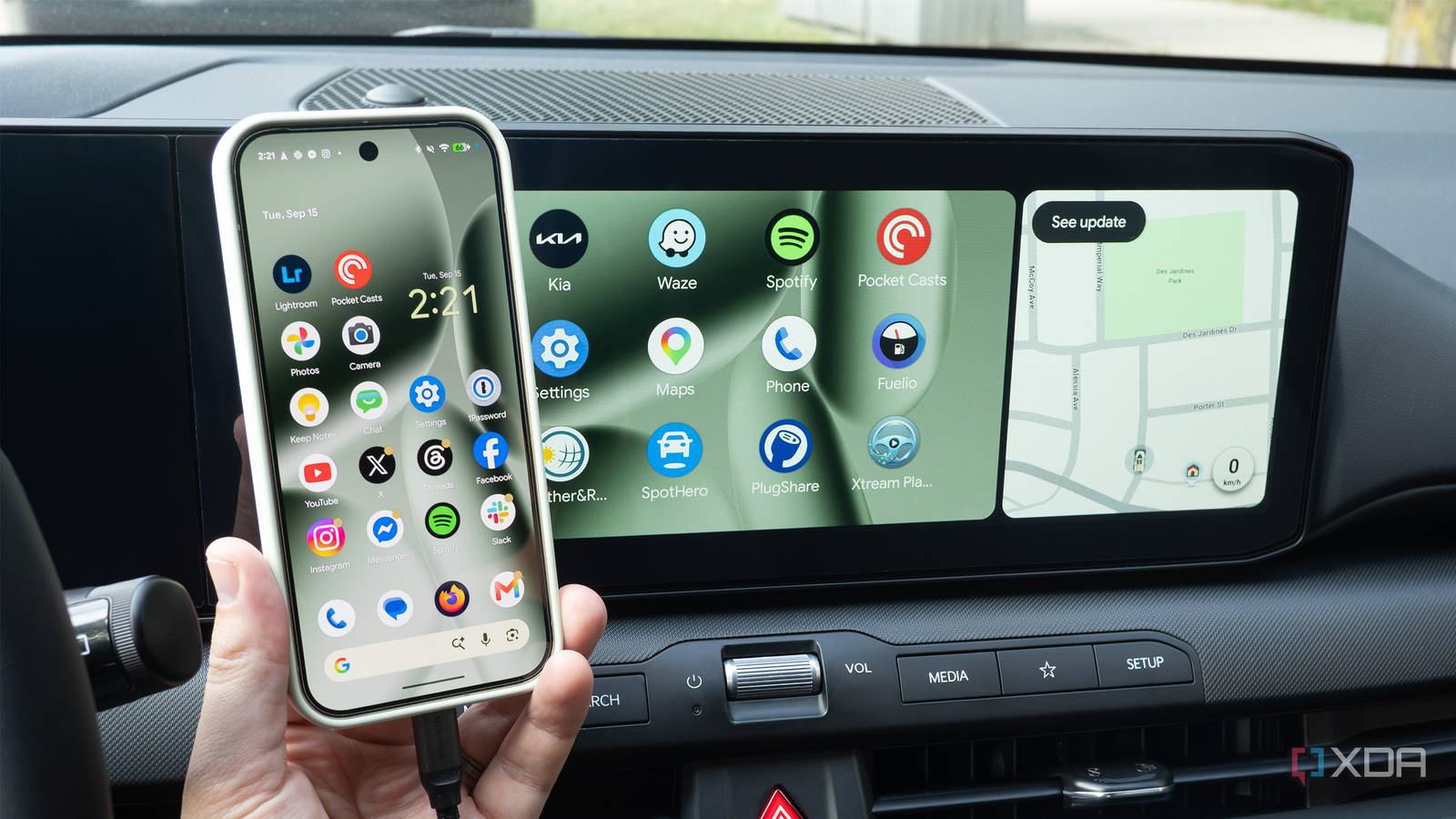
Published Sep 16, 2026, 8:30 AM EDT Patrick O'Rourke is XDA's News Editor and Entertainment Segment Lead. Previously, he was Pocket-lint's Editor-in-Chief, the Editor-in-Chief of Canadian tech publication MobileSyrup, and earlier in his career, he worked as the technology editor at the Financial Post and Postmedia. He's based in Toronto. Over the past 15 years, he's written thousands of articles. Patrick has also interviewed dozens of tech industry executives and covered GDC, E3, Gamescom, WWDC, Apple keynotes, Samsung Unpacked events and more. Patrick has a BA in journalism from Toronto Metropolitan University. Let's get one thing straight — I genuinely really do like wireless Android Auto. Since buying a vehicle with native wireless Android Auto support, I've been absolutely hooked on it. Getting in my car and having my Pixel 10 Pro connect immediately to my Kia K4 Hatchback's infotainment system is incredibly convenient, especially since it doesn't have built-in navigation. Then I went on a lengthy road trip, and things started to fall apart. The first issue I ran into was switching between my partner's device and my phone when we took turns driving. In my family's other vehicle, an Ioniq 5 that only offers wired Android Auto and CarPlay, you unplug one smartphone and plug in the other to switch. After a few other problems, I eventually switched back to wired Android Auto because I just didn't want to deal with the hassle anymore. Wireless Android Auto isn't great for every driving situation It can create issues if you switch devices often With wireless Android Auto, I need to go into my car's infotainment menu to switch devices, and in many cases, it doesn't even work. I also tried turning Bluetooth and Wi-Fi off on one smartphone, but as soon as I turned the settings back on, the original device was still prioritized. Making the situation worse, with Pixel 11 Pro, Wi-Fi kept turning back on automatically as the phone repeatedly tried to reconnect to my car. In one relatively stressful situation, after stopping at a nearby highway rest stop to let my 15-month-old son get his wiggles out, I ended up just turning off my Pixel 11 Pro to ensure the car's infotainment system would launch Android Auto on my wife's device first. Of course, you can automatically switch off wireless Android Auto, but that defeats the purpose of wireless Android Auto in the first place. To do this, go to Settings > Connected devices > Connection preferences > Android Auto. Next, turn off Start Android Auto Automatically. Instead, partway through the trip, I switched to wired Android Auto. As much as I like the convenience wireless Android Auto offers, it quickly stopped feeling worth it. Instead of messing around with frustrating settings while trying to figure out which device is actually connected to my car's infotainment system, I started plugging it into my vehicle's USB data port. Suddenly, the frustration went away, and I could focus on the road or relax passenger princess-style while attempting to keep my son busy. Will I leave wireless Android Auto off all the time? Definitely not. When it's just me behind the wheel, it works nearly perfectly. But to be fair to wireless Android Auto, I haven't encountered the disconnection issues other users have reported. I'd go so far as to say that in the several weeks I've owned my K4 and used wireless Android Auto, I haven't even experienced a single disconnection. As a bonus, using wired Android Auto also keeps my Pixel 11 Pro charged. This is definitely a good thing, since Android Auto can easily kill pretty much any smartphone's battery after just a few hours of use. Of course, I could always plug my phone into one of my vehicle's several USB ports when using wireless Android Auto, but I often forget, and when I do, I wonder why I'm not just using wired Android Auto to begin with. However, when I know I'm headed out on a lengthy drive with my partner, I'm definitely going to switch to wired Android Auto. Switching from wired to wireless Android Auto is more complicated than I expected Turning wired Android Auto off in my phone's developer settings was key Getting wired Android Auto running on my Pixel 10 Pro or Pixel 11 Pro was a bit more complicated than I expected. First, I needed to turn on my car's USB-C data port by tapping the button beside it. Normally, it's set as a standard charging port that doesn't support data pass-through. Most vehicles have a similar button beside at least one USB port. It's always a good idea to check your car's manual to be sure (in some cases, your car might not support wired Android Auto at all). Next, to avoid turning off Bluetooth and Wi-Fi all the time and constantly removing my Pixel 10 Pro from my car's infotainment system (even then, Android Auto connection prompts kept showing up), I enabled Android Auto's Developer Settings on my smartphone and turned off wireless Android Auto. To do that, I followed these steps: Open the Settings app on your Android phone. Go to Connected Devices (the second option). Tap on Android Auto (on my Pixel 10 Pro, I also need to navigate to Connection Preferences first). Scroll down and tap Version until Developer Settings are enabled (you'll see a notification that you have only three taps left when you're close). After that, I went to Settings > Connected devices > Connection preferences > Android Auto and tapped the three-dot menu in the top right corner. Next, I unchecked Wireless Android Auto. Turning this off prevents my Pixel 10 Pro from connecting to Android Auto wirelessly, making wired Android Auto the only option. After you make the changes above, you should be locked into wired Android Auto, just like me. To use wireless Android Auto again, turn the Wireless Android Auto option back on.
I gave up on wireless Android Auto because the convenience isn’t worth the headache
Full Article
Original Source
Read the full article at Xda-developers →KhanList aggregates and links to publicly available news content. We do not host full articles from third-party sources. Always verify important information with original sources.